Messaging
WhatsApp (Twilio)
Learn how the integration between ENSPACE and WhatsApp (Twilio) works.
published
WhatsApp Integration via Twilio
The ENSPACE integration with WhatsApp is done through the Twilio platform. Below are the steps to properly configure it:
ℹ️ Important: The WhatsApp service in ENSPACE is passive, meaning it only receives and replies to messages sent to the integrated number. It is not possible to proactively start conversations via the API.
1. Obtain Credentials from Twilio
Access the Twilio dashboard: https://www.twilio.com/
You will need the following information:
- Account SID
- Auth Token
- WhatsApp-enabled phone number registered in Twilio
These details are available on the main dashboard after login.
2. Register the Integration in ENSPACE
- In ENSPACE, go to the settings menu.
- Access the “Integrations” tab.
- Select the “Twilio” integration.
- Enter the following data:
- Account SID
- Auth Token
- WhatsApp Number (the same registered in Twilio)
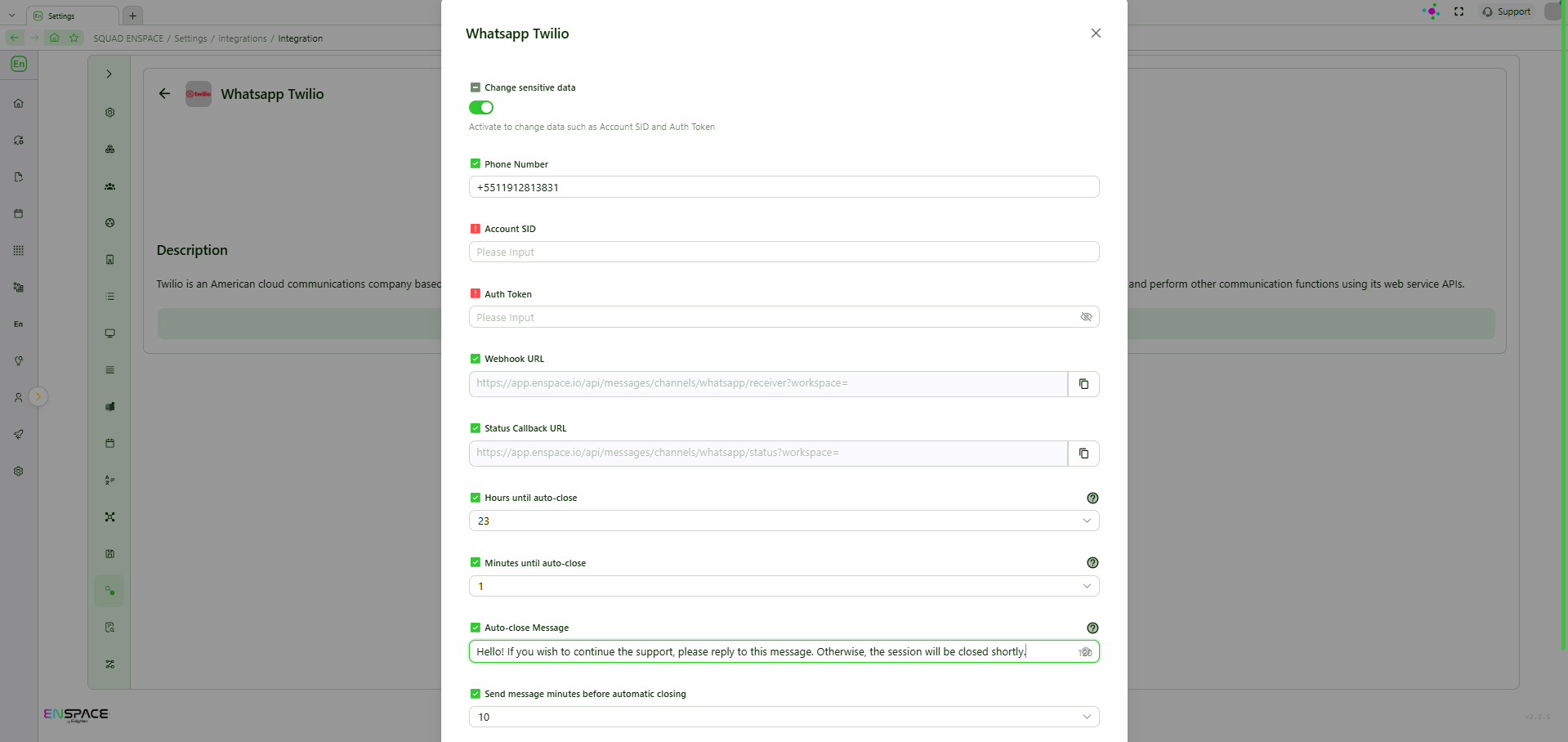
- Click “Save.”
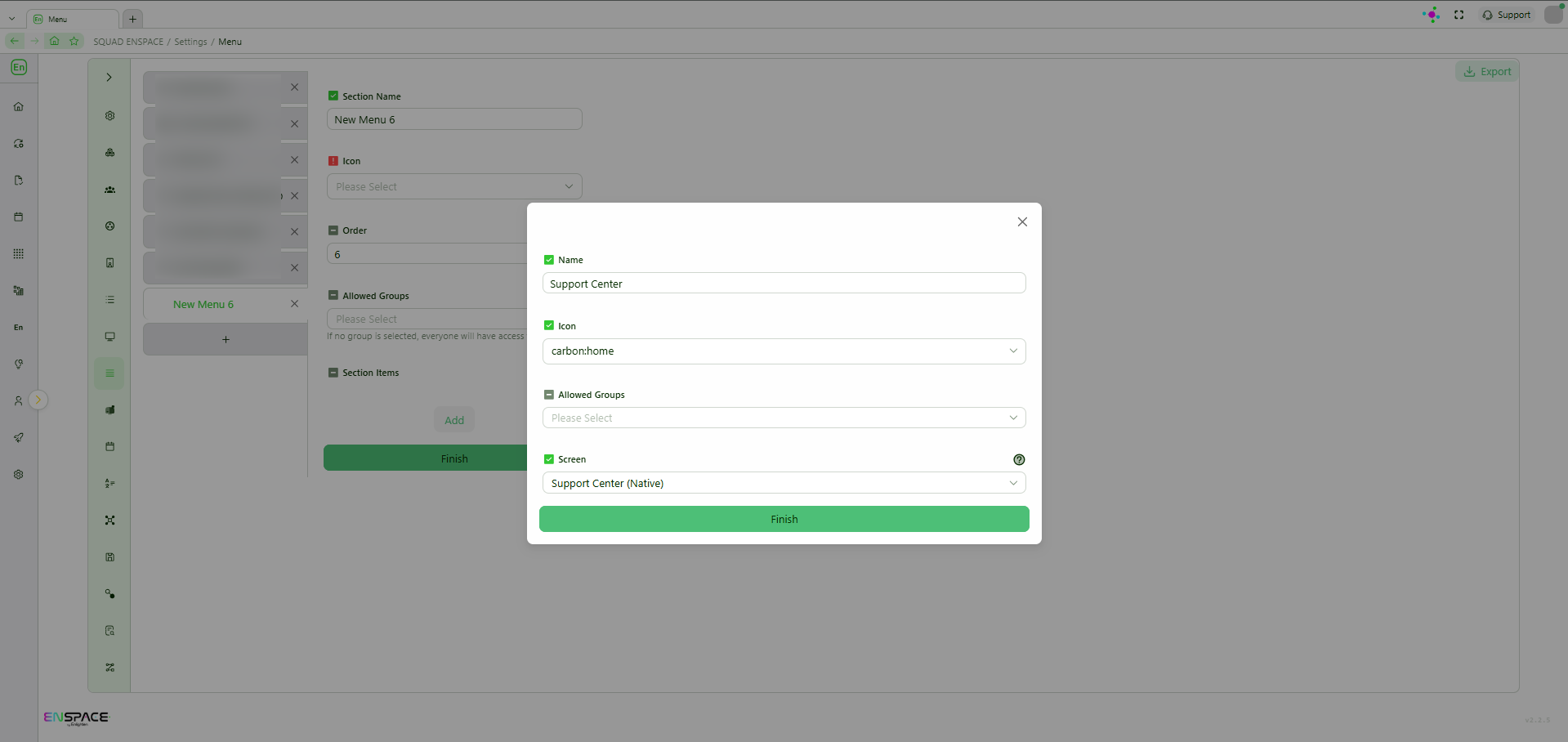
- Go to the menu builder.
- Add a screen called "Native Support Center".
3. Configure Webhook in Twilio
To ensure WhatsApp messages received on your number appear in the ENSPACE Support Center:
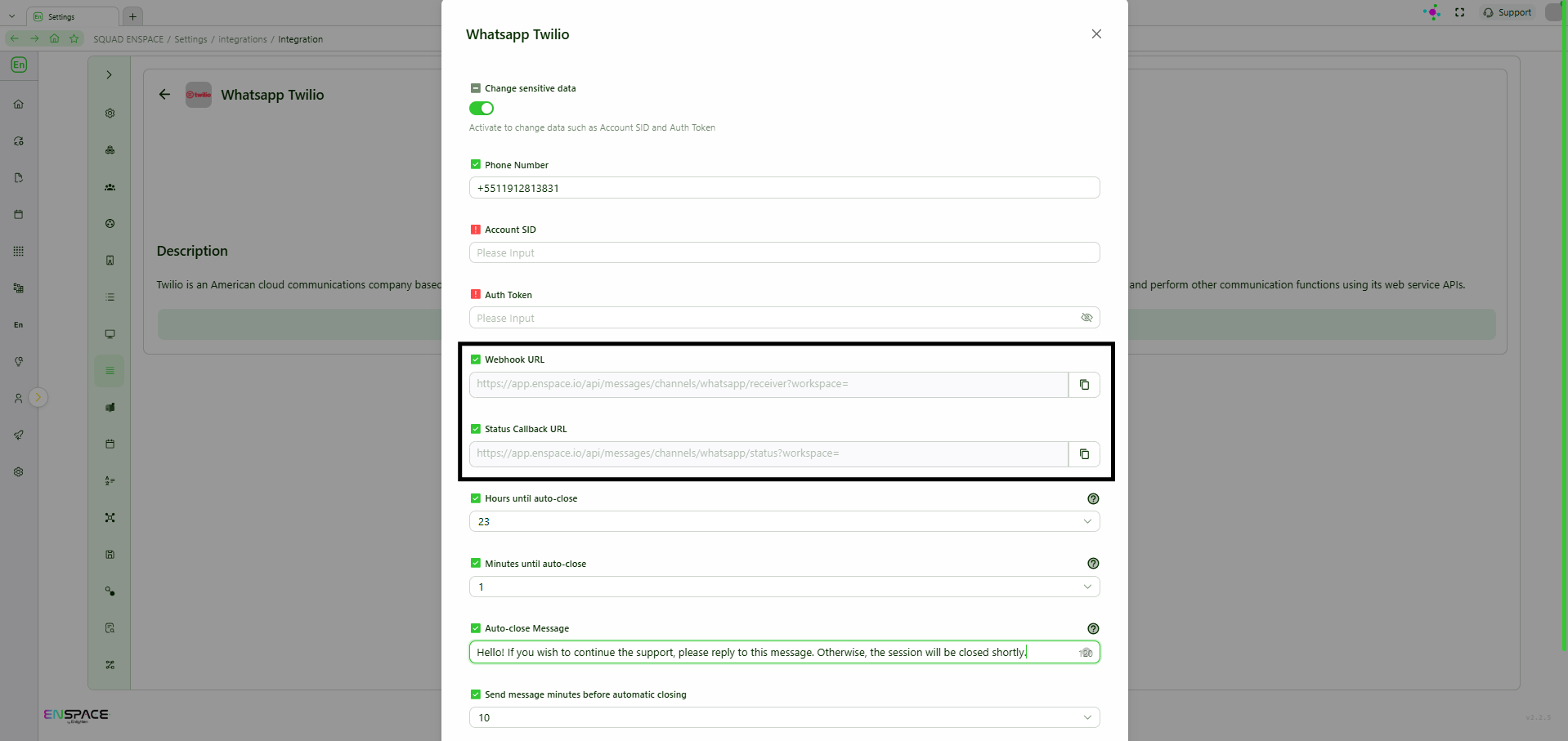
- In ENSPACE, go to the integrations tab.
- Find the Twilio integration and click it. Copy the “Webhook URL” and “Status Callback URL” fields.
- In the Twilio dashboard, go to the Messaging section.
- Click on the phone number used.
- Paste the copied Webhook URL from ENSPACE into the “Webhook URL for incoming messages” field.
- Also paste the Status Callback URL into the corresponding field.
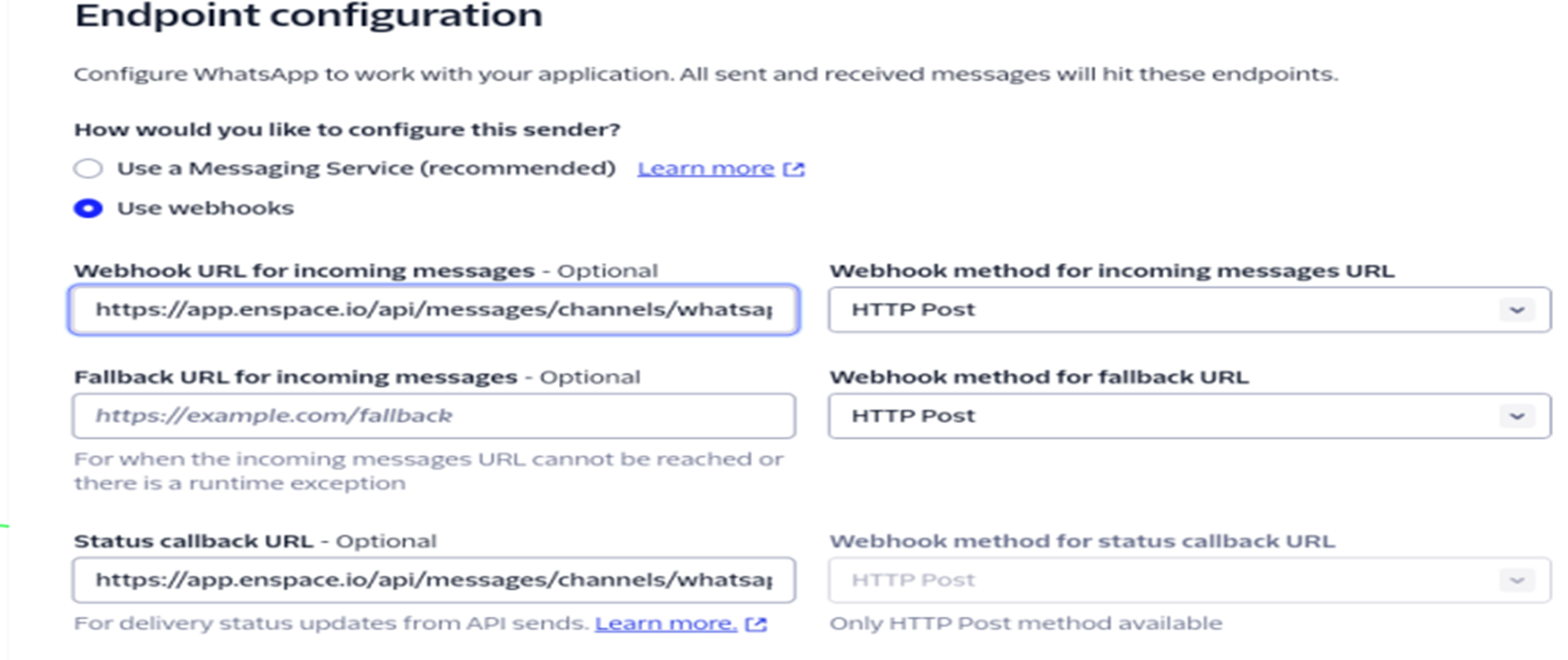
- Save the changes.
4. Using WhatsApp within ENSPACE
After configuration, you will be able to:
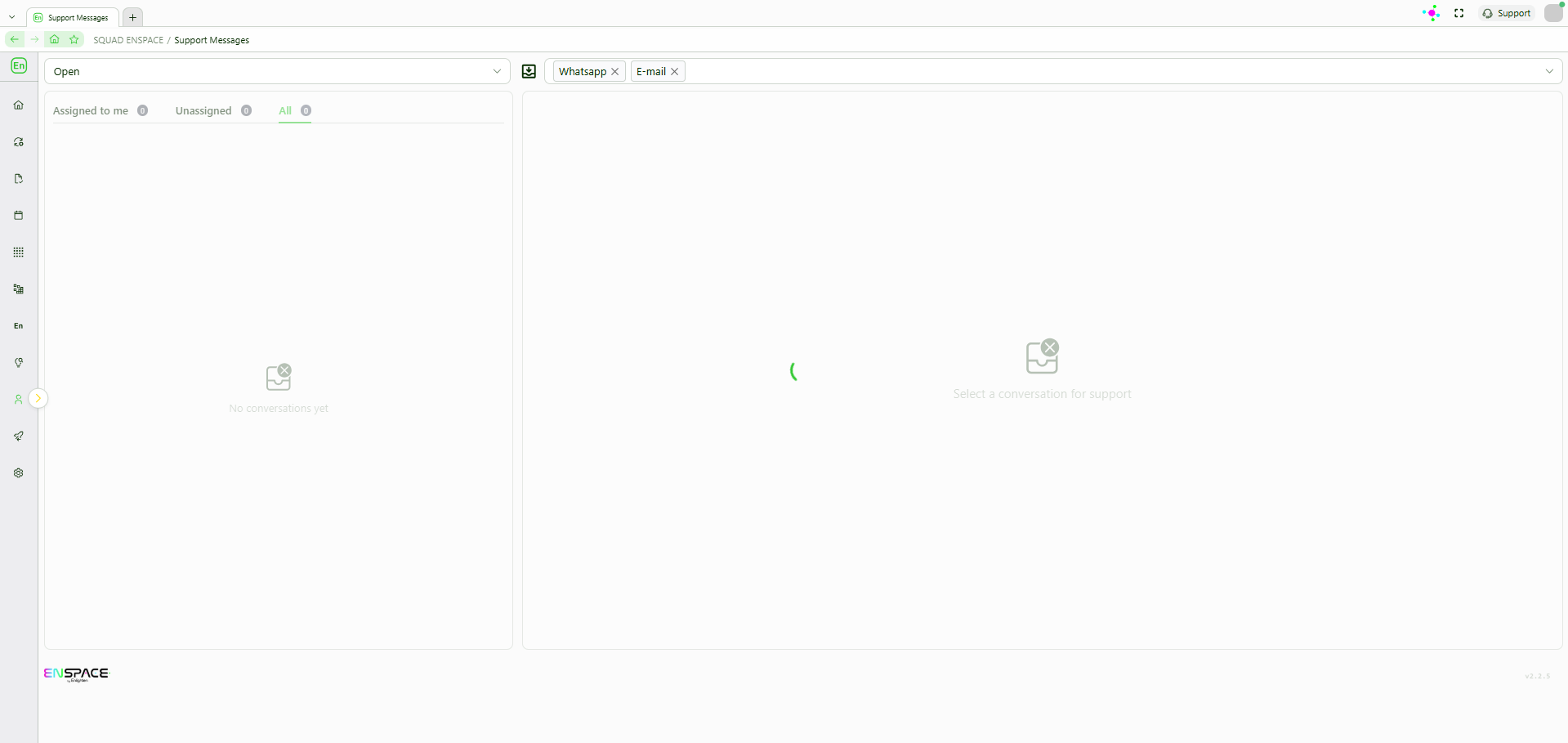
- View and respond to WhatsApp messages inside the Support Center.
- Assign messages to different agents.
⚠️ Remember that your Twilio account must be active and the WhatsApp number properly approved for sending messages via API.