Emails
SendGrid
Learn how the integration between ENSPACE and SendGrid works.
published
Integration with SendGrid
The ENSPACE integration with SendGrid allows automatic and personalized email sending using SendGrid's email infrastructure.
Prerequisites
Before performing the integration, you will need:
- An active SendGrid account
- An API key generated in the SendGrid dashboard
- A domain or Sender previously configured in SendGrid
How to configure the integration
1. Generate an API key in SendGrid
- Access: https://app.sendgrid.com/settings/api_keys
- Click on “Create API Key”
- Give a name to the key (for example: ENSPACE)
- In "API Key Permissions," select "Full Access" or "Restricted Access" as needed
- Click “Create & View” and copy the generated key
Attention: you will see the key only once. Keep it in a safe place.
2. Configuration
- Access the “Integrations” tab in the ENSPACE settings menu.
- Choose the “SendGrid” integration.
- Paste your API key into the indicated field.
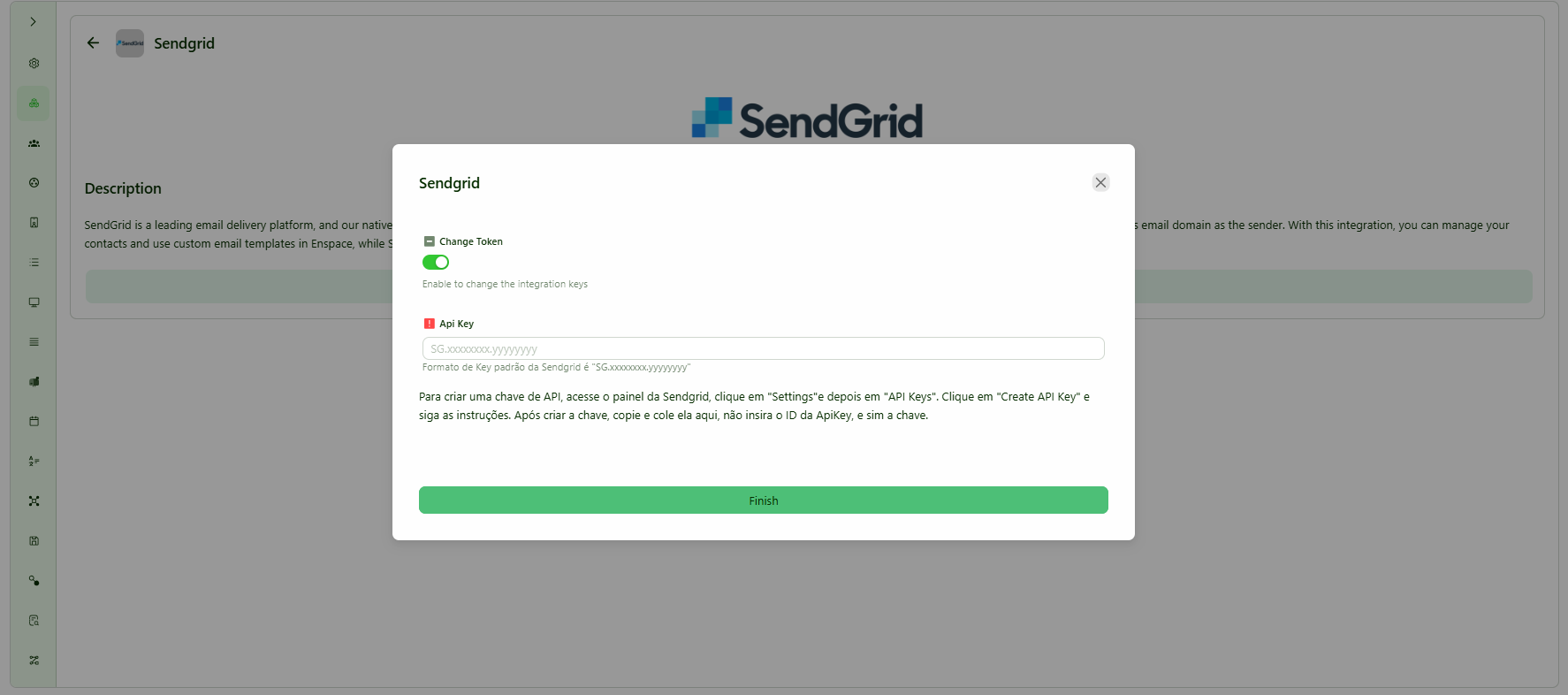
- Click “Save.”
- In the left menu, go to “Settings” and then to “Email Templates.”
- Click “Create.” In the side window that opens, you will find a button called “Use Sender by Integration.”
- If you have configured a Sender in SendGrid, just activate the “Use Sender by Integration” button. The “Sender” field will be displayed, and your Sender should be listed. Remember that the Sender must be verified in SendGrid.
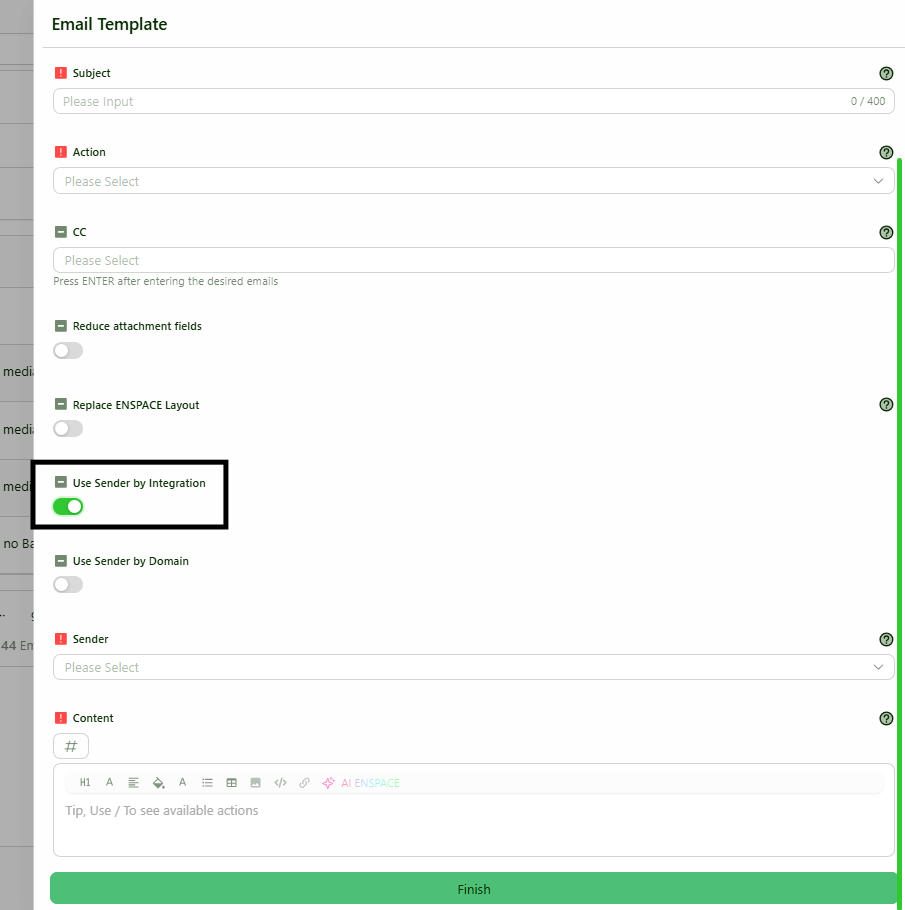
- If you have authenticated a domain, activate the “Use Sender by Domain” button. Then you can type an email address that belongs to the authenticated domain in the “Sender” field. Remember that the domain must be verified in SendGrid.
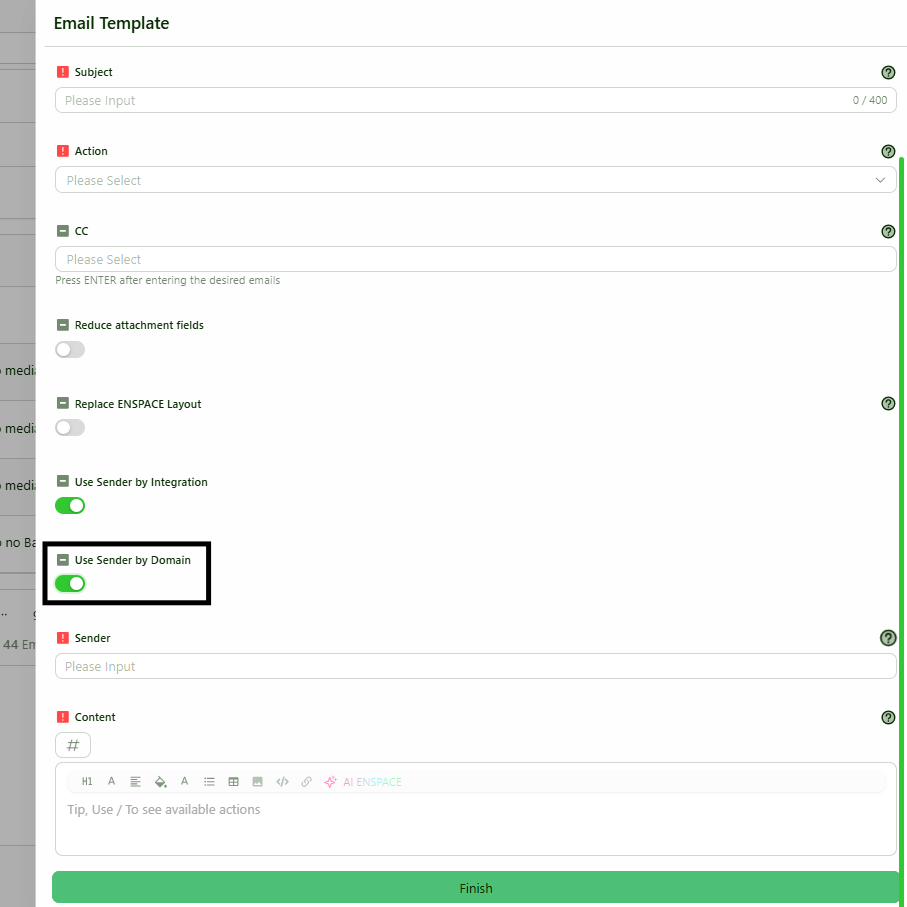
- If you have configured a Sender in SendGrid, just activate the “Use Sender by Integration” button. The “Sender” field will be displayed, and your Sender should be listed. Remember that the Sender must be verified in SendGrid.
Sending emails with SendGrid
After configured, the integration can be used for automatic email sending triggered by:
- Task triggers (e.g., when a task is assigned)
- Custom notifications
Best Practices
- Always test sending emails to yourself before enabling for end users
- Use authenticated domains in SendGrid to avoid emails going to spam
- Monitor your sending quota on SendGrid
Security
- The API key is stored encrypted
- No email content is stored without consent
- All sends comply with SendGrid's security standards
Support
If you face any difficulties with the integration, contact support via the Support button on the top right of the screen or send an email to suporte@be-ENSPACE.com.