AI
OpenAI
Learn how the integration between ENSPACE and OpenAI works.
published
Integration with Artificial Intelligence (OpenAI)
The Artificial Intelligence feature in ENSPACE helps you optimize productivity. AI assists in creating, editing, and reviewing content, all within the platform.
Where is it available?
Currently, AI is integrated into the:
- HTML Editor
Available Features
By clicking the AI button in the Editor, you will find the following options:
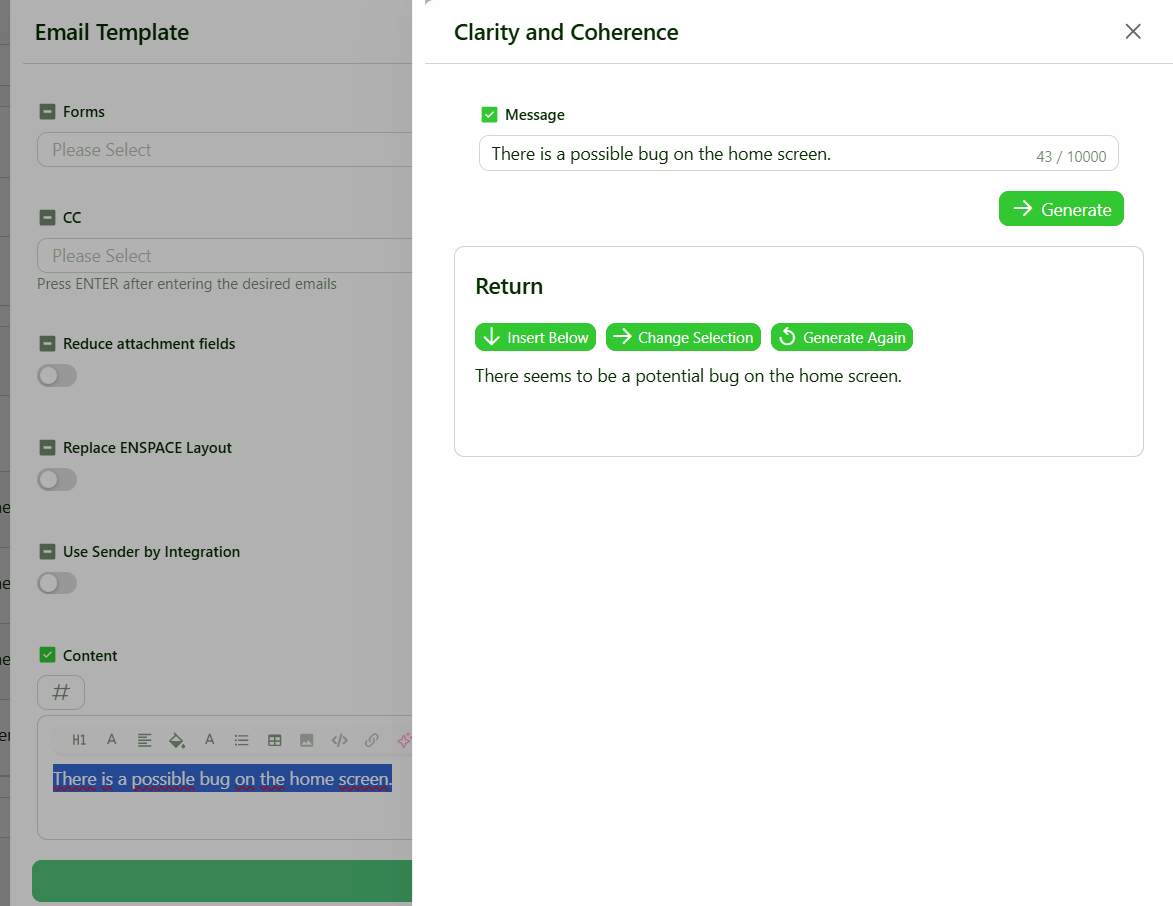
- Review Text: Improves the grammar and structure of the selected content, correcting grammar, punctuation, and style errors.
- Translate: Allows you to translate the selected text into other languages. Ideal for multilingual newsletters, public pages, and more.
- Summarize: Generates an objective and concise summary of the chosen content, useful for creating headlines, titles, or previews.
- Continue Writing: The AI continues the content based on the previous text, maintaining the same tone and topic.
- Explain: Provides a simplified explanation of the selected content, ideal for understanding technical terms or complex parts of the text.
- Upload File: You can upload a file with context (PDF, DOCX, etc.). The AI will use the file content to generate answers, summaries, or related content.
- Custom: Allows you to make any text request to the AI: create a paragraph, generate code, rephrase an idea, and more.
Privacy and Security
- AI only accesses the data you select or upload.
- No information is shared with third parties.
- All processing is done securely, respecting OpenAI's terms.
Prerequisites
Before integrating, you will need:
- OpenAI credits
- An OpenAI token from an account with credits
How to Configure?
- In the ENSPACE side menu, go to “Settings”.
- In the submenu that opens, click “Integrations”.
- Locate “OpenAI” and click “Install Integration”.
- Enter your API key obtained from the OpenAI platform.
- Click “Save” to complete the integration.
How to Use It?
- Open an HTML Editor.
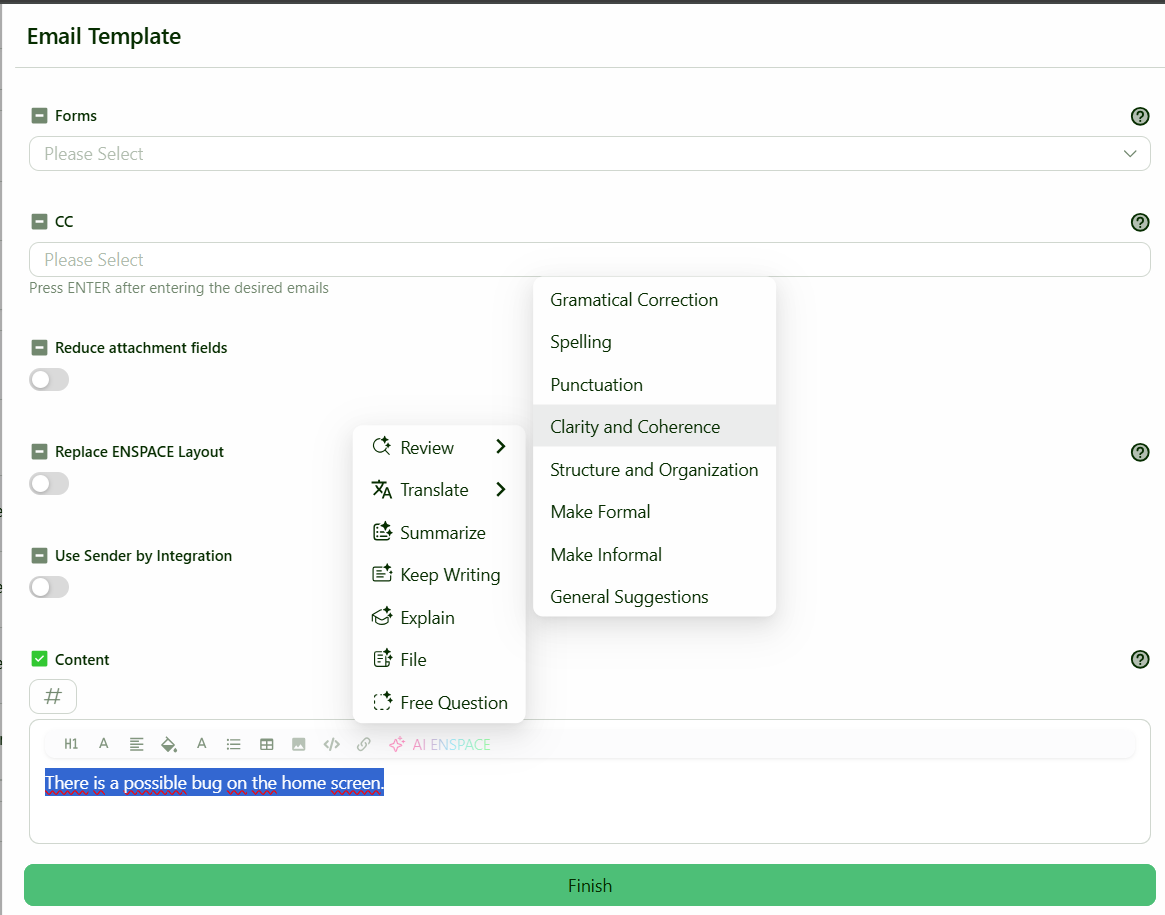
- Select a text segment or place the cursor where you want the insertion.
- Click the AI button.
- Choose one of the available actions.
- The content will be generated and can be reviewed before insertion.
Usage Examples
- Create a simple explanation for a business process.
- Quickly correct a written proposal.
- Generate translations for contracts or notices.
- Create an automatic response for a client.
- Generate ideas for a page title.
Support
If you experience difficulties with the integration, contact support via the Support button on the top right of the screen or send an email to suporte@be-ENSPACE.com.