Developer
Generate access tokens for the API
The Dev tab allows you to create personal access tokens to authenticate your calls to the ENSPACE API. Tokens are required to configure custom integrations, external automations, or any direct communication with the API.
To access it, click the icon with your initials (or your photo) in the top right corner of the screen, select "User Settings", and navigate to the Dev tab.
Tokens
How to create a token
Access the Dev tab
In the User Panel, navigate to the Dev tab. Make sure the Tokens sub-tab is selected.
Start the creation
Click "Create your first token" (or "New token", if tokens already exist).
Configure the token
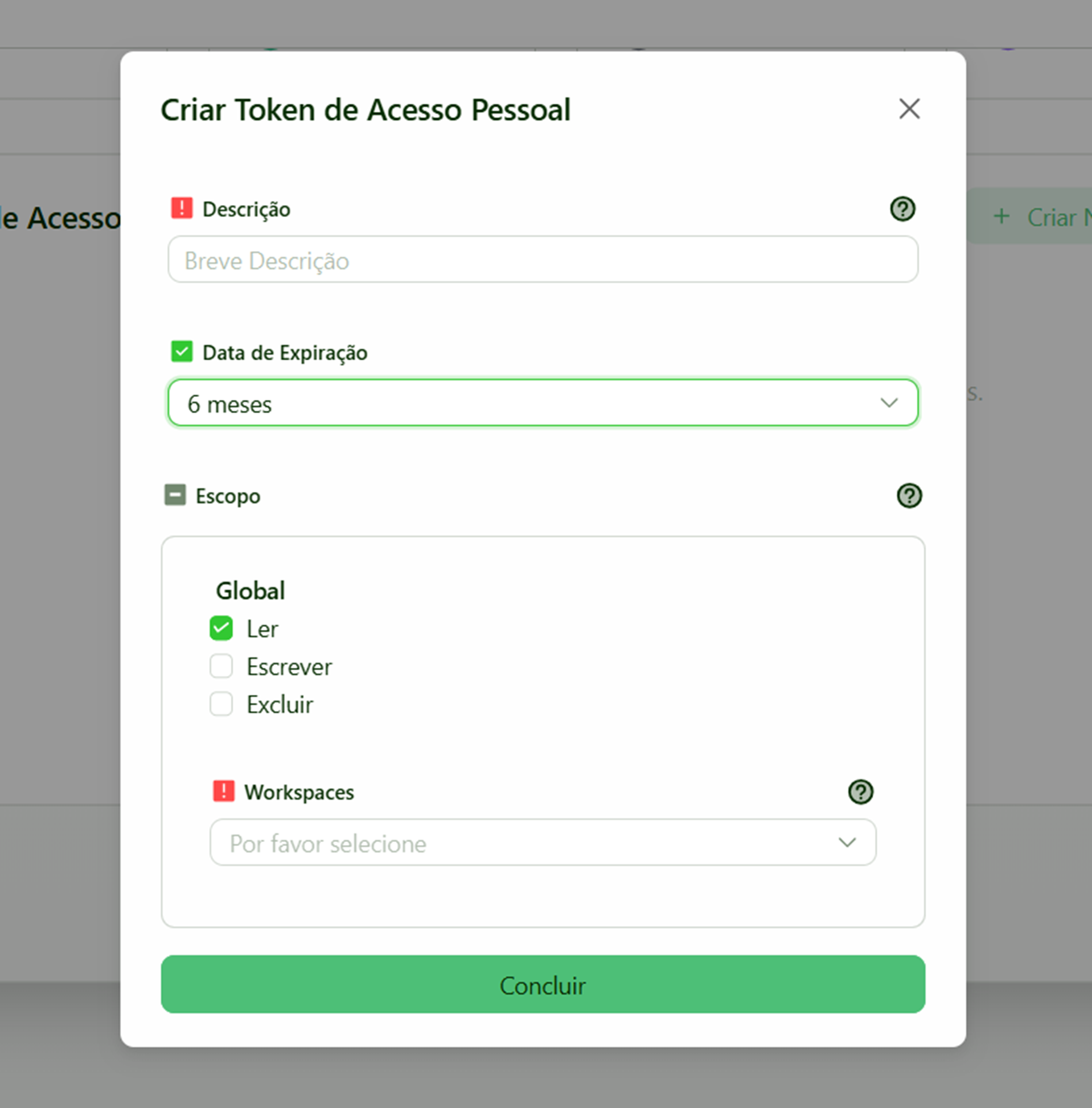
In the window that opens, fill in:
- Description — an identifying name for the token (e.g., "ERP Integration", "Mobile App").
- Expiration — token validity period. Options are: 1 month, 2 months, 3 months, 6 months, 1 year, 2 years, or no expiration.
- Scopes — the token’s permissions over data accessible via the API:
- Read — allows querying data (list, search, view).
- Write — allows creating and updating data.
- Delete — allows deleting data.
- Workspaces — select which workspaces the token will have access to.
Save the token
After generating, the token will be displayed on the screen.
The token will be displayed only once. Copy and store it in a secure place (such as a password manager or environment variable). It will not be possible to view it again.
Manage tokens
Tokens cannot be edited after creation. If you need to change scopes, workspaces, or expiration, create a new token with the desired settings.
In the Tokens sub-tab, you can view all created tokens and their configurations.
Best practices
- Create specific tokens per integration or environment — avoid generic tokens with full access.
- Set an appropriate expiration — tokens without expiration represent a security risk.
- Use the minimum required scope — if the integration only reads data, select only Read.
- Never expose tokens in source code, public repositories, or messages.
Request Logs
The Request Logs sub-tab displays the history of API requests made using your tokens. To view it, select a token and the desired time period.
Logs are kept for 90 days and automatically deleted after this period.