Authentication
Log in and access your workspaces
Authentication is the process that verifies your identity when accessing ENSPACE. After creating your account, you use your credentials to log in and access the workspaces you are part of.
To access ENSPACE, go to be.enspace.io and log in with your credentials.
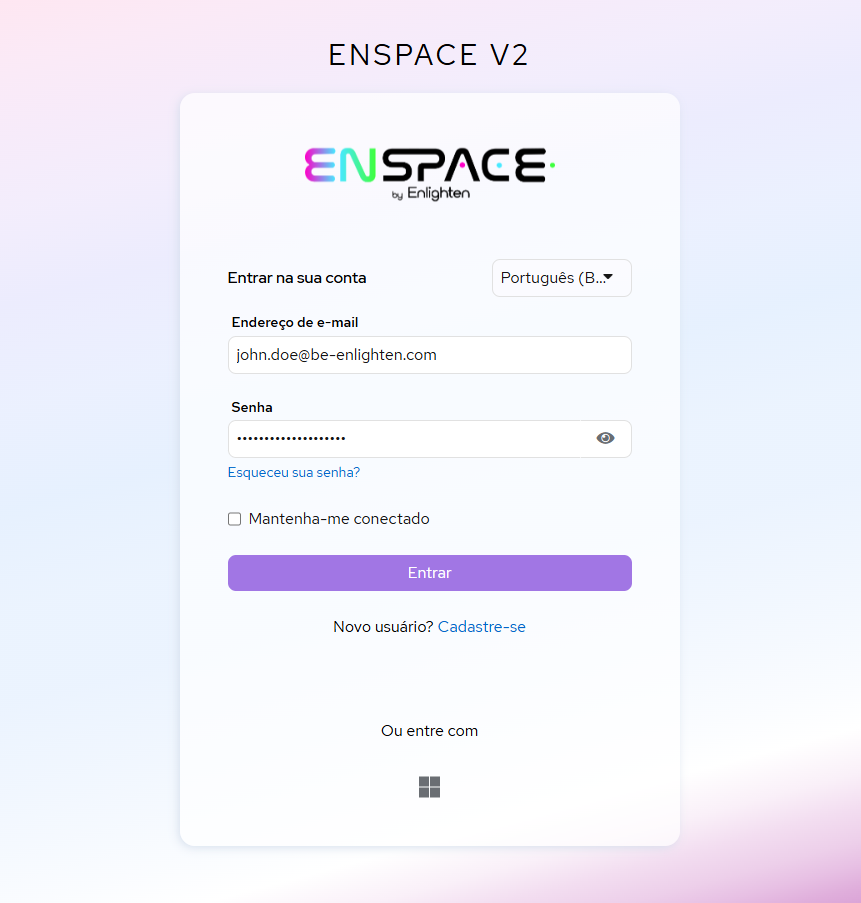
Login methods
ENSPACE offers two authentication methods:
Email and password
The standard login method. You use the email and password you defined at the time of registration. Your password is unique — the same credential works across all workspaces you participate in.
Corporate SSO (Microsoft)
If your environment is integrated with a Microsoft identity provider, you can log in directly with your corporate credentials, without needing a separate password in ENSPACE.
SSO is configured by the ENSPACE team when you become a customer and is linked to your access environment (URL). If your environment has SSO configured, the Microsoft icon will appear on the login screen. If it does not appear and you believe it should be available, contact support at suporte@enspace.io.
Sessions
ENSPACE keeps your session active automatically so you don’t need to log in every time you access the platform. The session is renewed in the background, without any action on your part.
In practice, this means you can close your browser, reopen it, and continue from where you left off — without needing to enter your credentials again.
When the session expires
There are two scenarios in which the system will request a new login:
- Prolonged inactivity — if you go more than 2 hours without interacting with ENSPACE, the session expires for security reasons.
- Maximum session duration — even with continuous use, the session expires after 12 hours and a new login will be required.
- Manual logout — if you intentionally end the session through the user menu, you will need to log in again.
Tip
Check the "Remember me" option on the login screen to extend the session duration. With this option enabled, your session remains valid for up to 30 days without use, avoiding frequent logins.
Workspace screen
After logging in, you are directed to the home screen of available workspaces. There, you can see all the workspaces you are part of and choose which one you want to work in.
If you have pending invitations, they will also appear on this screen with a notice to accept or reject them.
Forgot your password?
If you cannot access your account, see the Access Recovery page.