User Registration
Create your account and start using ENSPACE
To use ENSPACE, the first step is to create an account. The account is personal, identified by your email, and gives access to all workspaces you are part of.
There are two ways to get started: creating your account independently or receiving an invitation to an existing workspace.
Create an account on your own
Access ENSPACE
Access the ENSPACE platform. You will see the login screen.
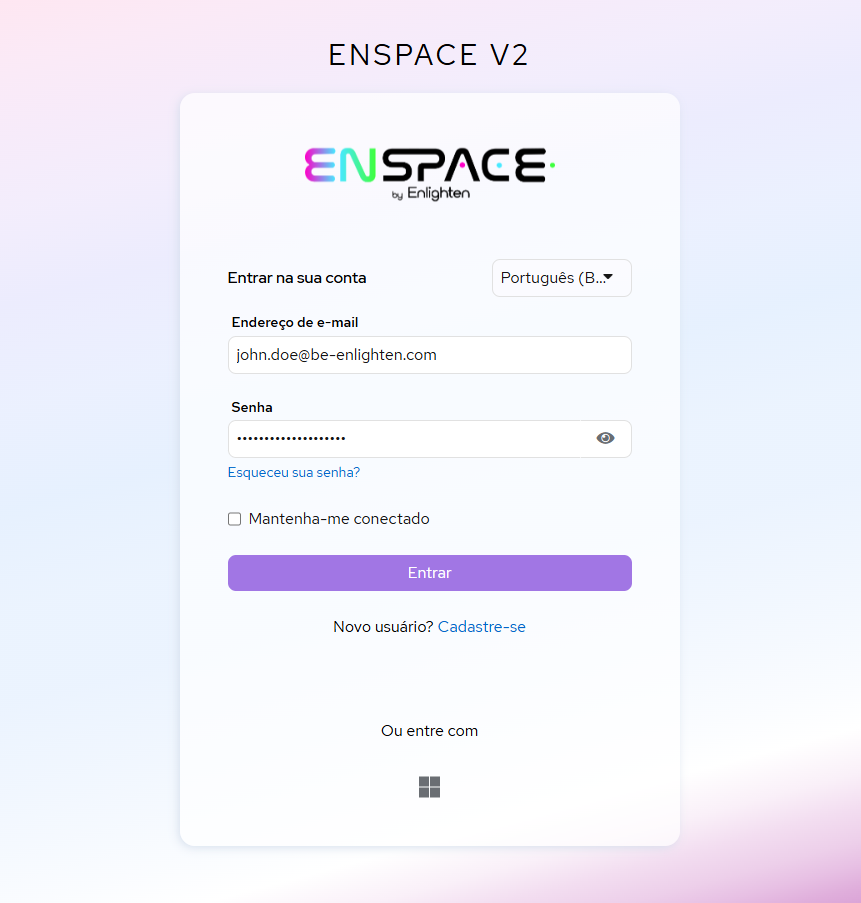
Click on "Register"
At the bottom of the login screen, click the "Register" link to access the registration form.
Fill in your details
Enter your email, create a password, and fill in your first and last name. Fields marked with an asterisk are required.

Done — you’re in
After registering, you are automatically directed to the workspace home screen. Since this is your first time, the screen will appear empty. From here, you can create your first workspace by clicking "Create".

The number of workspaces you can create or join depends on the subscribed plan. See the available plans for more details.
Access a workspace via invitation
To join an existing workspace, you need to receive an invitation. The invitation is sent by a workspace member who has permission to invite new members, and it is sent to the email provided by the person responsible when sending the invitation.
How the invitation works
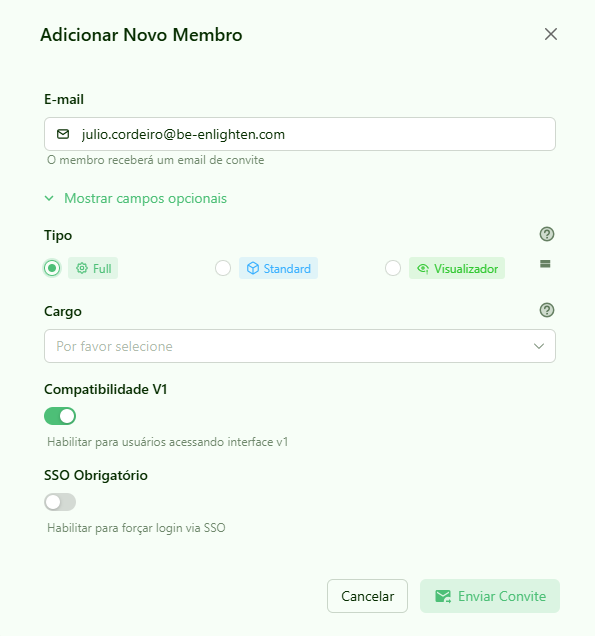
The responsible person sends the invitation
A workspace member with permission sends the invitation to your email.
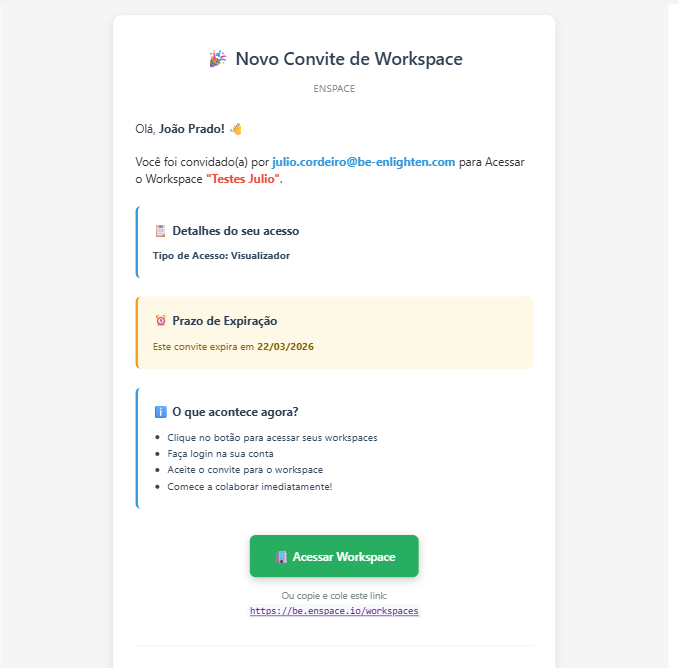
You receive the invitation by email
The email contains a unique link to activate your access to the workspace.
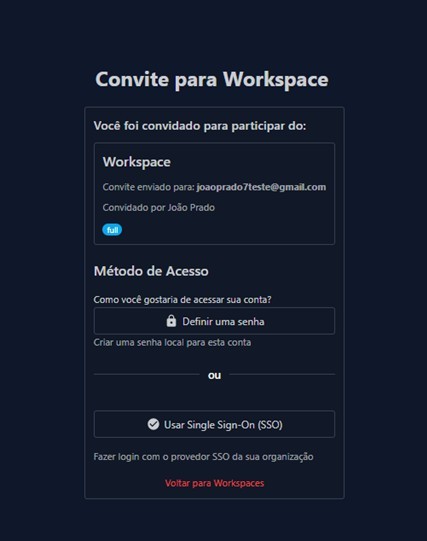
You set your password (first access)
If this is your first ENSPACE account, the link directs you to the login screen. Click on "Set a password" to create your credentials.
Your access is activated
After setting your password, your status in the workspace changes from "Pending" to "Active Member" and you can already access the workspace.
I already have an account and received a new invitation
If you already have an ENSPACE account and receive an invitation to another workspace, there is no need to create a new account or set a new password.
The invitation appears directly on your workspace home screen, with a notice about the workspace you were invited to. Simply click the notice and choose to accept or reject the invitation.
Invitations automatically expire after 15 days. If the deadline passes, the workspace will appear on your screen with an expired invitation indication, and you will need to ask the responsible person to send a new invitation.

Rules about invitations
- Who can invite — only workspace members who have permission to manage members. To learn more about permissions, see the Roles and Permissions documentation.
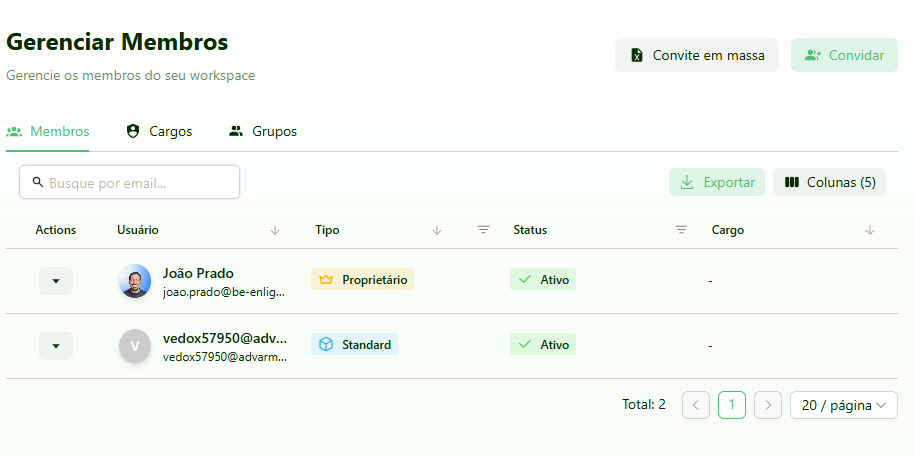
- While the invitation is not accepted — the invited user appears in the workspace member list with Pending status.
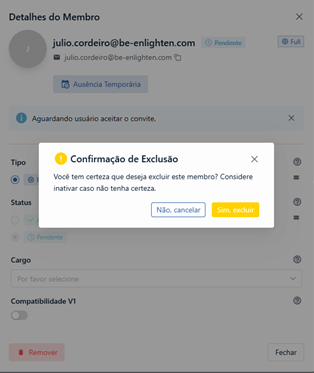
- Cancel an invitation — the responsible person can cancel a pending invitation by removing the invited member from the member list.
- Insufficient permissions — when accepting an invitation, you receive the role defined by the responsible person. If you need more permissions, contact a workspace member who has access to the Roles and Permissions settings.
Next steps
After creating your account or accepting an invitation, you can already access ENSPACE. To understand how login works, see the Authentication page.