Overview
View your workspace information
The Overview screen is the first screen displayed when accessing the Settings section. It works as a summarized dashboard of the workspace, with shortcuts to the most commonly used settings and identification information.
To access it, click Settings > Overview in the side menu.
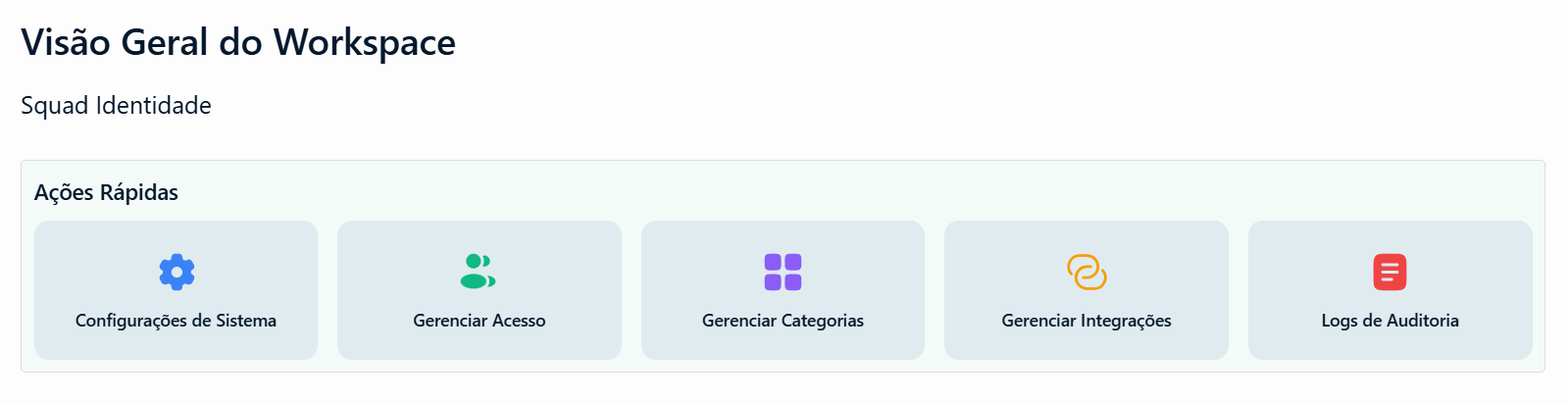
Quick Actions
At the top of the screen, five shortcuts provide direct access to the most frequently used settings:
- System Settings — opens the general workspace settings.
- Manage Access — opens the Member Management screen.
- Manage Categories — opens category management in the Structure section.
- Manage Integrations — opens the Integrations screen.
- Audit Logs — opens the audit records.
These actions are shortcuts to the same screens accessible through the side menu — they do not perform different actions. They are fixed and cannot be customized.
Members with Standard and Viewer licenses can view this screen, but quick actions will be disabled.
Workspace Information
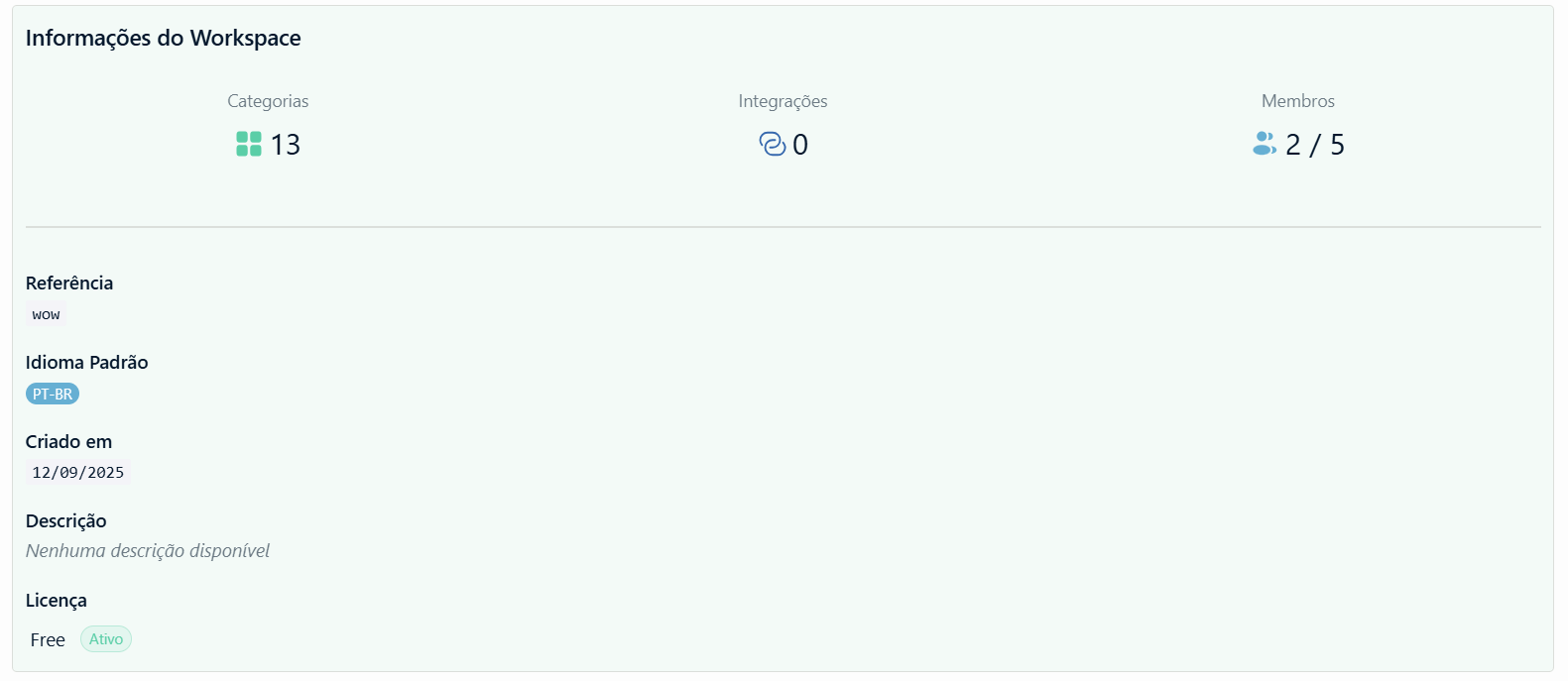
The information section displays a summary of the workspace:
Indicators — number of categories, integrations, and members currently in the workspace.
Details:
- Reference — the workspace slug (e.g.,
be-enspace). It is the technical identifier that appears in the URL. - Default Language — the base language applied to the workspace.
- Created At — workspace creation date.
- Description — optional field with the purpose or general information about the workspace.
- License — the plan subscribed for this workspace.
Reference, default language, and description can be edited on the Basic Information screen, within System.