Seal
Configure a member’s seal
The per-member seal allows you to define an individual stamp that will be automatically applied to PDF documents generated by category flows configured with the User Stamp type.
Each member can have their own seal, and the configuration is independent across members. Changes to the seal only affect documents generated after the change — already generated documents are not affected. You can replace or delete the seal at any time.
For a general overview of the seal feature (types, positioning, sizing), see Document Seal.
Prerequisite
For the Seal button to appear in the Member Details modal, the option "Enable custom document stamp" must be enabled in Settings > System > Basic Information.
Access system settings
In the side menu, go to Settings > System.
Enable the stamp option
In the Additional Settings section, enable "Enable custom document stamp".
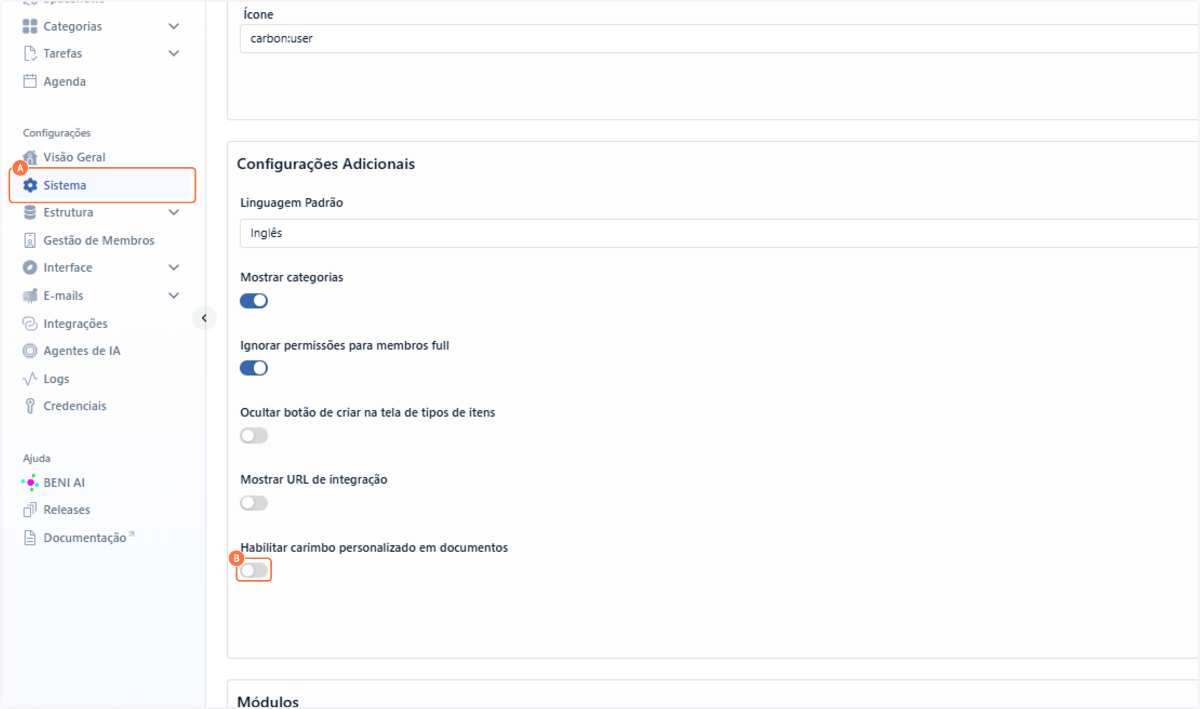
Save
Click Save.

How to configure a member’s seal
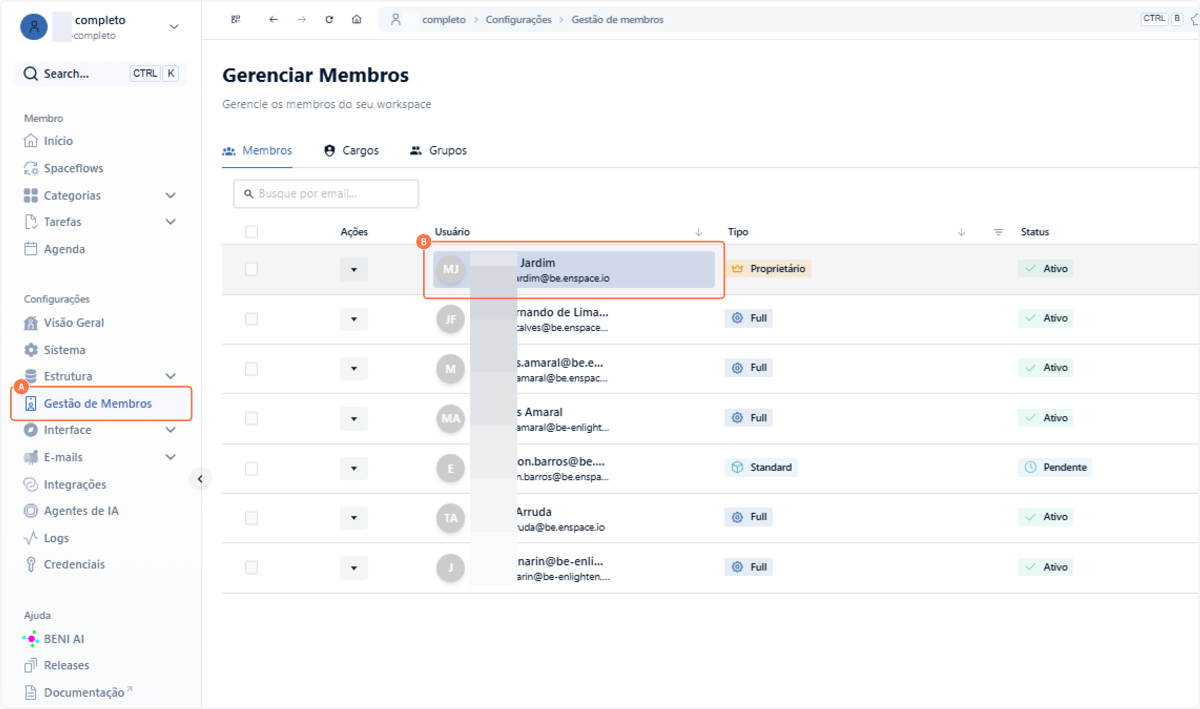
Access Member Management
In the side menu, go to Settings > Member Management and click the desired member.
Click Seal
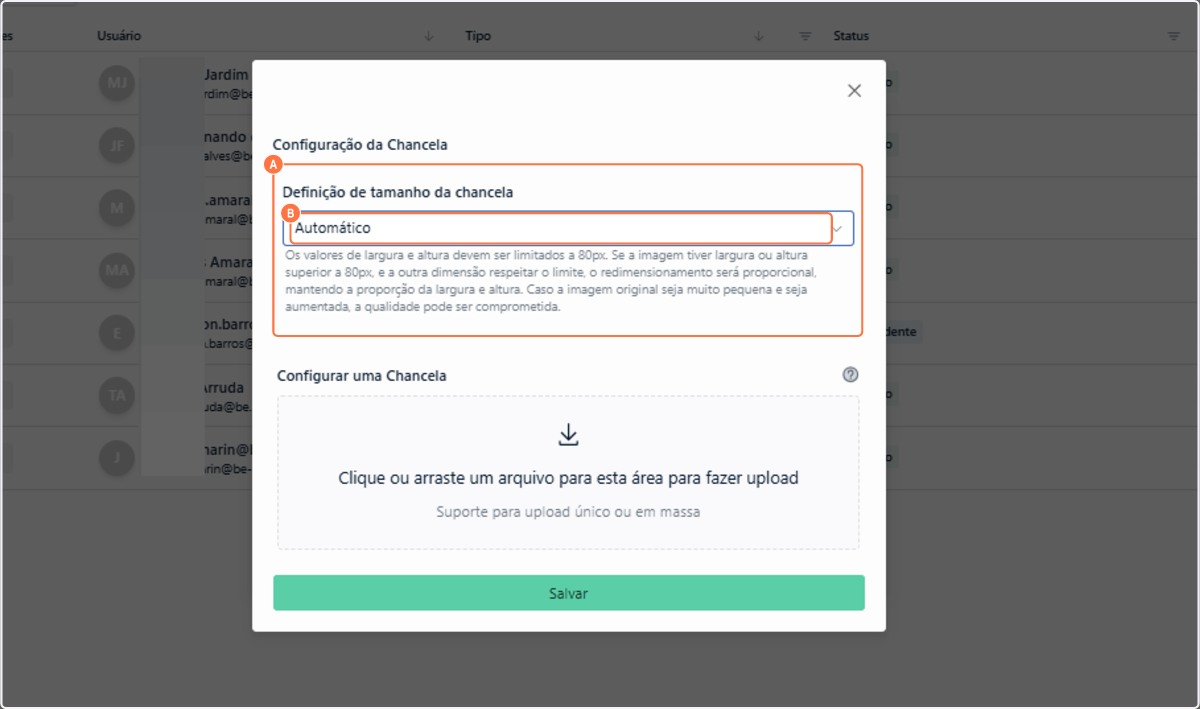
In the Member Details modal, click the Seal button.

Define seal size
Choose between two modes:
- Automatic — the system adjusts the image while preserving proportions and a maximum limit of 80x80px.
- Custom — allows manual width and height configuration, within the 80x80px limit.

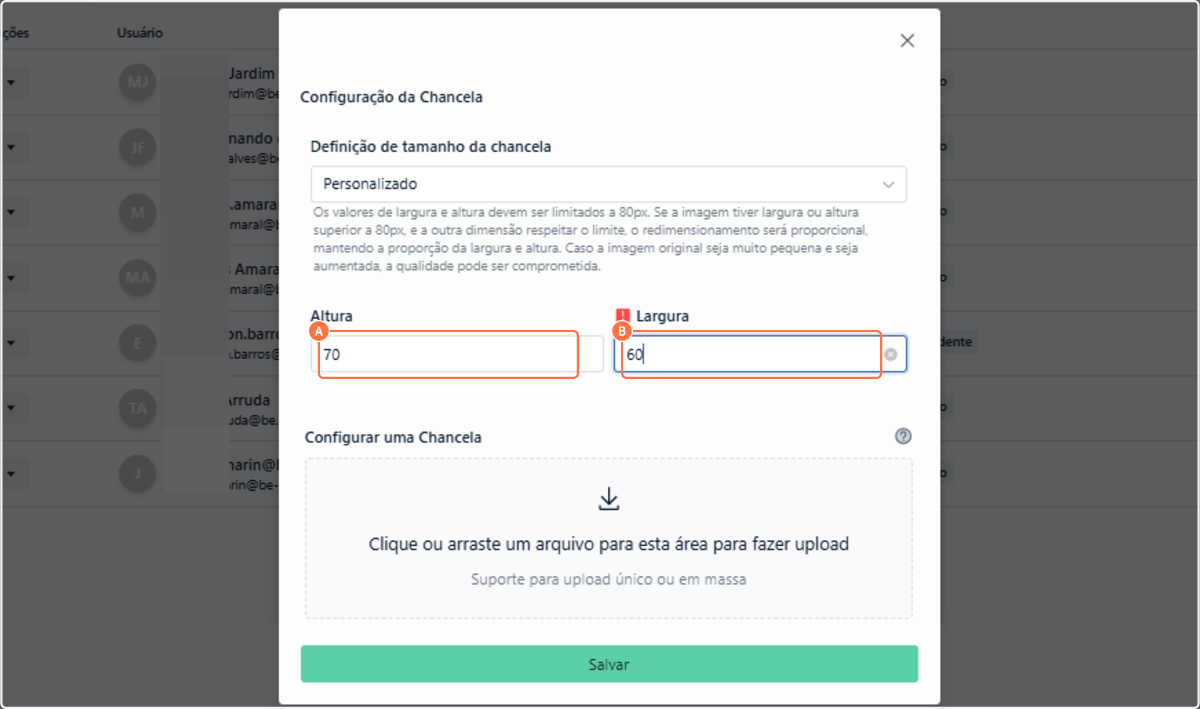
Upload the image
Click the upload area and select the seal file. Supported formats include non-animated image files (PNG, JPG, SVG, static GIF, among others). Images with transparent backgrounds and no white margins are recommended.

Save
Click Save. The seal will be ready to use.

When the seal is applied
The seal configured here will be automatically used when a category flow includes a task with PDF generation and the seal type is set to User Stamp. In this case, when the task is completed, the responsible member’s seal is applied to all pages of the document.
The seal position in the document is defined in the task configuration within the flow — only when the type is Single Stamp (defined directly in the task). For the User Stamp type, the position is part of the member configuration.
Any member with Owner or Full license (with permission) can configure seals for other members.
To learn how to configure seals in flow tasks, see the Flow documentation.