Settings
Customize your viewing preferences
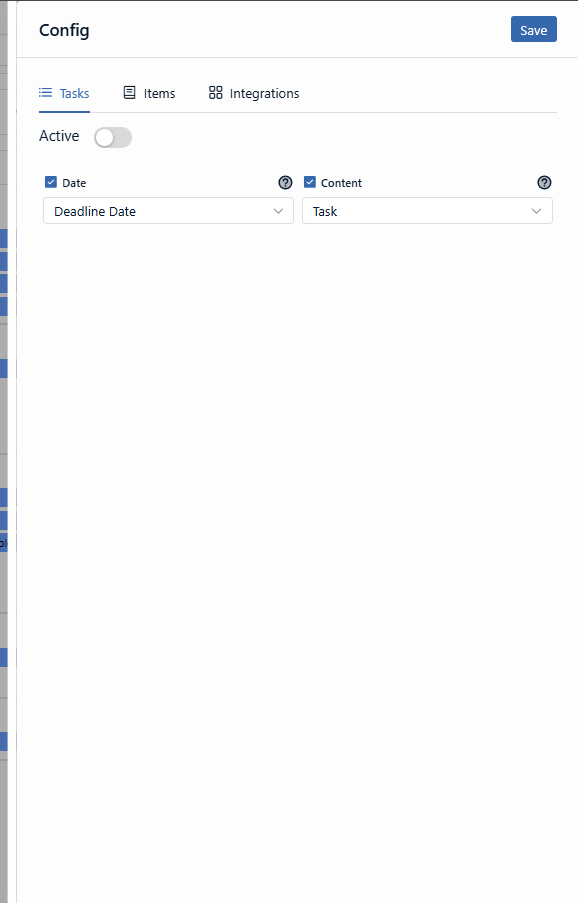
The Settings screen allows you to shape the Schedule experience so that it reflects your operational priorities. You can define which categories to monitor, which fields serve as deadline references, and which external calendars to integrate into your view.
To access it, click the gear icon located in the top right corner of the Schedule screen.
Display management
Settings are divided into tabs. Remember to click Save at the end of your changes to apply them to your workspace.
Tasks
Defines how the workspace workflow and deadlines are plotted on the calendar.
Task parameters
- Show Tasks — Toggle to enable or disable task display in the schedule. This does not affect your system notifications or due date alerts.
- Reference date — Defines the time field that will position the task. Note: Only one date field can be selected per configuration.
- Displayed content — Choose which metadata (ID, name, status, etc.) will appear on the card for quick identification.
Category Items
Allows you to track records from specific categories. If you cannot find a category in the list, check whether your role has the necessary access permissions.
Settings per category
- Category selection — Choose the categories you want to monitor.
- Reference date — Choose the date field that will serve as the trigger for display on the calendar.
- Color customization — Define a color for the category. Be careful when choosing similar colors for different categories, as the system does not prevent visual overlap.
The color and display settings defined on this screen apply to the entire workspace. Changes made here will affect the view of all members who use the schedule.
Integration and Shared Calendars
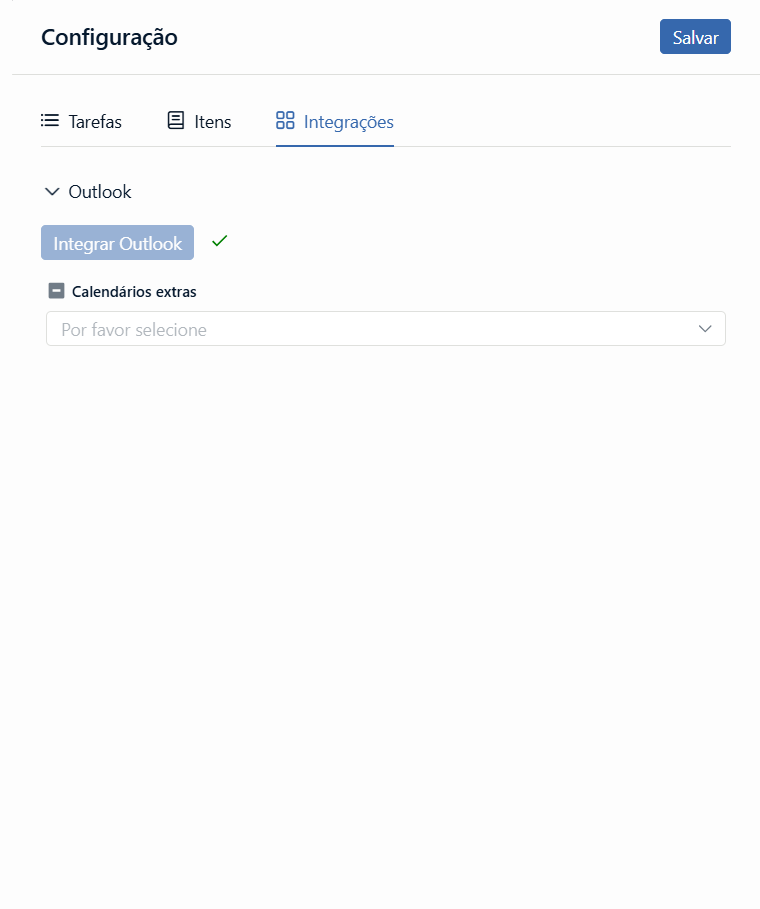
In the Outlook tab, you manage the display of external appointments and team collaboration.
Team Calendars
You can overlay other members’ schedules to facilitate meeting scheduling.
Add calendar
Within the Outlook tab, select the option to add a shared calendar.
Identify the member
Enter the email of the coworker whose calendar you want to view.
Set the color
Choose a specific color for this calendar to differentiate it from your personal appointments and save the changes.