1.0.0 is live


RELEASE NOTES
1. New Features
1.1 Word Plugin: ENSPACE inside Microsoft Word
This is the first version of the ENSPACE Plugin for Microsoft Word, which works inside Word rather than inside ENSPACE. It is a separate product that brings your workspace into your documents.
From a side panel in Word itself, you sign in to your account, choose the workspace and use the resources you already configured in ENSPACE, without switching systems. The connection goes both ways: Word now reaches ENSPACE agents, playbooks and templates, and the document you work on can become a template in your workspace.
In this first version, the focus is AI document review and editing and creating templates. You run AI reviewer agents from the document chat, applying a playbook when you want a specific set of criteria, and the suggestions arrive as Word tracked changes, to accept or reject one by one, generating a new version. You can also choose ready-made templates by category, turn the current document into a new template and configure variables and logic blocks of your ENSPACE documents directly in Word.
Everything respects the workspace and your permissions: you only see and use what you have access to, and every AI execution is logged for history and audit.
📋 Step by step: start using the ENSPACE Plugin in Word
In Word, with the document open, open the plugin from the Enspace group on the Home ribbon
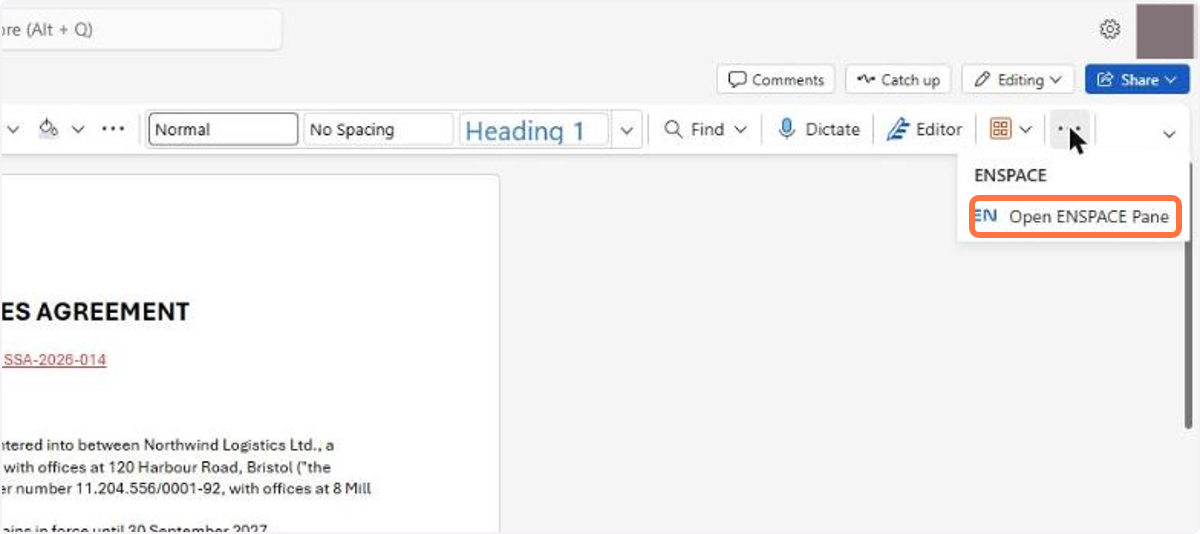
Select the workspace you are going to work in
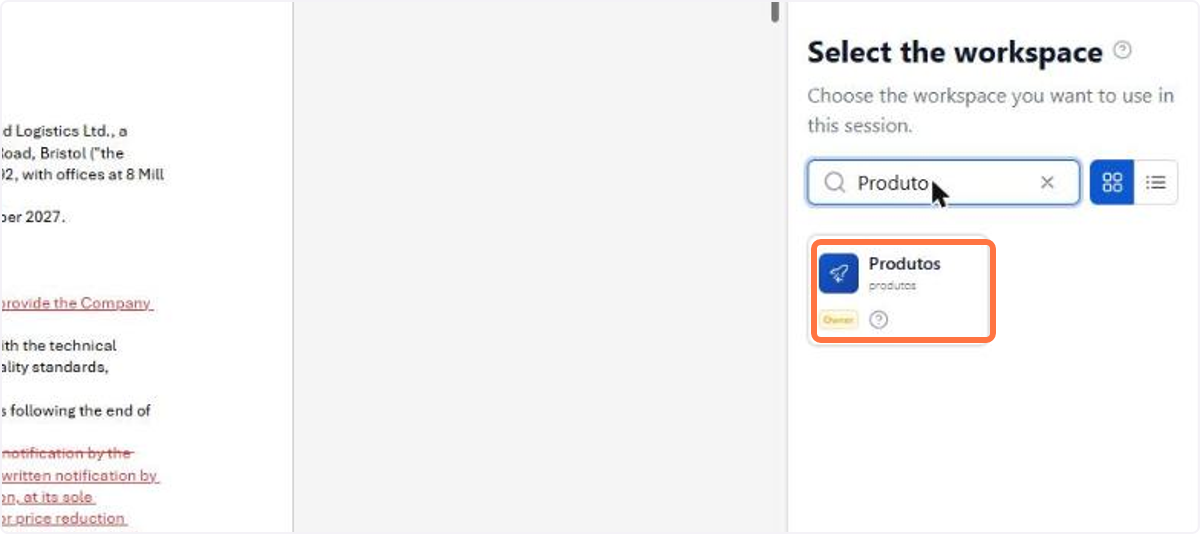
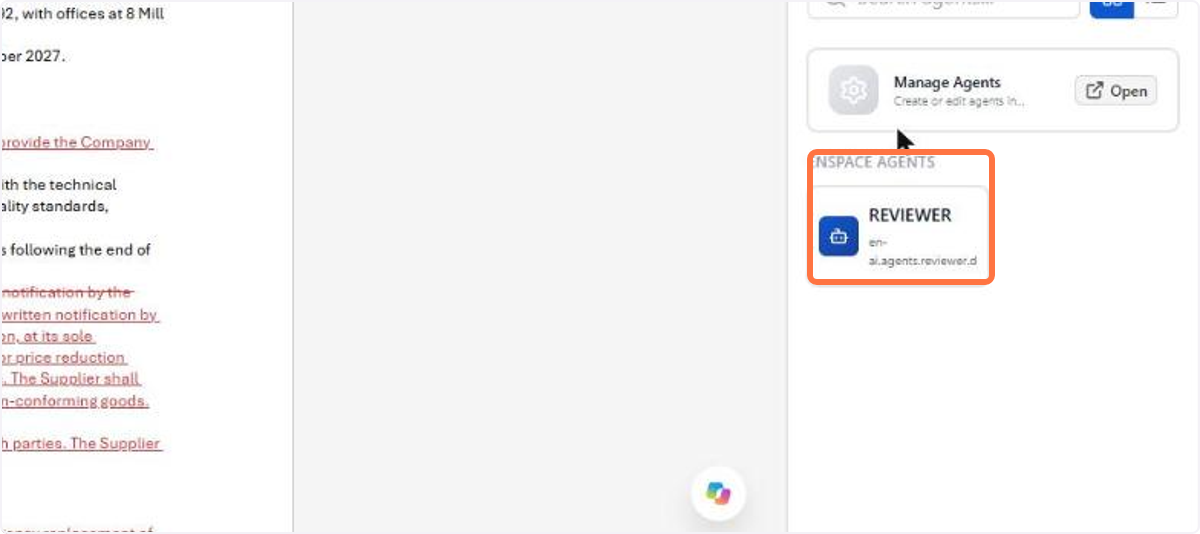
On the Assistants (AI) tab, choose the reviewer agent
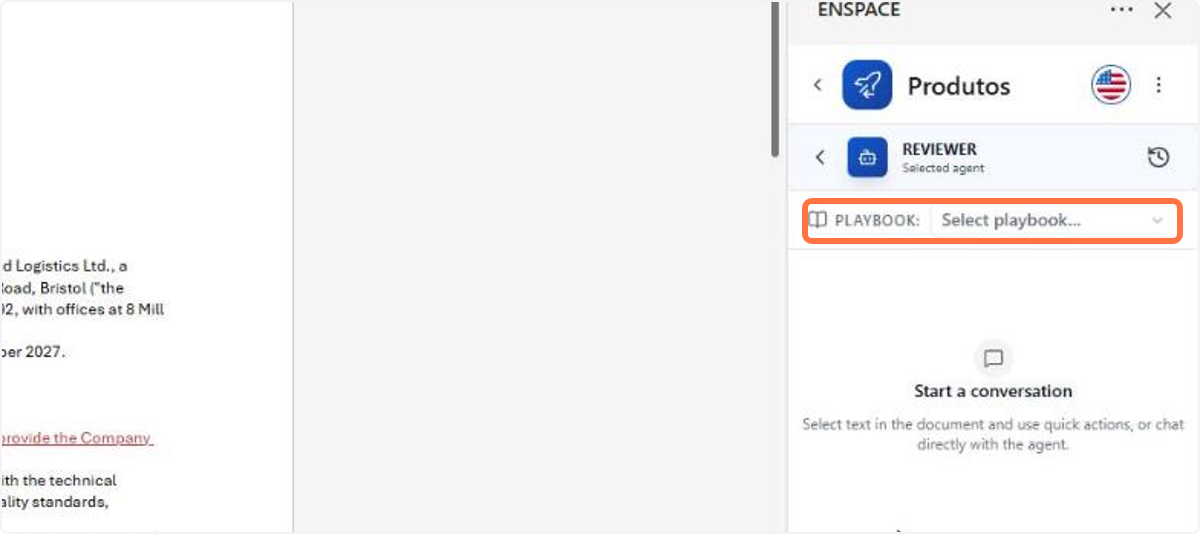
Under PLAYBOOK, choose the set of review criteria
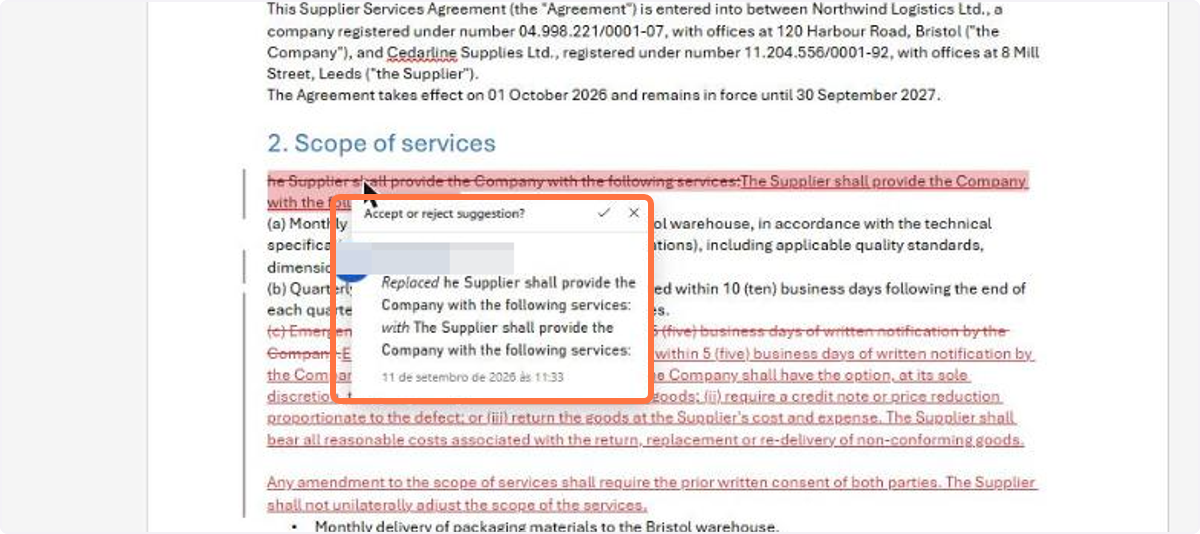
The suggestions arrive as tracked changes; click one to accept or reject it
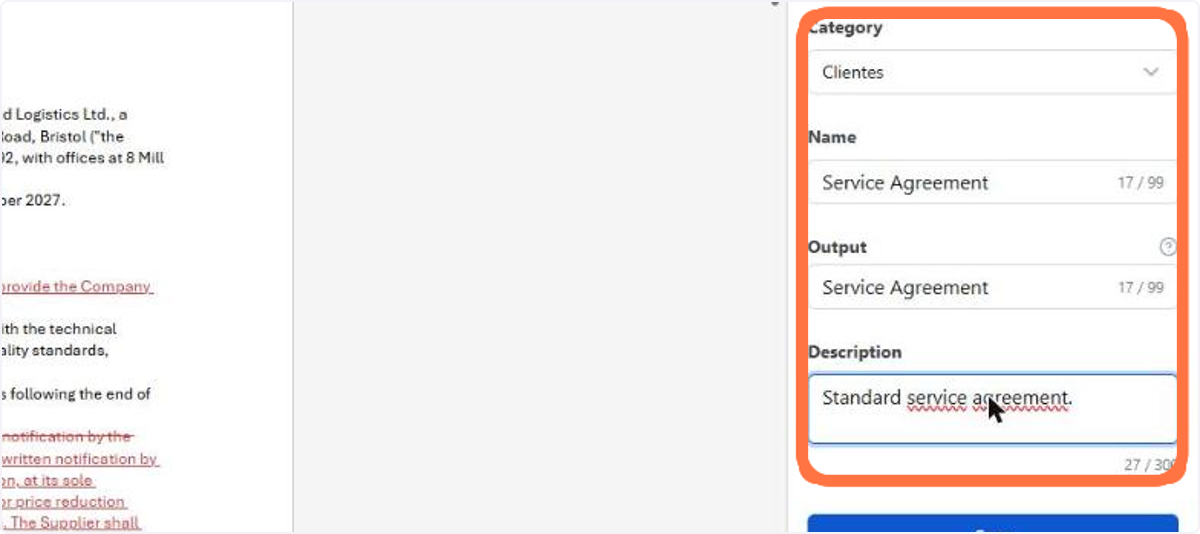
To turn the current document into a template, enter the Category, the Name and the Output under Create Document Template
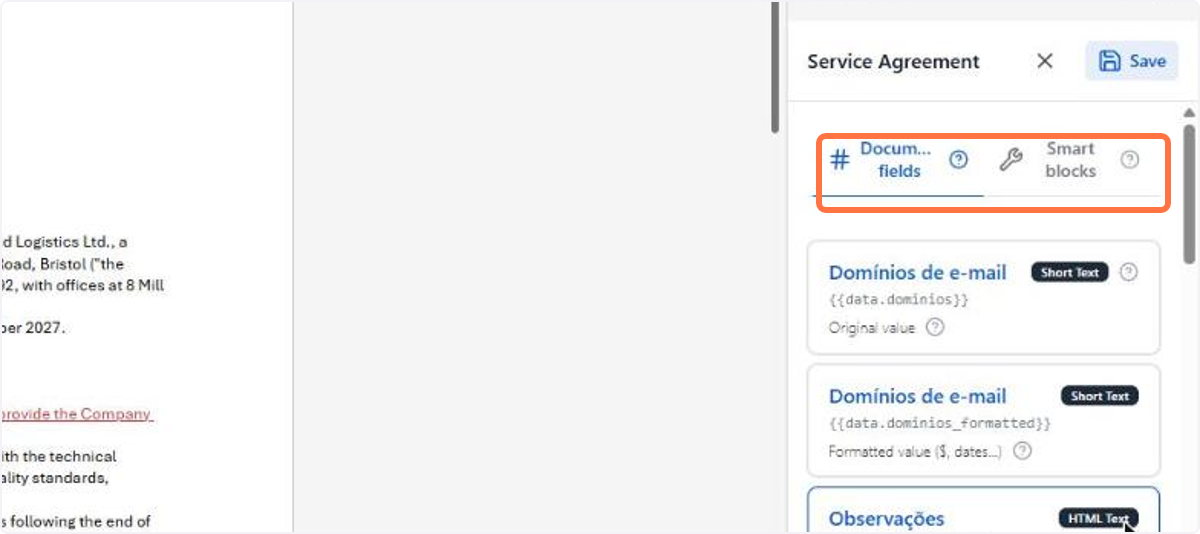
The template editor opens with two tabs: Document fields, for the variables, and Smart blocks, for the conditions and repetitions
🗺️ Guided navigation: ENSPACE Plugin for Word
Important:
You can navigate by clicking the areas circled in orange or using the arrows in the bottom right corner of the interactive area.
Want to learn more about the Word Plugin? See the documentation.
3.1.0 is live
This release includes 42 items: 3 new features, 13 improvements and 26 bug fixes. Highlights include real-time updates in items, tasks and notifications, the new folder builder in the item screen and the new email trigger in the Spaceflow Start node.
1.1.0 is live
This release has 5 items: 1 new feature and 4 bug fixes. The highlight is BENI AI in the plugin's assistant selector, next to the reviewer agents.