3.1.0 is live


RELEASE NOTES
1. New Features
1.1 Collaboration: Items, tasks and notifications in real time
ENSPACE now follows in real time what happens in items, quick tasks, comments, the Chat field and notifications. Without reloading the page, you follow what other people and the system do, in 2 ways.
The first is conversations. A comment sent in the Comments tab, of an item or a task, reaches anyone with the same screen open immediately. The same applies to messages in the Chat field, and notifications appear in the bell as soon as they are generated.
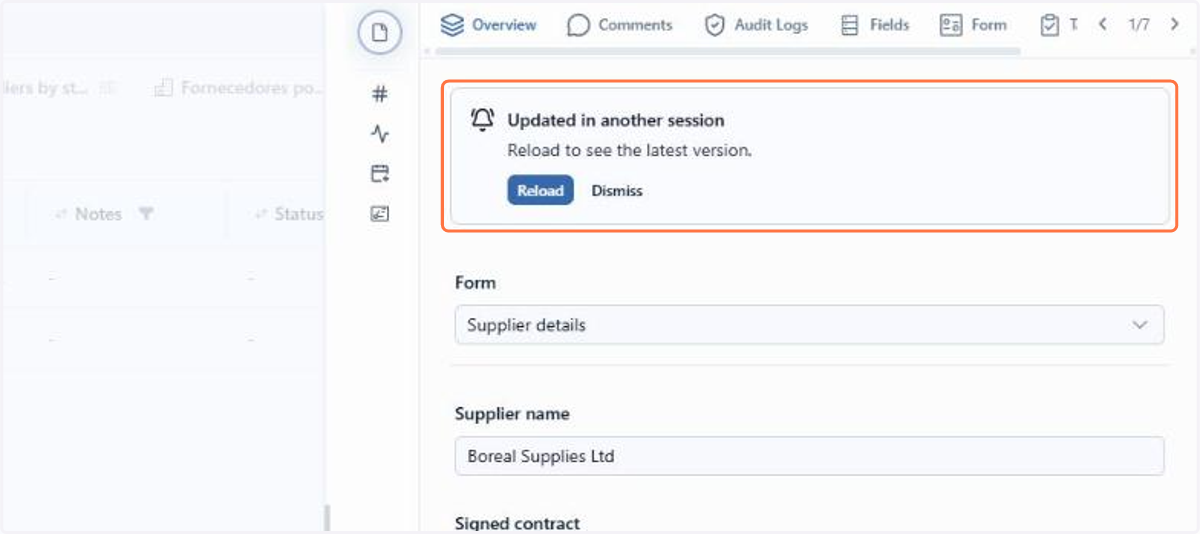
The second is the change notice. An item or a quick task can be updated in another session, by another person, by a Spaceflow or by an AI agent. When this happens to the item on your screen, ENSPACE displays the Updated in another session notice: Reload brings the most recent version, and Ignore keeps the screen as it is. This way you know that a newer version exists before editing, and you avoid overwriting what was just saved.
📋 Step by step: following the conversations of an item in real time
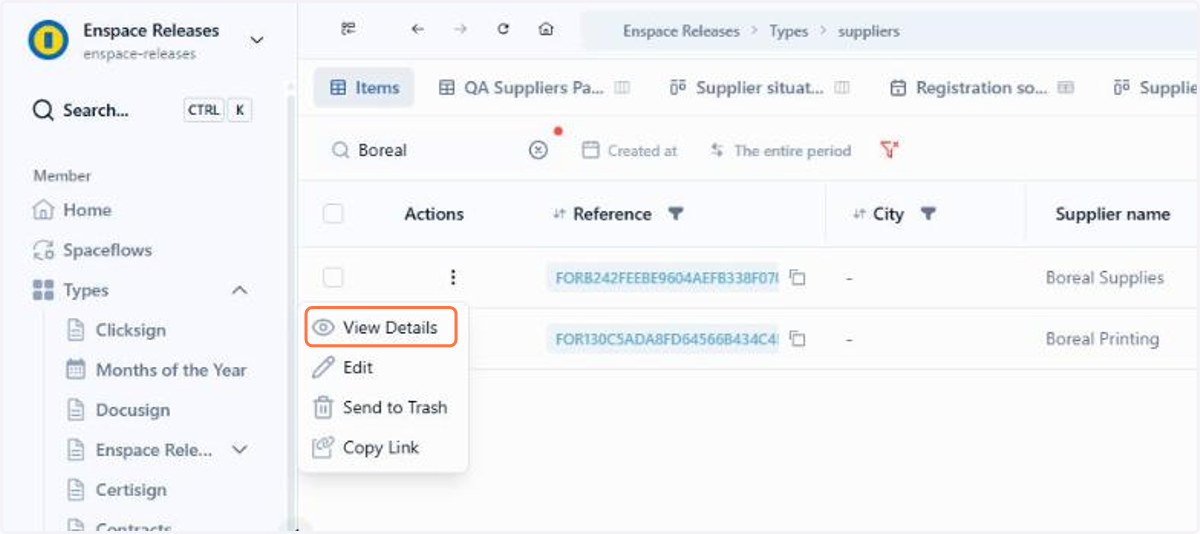
In the items table, open the item's actions menu and click View Details
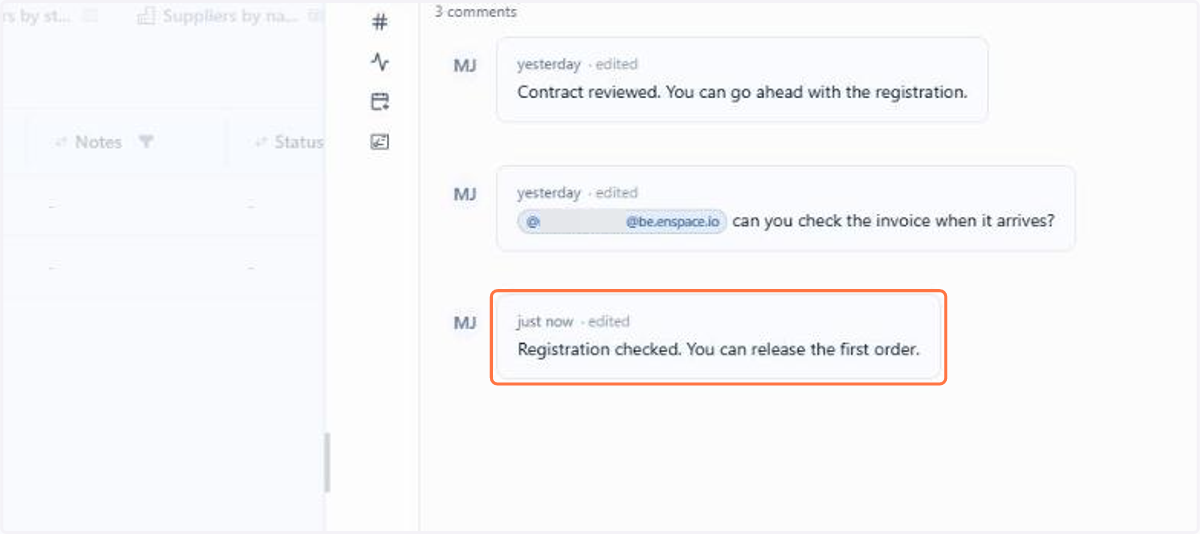
In the Comments tab, a comment sent by another person appears immediately, without reloading the page
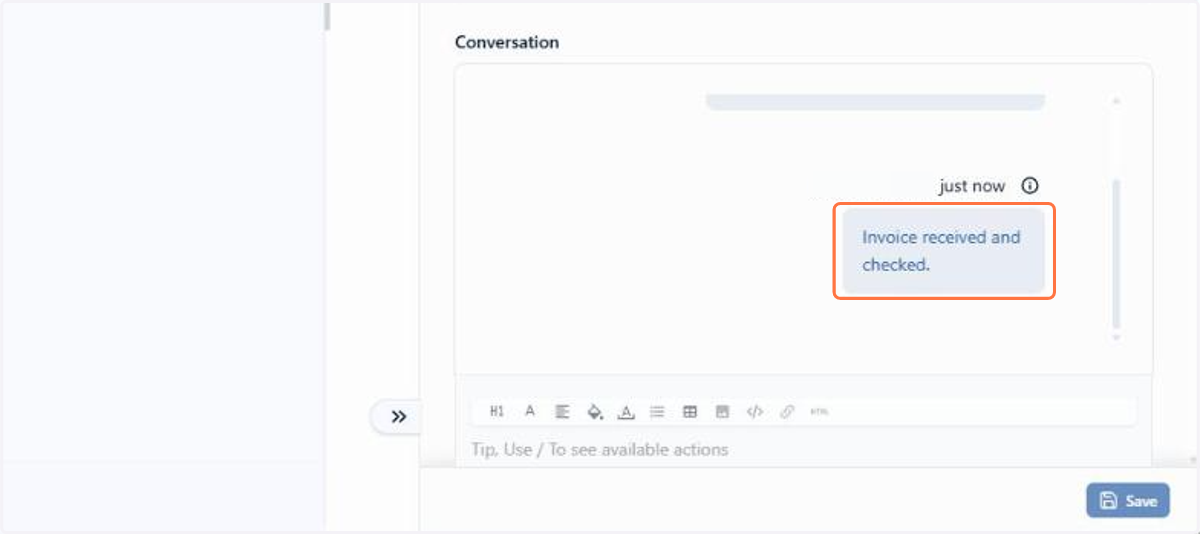
Next, in the Chat field, messages from other people also arrive immediately
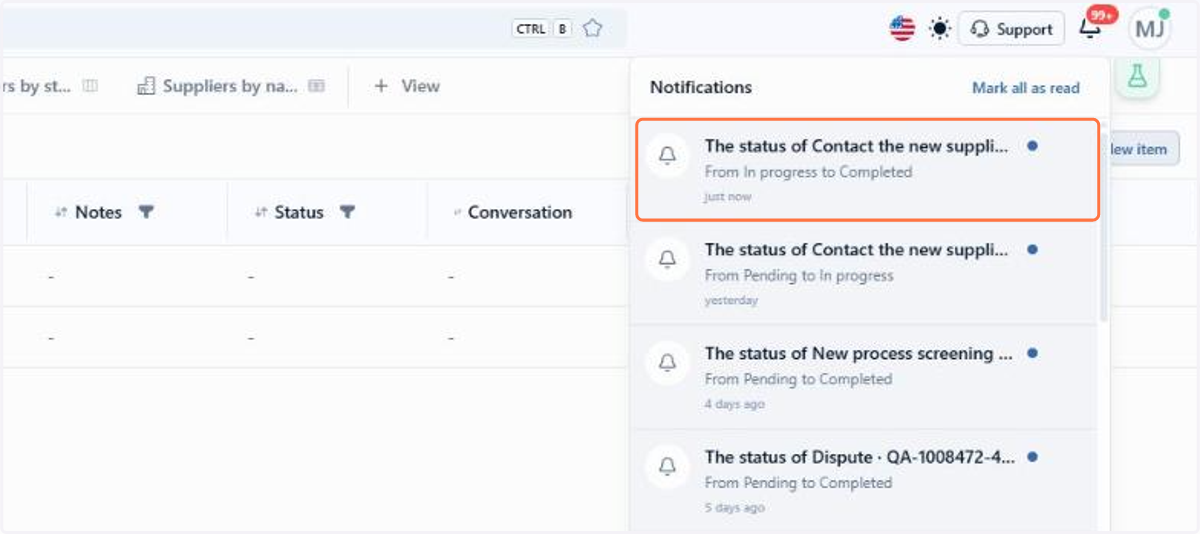
In the bell, the new notification appears at the top of the list as soon as it is generated
📋 Step by step: reloading an item updated in another session
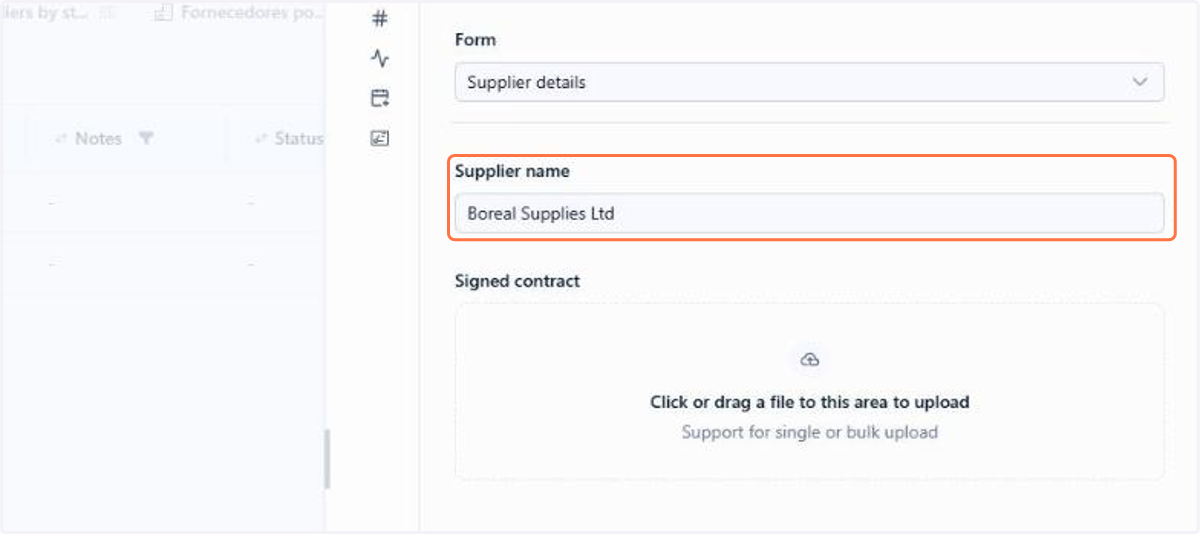
With the item open, the panel shows the current value of each field
When the item is updated in another session, you will see the Updated in another session notice at the top of the panel
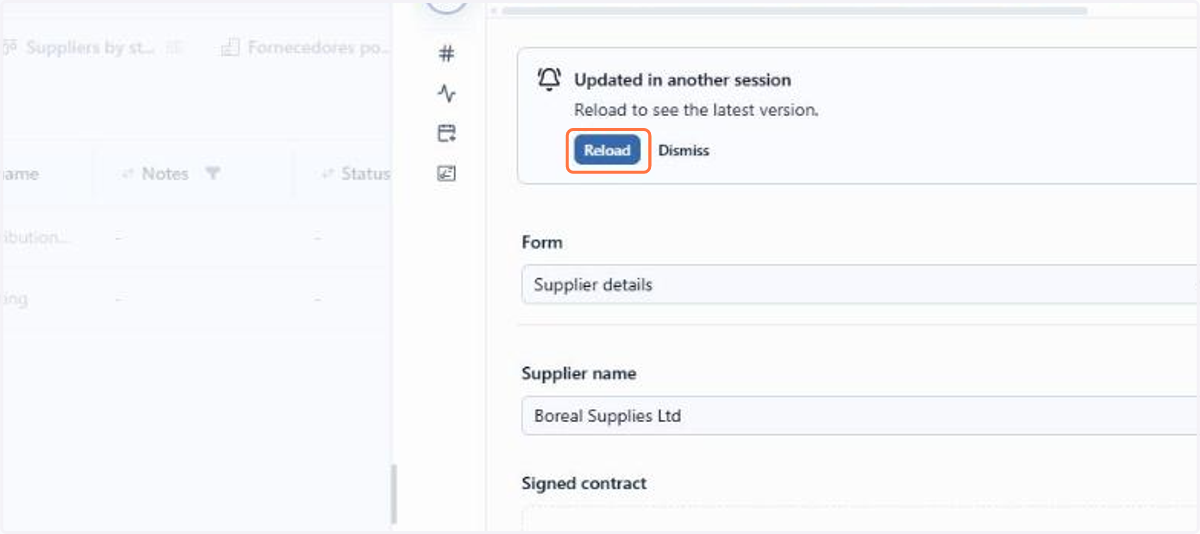
Click Reload
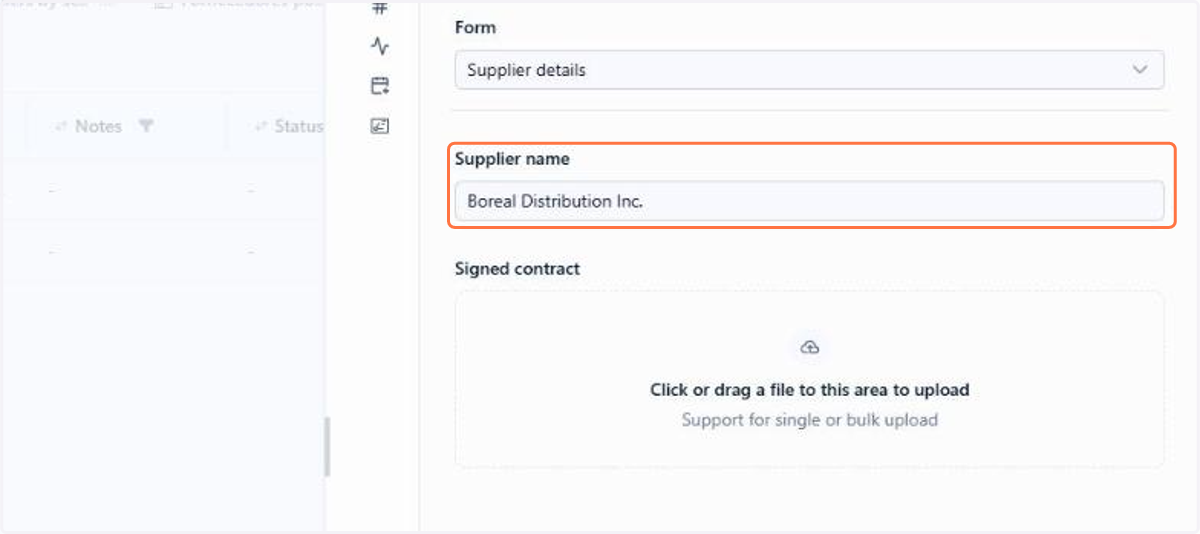
The panel now displays the most recent version of the item, with the new value of the field
🗺️ Guided navigation: real-time updates
Important:
You can navigate by clicking the areas circled in orange or using the arrows in the bottom right corner of the interactive area.
Want to learn more about real-time updates? See the documentation.
1.2 Items: New folder builder in the item screen
The new items screen now has its own folder builder. Folders, which organize the item's content in tabs such as fields, attachments, tasks and notes, are now created, ordered and hidden in the item view itself, without going through the category settings. Each folder keeps the same attributes: name, type, icon and allowed groups.
Folders adapt to the screen width. The ones that do not fit are gathered in the Manage folders menu, which brings together the search by name, the Hidden section and the New folder action. You set the order by dragging and dropping the folders, and hiding a folder removes the tab from the display without deleting its content.
The builder applies to the item's dedicated screen and to the details panel, which share the same configuration.
In this version, the builder also has a license limit:
📋 Step by step: organizing the folders of the item
In the category's items table, open the item's actions menu and click View Details
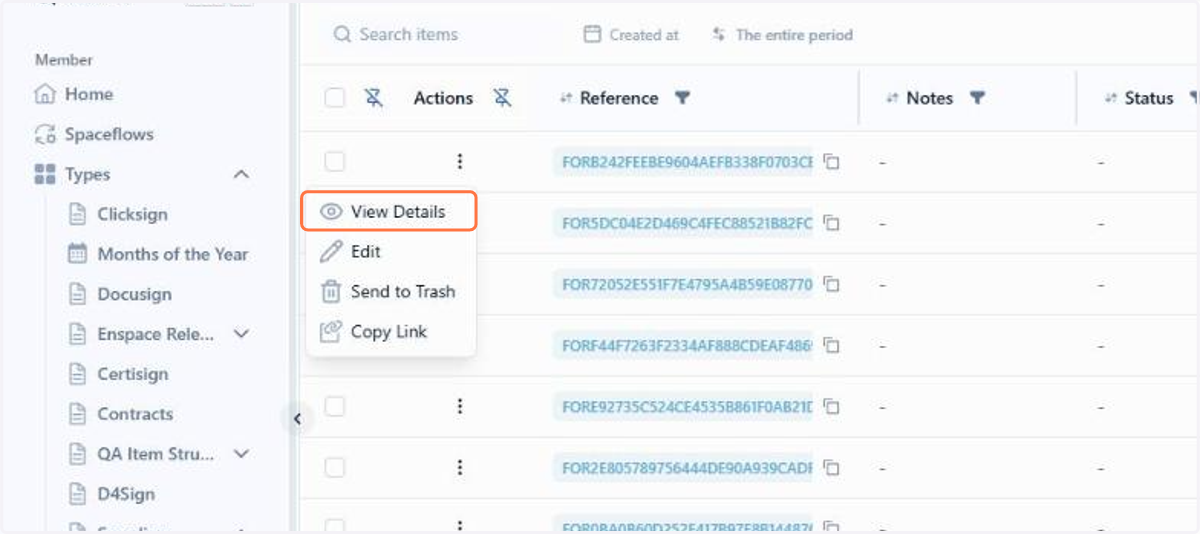
Hold a folder by its name and drag it to the desired position
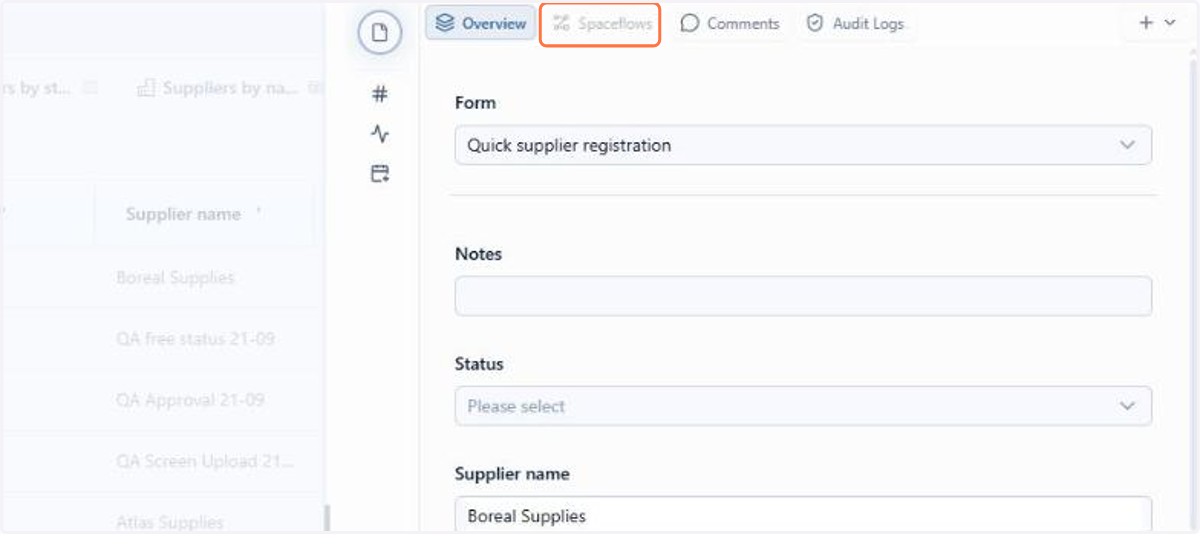
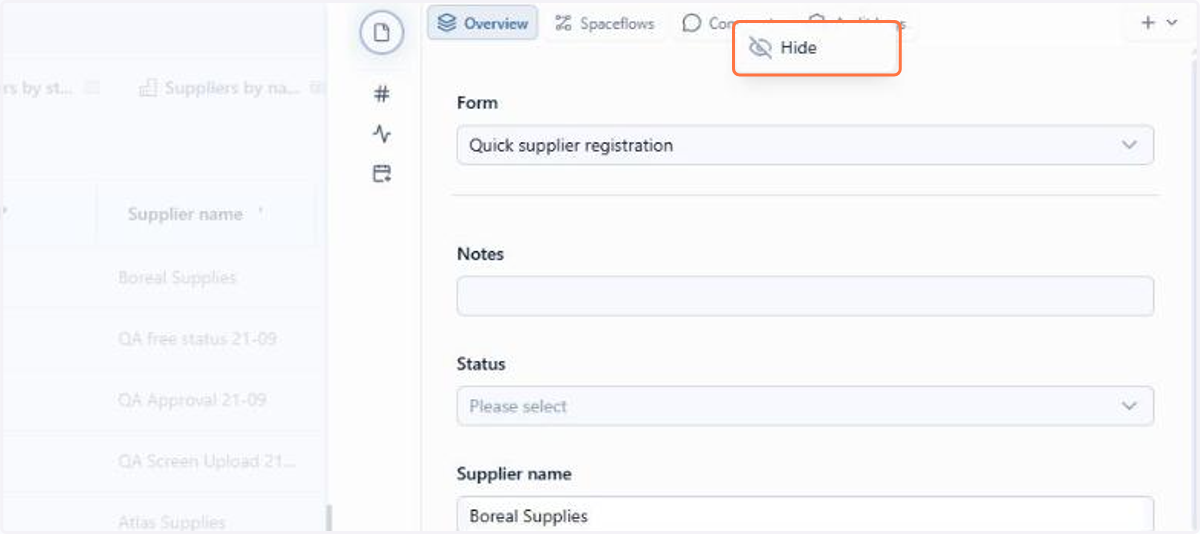
To remove a folder from the bar without deleting its content, right-click it and click Hide
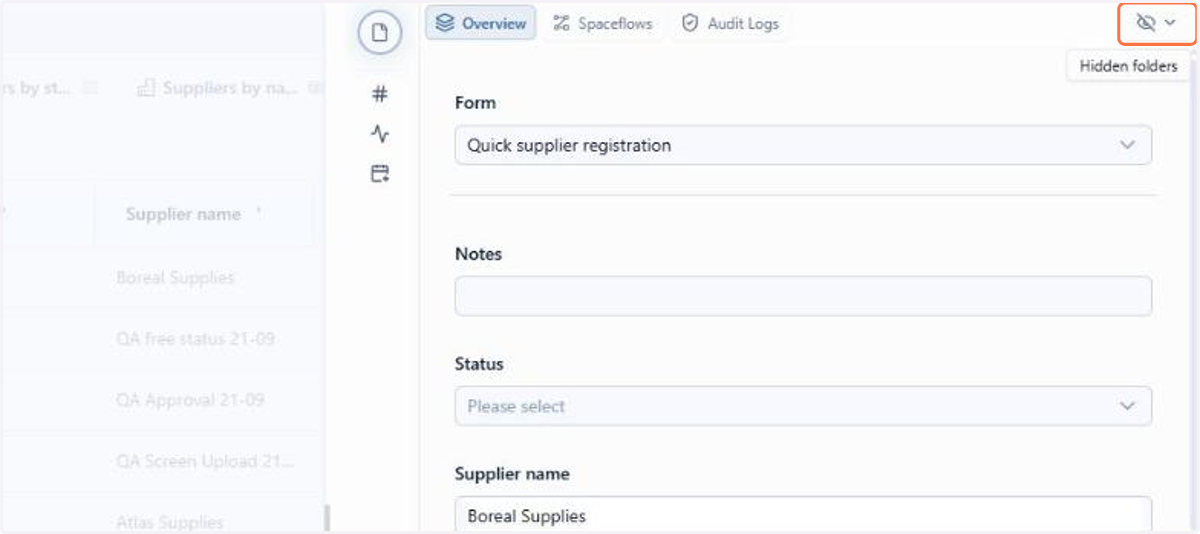
With a folder hidden, the button on the right of the bar is renamed Hidden folders: click it to open the menu
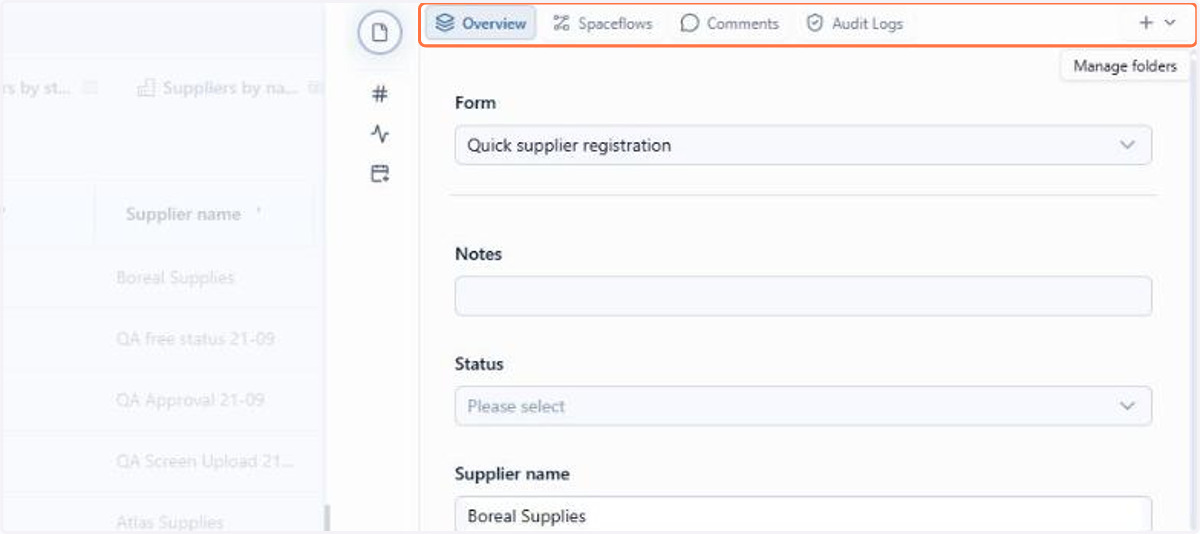
In the Hidden section, click the folder's eye icon to return it to the bar
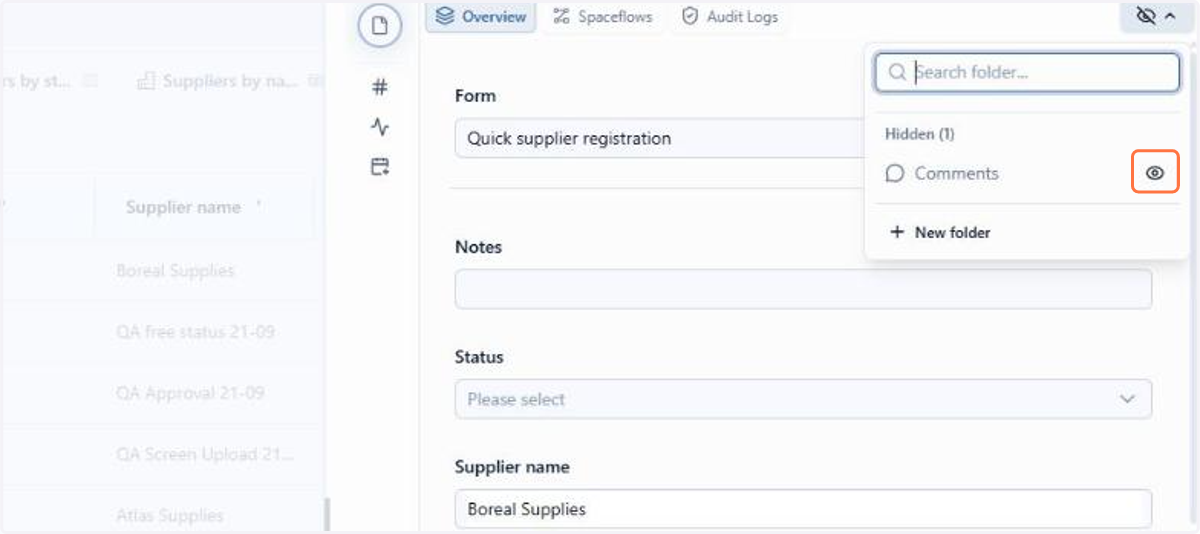
The folder returns to the bar in the position it was in
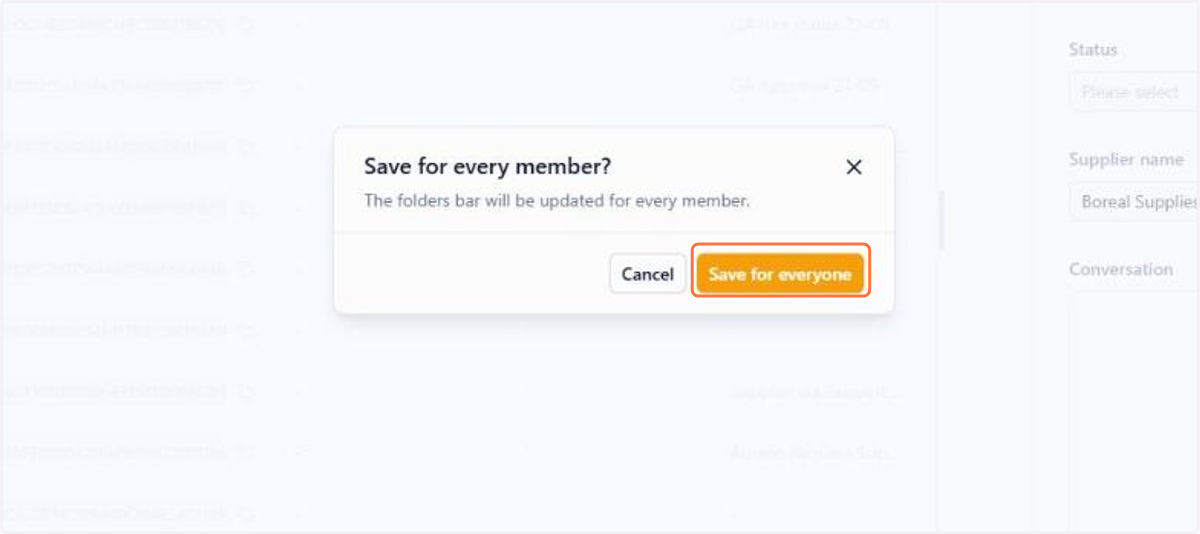
After any of these changes, ENSPACE asks for confirmation: in the notice, click Save for everyone to apply it to all members
Want to learn more about the folder builder? See the documentation.
1.3 Spaceflow: New email trigger in the Start node
Spaceflow has a new type of trigger: the Start node now runs the flow as soon as an email arrives in one or more mailboxes registered in the workspace.
The trigger uses the received email itself as the execution context, with subject, body, sender and date available to the following nodes. You can also restrict which senders start the flow, by full email address or by domain.
📋 Step by step: setting up the email trigger in the Start node
In the Spaceflow builder, double-click the Start node to open its settings
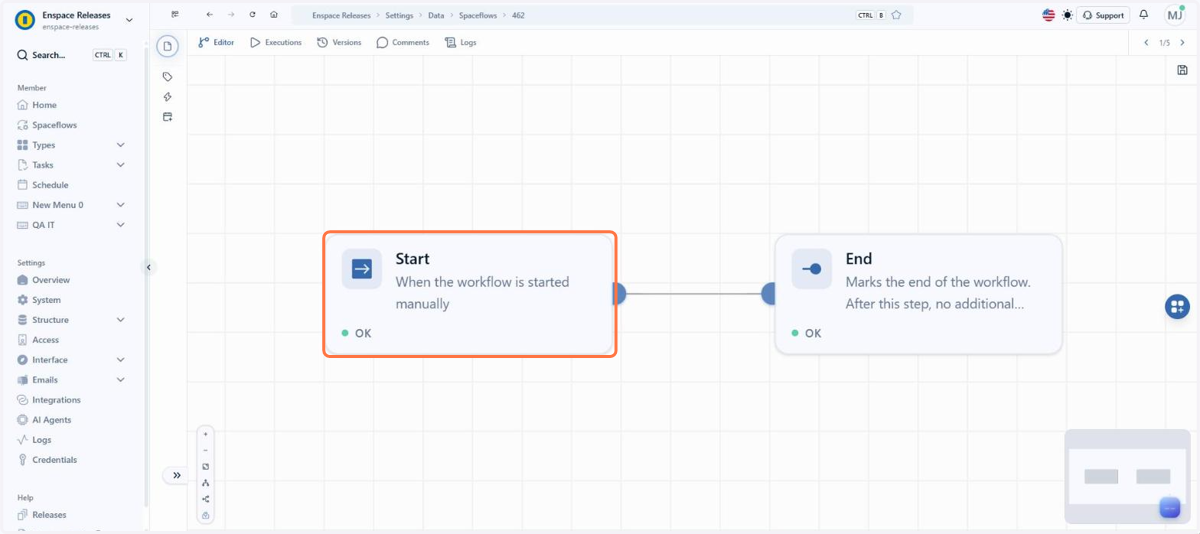
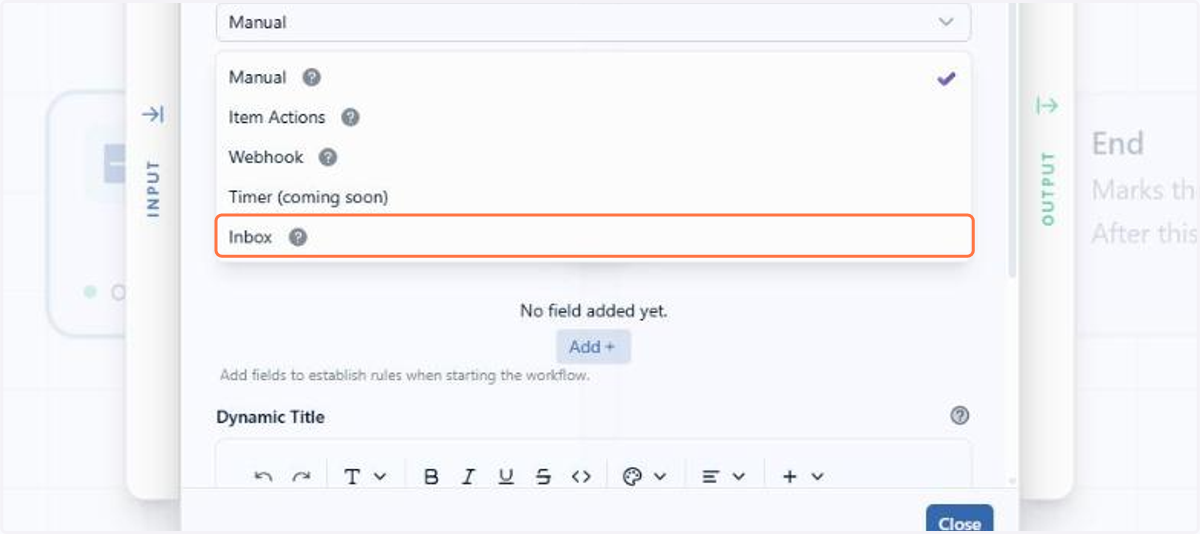
In Start Mode, choose Inbox, the trigger that starts the flow from a received email
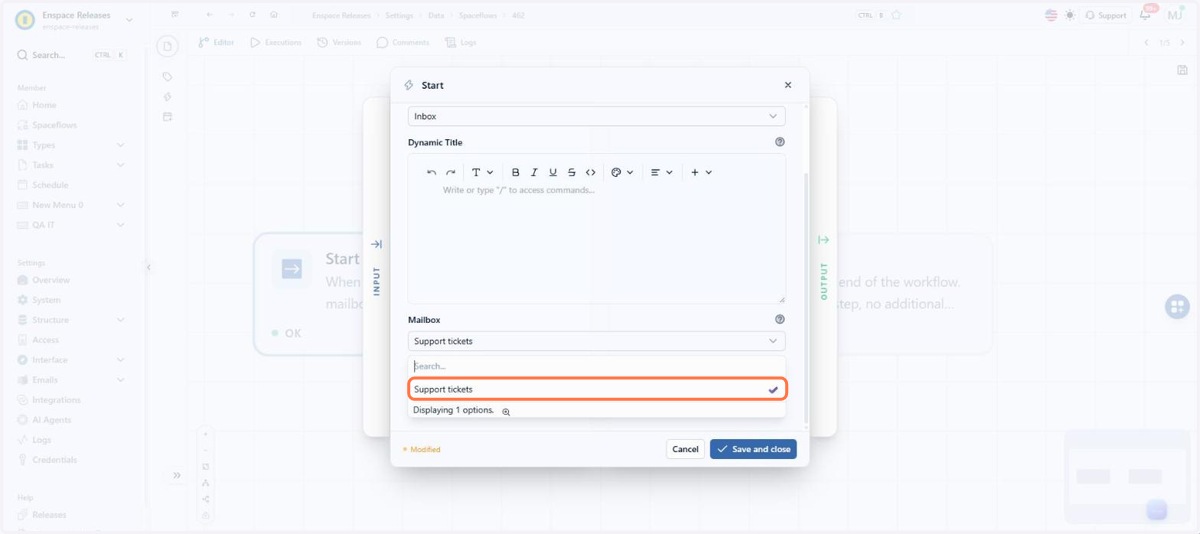
In Mailbox, select one or more mailboxes the flow should monitor, among those registered in the workspace
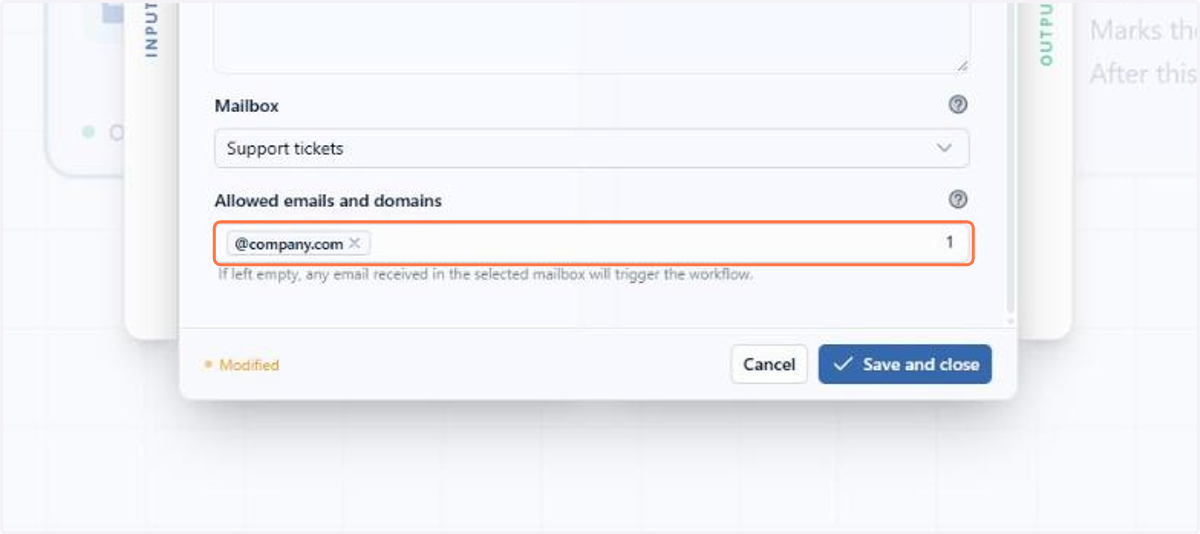
In Allowed emails and domains, you can restrict which senders start the flow, by full email address or by domain
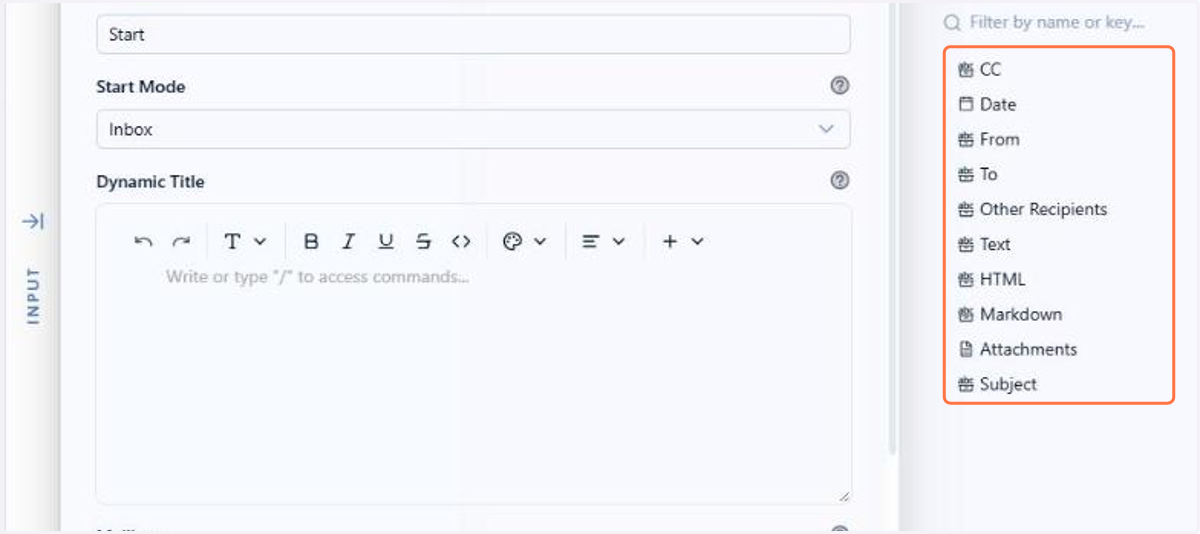
In the Start node's Output Data panel, check what each email delivers to the following nodes: subject, text, sender, date and attachments
After Save and close, save the flow: the Start node shows OK again and starts running the flow on every email received in the chosen mailbox
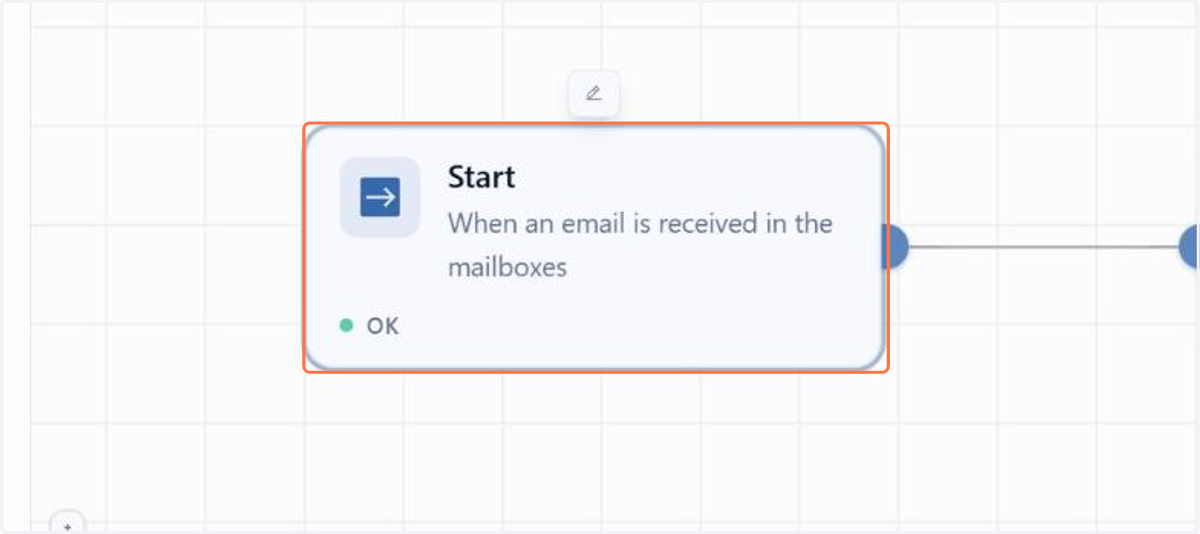
🗺️ Guided navigation: email trigger in the Start node
Important:
You can navigate by clicking the areas circled in orange or using the arrows in the bottom right corner of the interactive area.
Want to learn more about the Start node? See the documentation.
2. Improvements
2.1 Items: Item quick view with a default layout for the whole workspace
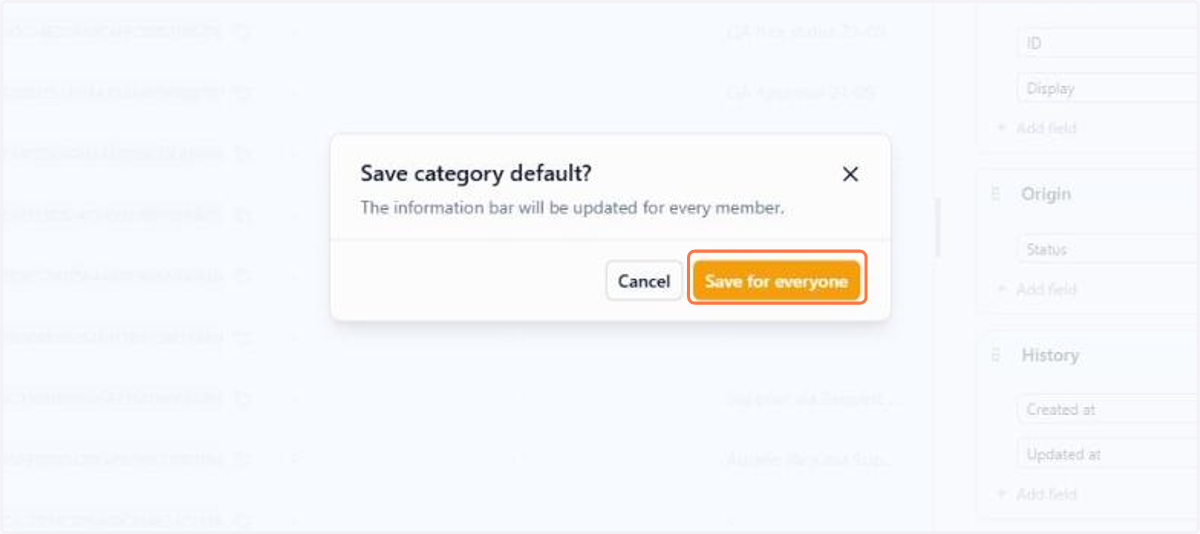
Members with the Owner or Full license can now arrange the layout of the fields in the item's quick view and save that arrangement for the whole workspace. When you finish editing, the notice that opens offers the Save for everyone button, which applies the view to all users.
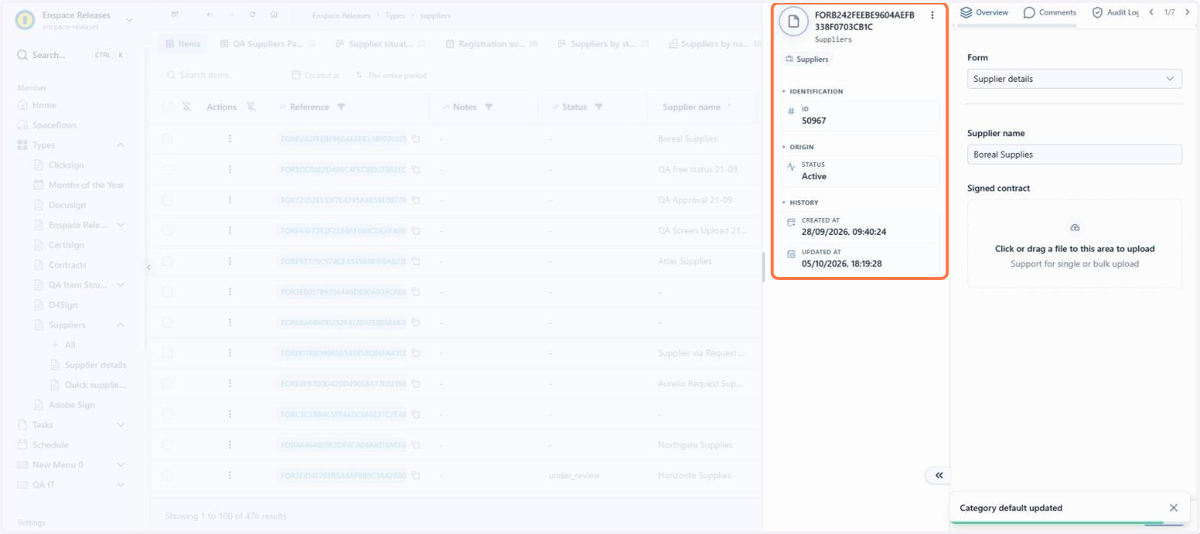
This way, the most important information of a category appears in the same order for the whole team, without depending on each person rearranging the screen on their own.
📋 Step by step: setting the item's information bar as the default for everyone
In the table, open the item's actions menu and click View Details
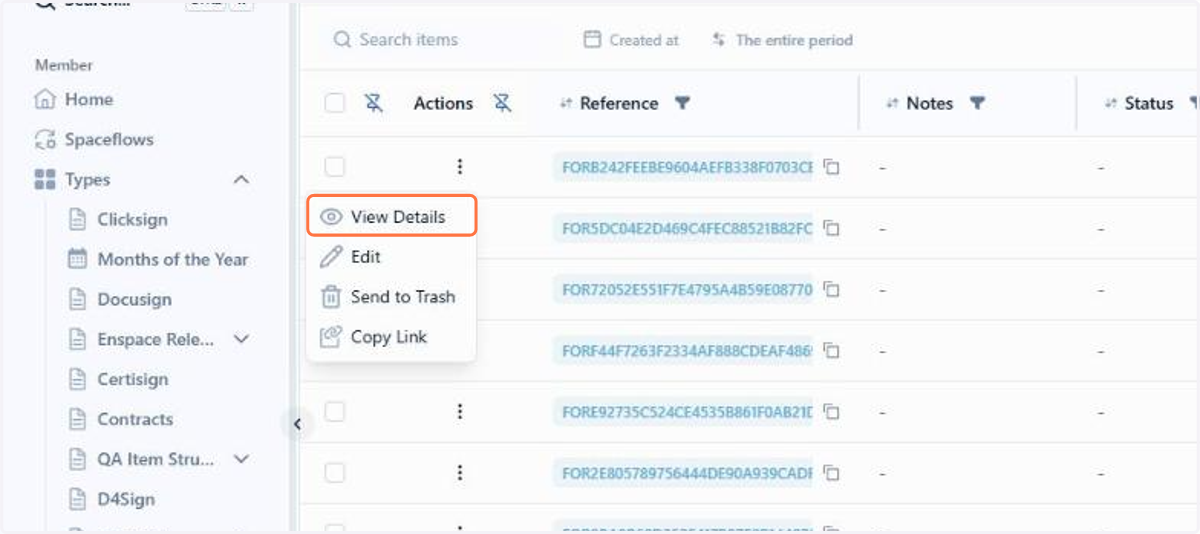
In the details panel, click the three-dot icon next to the reference
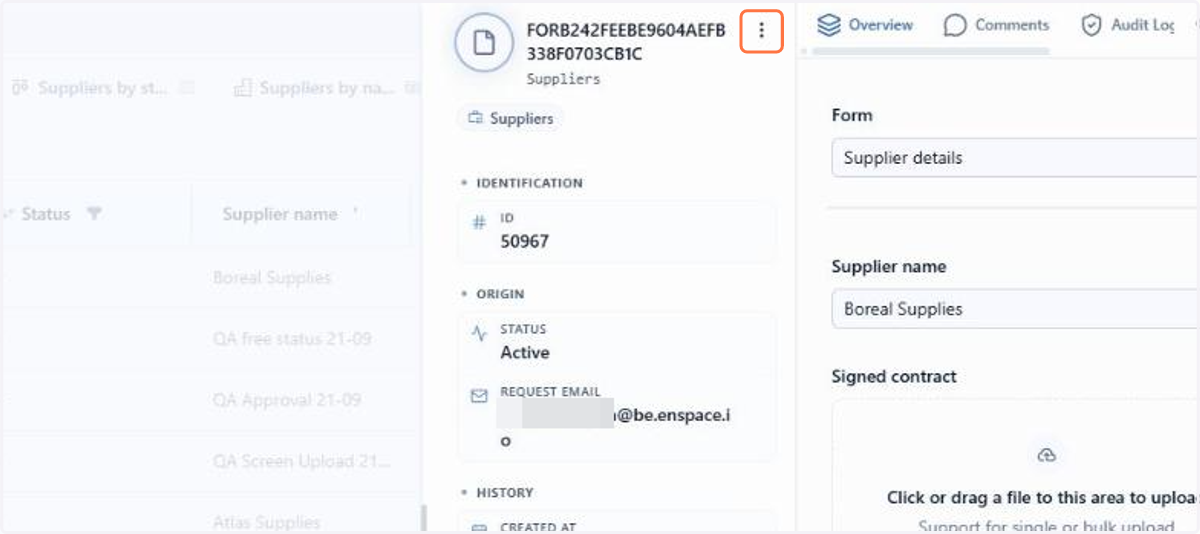
In the menu, click Edit view
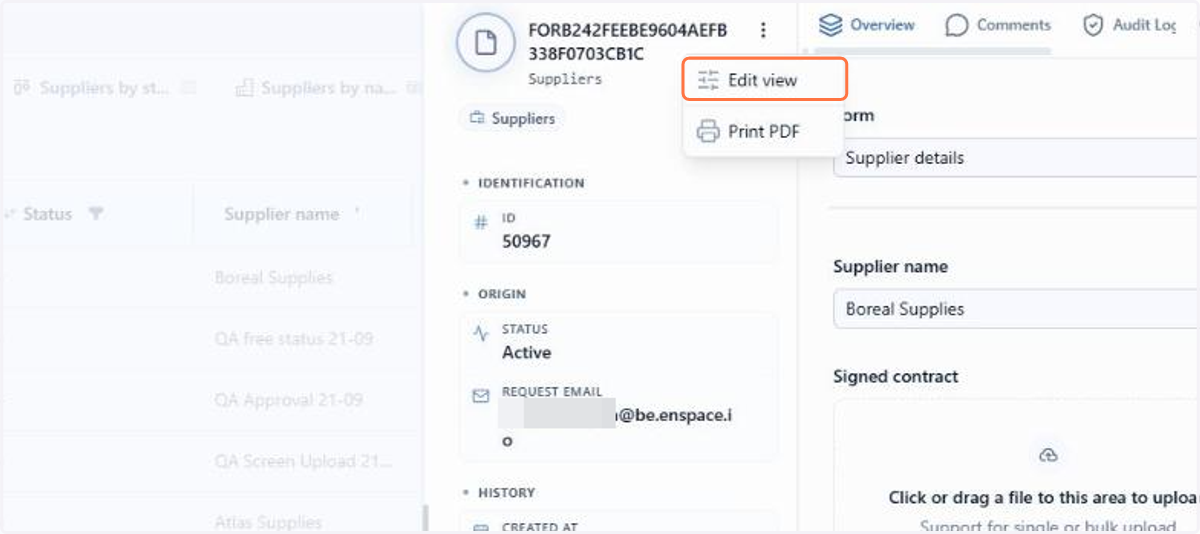
In edit mode, the bar is divided into avatar, title, subtitle and sections. You can remove a field from a section by clicking its X
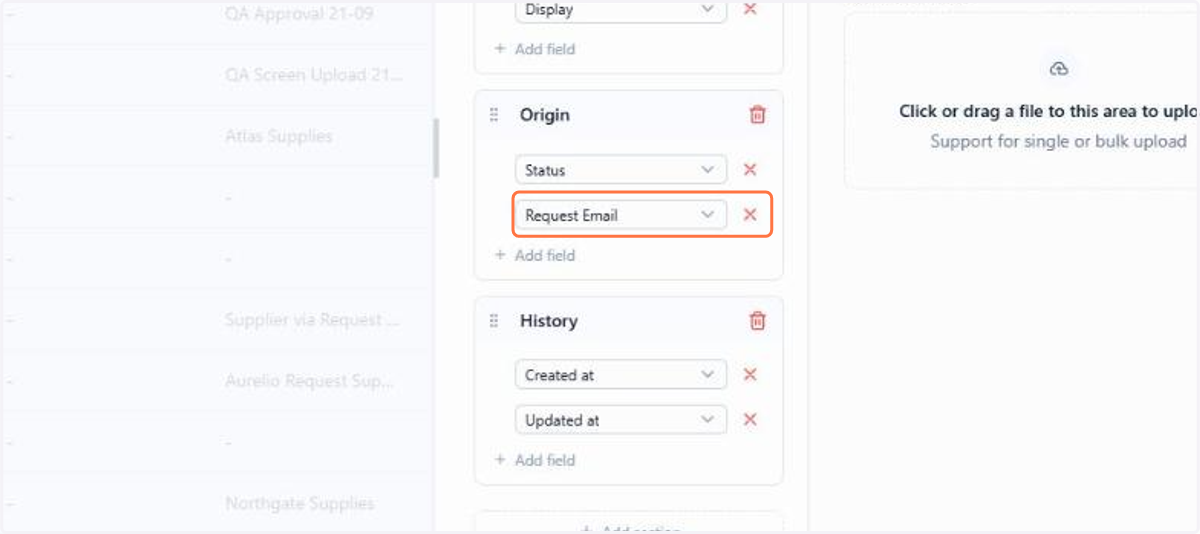
With the bar adjusted, click Save
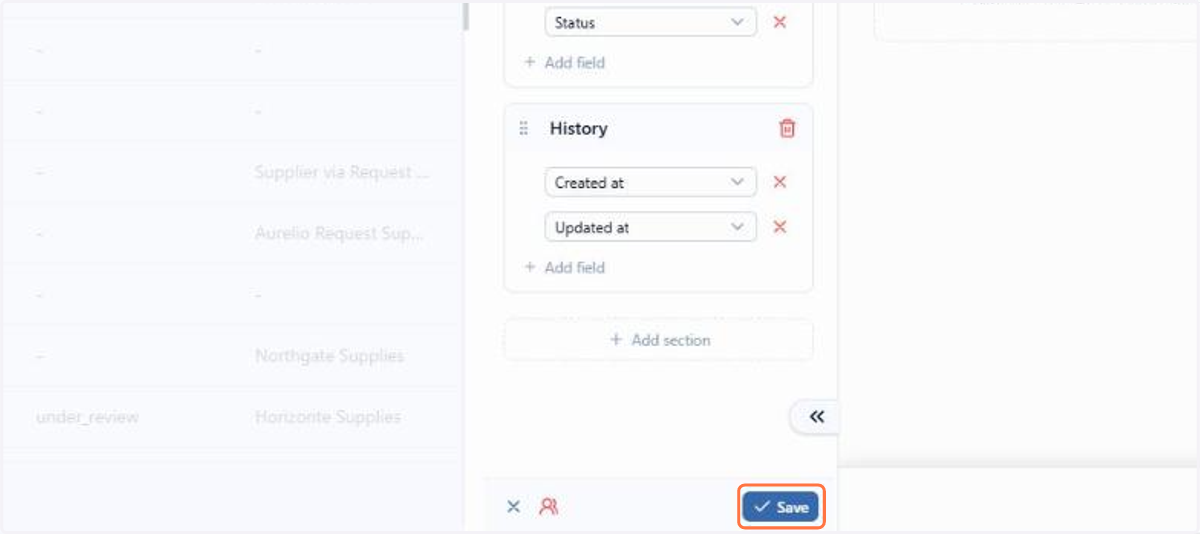
In the notice that opens, click Save for everyone to apply the layout to all members
The information bar takes on the new layout for all members and remains in effect after reloading the page
Want to learn more about the item view? See the documentation.
2.2 Items: Creating quick tasks in the new items screen
The new items screen now allows you to create quick tasks without leaving the item. Until this version, this feature existed only in the old screen.
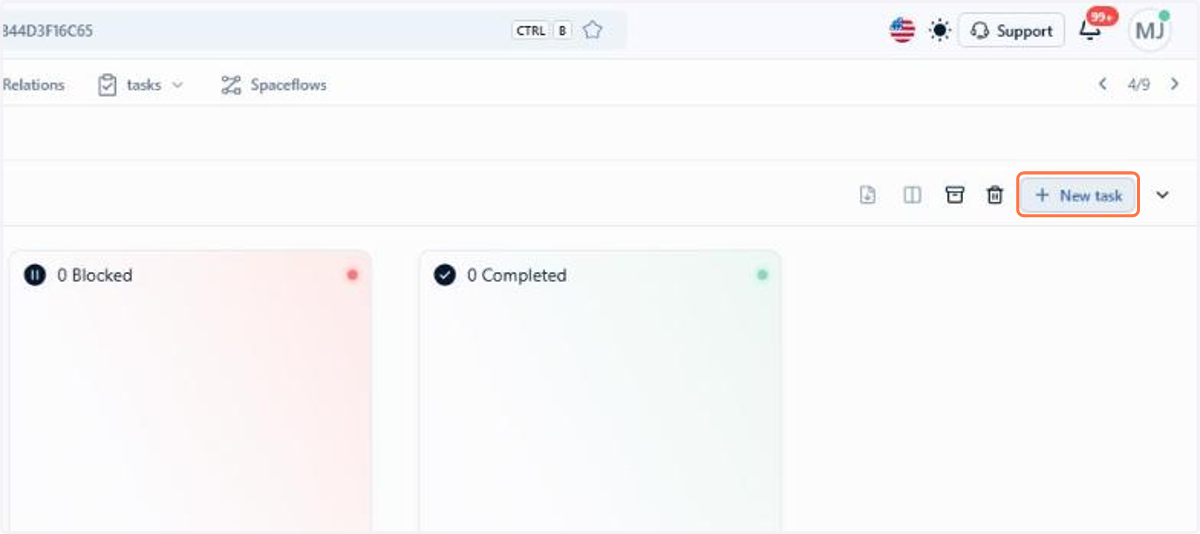
In the Tasks tab, the New task button opens the creation form. The task created there is linked to the item automatically, without the need for a Spaceflow to make that link.
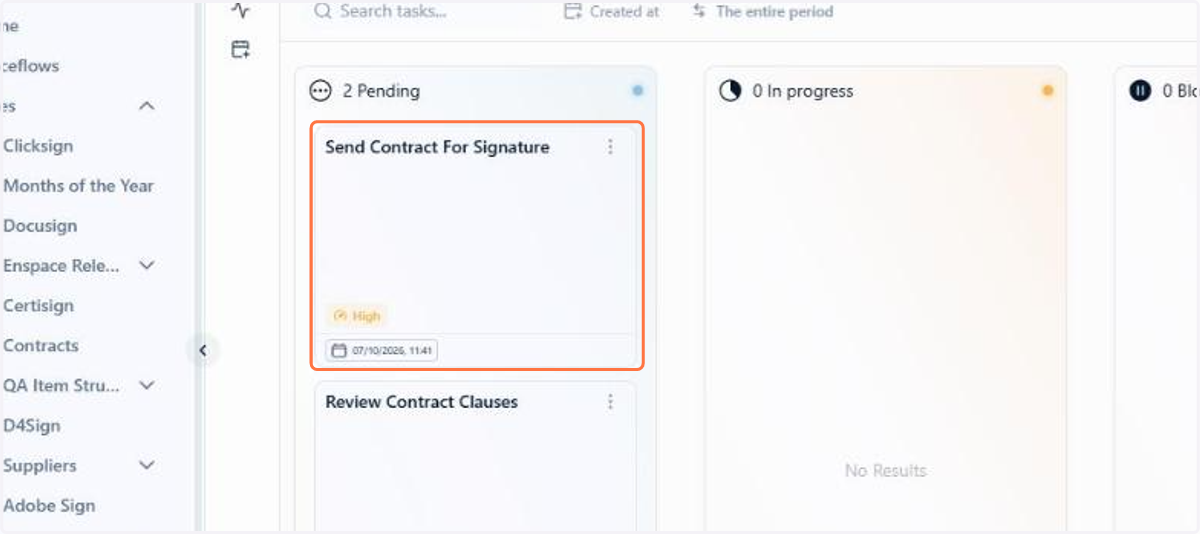
The same tab displays the item's quick tasks on a board, with the Pending, In progress, Blocked and Completed columns, or in a table. Once created, the task also appears in Tasks > Quick, like any other quick task.
📋 Step by step: creating a quick task inside the item
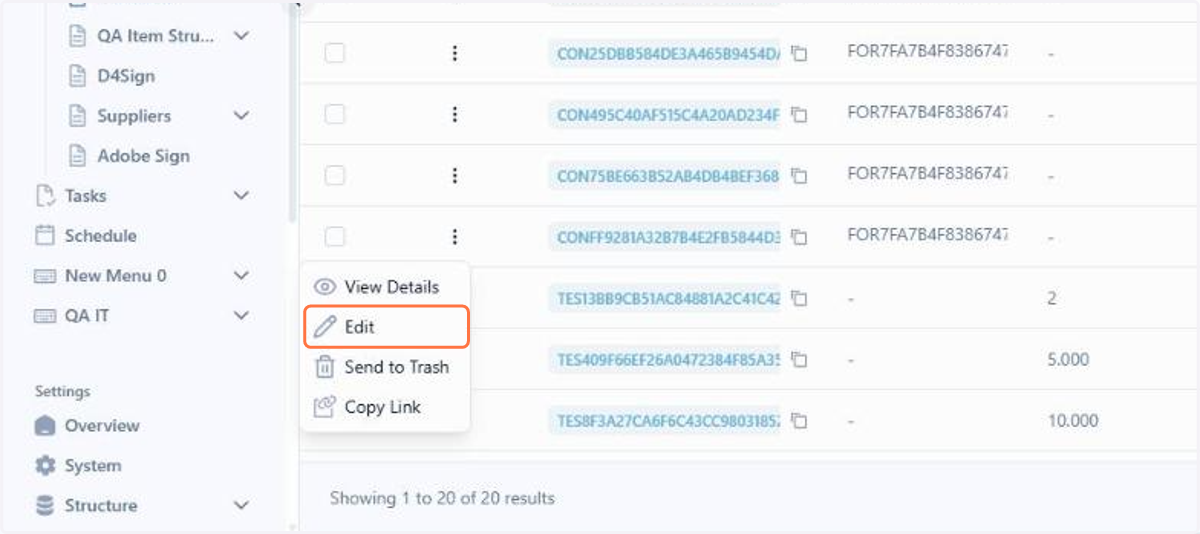
In the category's items table, open the item's actions menu and click Edit
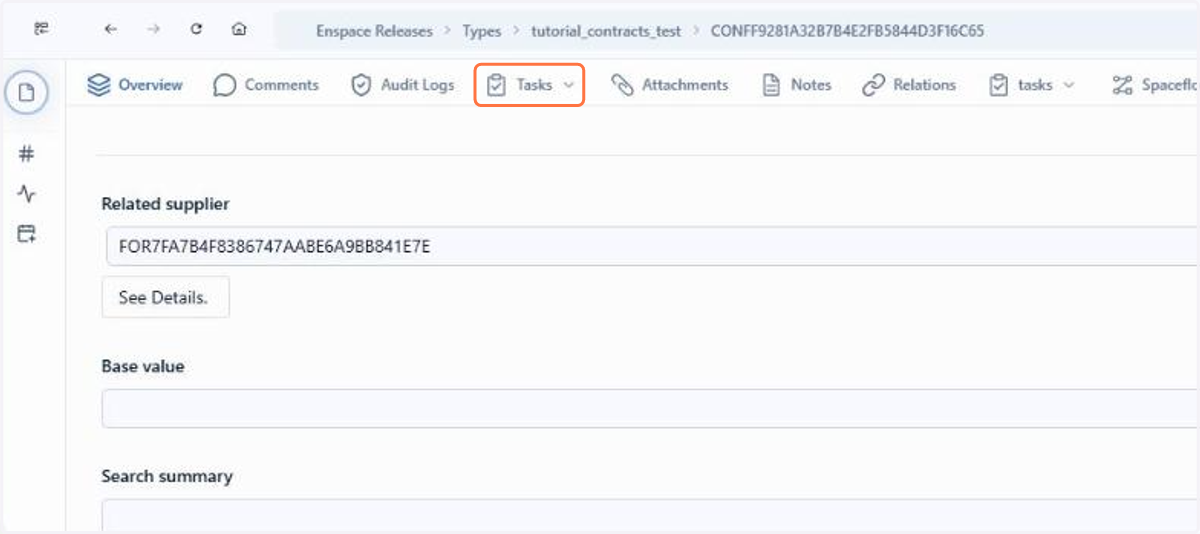
In the item screen, click the Tasks tab
Click New task
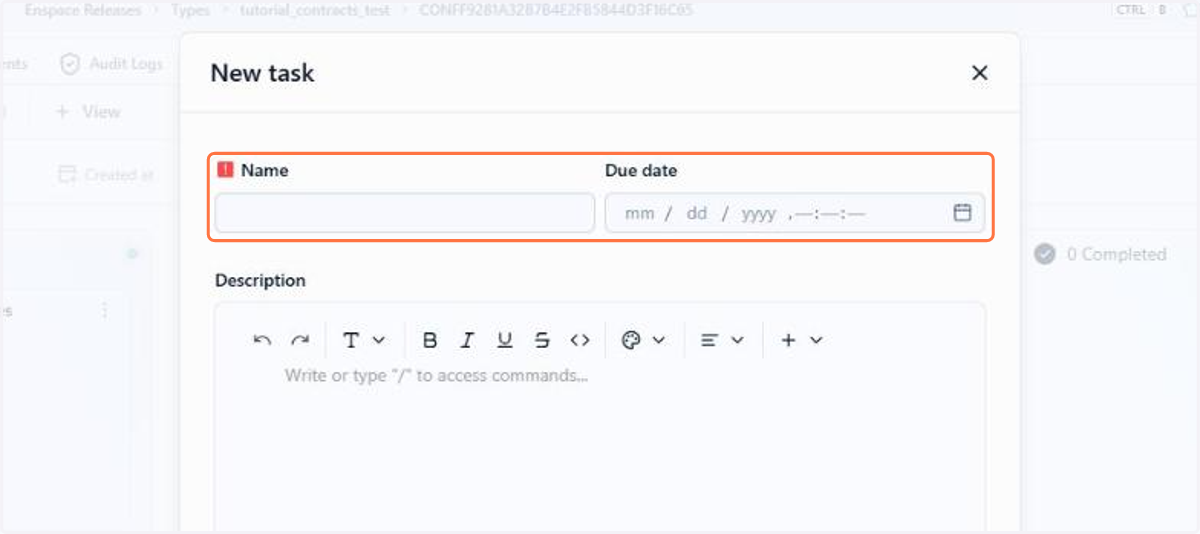
In Name, write what needs to be done. You can also enter the Due date, the Description and the Assignee
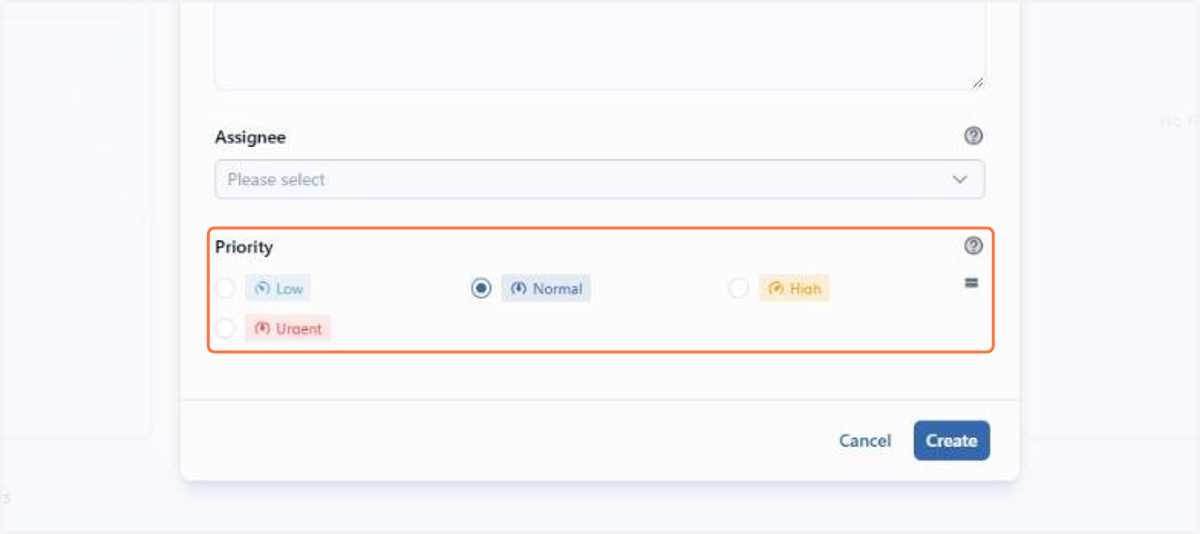
In Priority, choose between Low, Normal, High and Urgent and click Create
The task appears in the Pending column of the board, already linked to the item
Want to learn more about creating quick tasks in the item? See the documentation.
2.3 Schedule: Quick Tasks on the calendar and screen in the new visual standard
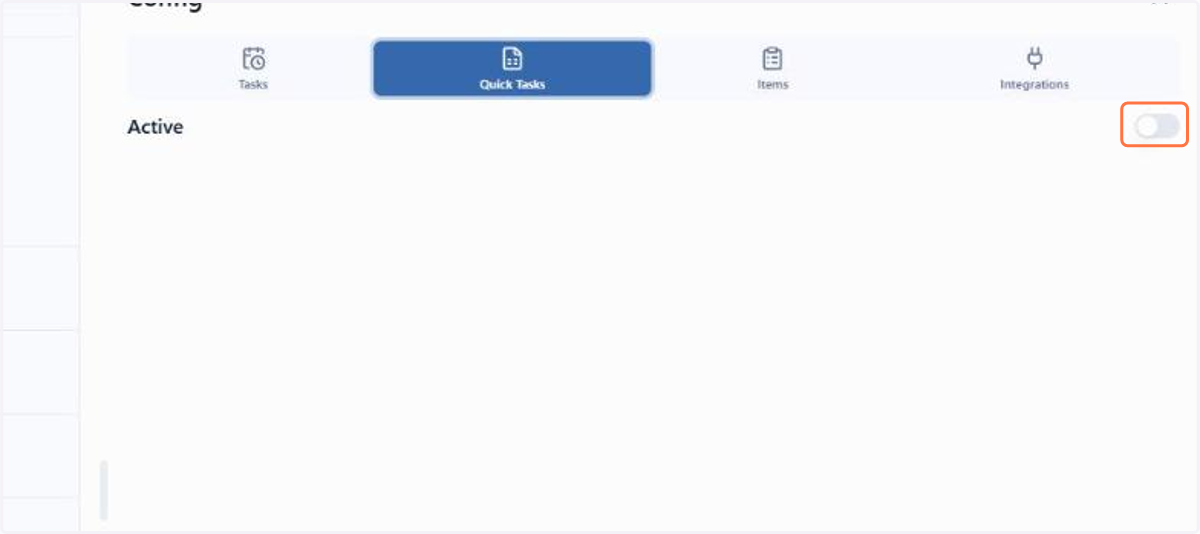
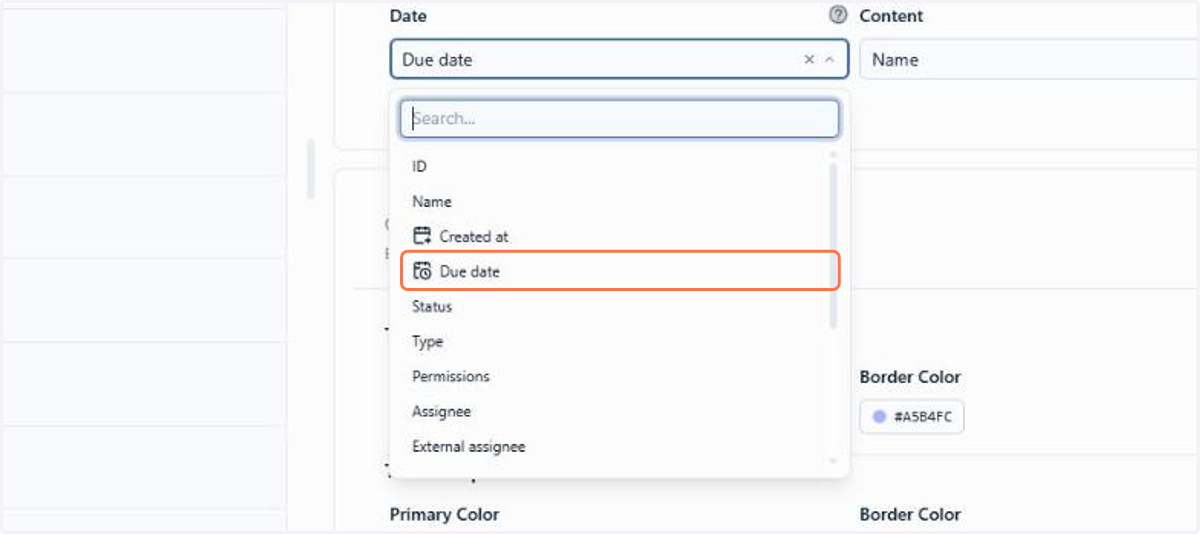
The Schedule now also shows Quick Tasks, alongside the flow tasks. In the Schedule settings, the Quick Tasks tab has the Active toggle, which displays these tasks on the calendar, and the Date field, which defines on which day each task appears. Each quick task follows the color of its own status, and the deadlines of all tasks are gathered in the same calendar.
The screen also adopts the ENSPACE new visual standard: the calendar, the creation and the viewing of events were redesigned and are more cohesive with the rest of the product. The Schedule also works in workspaces without the Outlook integration.
📋 Step by step: displaying Quick Tasks in the Schedule
In the left side menu of the home screen, click Schedule
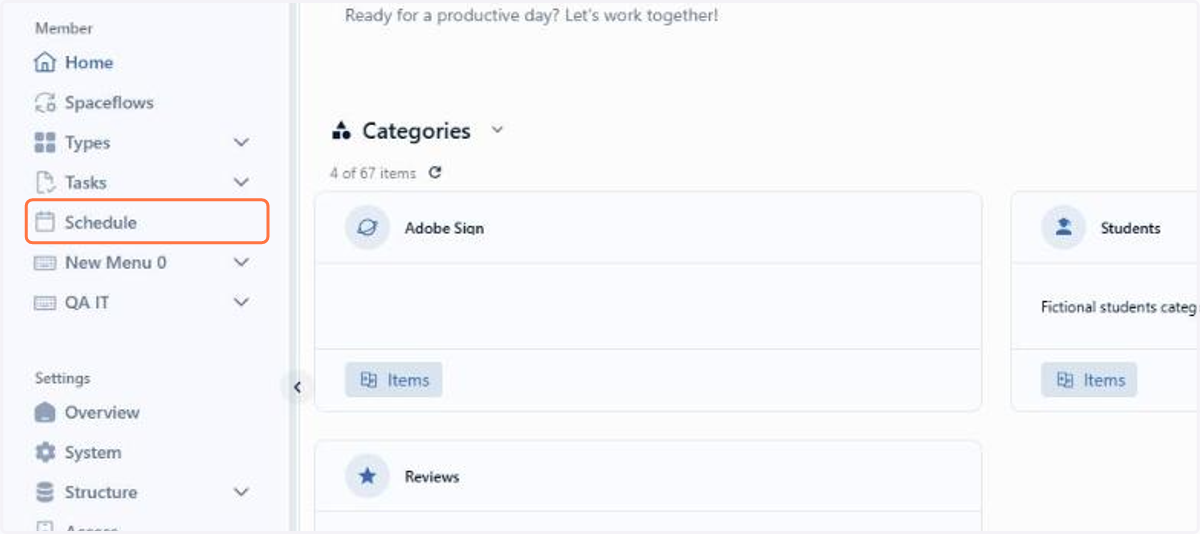
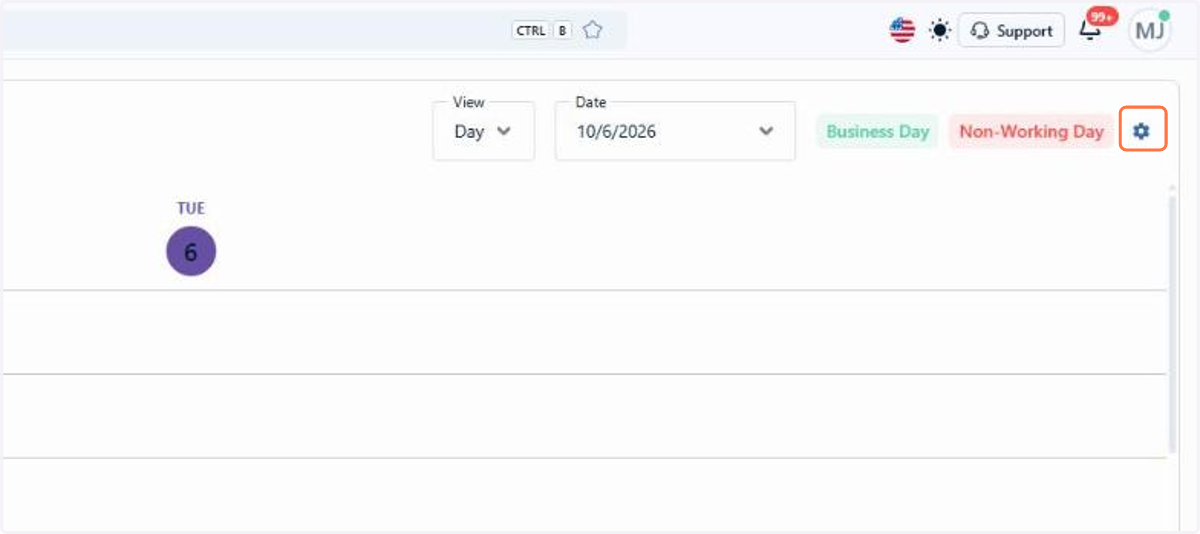
Click the gear icon, in the top right corner, to open the Schedule settings
Click the Quick Tasks tab
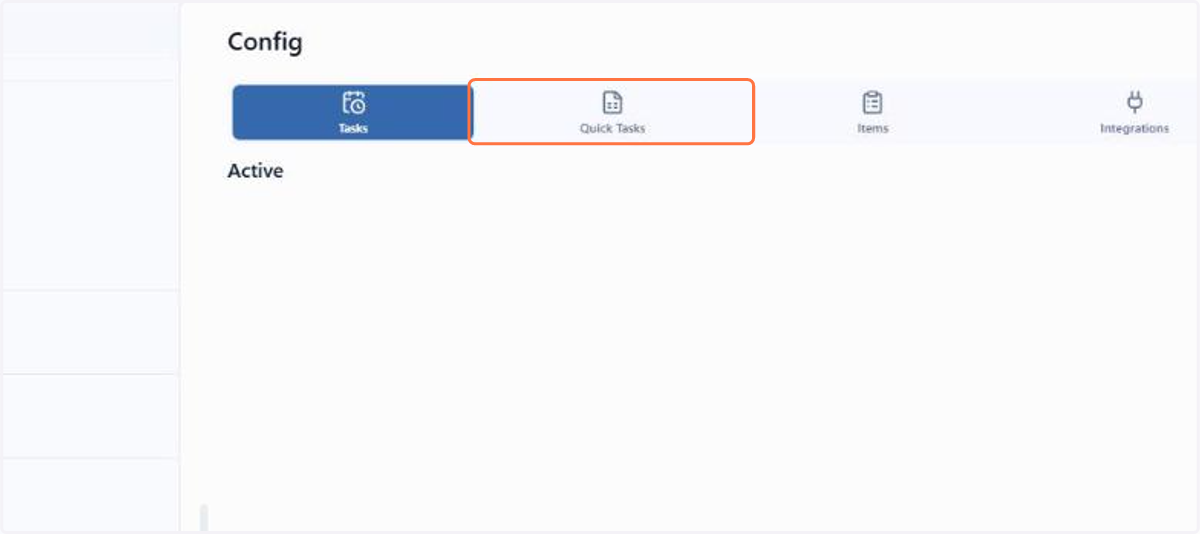
Turn on the Active toggle for the Schedule to display quick tasks
In Date, choose the date field that positions the task on the calendar
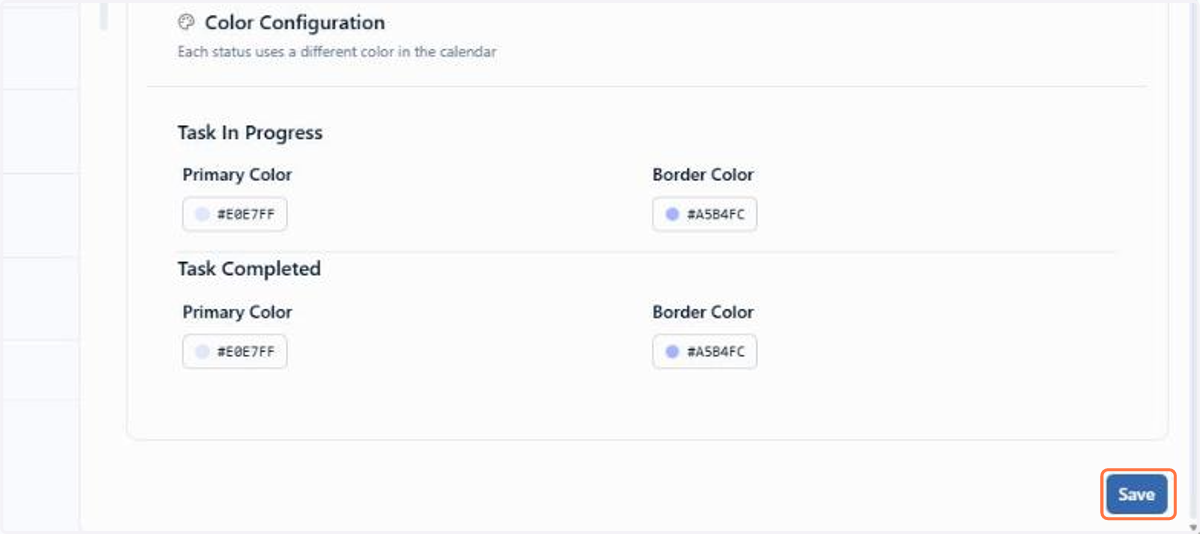
Click Save
The Schedule now displays quick tasks on the calendar, with the status color of each one
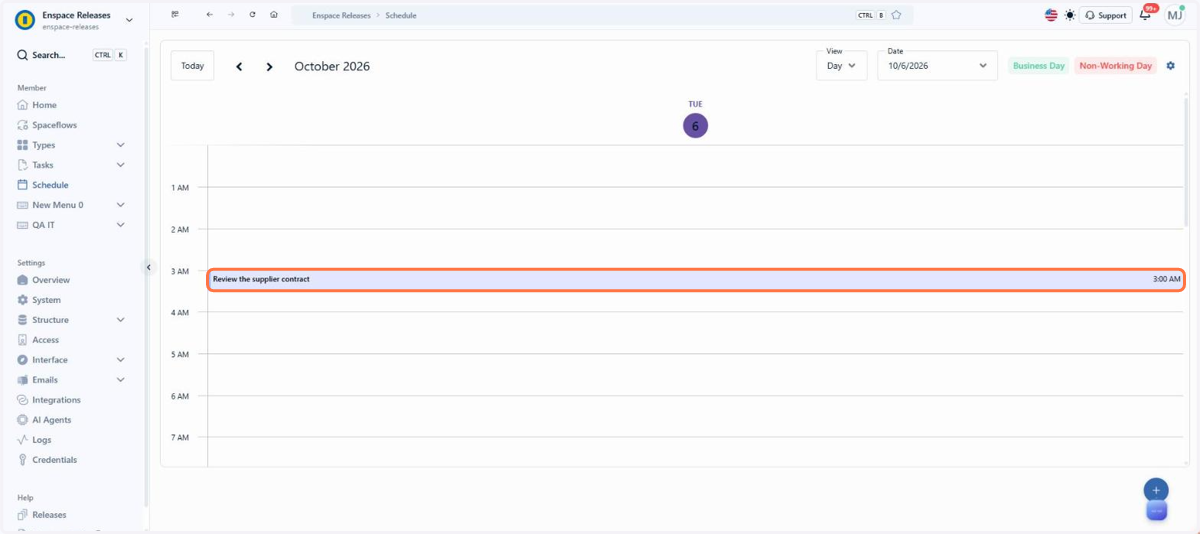
Want to learn more about the Schedule settings? See the documentation.
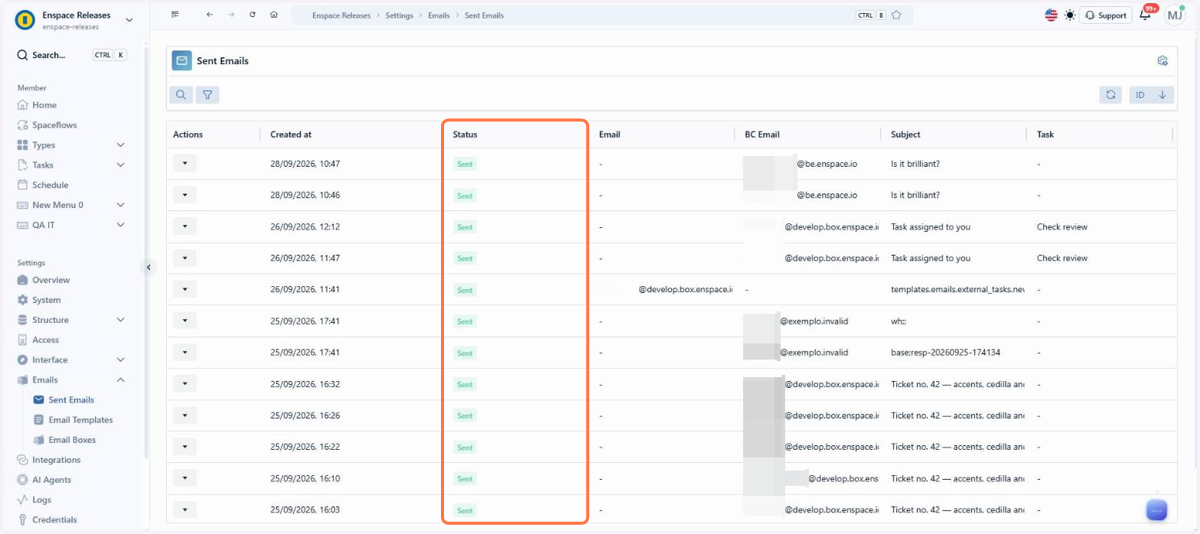
2.4 Emails: Send status in the Sent Emails list
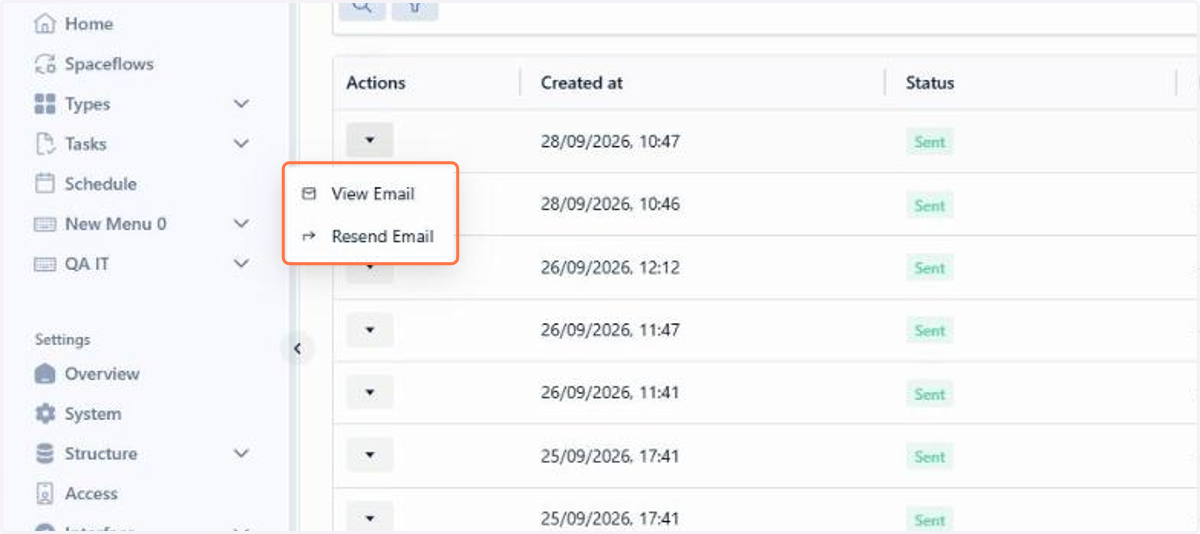
You can now check, in the listing itself, whether an email was sent. The Sent Emails screen has a new Status column, next to the date, the recipient and the subject. It shows the result of each send and separates the sent email from the one that failed. With this, you identify a failed send in the listing itself and can resend the email through the Actions menu.
📋 Step by step: viewing the send status of emails
In the left side menu of the home screen, under Settings, click Emails
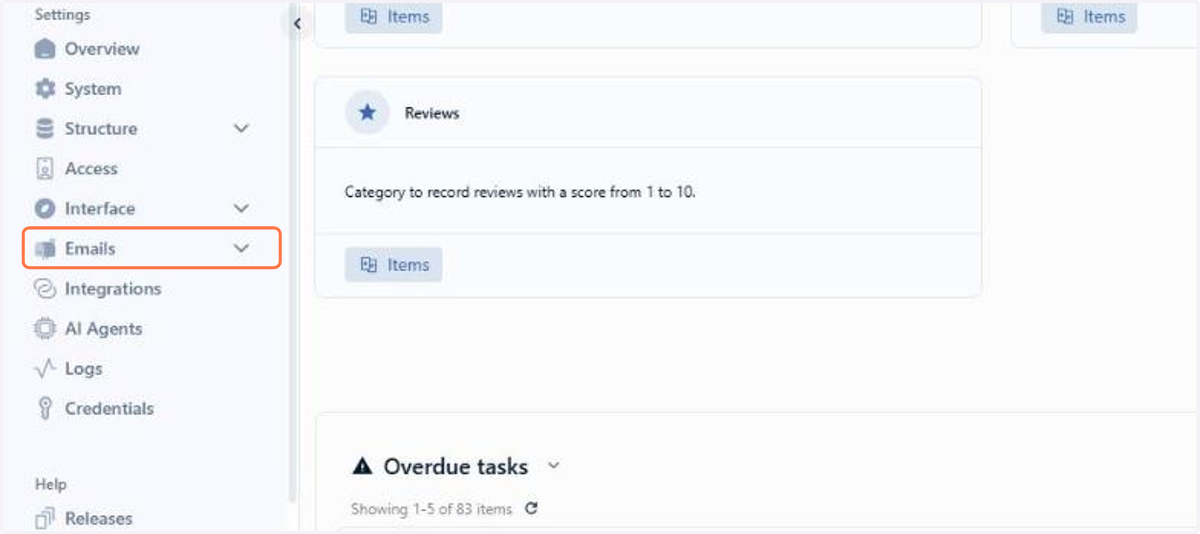
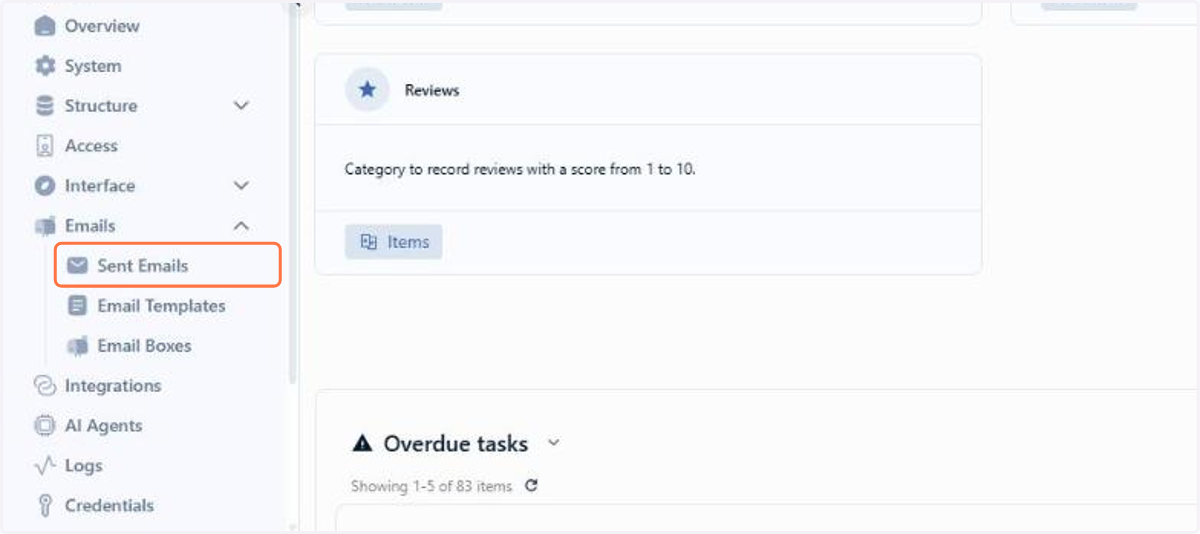
Click Sent Emails
The Status column shows the result of each send
In the Actions menu of a row, you can click View Email or Resend Email
Want to learn more about sent emails? See the documentation.
2.5 Tasks: Bulk deletion of tasks
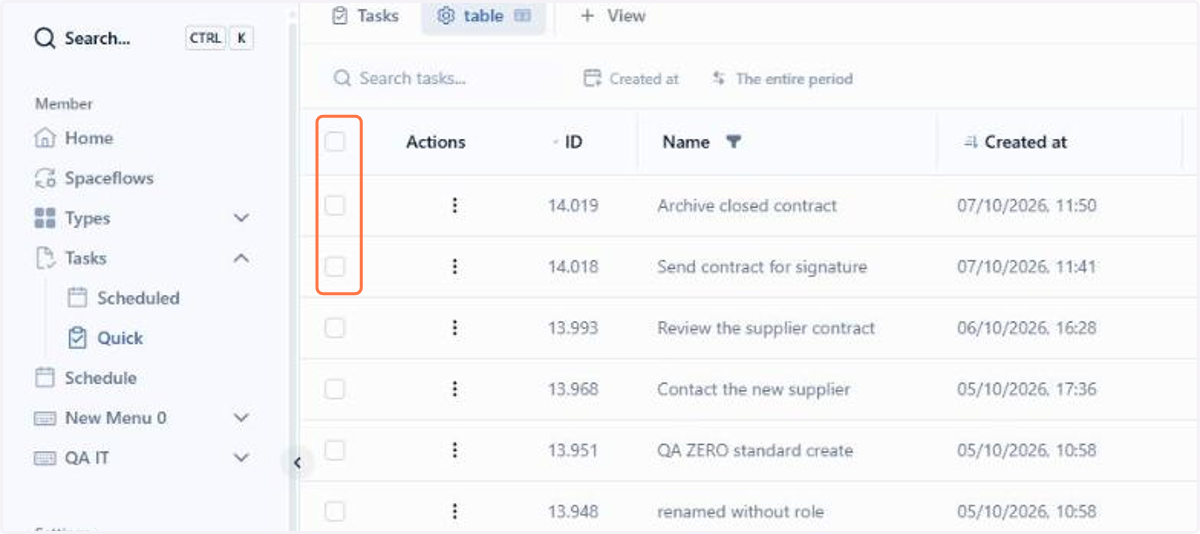
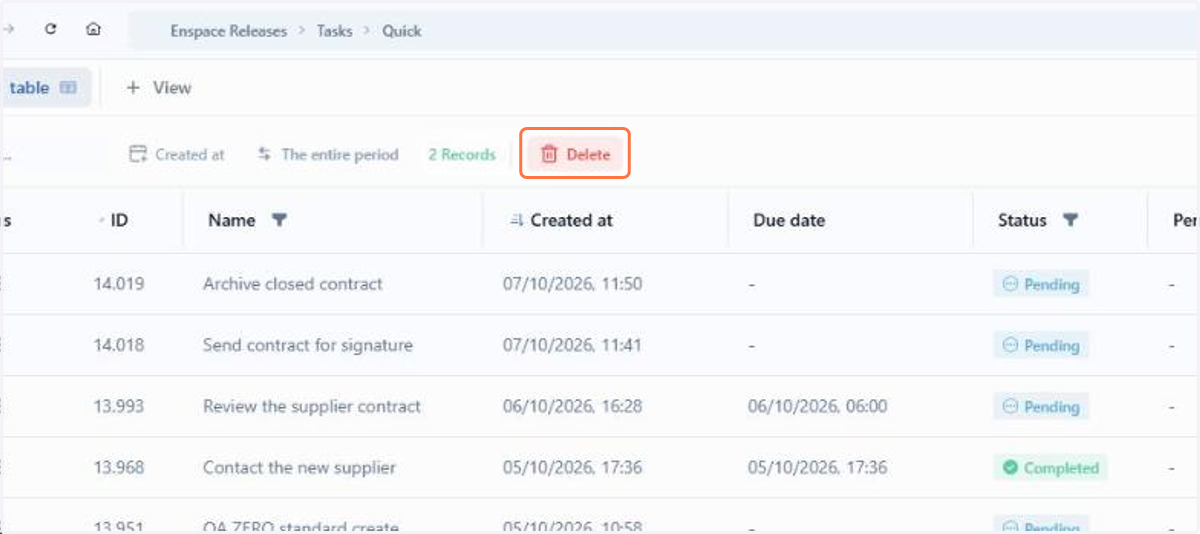
The table views of Quick Tasks and Scheduled Tasks now offer bulk deletion: select the tasks you want to remove and delete them all at once, without opening them one by one. The header checkbox selects all rows, and the top bar shows how many are selected and enables the Delete button.
📋 Step by step: deleting quick tasks in bulk
With a tasks screen in table mode, select the checkbox of the tasks you want to delete
With the selection made, click Delete, next to New task
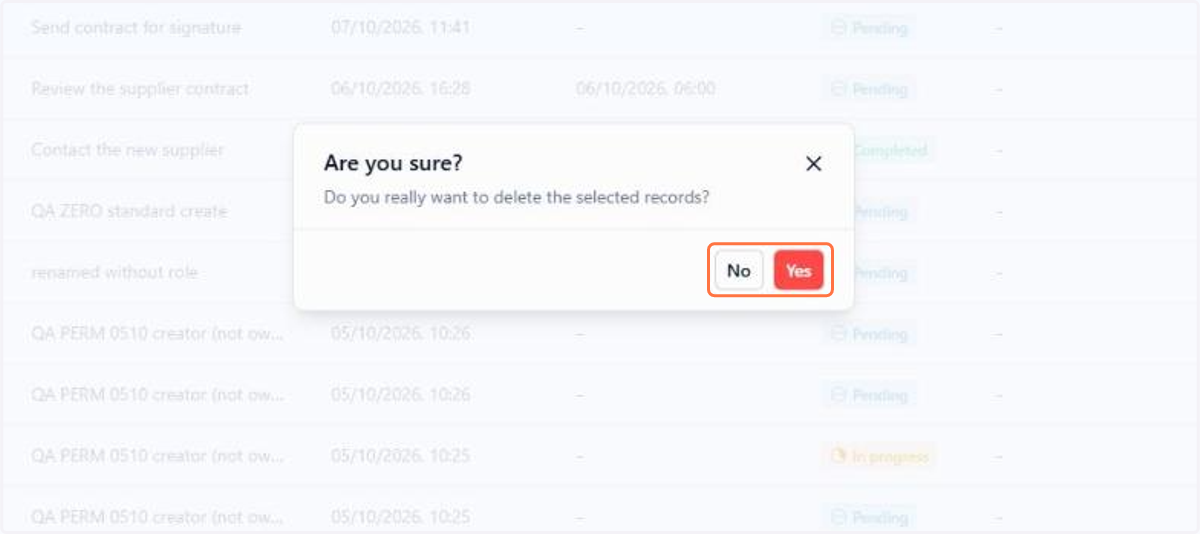
Confirm with Yes
The selected tasks leave the list
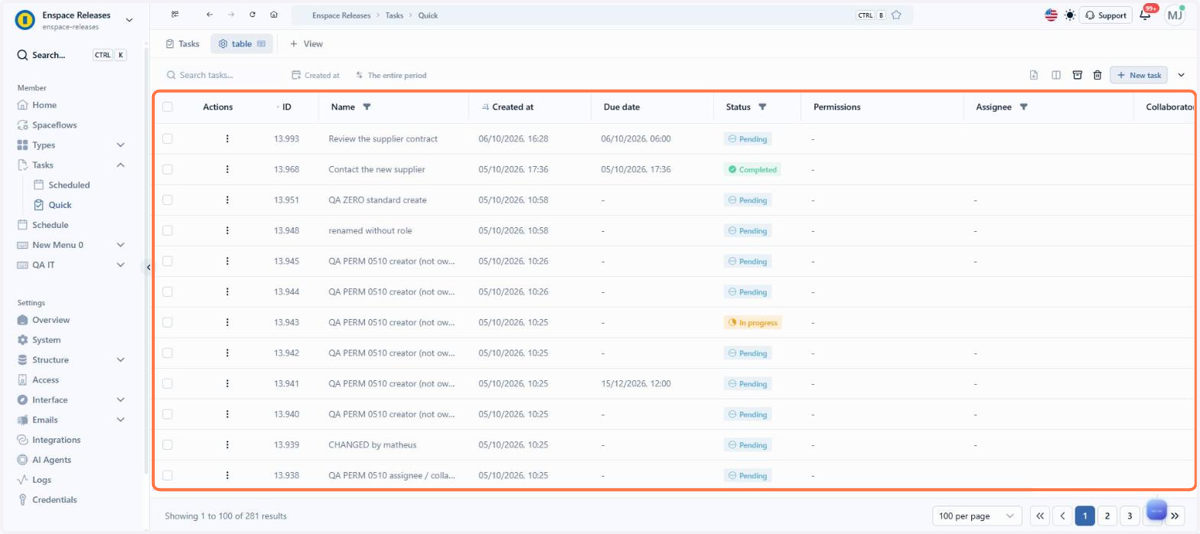
Want to learn more about quick tasks? See the documentation.
2.6 Views: Default sorting in custom views
Custom views now have a default sorting, set right in the configuration, and always open in the chosen order, with no need to re-sort the list on each use.
You can sort by name, creation date, status or custom fields, and the sort options adapt to the type of the chosen field: alphabetical for text, numerical for numbers and by date when the field is a date, always in ascending or descending order.
📋 Step by step: setting the default sorting of a custom view
In the views bar, above the table, click View to create a view
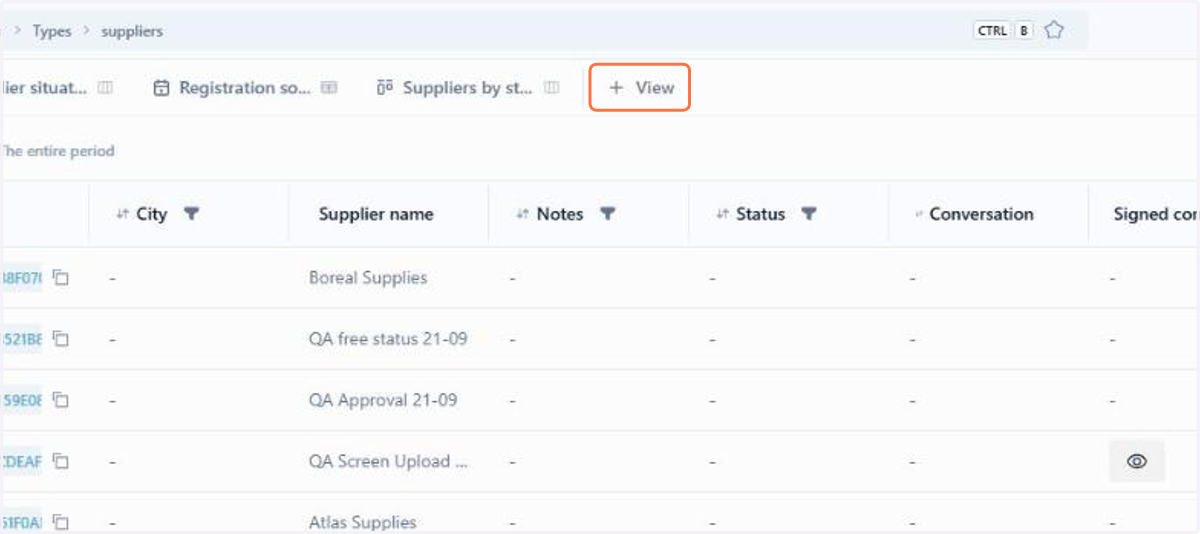
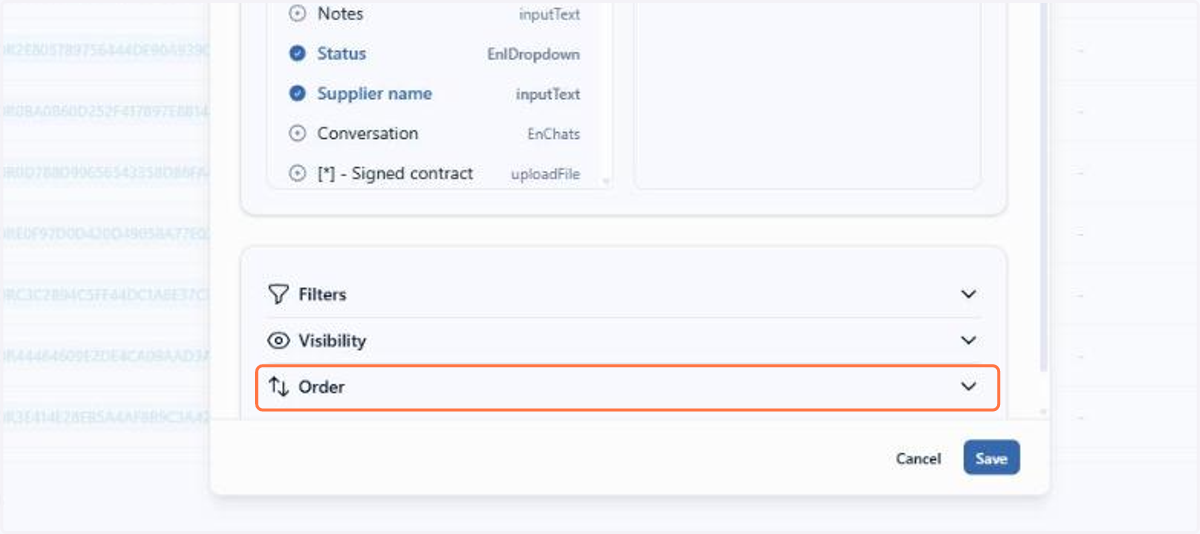
After naming the view and choosing the columns, click Sorting, right below them
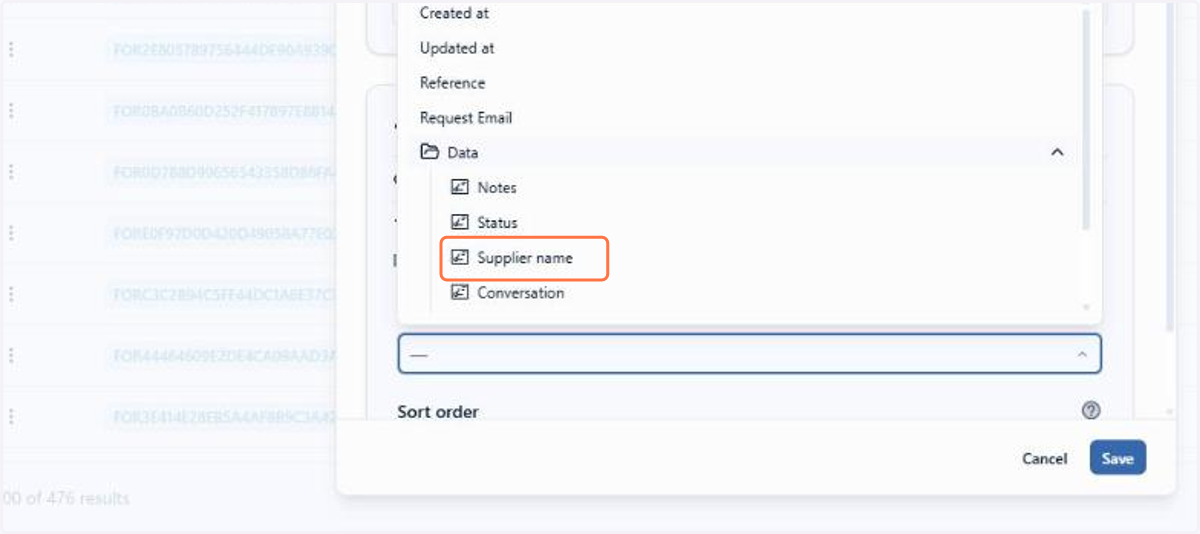
In Field, choose the field that sorts the table. The item's own data, such as Reference, sit at the first level, and the category fields sit in the Data folder
In Sort order, choose Ascending or Descending
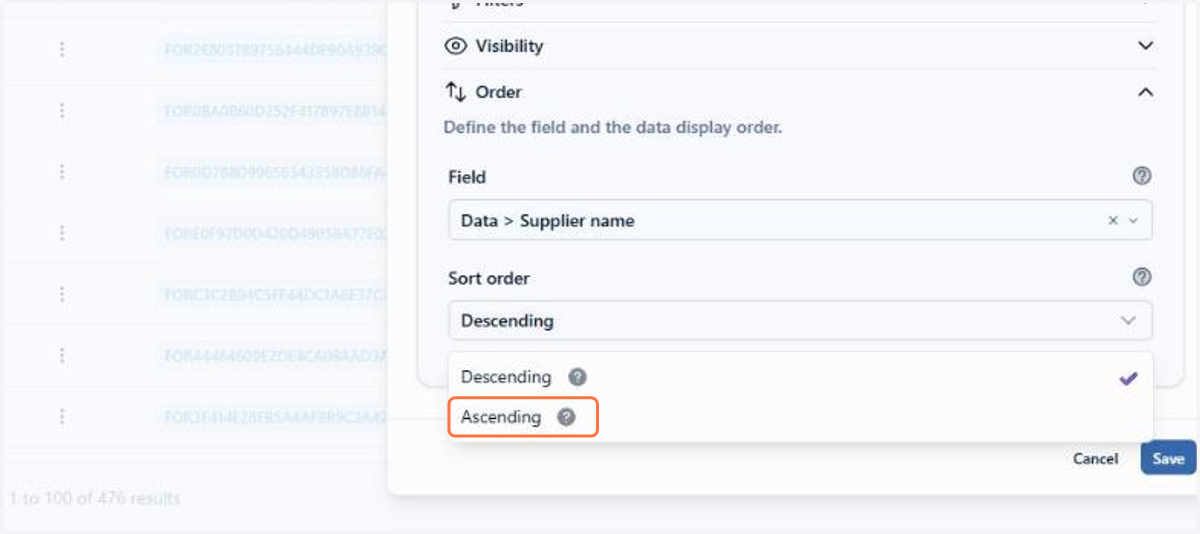
Save the view: it is added as a tab in the items screen and opens with the items already sorted by the chosen field
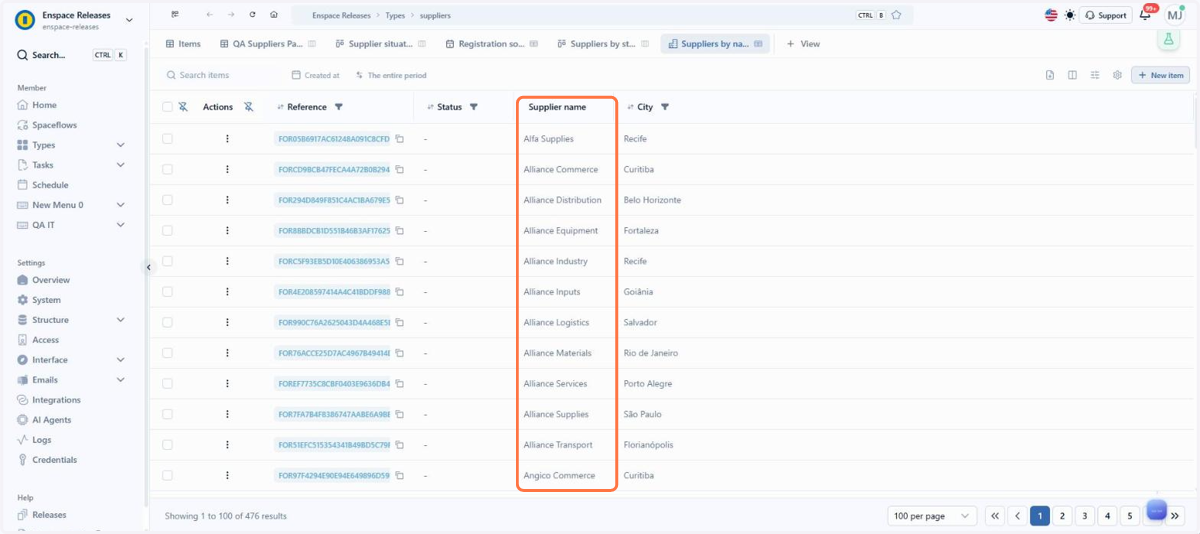
Want to learn more about custom views? See the documentation.
2.7 Fields: HTML field text editor with adjustable height
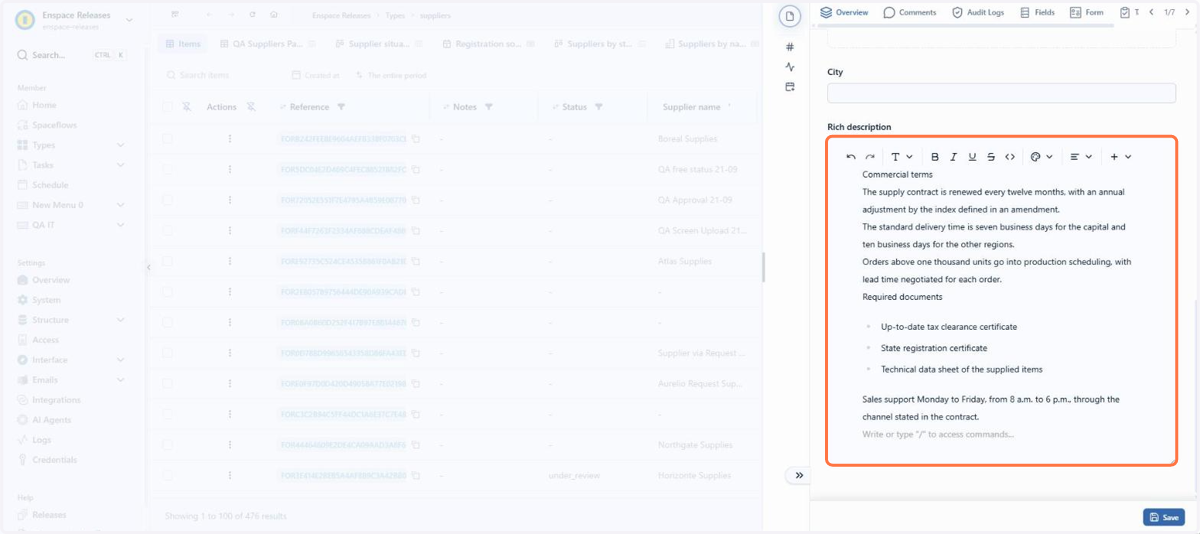
The HTML field text editor no longer has a fixed size: the handle at the bottom right corner expands the writing area as the content grows.
Before, long texts or larger images were hidden behind the field's internal scroll. Now you can expand the editor and view the whole content at once, with more room to read and edit, without changing the field width.
📋 Step by step: adjusting the height of the HTML field text editor
The HTML text editor field opens at its initial height, and the content that does not fit stays behind the internal scroll
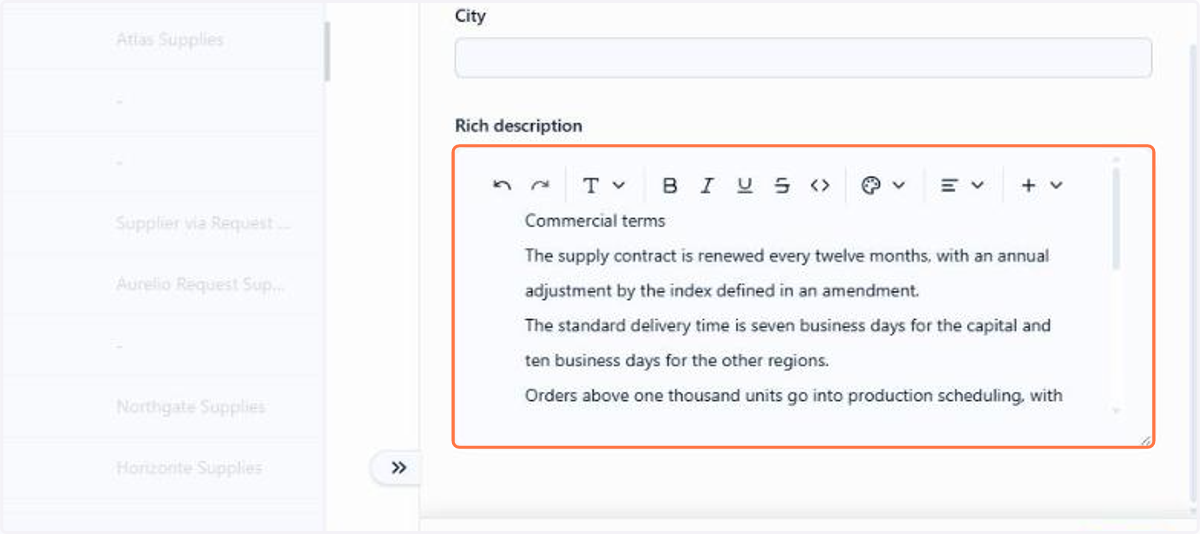
Drag down the handle at the bottom right corner of the editor to enlarge the writing area
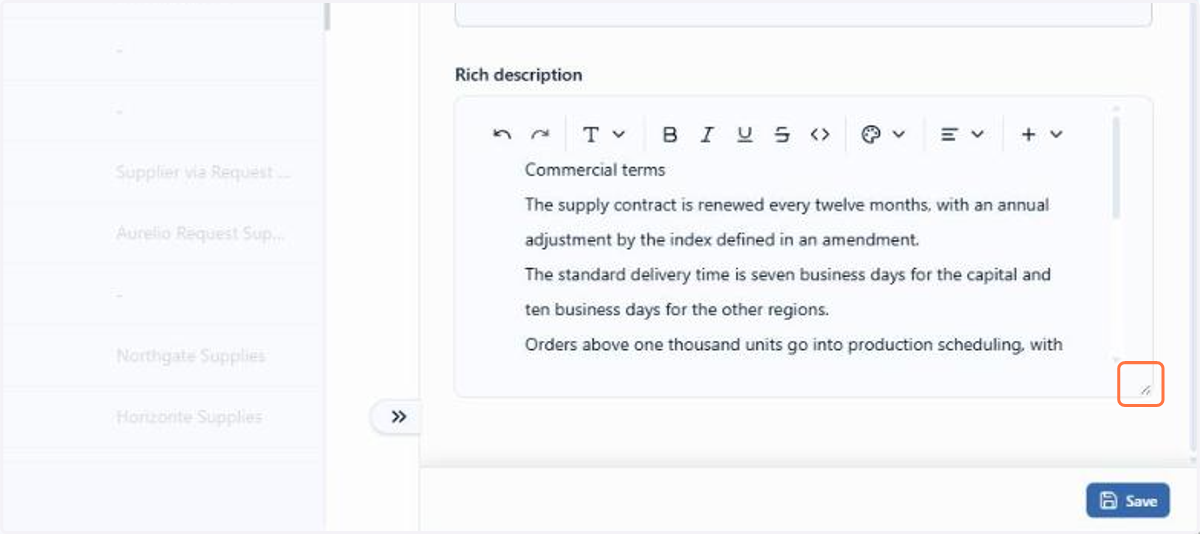
With the larger area, the hidden content appears and the internal scroll is no longer needed
Want to learn more about the text editor? See the documentation.
2.8 Profile: Workspace Owner in the User Panel
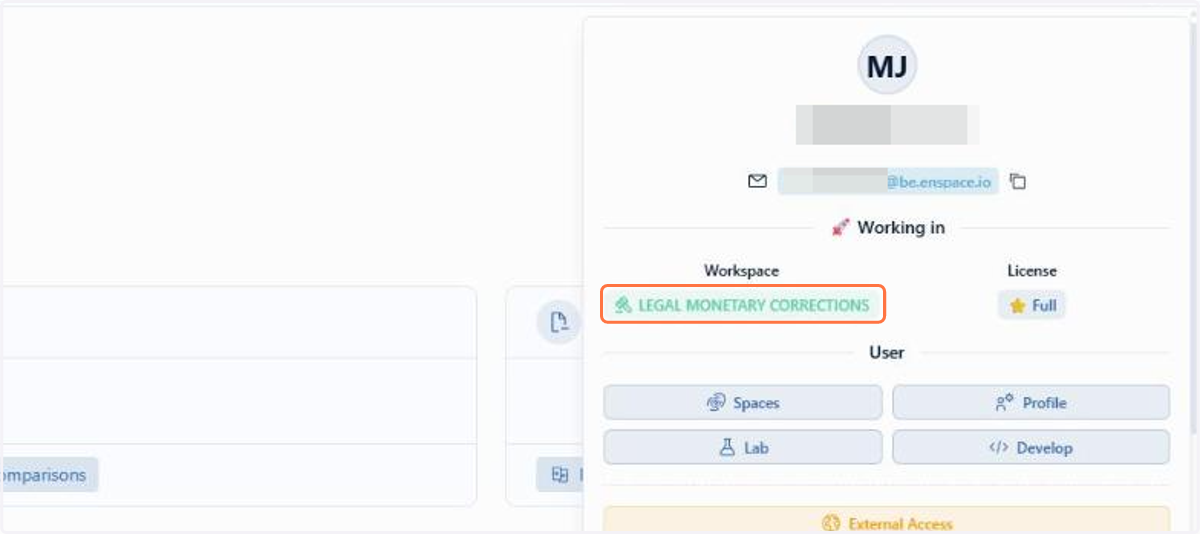
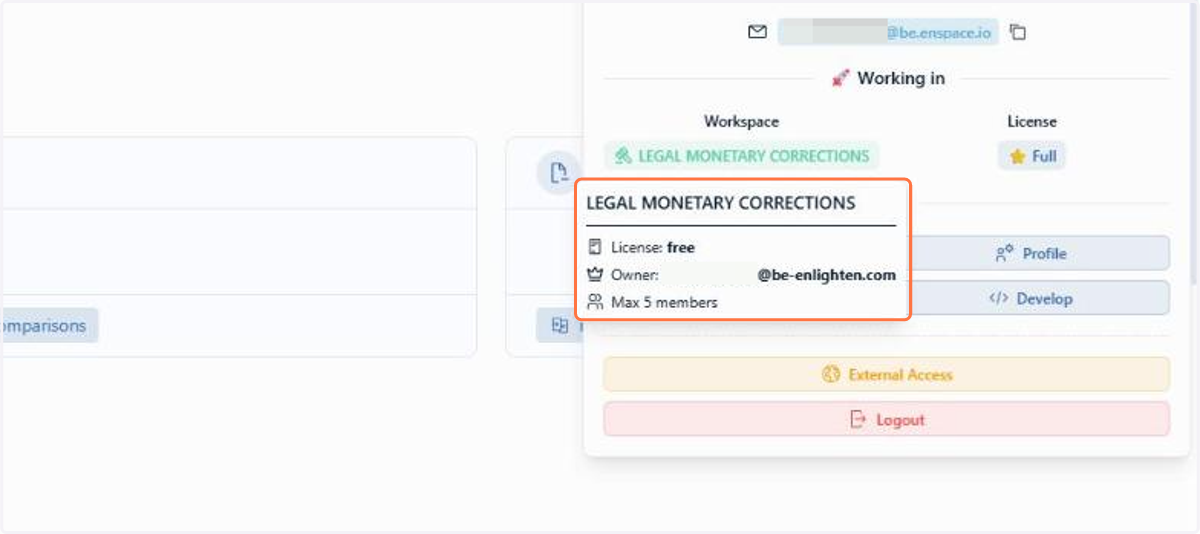
The User Panel now shows who the workspace Owner is: their email appears when you hover over the workspace name. This makes it clear who to turn to for administrative decisions, without having to ask or open a support ticket.
📋 Step by step: seeing who the workspace Owner is
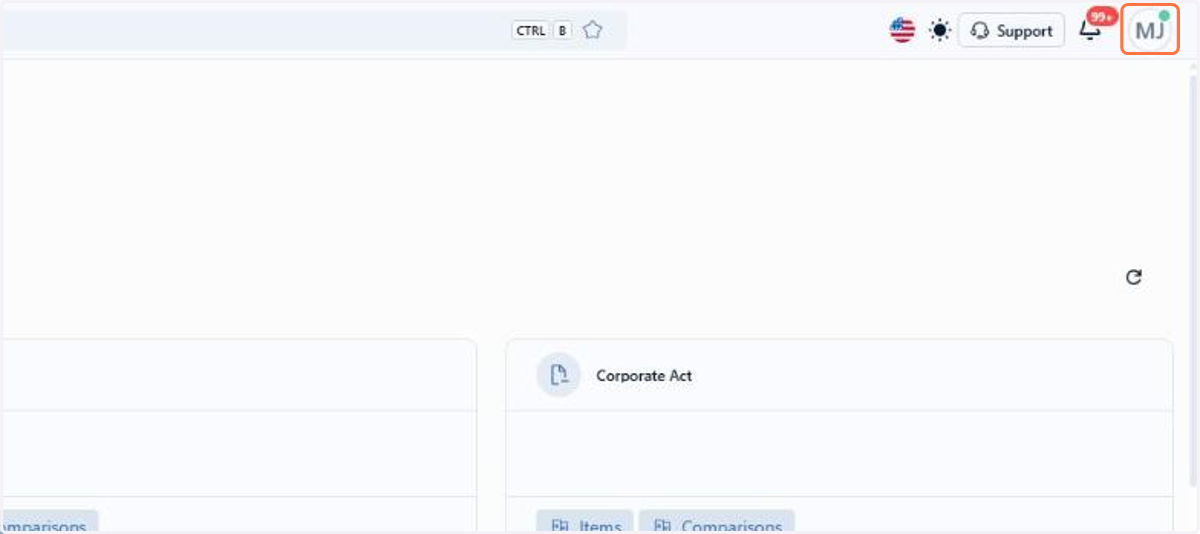
On the home screen, click your avatar, in the top right corner, to open the User Panel
In Accessing, hover over the workspace name
The tooltip shows the email of the workspace Owner, along with the license and the member limit
Want to learn more about the User Panel? See the documentation.
2.9 Spaceflow: Alternative assignee and assignee warning in the Task node
Tasks created by Spaceflow are no longer left stalled without an owner when the assignee cannot be assigned. The Task node has a new Alternative assignee field: if it is not possible to assign the task to the main assignee, it goes to the member chosen there.
This is the case of a flow in which a variable brings the assignee's email from an item field. If that email does not belong to a workspace member, for example, the task cannot be linked to them, and it is assigned to the alternative assignee.
📋 Step by step: setting an alternative assignee in the Task node
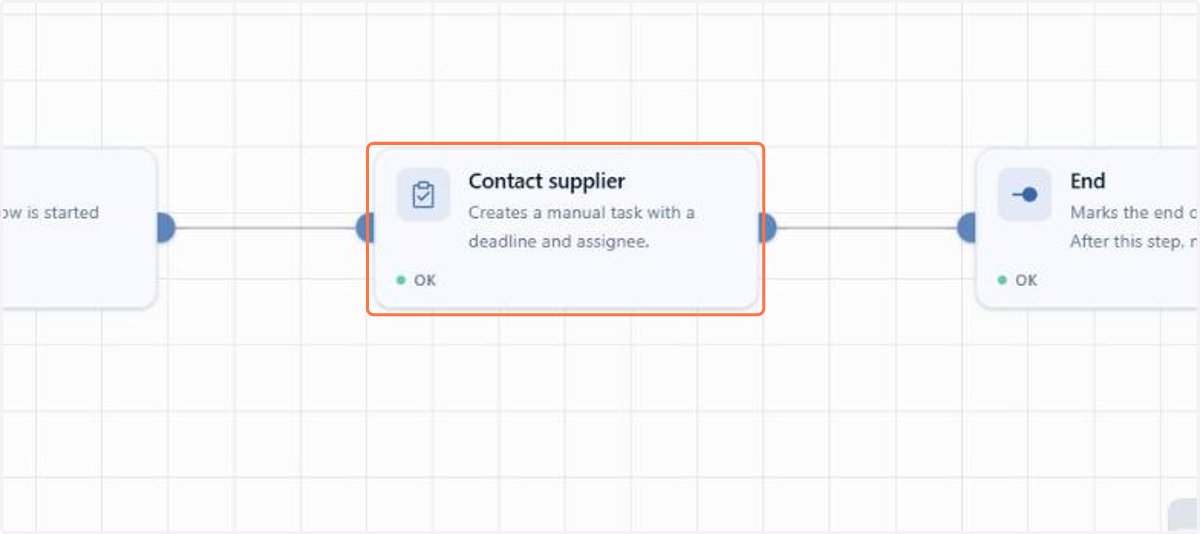
In the flow editor, double-click the Task node
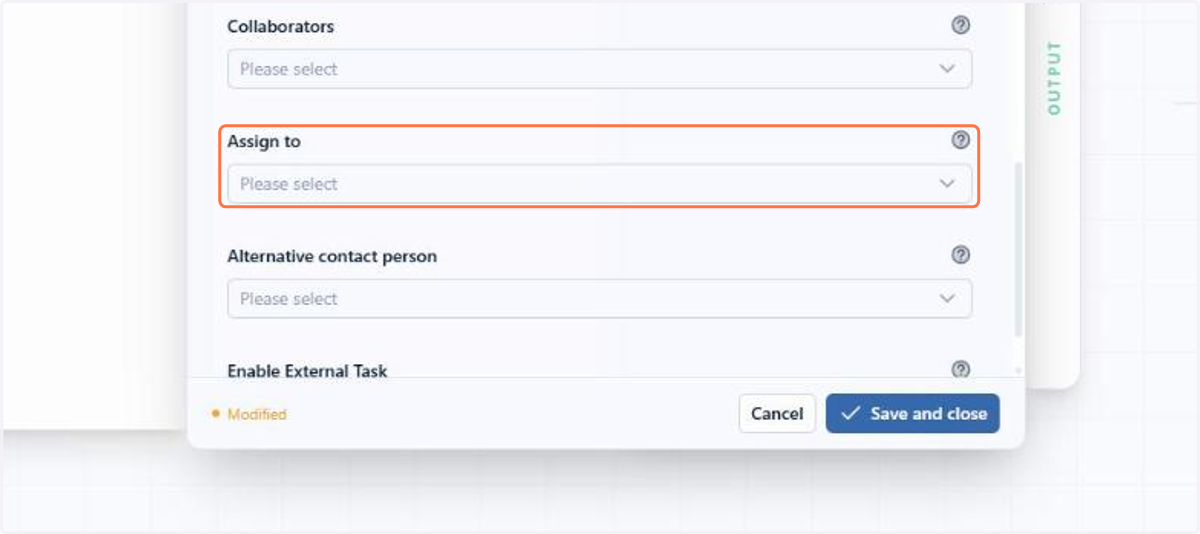
In the Input panel, drag the variable with the assignee's email to Assign to, under Task Permissions and Responsibility
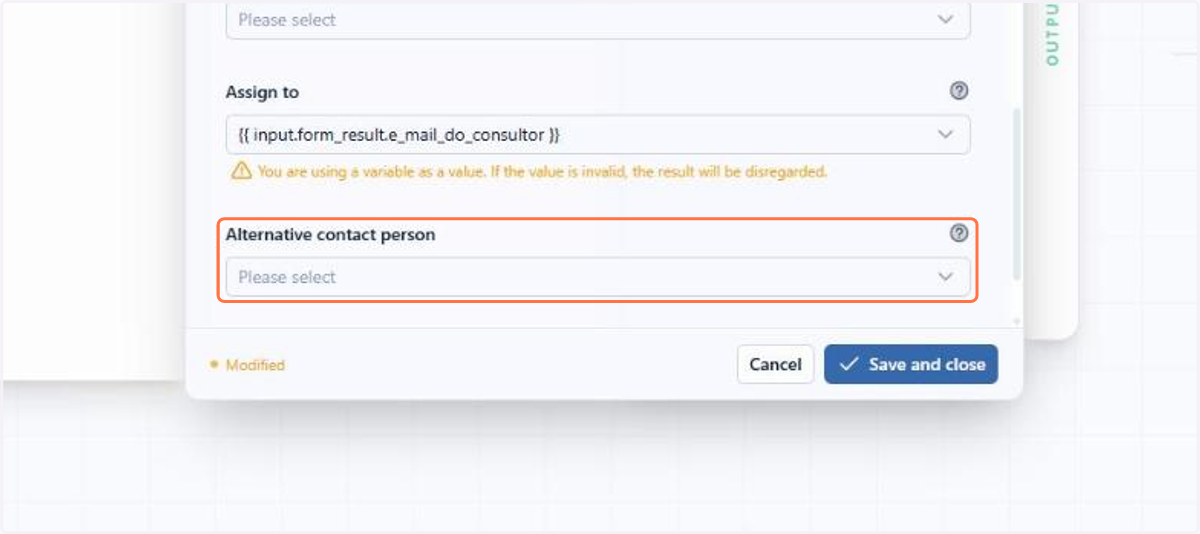
Click Alternative assignee: it guarantees an assignee when the email in Assign to does not belong to a workspace member
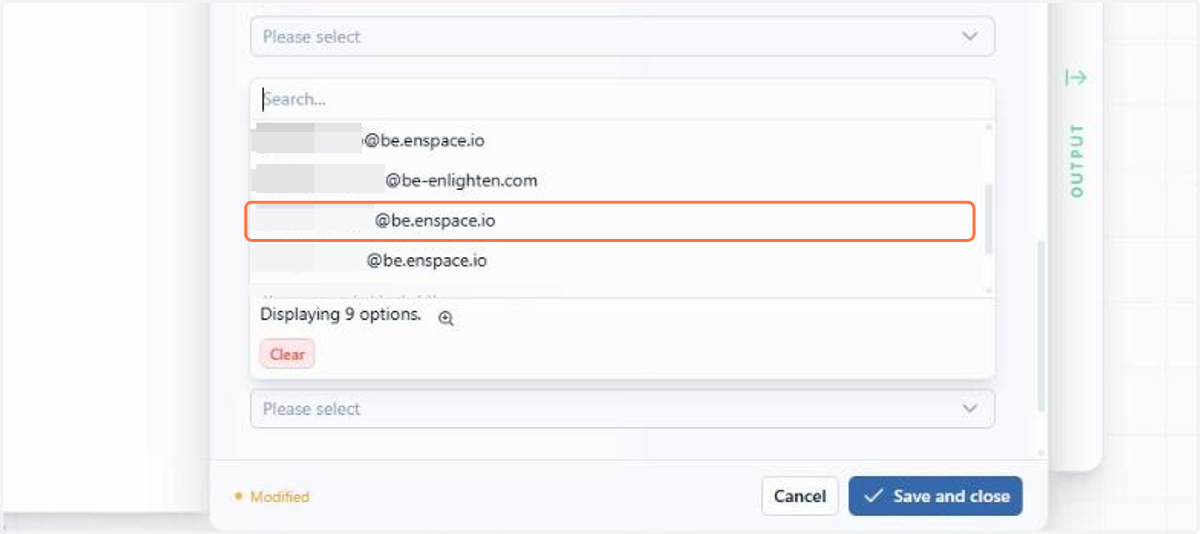
Choose the member who takes the task when it is not possible to assign it to the main assignee
Want to learn more about the Task node? See the documentation.
2.10 Spaceflow: Variable in the Value field of conditions
Spaceflow conditions are more flexible: you can now compare 2 values coming from the flow itself. When the Value field of a condition holds a variable, the Conditionals node compares its content with the other side during execution.
Imagine a flow that compares the requested amount in an item with the limit registered in another category, fetched by a previous node. The condition decides the next step with the actual execution data, without depending on a fixed value typed in the condition itself.
Want to learn more about the Conditionals node? See the documentation.
2.11 Logs: Author and origin of changes made by the CRUD node in automatic mode
Changes made by the CRUD node in automatic mode (the one that runs the action directly on the item, without generating a task for a person) now appear in the Audit Logs with author and origin.
Each item creation or edit made by a CRUD node in automatic mode generates an entry in the audit log, with whoever triggered the flow as the author, instead of an unidentified system user, and with the source execution, which makes it possible to trace where each change came from.
The recorded author depends on how the flow was triggered. When the trigger is Item actions, the author is the person who created, updated or deleted the item that started the flow. When the flow is started manually, the author is the person who started it.
This author only identifies the origin of the change and does not change what the flow can save. The automation keeps writing to the item with system permissions, regardless of the permissions of the person recorded as the author.
Want to learn more about the CRUD node? See the documentation.
2.12 Items: Accent-insensitive search
Search in the items and tasks listings now ignores accents: searching for "acao" finds "ação", and the reverse also applies.
This way, the item appears in the search even when it was registered with a spelling different from the one searched, with or without accents. You find what you are looking for on the first attempt, without testing variations of the same word.
Want to learn more about item search? See the documentation.
2.13 Integrations: Message to signers and failure recovery in D4Sign
When sending a document for signature, you can now include a custom message to the signers, to give context to the document sent.
When the automatic integration fails, the signature process can also be resumed. A manual action forces the send immediately, without redoing the flow, and a failure in the D4Sign return can be reprocessed from the step where it occurred, without duplicating what had already been done.
Want to learn more about the D4Sign integration? See the documentation.
3. Bug Fixes
In the items table, some items displayed in a column a value different from the one saved in the item itself, and anyone checking the listing saw the wrong information.
The fix makes the table display the same value recorded in the item.
When creating an item from a relationship field with another category, the system blocked the creation and displayed a link not allowed error, stating that one of the fields belonged to another category.
The fix allows the item creation through the relationship field to complete normally, without the link block.
In the new items screen, opening an item already showed the unsaved changes notice, even without any edit, and the browser asked for confirmation to leave the page. The case occurred in categories with default value fields. Anyone who only viewed the item ended up saving unnecessarily and changed the date and authorship of the last update.
The fix makes the item open without the notice, which now appears only when something is actually edited.
In the new Items screen, when creating a new item, the system opened all of the category's forms at once, with no way to filter them, which made it hard to find the intended form.
The fix allows filtering the forms when creating a new item, making it easier to locate the right form in categories that have several of them.
When configuring a custom view, the chosen filters and fields were not saved, neither in the old screen nor in the new one, and the table ended up displaying columns that were not configured.
The fix saves the view's filters and fields, and the table now displays only the configured columns.
In some item edits, the monetary correction configured in the Monetary Value field was erased, including when the field was inside a group. And, when one of the item's corrections used an invalid index, no correction of that item was processed, not even the valid ones.
The fix keeps the configured monetary correction when editing the item and processes the valid corrections normally: only the one that uses an invalid index is flagged with an error.
When creating items through a bulk spreadsheet upload, the monetary correction index was left empty, even though the field was filled in correctly.
The fix ensures the monetary correction index is filled in on items created via spreadsheet as well.
In items brought in by migration, when saving a monetary correction field without a defined index, the system displayed the error "An internal server error occurred", but saved the values anyway.
The fix displays the error message in the user's language and flags the monetary correction that has no index with an error status.
In the Code tab of the category settings, the editor displayed the Invalid badge for a correct structure, without explaining why, and did not save the changes made directly in the code.
The fix makes the editor recognize the valid structure and save the changes made in the code.
Flows with the Deletion event did not trigger when an item went to the trash. Changes made by integrations or by internal routines also did not trigger the flows with the Update event.
The fix makes the flows with the Deletion event trigger when a published item goes to the trash, and the changes made by integrations or internal routines now trigger the flows with the Update event.
Items created by Beni did not start the matching Spaceflow: the system did not recognize the creation event, and the automatic flow was not triggered.
The fix makes an item created by Beni trigger the matching automatic flow, just as items created through the other paths already do.
When adding conditionals to Spaceflow fields, the reference field selector showed only the fields created in the workspace categories, and not the fields created within the flow builder itself.
The fix now also lists the fields created in the Spaceflow builder as a reference for the conditionals.
When opening the link of an external task and entering the one-time code received by email, the system validated the code and showed the success message, but stayed on the authentication screen, without opening the task.
The fix takes the user straight to the task as soon as the code is validated.
When extracting the standard report on the Scheduled Tasks screen, the extraction did not finish and the system displayed an error notice.
The fix makes the standard report extract normally again.
When deleting completed quick tasks in sequence, they disappeared from the screen, but reappeared in the table as soon as the page was refreshed, as if the deletion had not happened.
The fix ensures that the deletion of quick tasks is actually applied, so the removed tasks do not return to the table after refreshing the screen.
When creating a Kanban view in Scheduled Tasks, default filters were applied without warning, and there was no way to remove them.
The fix removes the duplicate filter buttons from the tasks Kanban.
When editing a custom view created on the quick tasks screen, it was not possible to see which fields were selected, which made it hard to adjust the view without starting over.
The fix now displays the already selected fields when editing the view, allowing you to review and change the selection directly.
When sending the first message of a new conversation in the Beni chat, the conversation was created, but the chat area showed "Conversation not found" and the content appeared only after reloading the page. In some cases, the typed text was lost without warning.
The fix makes a new conversation open correctly on the first message, preserving the text that was sent.
The floating Beni chat sometimes ended up entirely outside the visible area. Because its position was saved and reapplied without adjusting to the window size, dragging the chat on a larger screen or another monitor was enough for Beni to disappear when returning to a smaller screen, with no way to bring it back through the interface.
The fix keeps the floating Beni chat always within the visible area by adjusting its position to the window size, so it stays reachable even after switching screens or monitors.
In the Beni app, when switching between Planning mode and Default mode, the mode shown on screen did not always apply to the message being sent: in some cases Beni refused to run, claiming it was in planning mode, even with Default mode selected.
The fix makes the mode selected on screen at the moment of sending always apply, so Beni runs or only plans according to the user's current choice.
In the floating Beni chat, entering a very large amount of text made the input field keep growing taller without limit, pushing the interface downward.
The fix caps the growth of the input field, so long texts no longer shift the interface.
In the chat's agent selector, each agent's description appeared as an internal system identifier instead of the descriptive text.
The fix makes the agent selector show each agent's description in readable text, in the language configured for the workspace.
In some email templates, the task link was not sent, preventing the recipient from opening the task directly from the message.
The fix ensures the task link is sent in the template, allowing the task to be opened from the email.
The task completion email notification sent to external users showed a text's internal identifier instead of the translated content.
The fix makes this notification show the translated text correctly in the email body.
The D4Sign integration had a delay in returning the updated document to ENSPACE after sending it for signature.
The fix reduces this delay, so the updated document returns to ENSPACE in an appropriate time.
In English, the log message for creating a field in a category was not translated and showed the text's internal identifier.
The fix translates this log message, showing the correct text in English.
4. Extra
This section is a notice about the documentation portal, which sits outside ENSPACE and is not included in the item count of this release.
4.1 Documentation: Product selector in the documentation portal
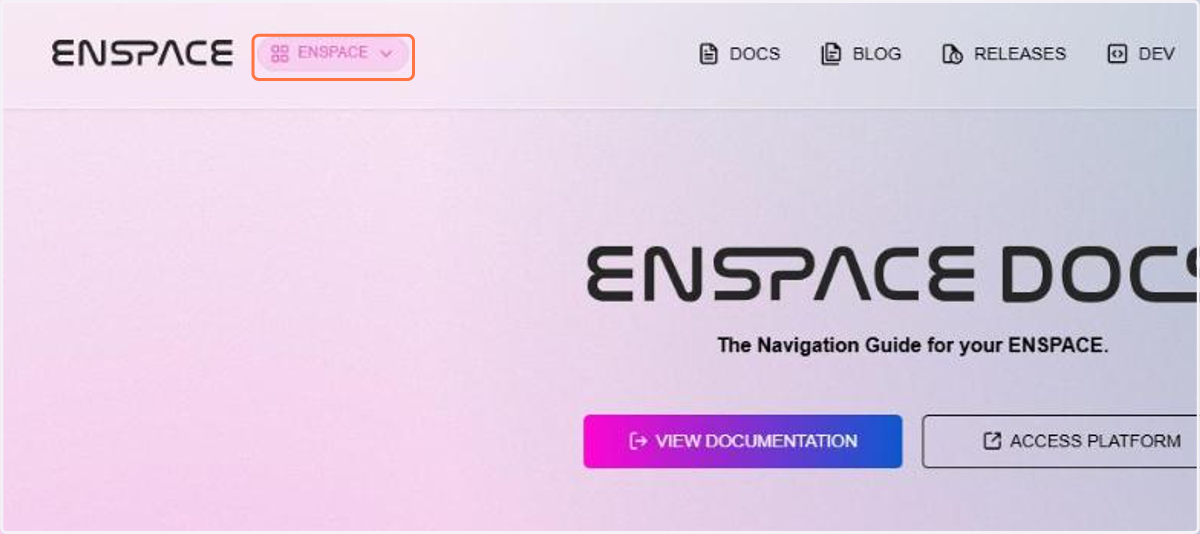
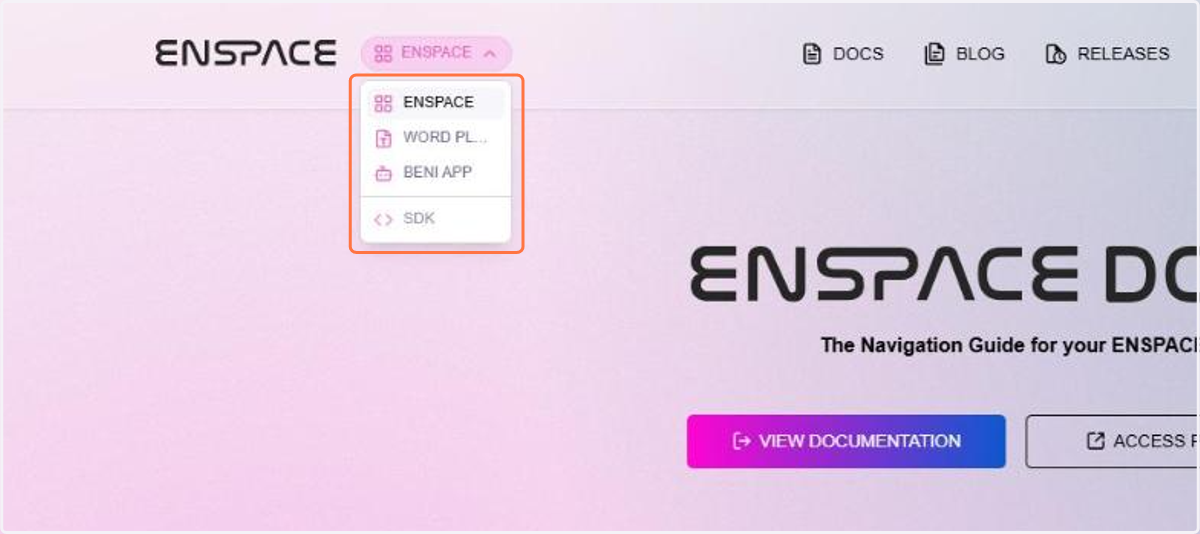
The documentation portal is easier to navigate now that it brings together more than one product. At the top of the page, next to the logo, a pill shows which documentation is open and switches between ENSPACE, Word Plugin and Beni App with one click.
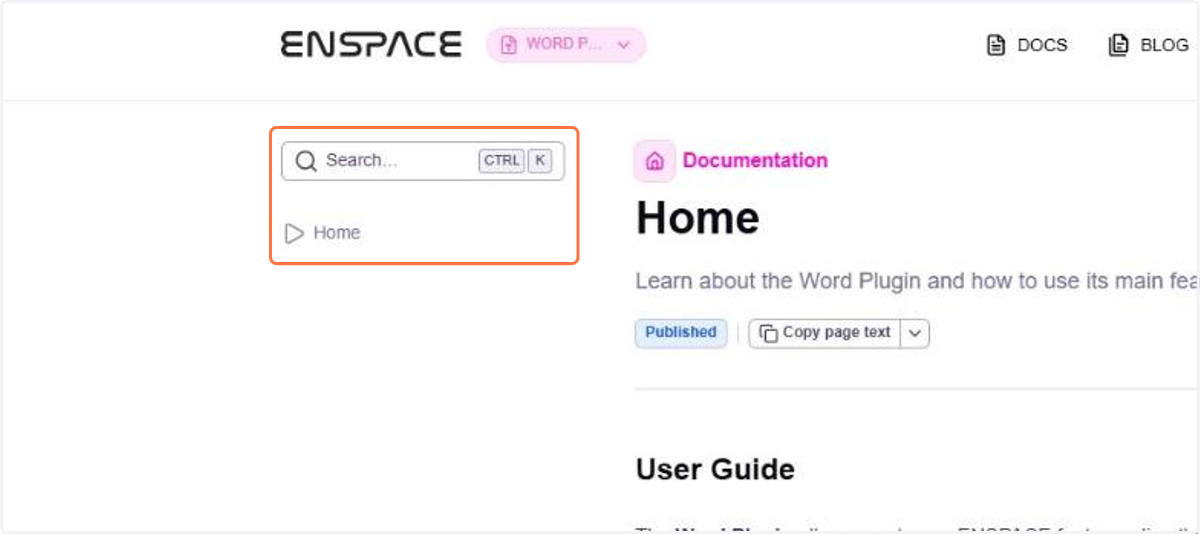
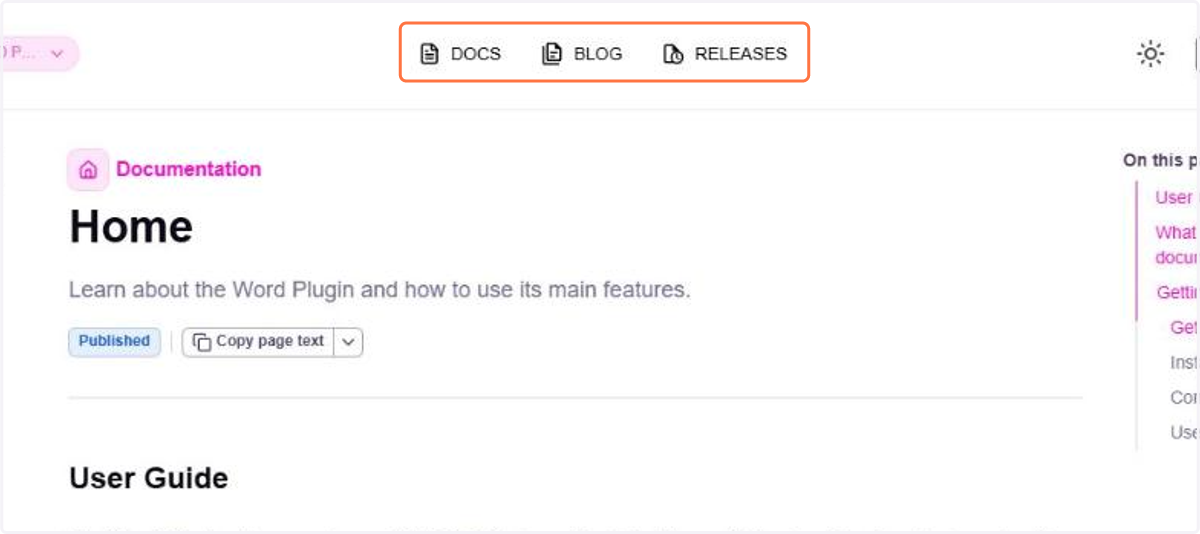
When you choose a product, the whole portal follows the choice: the left side menu displays that product's tree, the content and the address of the page change immediately, and the DOCS, BLOG and RELEASES links at the top point to its sections. The chosen language and the light or dark theme remain in effect after the switch.
📋 Step by step: switching products in the documentation portal
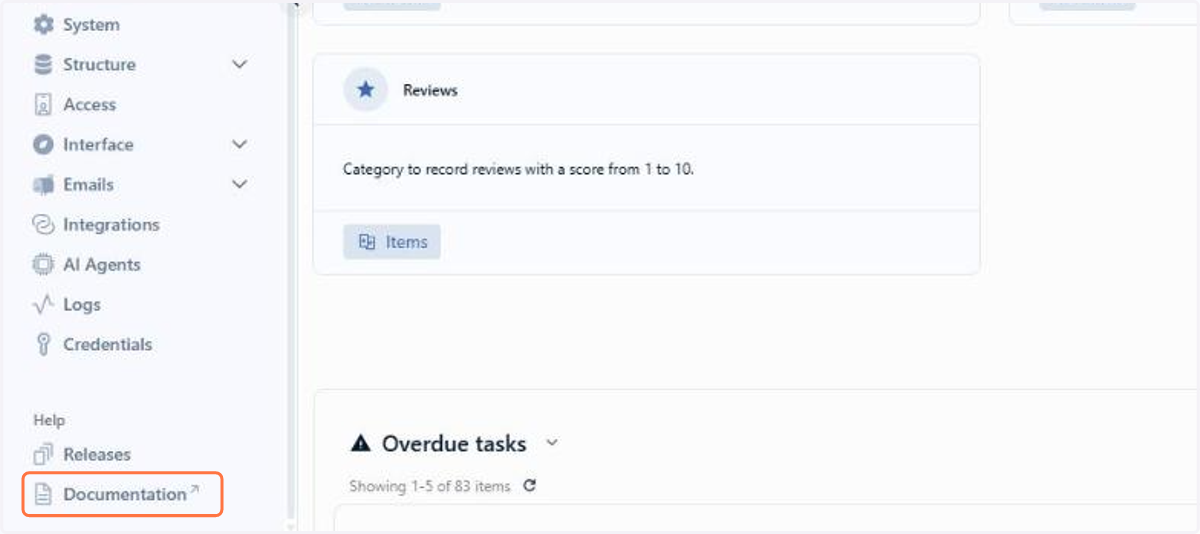
In the left side menu of the home screen, in the Help section, click Documentation
At the top of the portal, click the selector next to the logo, which shows the open documentation
Choose the product from the list: ENSPACE, WORD PLUGIN or BENI APP
Check the left side menu, which now displays the tree of the chosen product
The DOCS, BLOG and RELEASES links at the top also follow the choice and point to the sections of the product
Want to learn more about the documentation portal? See the documentation.
3.0.0 is live
This release includes 79 items: 13 new features, 11 improvements and 55 bug fixes. Highlights include the new ENSPACE Plugin for Microsoft Word, the new Beni app and the AI agent node in Spaceflow.
1.0.0 is live
This release has 1 item: 1 new feature. It is the first version of the ENSPACE Plugin for Microsoft Word, with AI document review and template creation right inside Word.