3.0.0 is live


RELEASE NOTES
1. New Features
1.1 Word Plugin: ENSPACE inside Microsoft Word
The biggest launch in this version is not inside ENSPACE, but inside Word: the ENSPACE Plugin for Microsoft Word. It is a separate product that brings your workspace into your documents.
From a side panel in Word itself, you sign in to your account, choose the workspace and use the resources you already configured in ENSPACE, without switching systems. The connection goes both ways: Word now reaches ENSPACE agents, playbooks and templates, and the document you work on can become a template in your workspace.
In this first version, the focus is AI document review and editing and creating templates. You run AI reviewer agents from the document chat, applying a playbook when you want a specific set of criteria, and the suggestions arrive as Word tracked changes, to accept or reject one by one, generating a new version. You can also choose ready-made templates by category, turn the current document into a new template and configure variables and logic blocks of your ENSPACE documents directly in Word.
Everything respects the workspace and your permissions: you only see and use what you have access to, and every AI execution is logged for history and audit.
📋 Step by step: start using the ENSPACE Plugin in Word
In Word, with the document open, open the plugin from the Enspace group on the Home ribbon
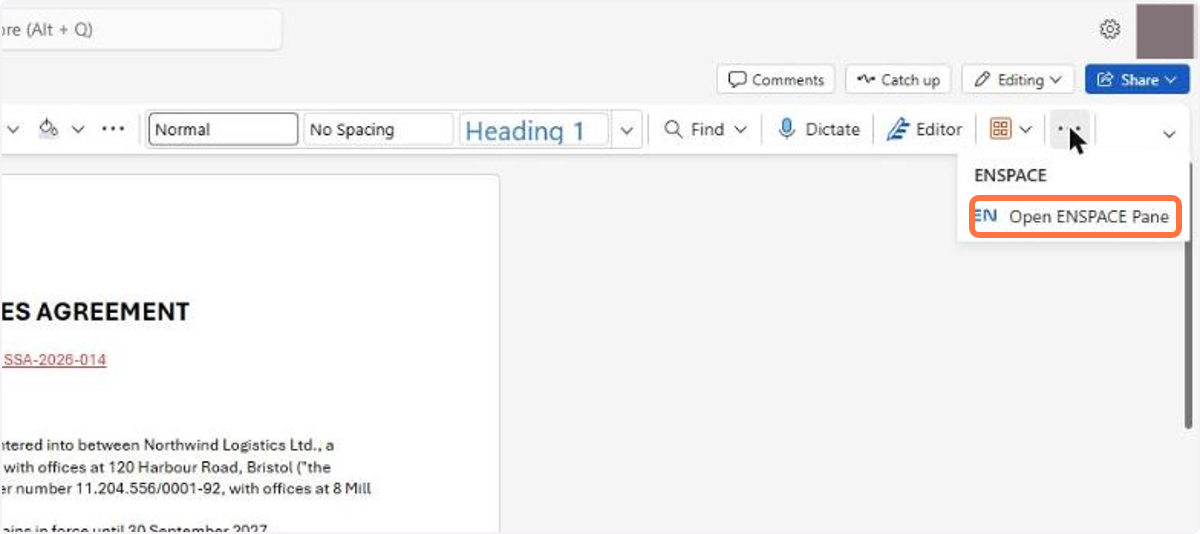
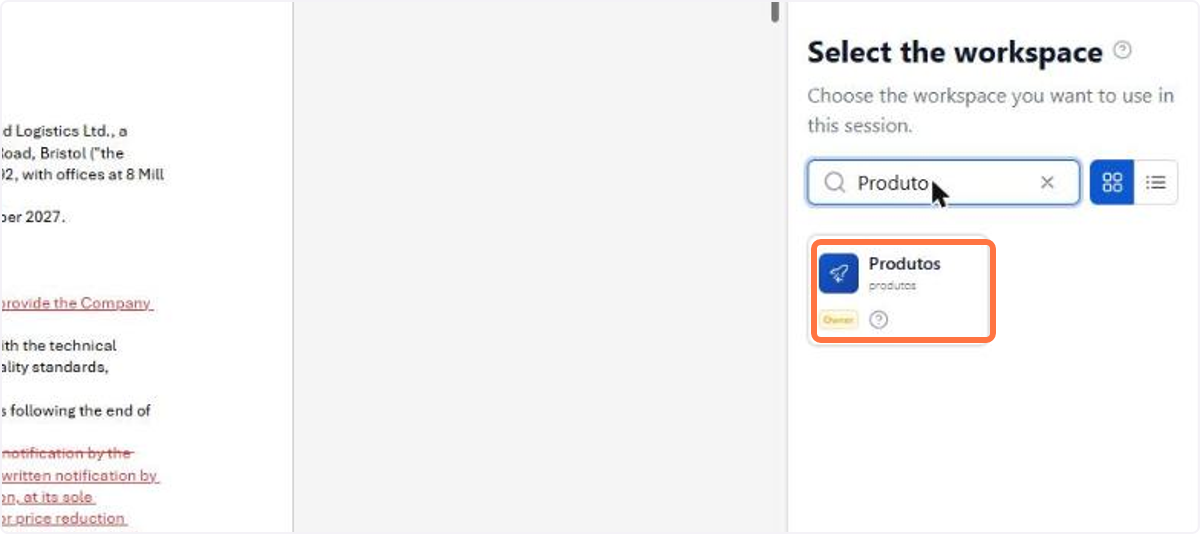
Select the workspace you are going to work in
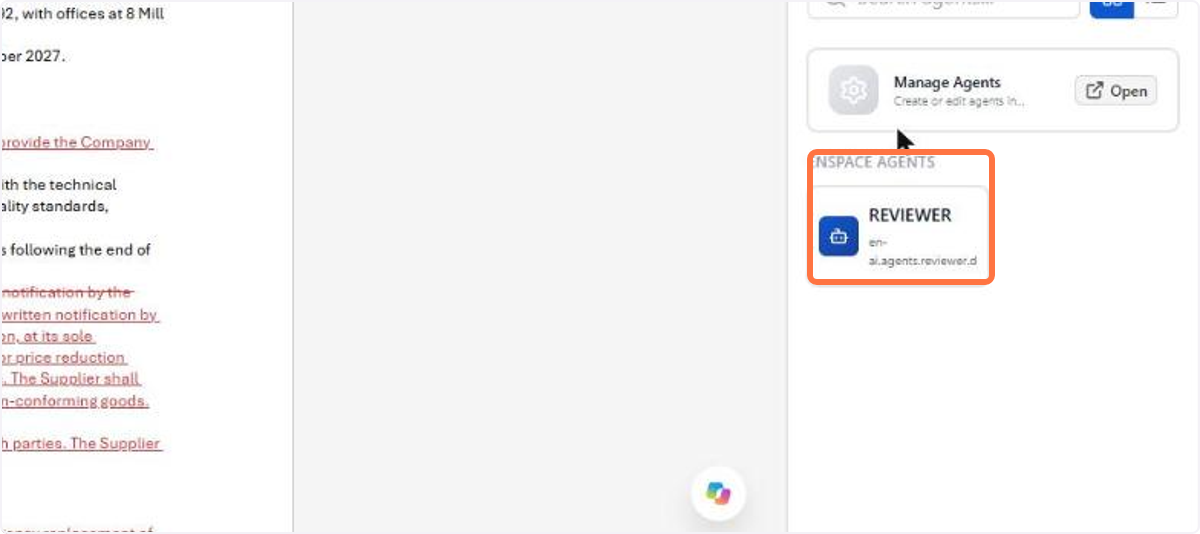
On the Assistants (AI) tab, choose the reviewer agent
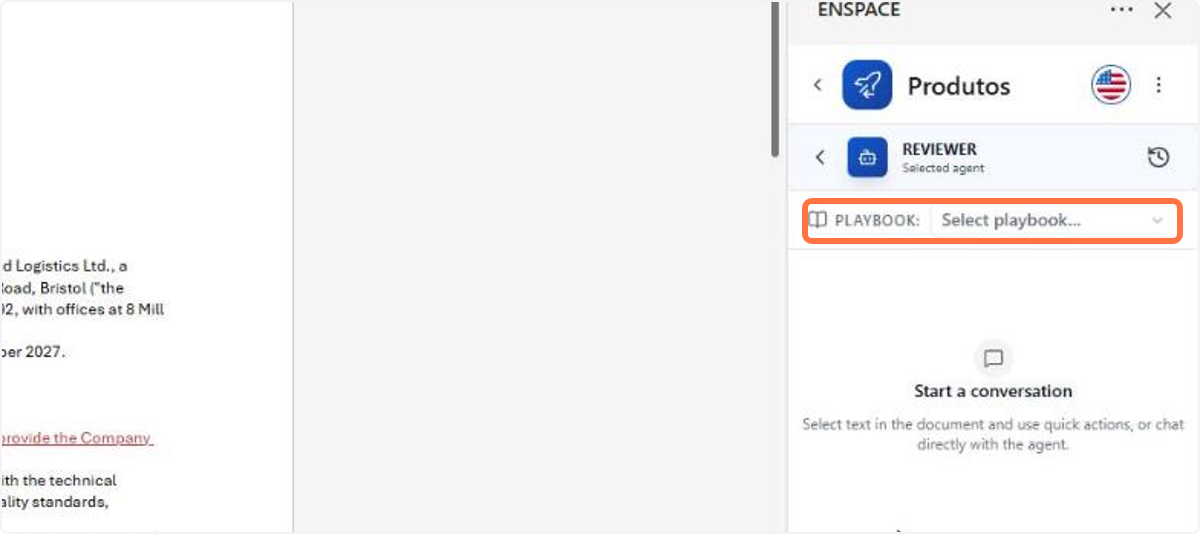
Under PLAYBOOK, choose the set of review criteria
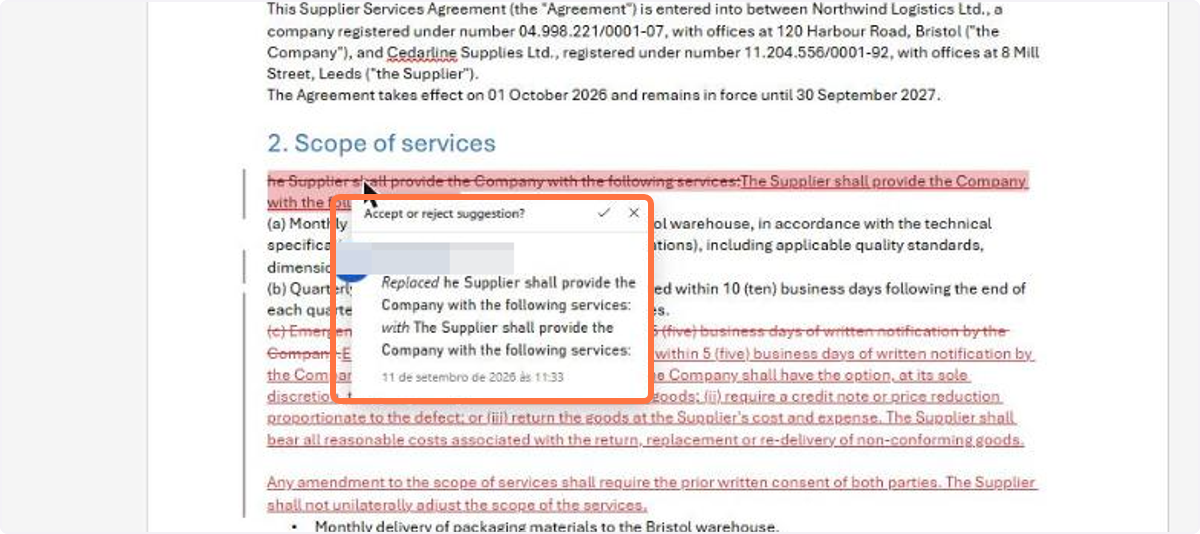
The suggestions arrive as tracked changes; click one to accept or reject it
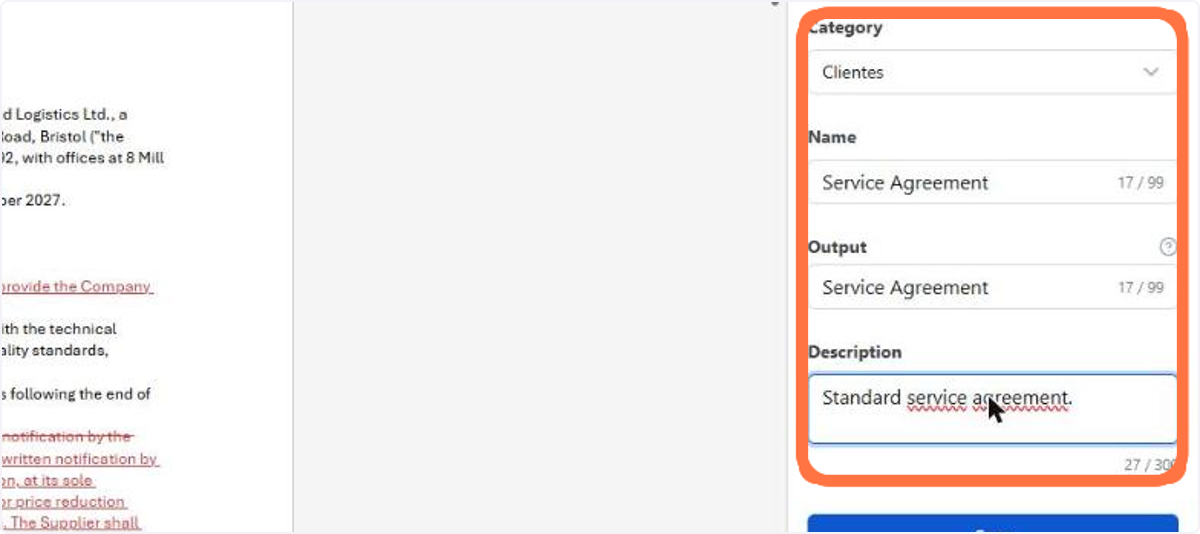
To turn the current document into a template, enter the Category, the Name and the Output under Create Document Template
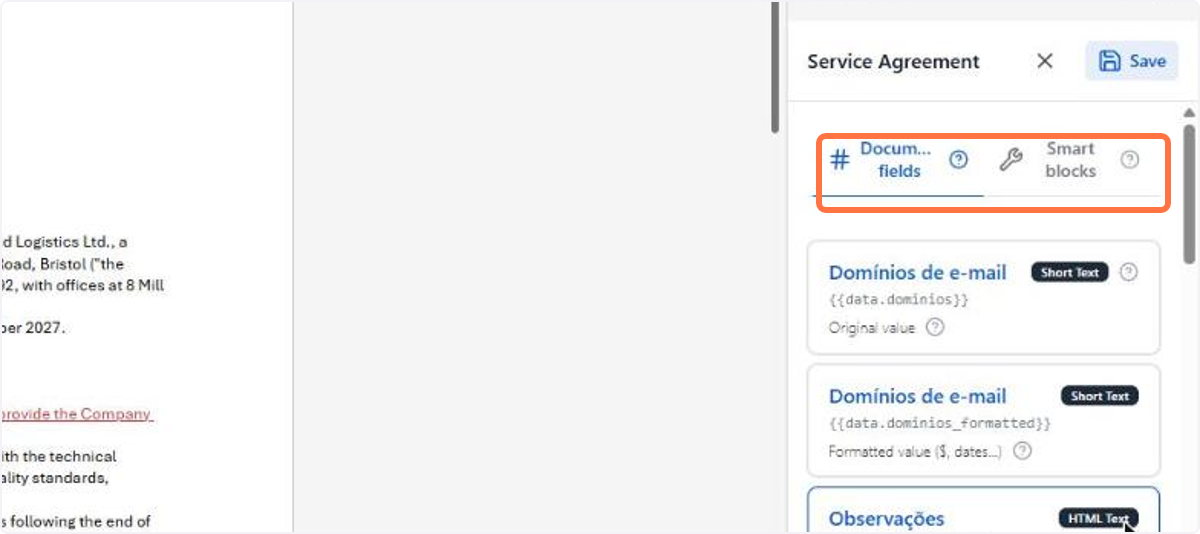
The template editor opens with two tabs: Document fields, for the variables, and Smart blocks, for the conditions and repetitions
🗺️ Guided navigation: ENSPACE Plugin for Word
Important:
You can navigate by clicking the areas circled in orange or using the arrows in the bottom right corner of the interactive area.
Want to learn more about the Word Plugin? See the documentation.
1.2 Beni AI: Beni now has its own app
Beni now has an app of its own. Instead of opening the full ENSPACE, you enter a dedicated screen, sign in and land straight in the conversation with Beni, with the same assistant and the same resources you already use inside the product. On the web, it is available at its own address, beni.enspace.io.
The biggest gain is having all your workspaces in one place. Using the selector in the top-left corner, you switch workspaces without leaving the conversation, and Beni then answers and acts within the chosen workspace, respecting your permissions. For anyone who takes part in several environments, it is the fastest way to jump from one to another.
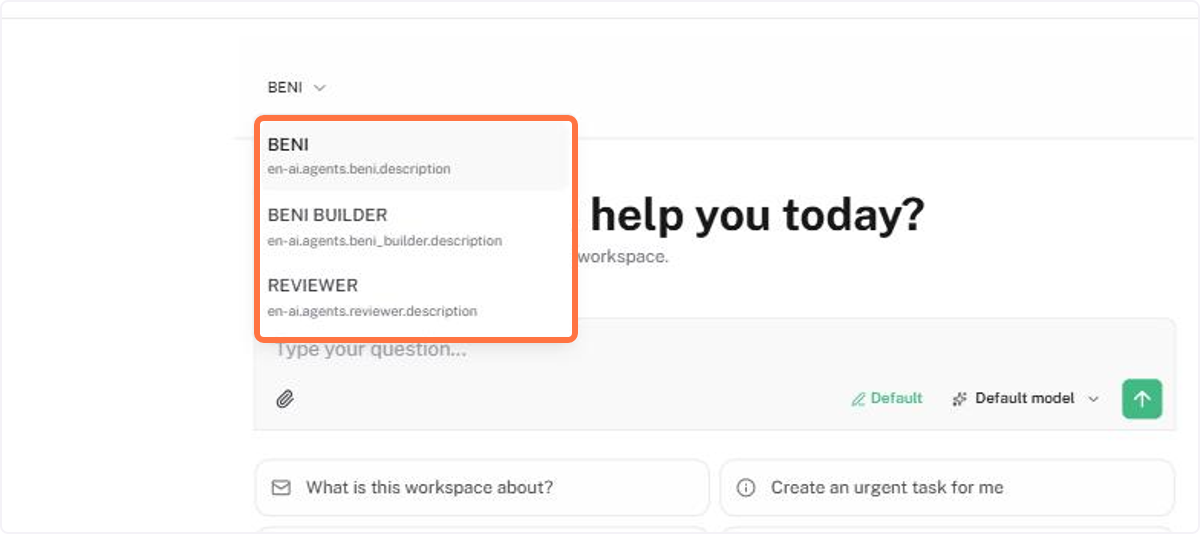
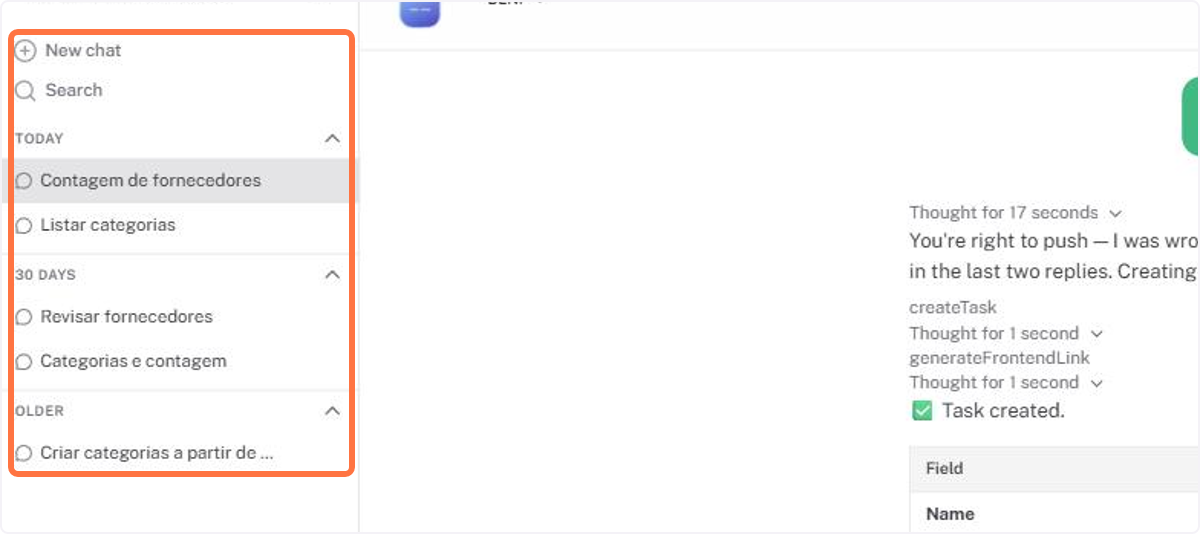
And it is not just asking. Through the conversation, Beni queries the workspace data, summarizes items, lists categories and item types, creates tasks and items, among other functions, just as it would inside ENSPACE. You also choose the agent and the AI model, attach files and return to previous conversations from the list on the left, with history search.
📋 Step by step: start using the Beni app
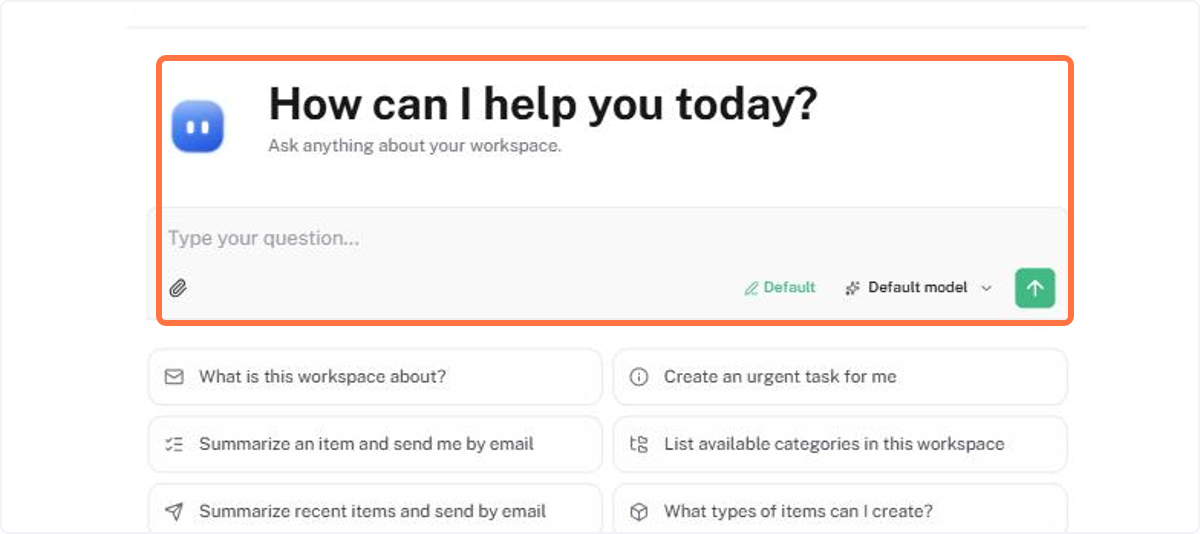
Opening the Beni app in your browser, start interacting with the chat
In the selector in the top-left corner, choose the workspace you want to work in
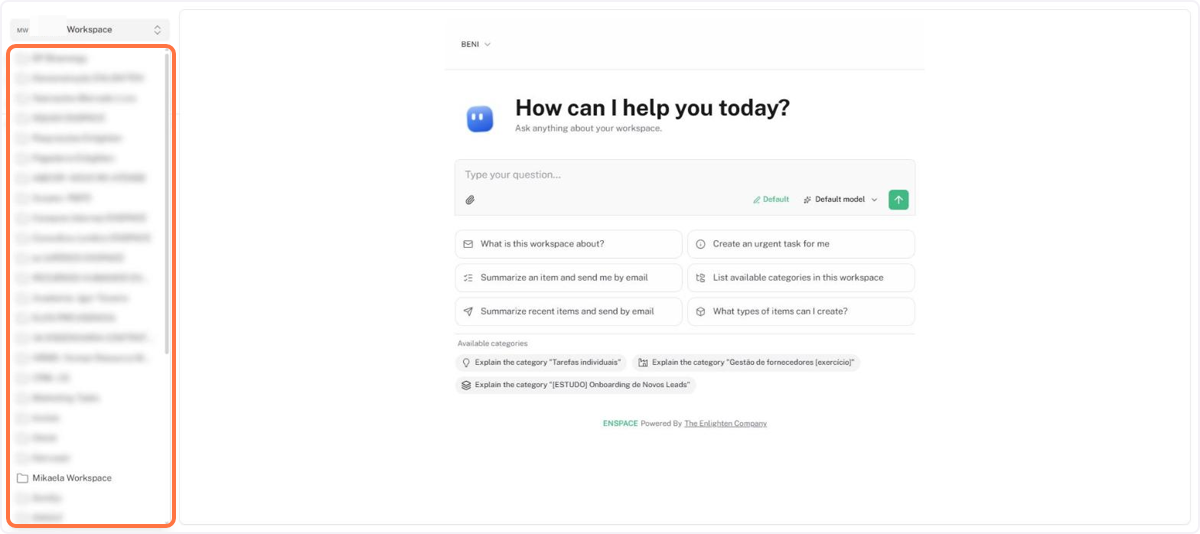
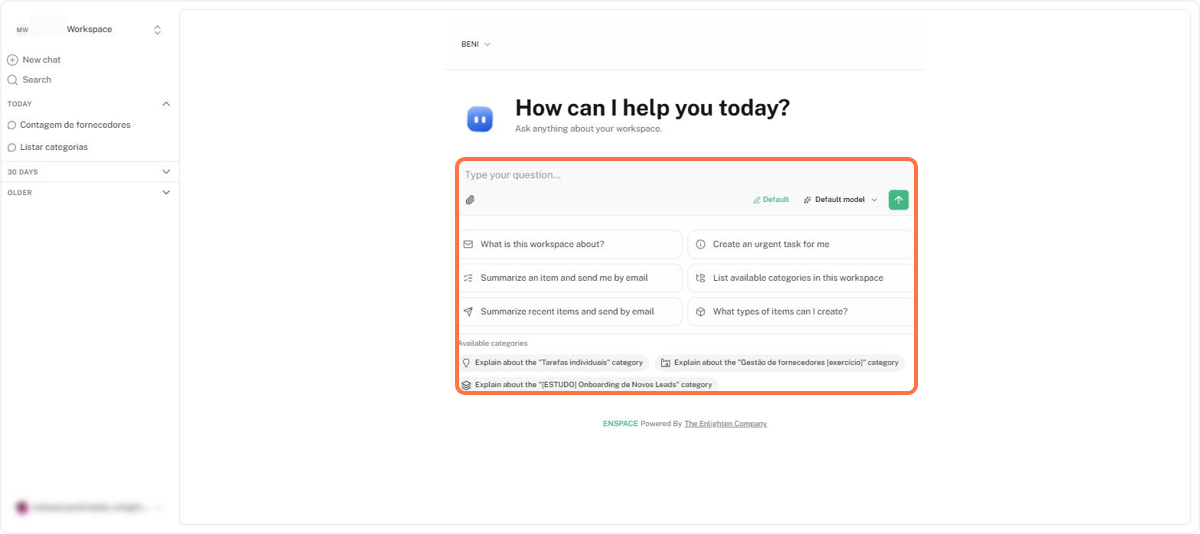
Type your question or use one of the suggestions for Beni to query, summarize or create something in the workspace
If you want, switch the agent or the AI model before sending the message
Return to a previous conversation from the list on the left, using search when needed
🗺️ Guided navigation: Beni app
Important:
You can navigate by clicking the areas circled in orange or using the arrows in the bottom right corner of the interactive area.
Want to learn more about the Beni app? See the documentation.
1.3 Beni AI: New Beni Builder agent
Beni now has Beni Builder, an agent specialized in workspace configuration. It is with Beni Builder that you create and adjust categories, fields, roles, groups and members by talking, instead of going through the configuration screens.
That separates two uses that used to share the same agent: the standard Beni stays focused on day to day conversation, such as looking up records and creating tasks, and Beni Builder concentrates the actions that change the structure of the environment. This reduces the chance of an unintended structural change.
📋 Step by step: switching to the Beni Builder agent
With the floating chat open, click the agent selector at the top of the window
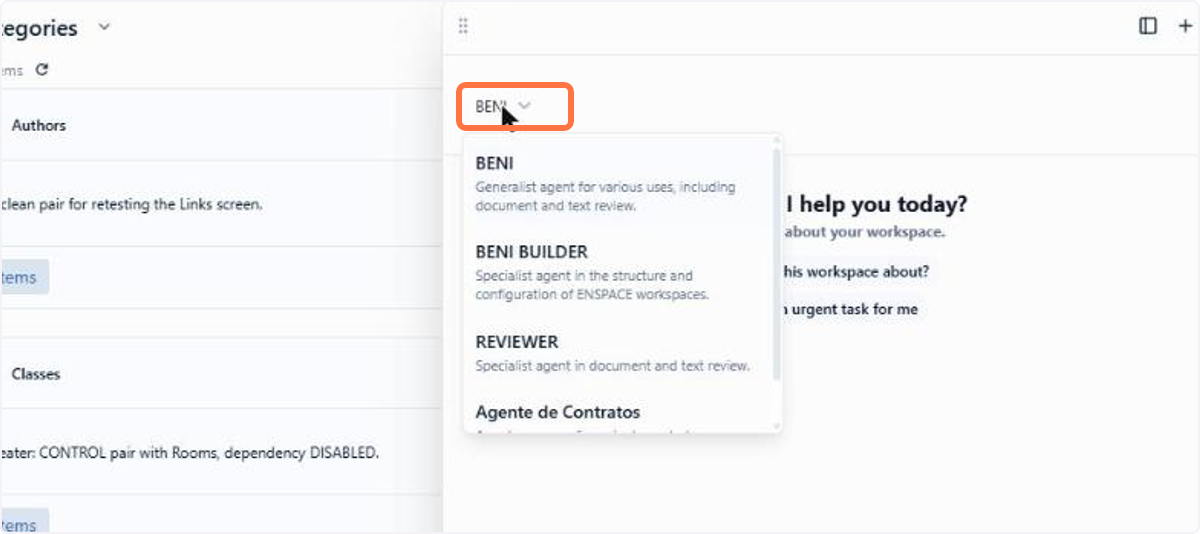
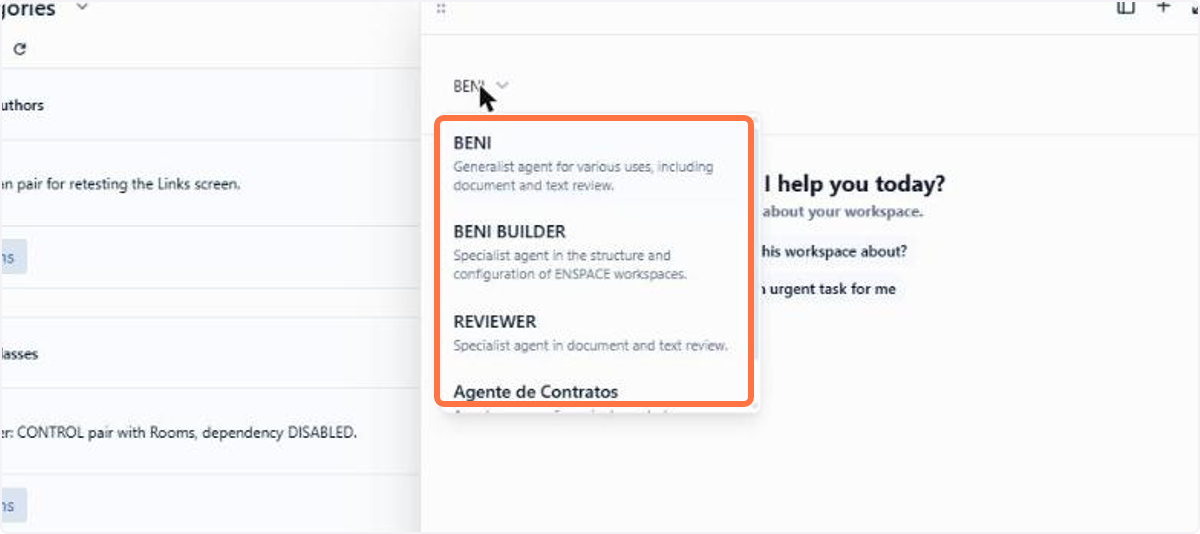
The selector lists the agents: Beni for day to day, Beni Builder for workspace configuration, and the ones you create
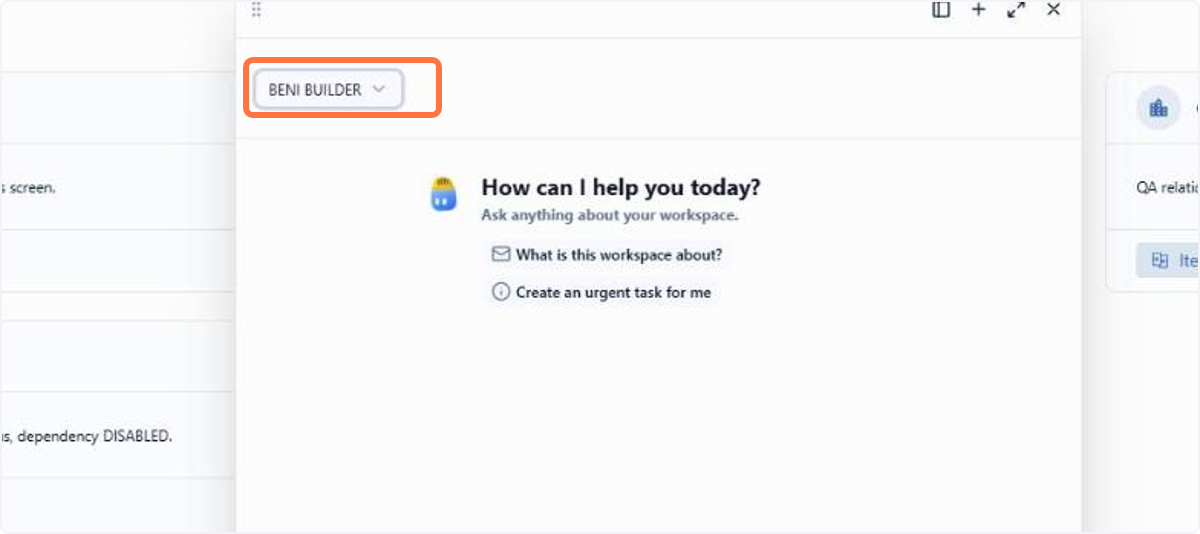
The top now shows Beni Builder, and the conversation continues in the same thread, with the history preserved
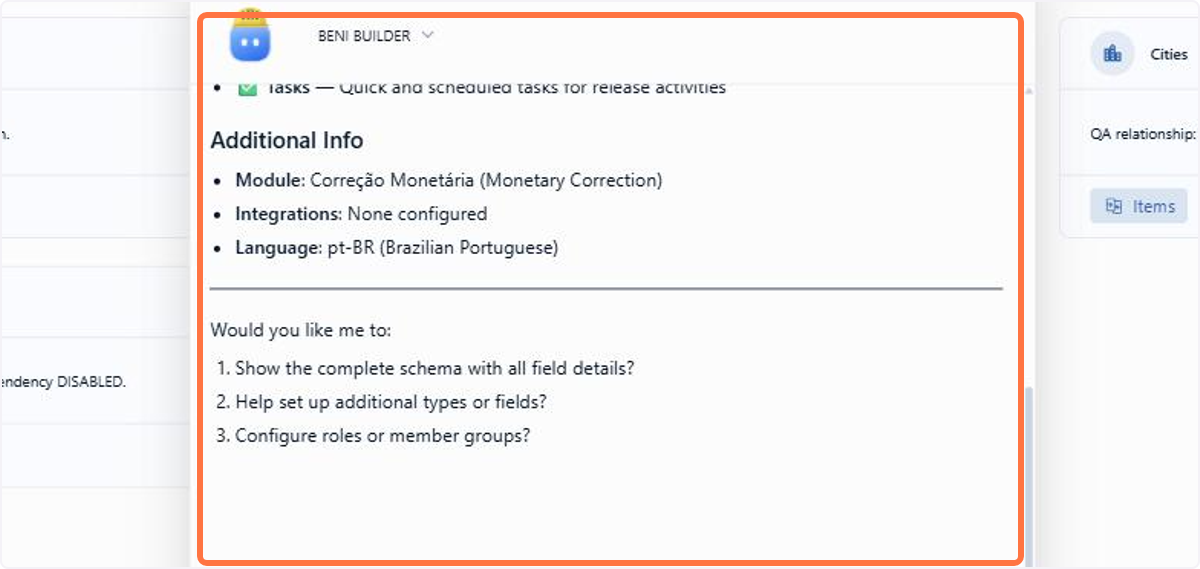
Send the next message and see the new agent answer in the same history
Want to learn more about Beni Builder? See the documentation.
1.4 Spaceflow: AI agent node
Spaceflow now has the AI agent node. The key point is that the agent acts as a user inside the workspace: according to what is set for it on the Agents screen, it resolves a step of the flow autonomously, chaining several actions on its own until it reaches the result.
Because it is autonomous, it handles cases that would take many conditionals. A health insurer that receives reimbursement requests through a single form, for example, can let the node read each request, identify whether it is an appointment, an exam or a hospital stay, and route it to the right queue, without building a conditional for every combination. The node also walks the workspace from a reference, gathering the items related to it across different categories and handing the set to the next node, which helps when the information is scattered and you do not know in advance where it is.
The node's tools work even with no member tied to the execution, which allows using it in flows triggered by an external integration or by a schedule.
📋 Step by step: configuring the AI agent node
In the flow editor, add the AI agent node at the desired point
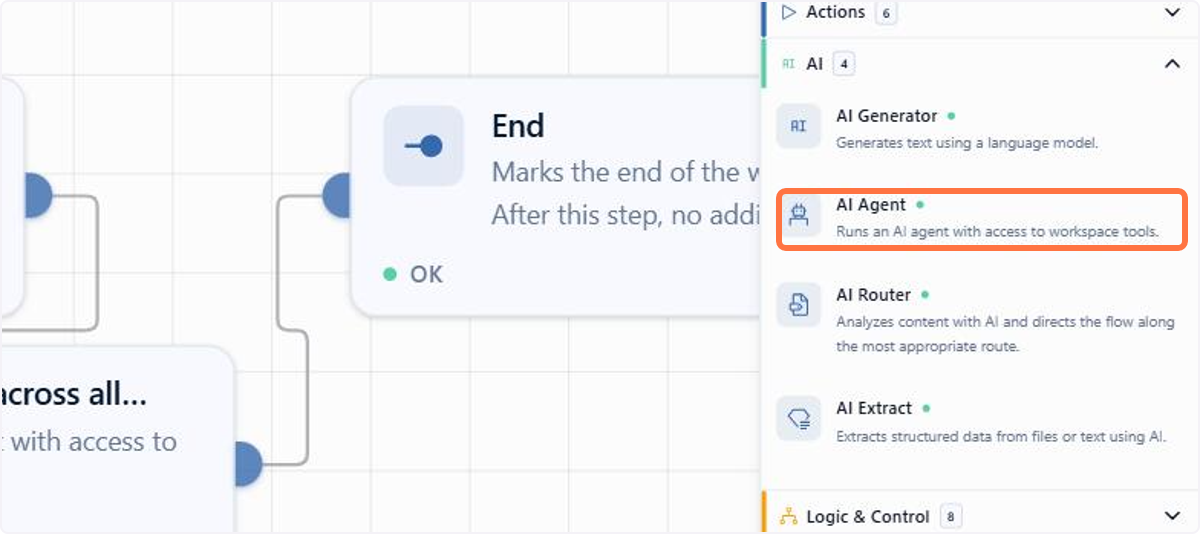
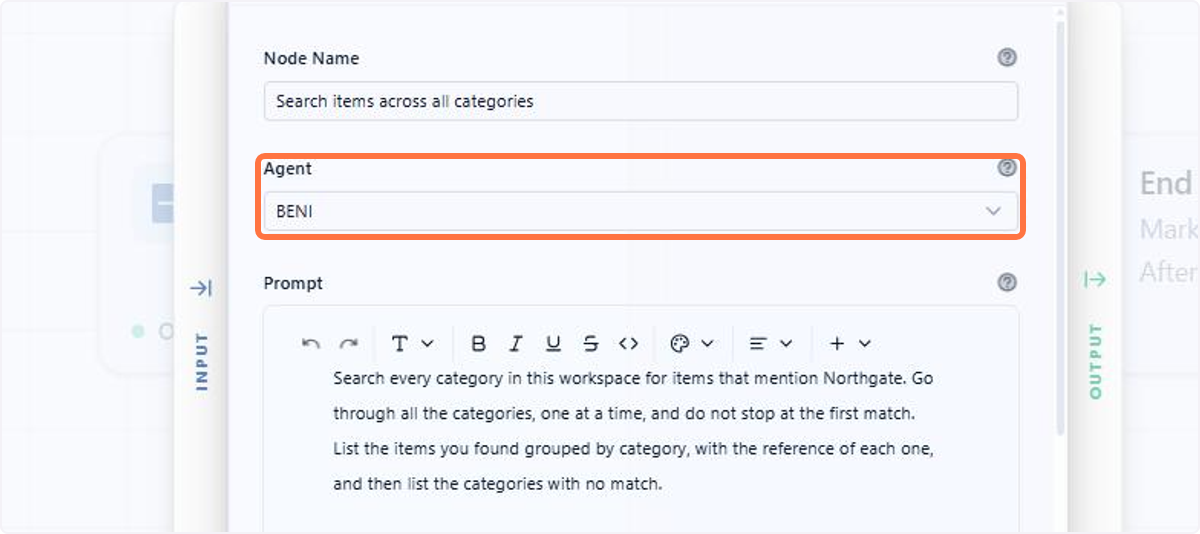
Select the agent that will run the step
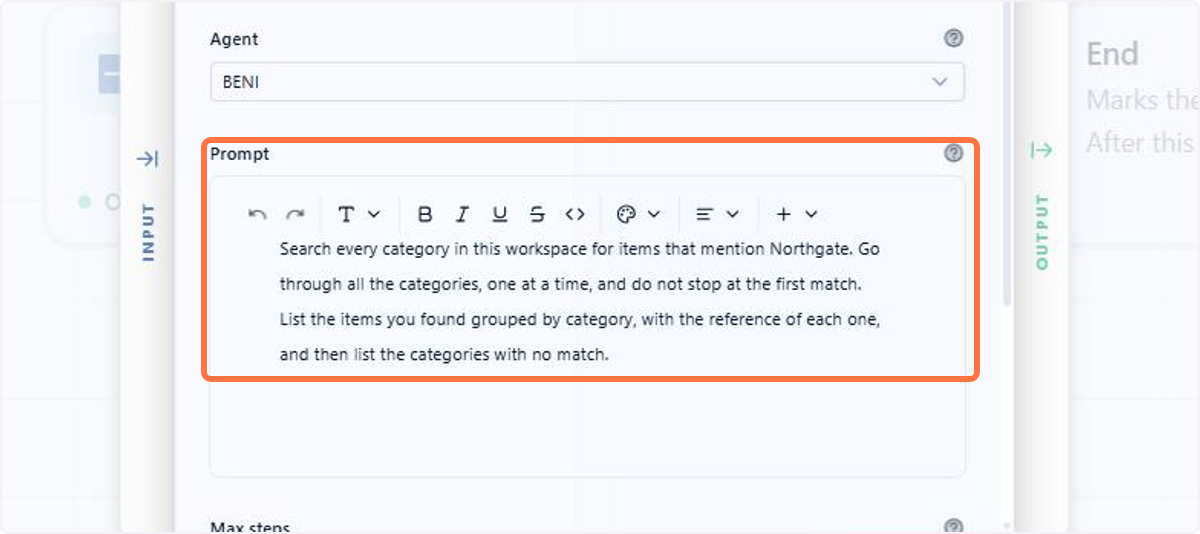
Write the instruction, stating what must be done and what is expected as a result
Want to learn more about the AI agent node? See the documentation.
1.5 Spaceflow: AI Extractor node
Spaceflow now has the AI Extractor node, an AI already scoped to one specific task: reading a document during the flow execution and returning the information already separated by field. Precisely because it is dedicated to that, it solves work that would be complex to assemble any other way, at low cost.
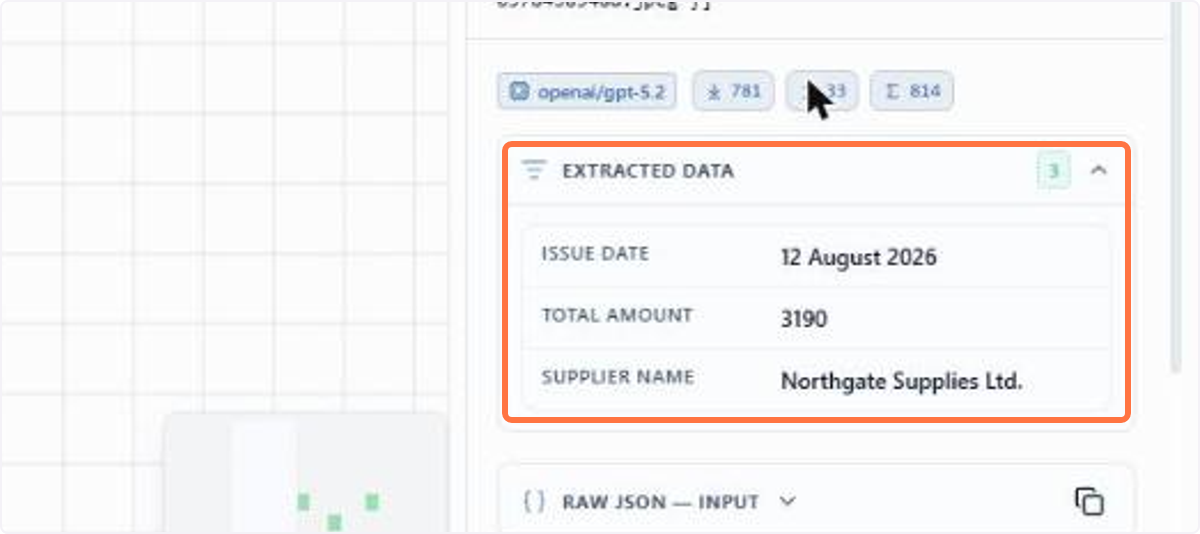
Think, for example, of a carrier that receives hundreds of transport records a day: instead of typing the data by hand, the flow reads each document and returns number, issue date, sender and freight amount as independent values, ready for checking and for the next entry. When a piece of information is not found, the matching field comes back empty, and the flow can handle that absence in a conditional.
📋 Step by step: configuring the AI Extractor node
In the flow editor, drag the AI Extract node to the desired point on the canvas
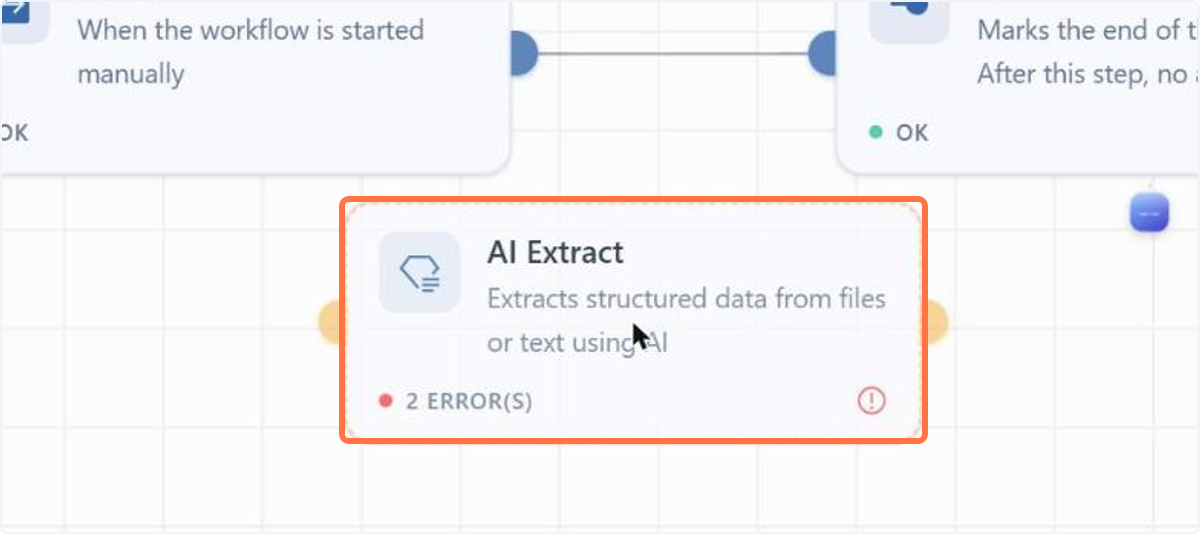
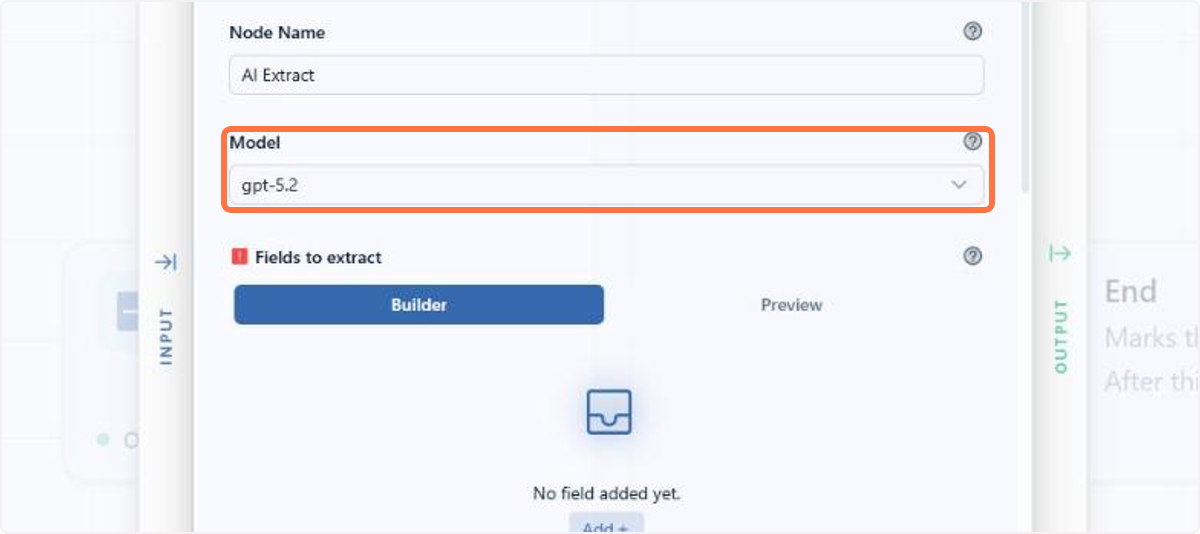
Under Model, choose the language model that will read the document
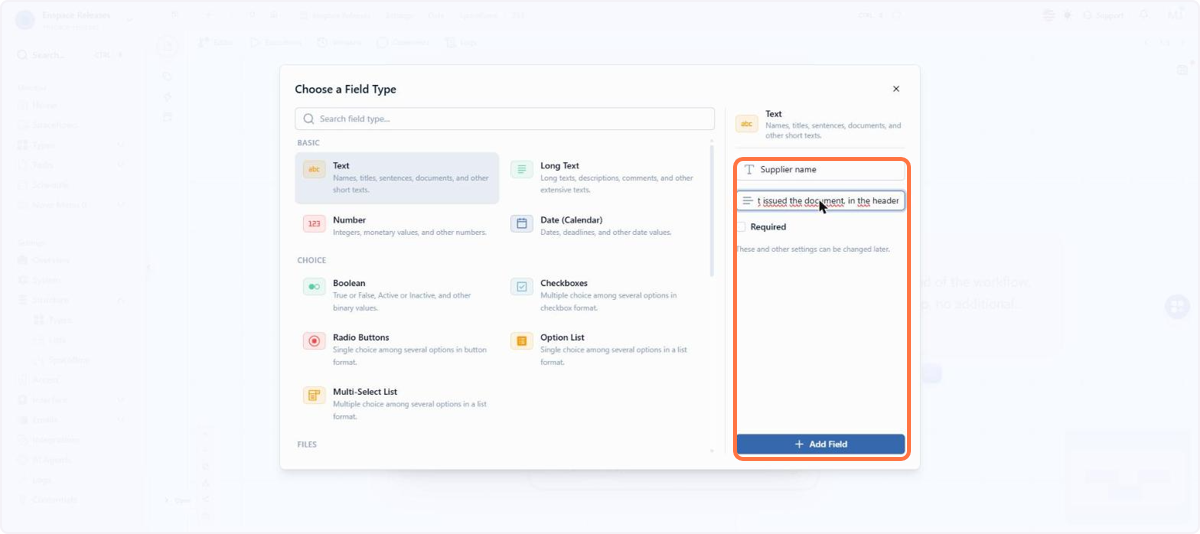
Under Fields to extract, enter the type, the name and the description of each field
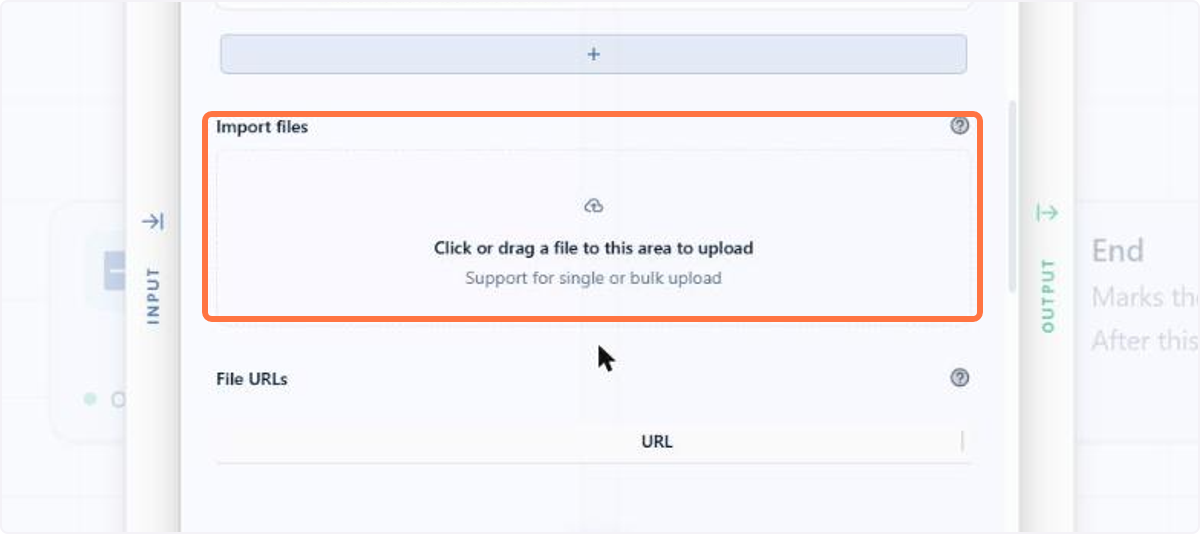
Under Import files, you can link the variable of the document field that will always be analyzed
In the execution, open the node and check the value read for each field under Extracted Data
Want to learn more about the AI Extractor node? See the documentation.
1.6 Spaceflow: Controlled flow versioning
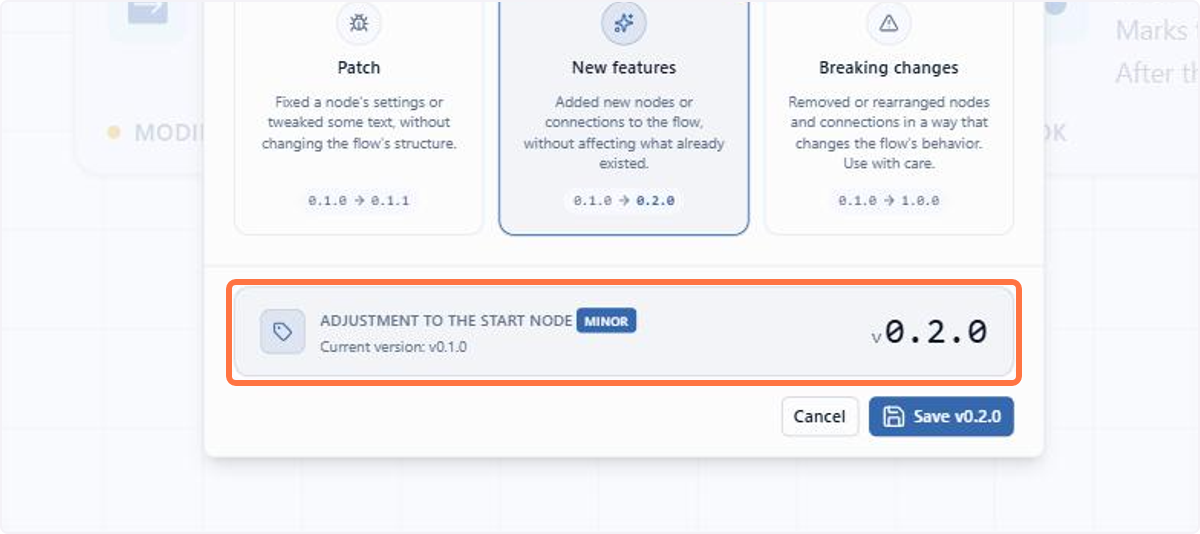
Flow versioning is now fully controlled and described by whoever configures the flow. Before, the numbering advanced on its own and always at the last level: a structural change was recorded with the same weight as a minor adjustment, and correcting that was only possible for those working through the API. Now you state the type of change when saving, and the system suggests the matching number in the three level standard.
When adding one more step to a flow, for example, you indicate that the change alters the behavior of the executions and the version rises at the higher level, instead of being recorded as a fix.
📋 Step by step: saving a new version of a flow
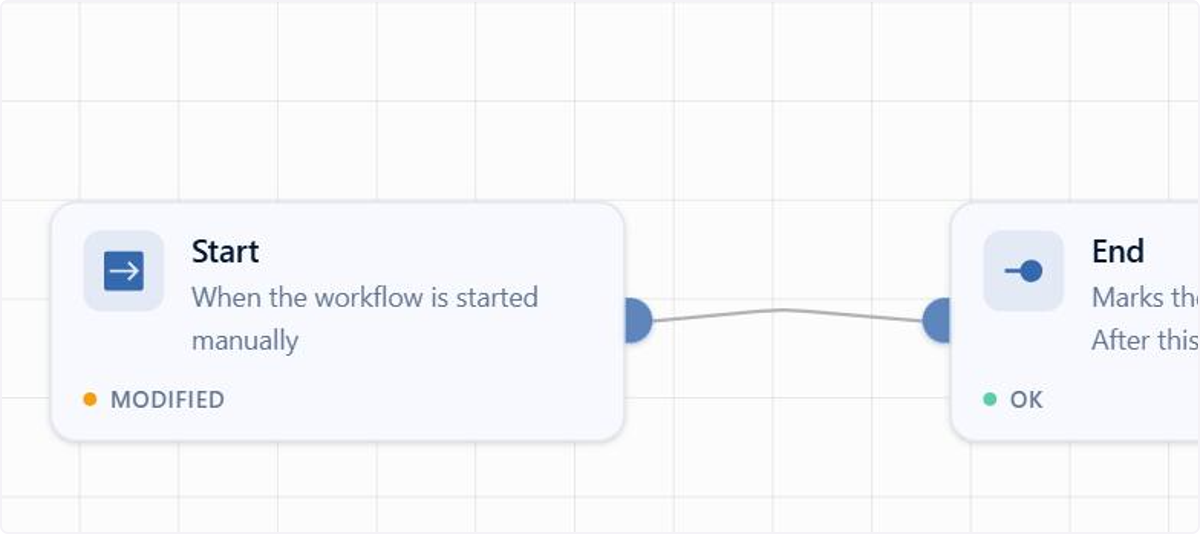
In the flow editor, make the changes you want and check the nodes marked as changed
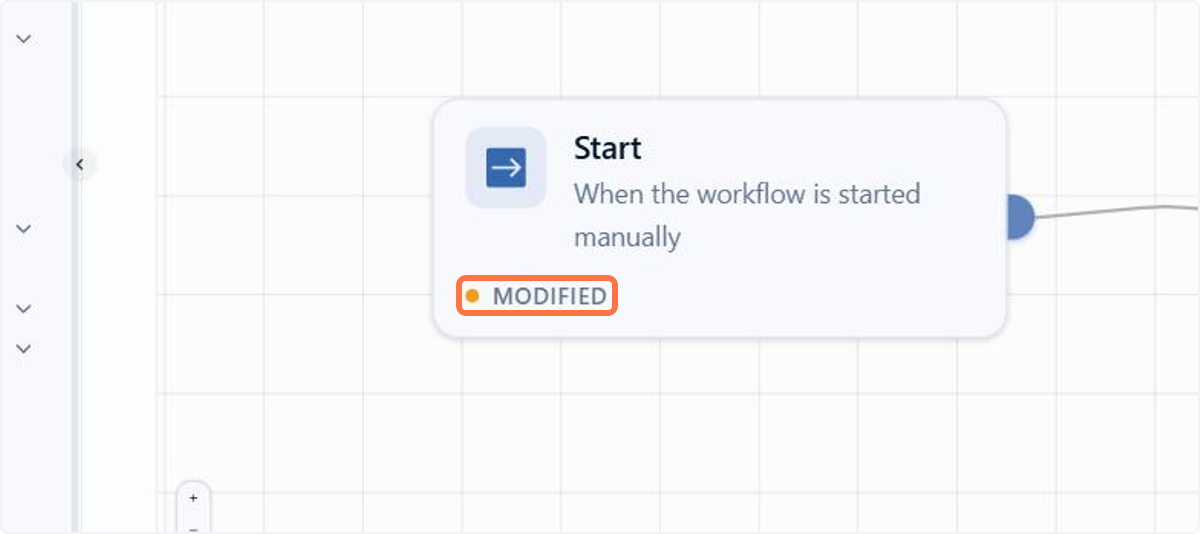
Click Save
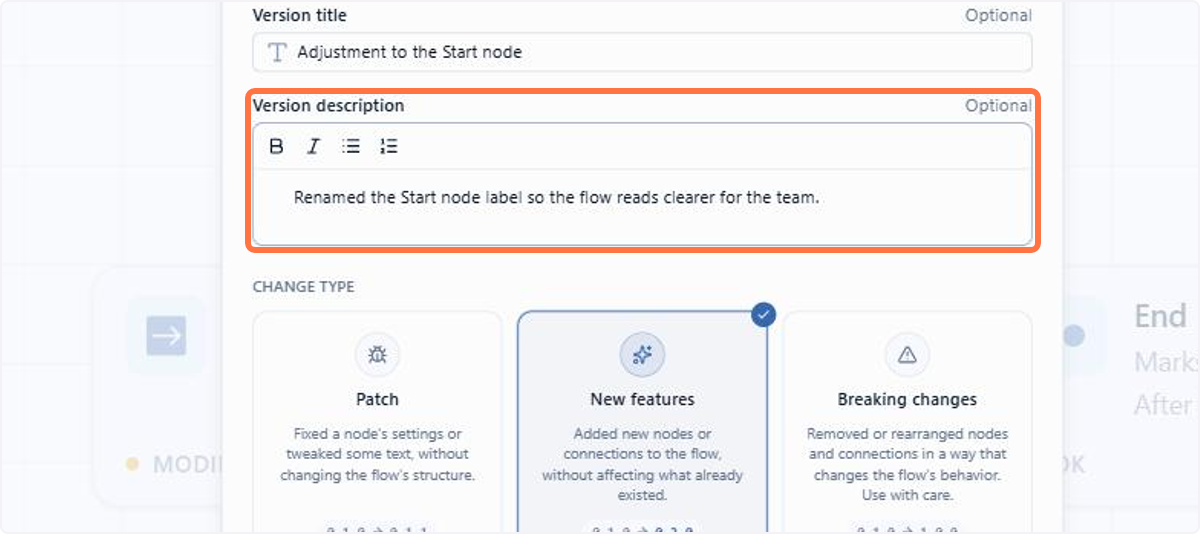
Enter the title and, under Version description, detail what changed for your team
The Type of Change comes pre-selected, and the bottom bar shows the version that will be calculated
Open the Versions tab to check the new entry in the history
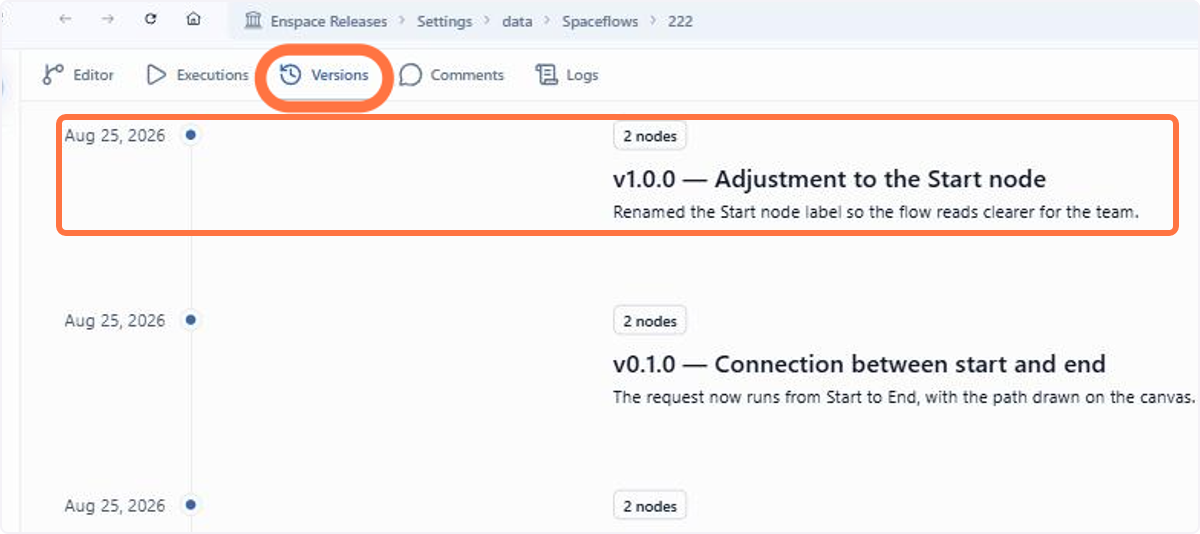
🗺️ Guided navigation: flow versioning
Important:
You can navigate by clicking the areas circled in orange or using the arrows in the bottom right corner of the interactive area.
Want to learn more about flow versioning? See the documentation.
1.7 Spaceflow: Email Templates in the Email node
The Spaceflow Email node now accepts an Email Template, letting you apply a model already registered in your categories instead of building the email body directly in each node and repeating that work node by node.
In practice, this avoids having to copy and re-edit the same content in every email node of a flow whenever the model changes: you just update the Email Template once and reapply it wherever needed.
📋 Step by step: using an Email Template in the Email node
Open the desired flow in the Spaceflow editor and double click the Email node
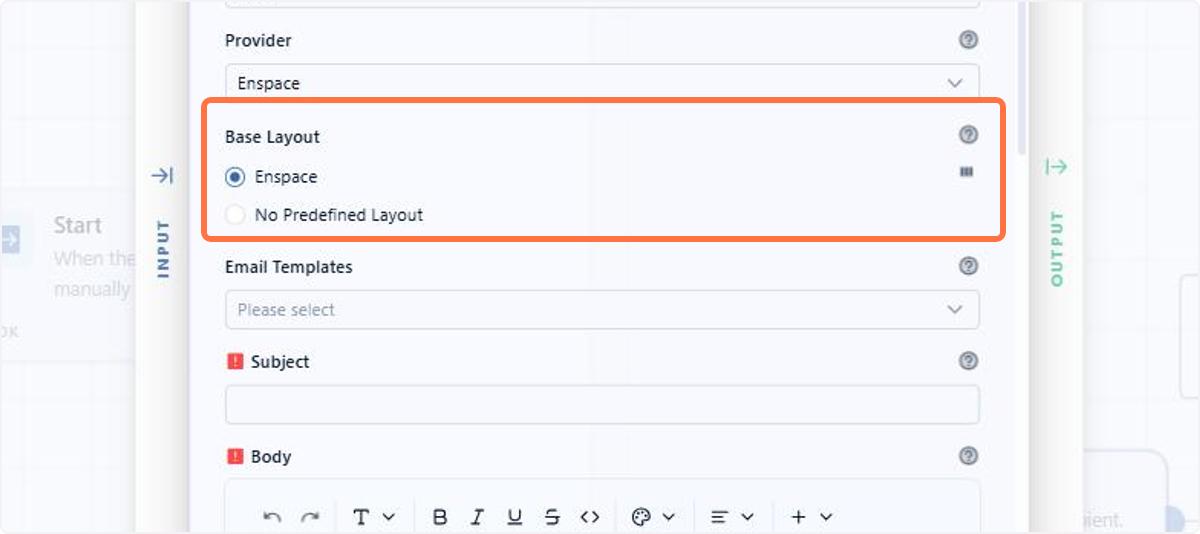
Click the Email Templates field to open the list of available models
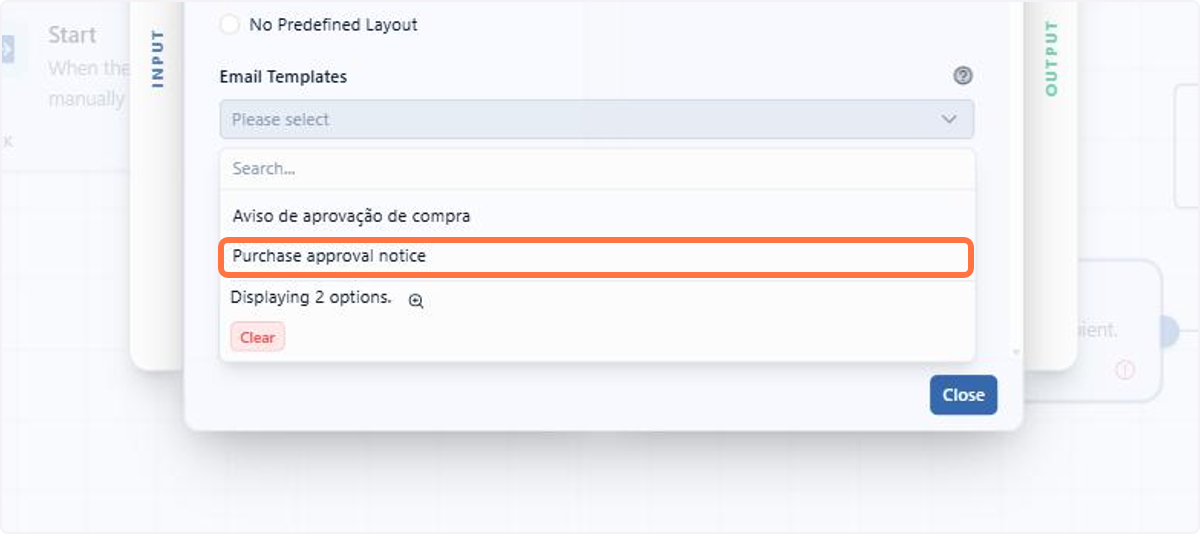
Select the model you want from the list
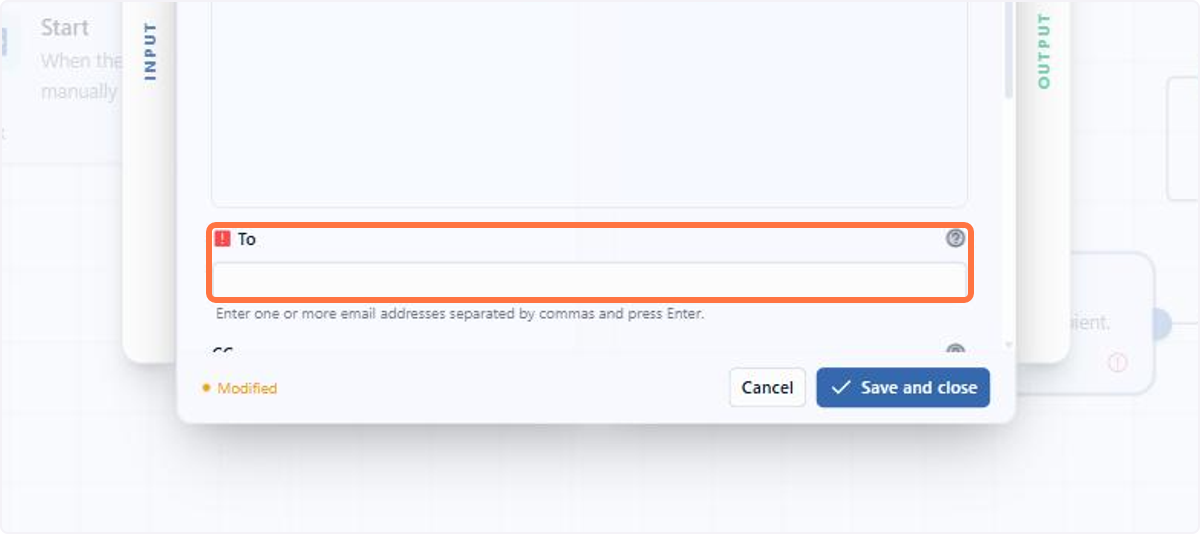
Want to learn more about the Email node? See the documentation.
1.8 Interface: New item view
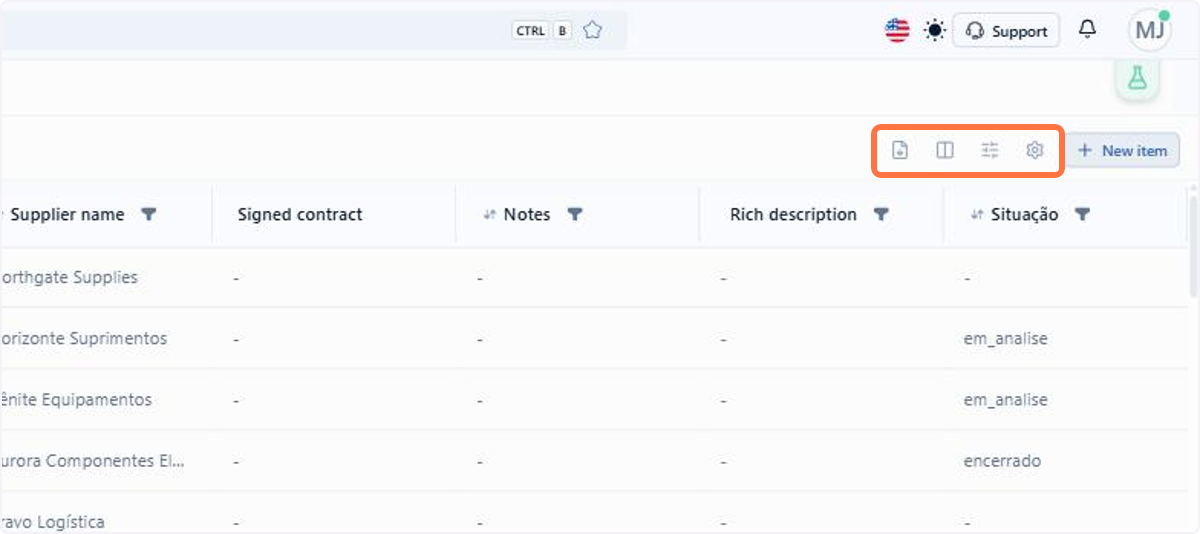
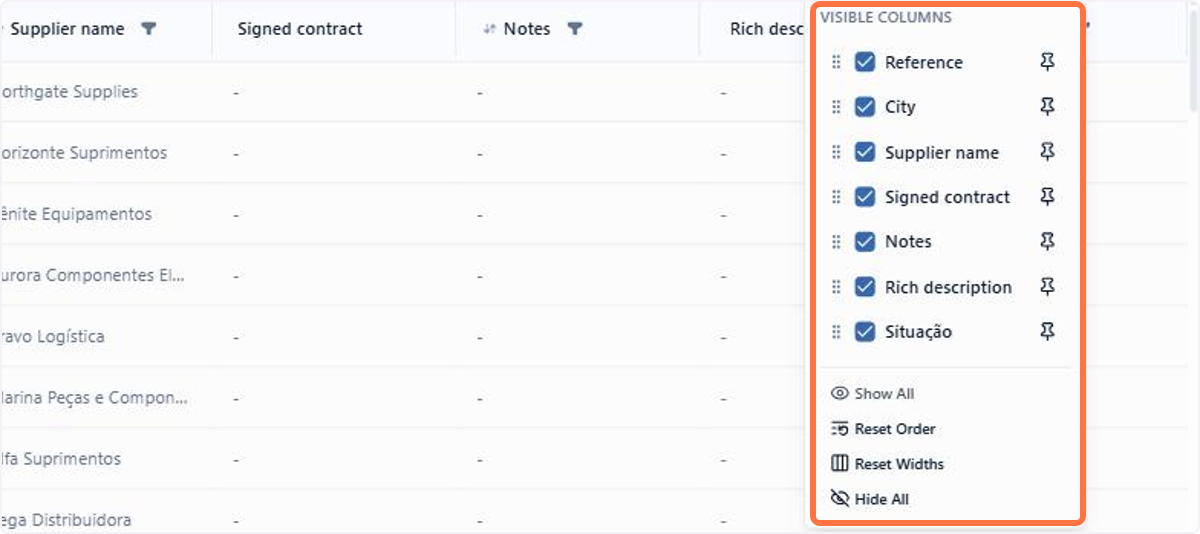
The native category screen gained a much more flexible and practical table. The record listing becomes even more configurable: you resize the columns, choose which ones stay visible and set the order they appear in. In the screen header, the filter button and the settings button are easy to reach, with no need to look through hidden menus. The feature is enabled or disabled per workspace.
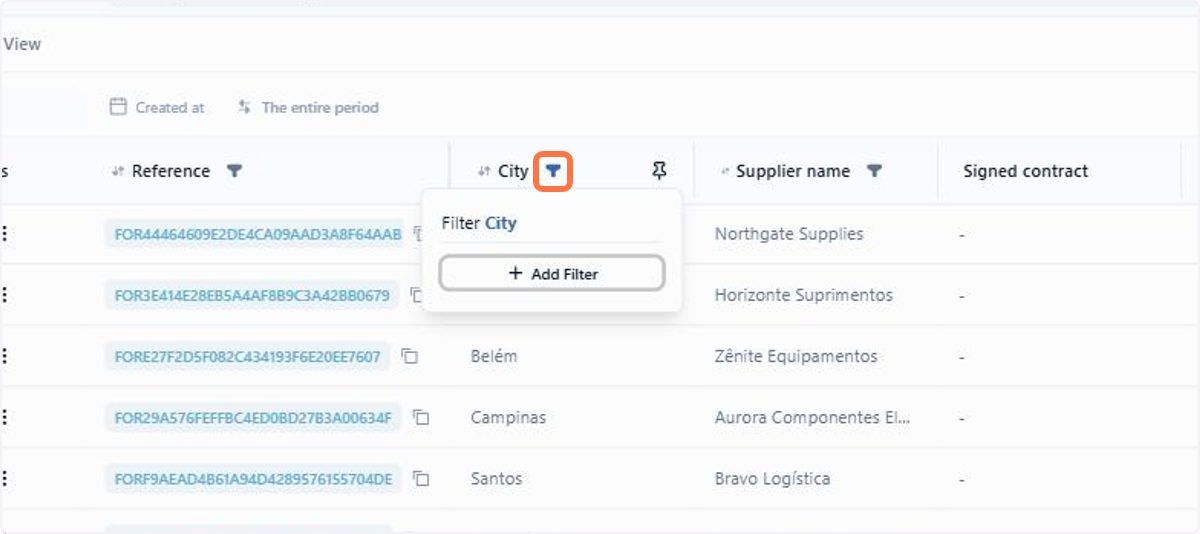
The adjustments live in each column header: the width respects a minimum and a maximum limit to preserve the table alignment, and the columns can be repositioned. The same header allows sorting, filtering and freezing columns: click to reorder the listing by that column, use the filter to narrow it to the values that matter, or freeze the column so it stays visible when you scroll the table horizontally. When the content does not fit the chosen width, the table truncates the text and keeps the width, so the other columns stay visible.
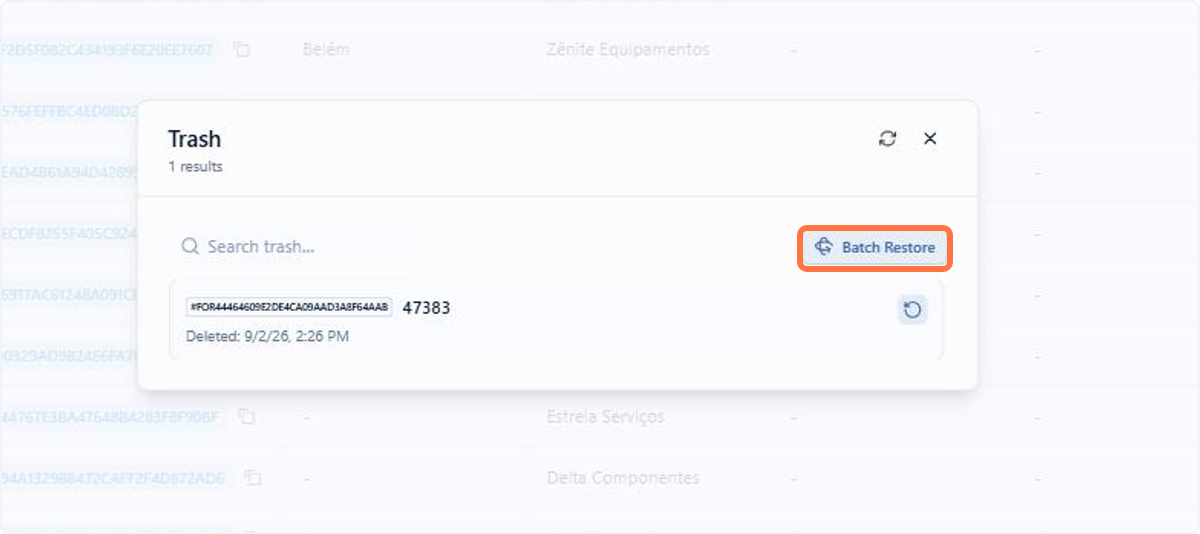
The same screen also handles the category's daily routine. The trash restores every deleted item at once, on top of restoring them one by one, and the action bar includes the extract report button, which exports the items already taking the table's active filters into account, from the category's report templates. And, to add a record, the new record modal lets you choose among the category's form variations when there is more than one.
📋 Step by step: get to know the new item screen
Open a category and see the full listing on the new item screen
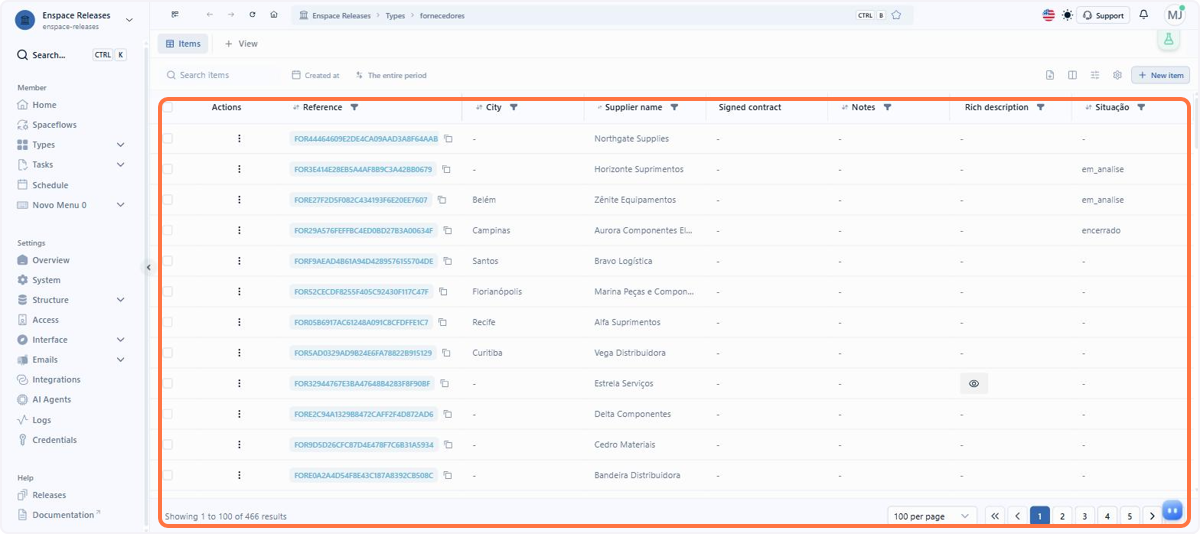
In the screen header, the report, columns, filters and settings icons are always at hand
Use the filter in the header itself to narrow the column to the values that matter
In the visible columns panel, reorder, check or uncheck which columns appear in the table
In the Trash, restore the deleted items one by one or in bulk
🗺️ Guided navigation: overview of the new item screen
Important:
You can navigate by clicking the areas circled in orange or using the arrows in the bottom right corner of the interactive area.
Want to learn more about item views? See the documentation.
1.9 Interface: New dedicated item screen
The dedicated item screen is lighter and more practical, with a two column layout that keeps everything within reach without leaving the record. On the left, the side panel concentrates selected details of the item, in blocks that stay in view at all times. In the center sits the main content, with the record's tabs and editing right in the field, without opening a separate screen. A timeline with the item history is also available.
The main novelty is precisely the side panel, which sits alongside the main content and keeps in sight the information you consult the most while you work. You choose which blocks appear and in what order, according to your process. For example, whoever reviews a credit application keeps the applicant data and the linked collateral in sight while writing the opinion, without switching tabs at every check.
Some item tabs (folders) are available natively, but custom tabs can be created and reordered according to each category's process, and the fields shown in each block are customizable as well.
📋 Step by step: getting to know the new dedicated item screen
Open an item from the Actions menu in your category's table

The dedicated screen opens in two columns: the Side View on the left and the record content in the center

At the top of the Side View, open the three-dot menu and choose Edit view

Edit mode opens right in the bar, so you can follow the result as you configure

Click Add section to create a new block

Click Select field and choose the field that takes the position

Check the section you built and click Save

The Side View now shows the new block, and the configuration applies to every item in the category

🗺️ Guided navigation: new dedicated item screen
Important:
You can navigate by clicking the areas circled in orange or using the arrows in the bottom right corner of the interactive area.
Want to learn more about the dedicated item screen? See the documentation.
1.10 Fields: New editor for HTML fields
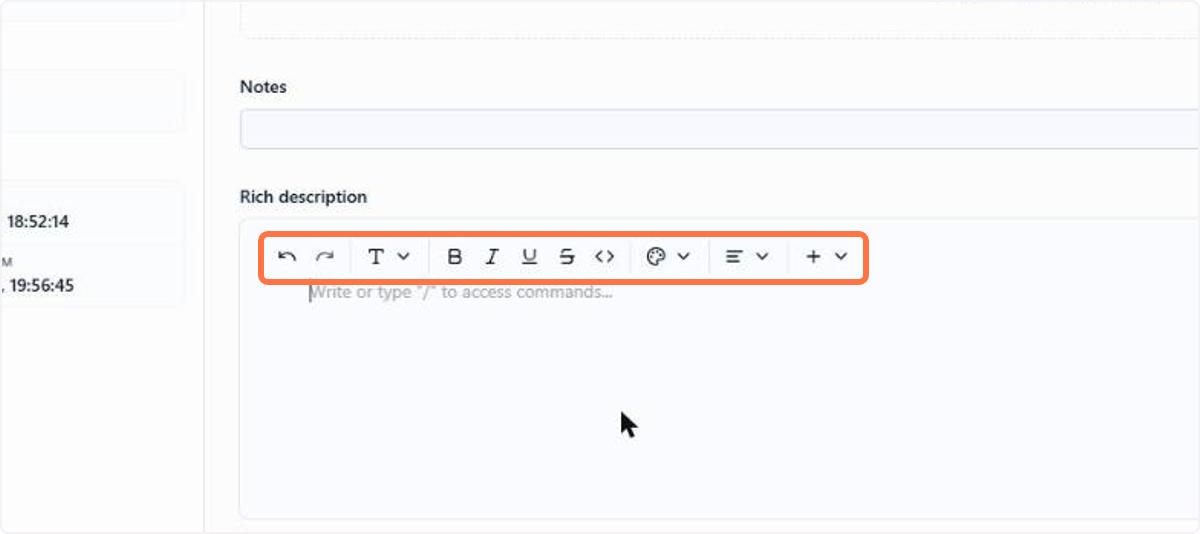
The HTML field has a new look: the editor was redesigned and now brings a complete toolbar, with undo and redo, text style, bold, italic, underline, strikethrough, code, colors and alignment.
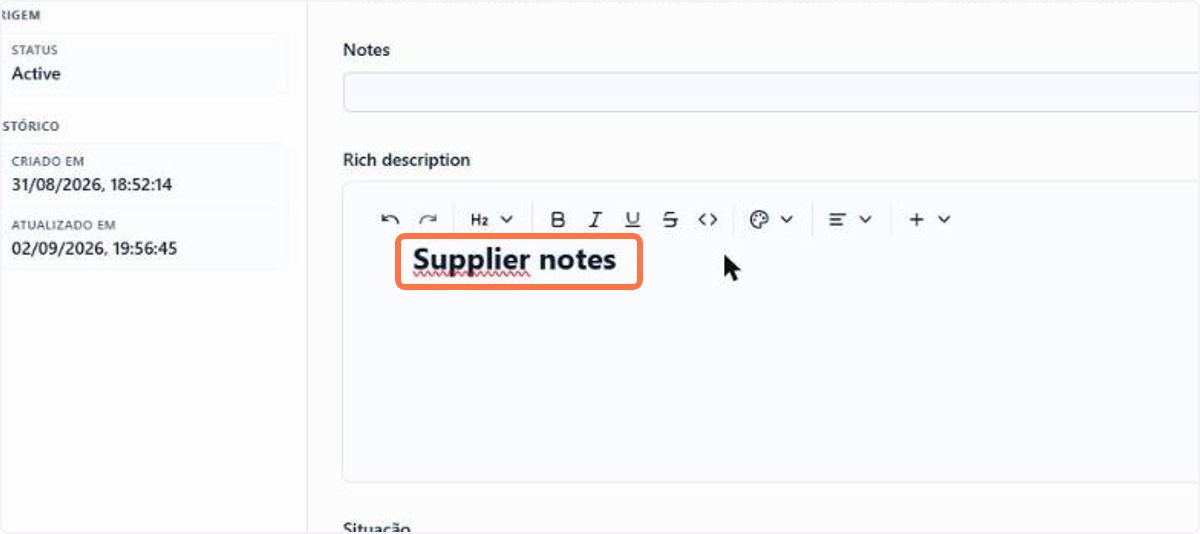
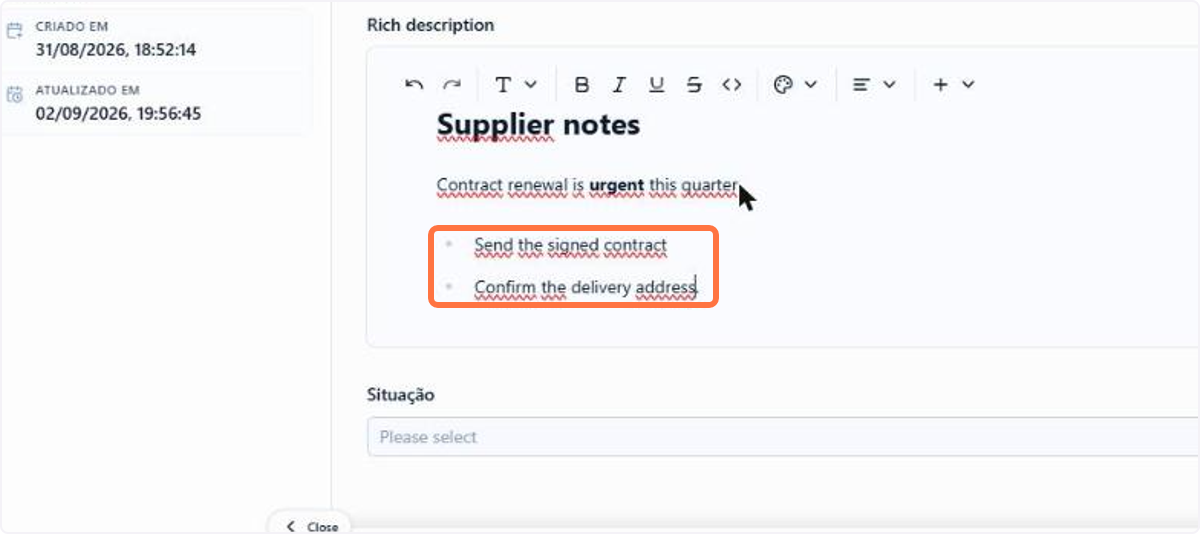
You can also use the markdown format for your texts in the HTML field. In that case, the formatting happens without touching the toolbar: two markup characters and a space already convert the passage as you type — ## becomes a heading, two asterisks on each side make it bold, and a hyphen opens a bullet list, with Enter continuing the list on its own.
📋 Step by step: formatting the content of an HTML field
In an HTML field, use the toolbar to apply headings, lists and styles to the content
Type ## followed by a space and the line turns into a heading right away, without using the toolbar
A hyphen followed by a space opens a bullet list, and Enter continues the list
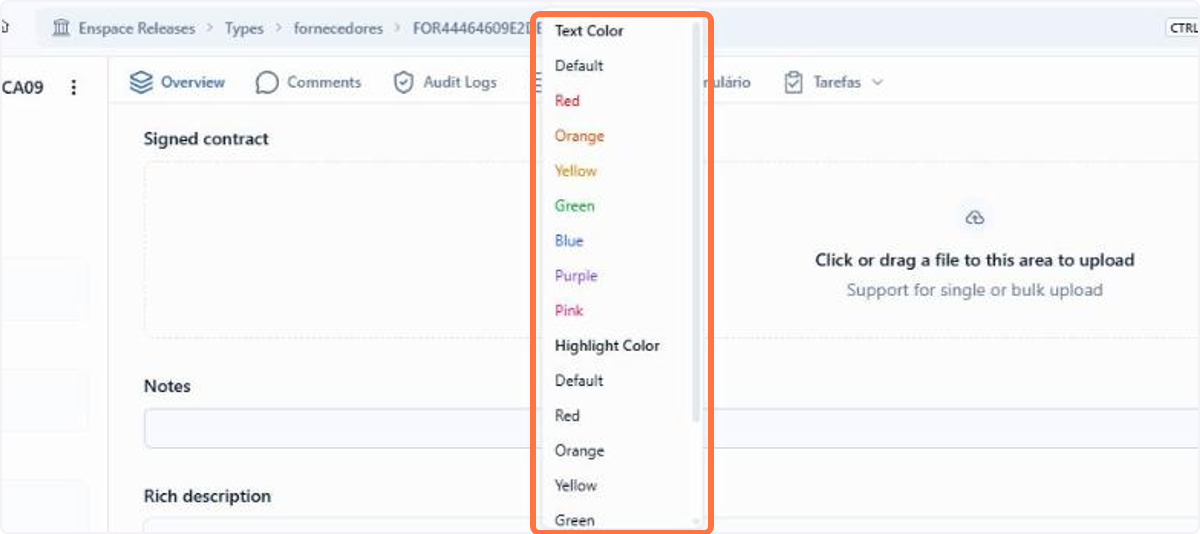
Select a passage and use the color control in the top bar
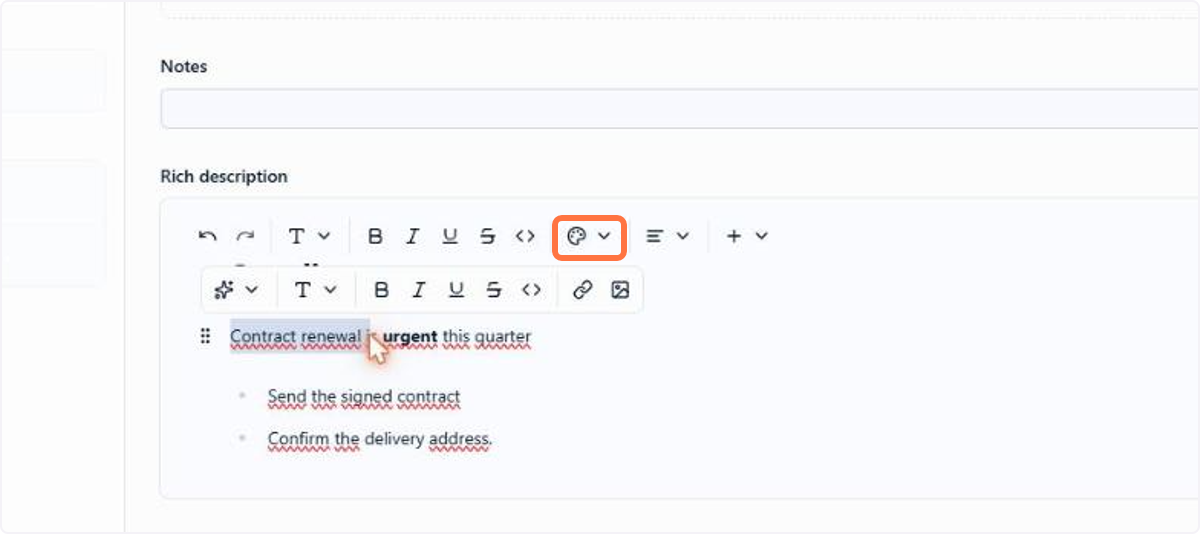
Text Color paints the letters and Highlight Color paints the background, like a highlighter
🗺️ Guided navigation: new text editor
Important:
You can navigate by clicking the areas circled in orange or using the arrows in the bottom right corner of the interactive area.
Want to learn more about the text editor? See the documentation.
1.11 Fields: Complex expressions in field events
Field events now accept complex expressions, with conditionals and iterations, able to walk through a field that holds a list of values and pull one piece of data from each item in that list. This applies to any field that stores a list, such as Multiple Relationship or Repeater.
For example, a law firm that records the lawyers responsible for a case in a Multiple Relationship field can gather the bar number of all of them into a single text field, ready to go into the power of attorney.
📋 Step by step: enabling complex expressions in a field event
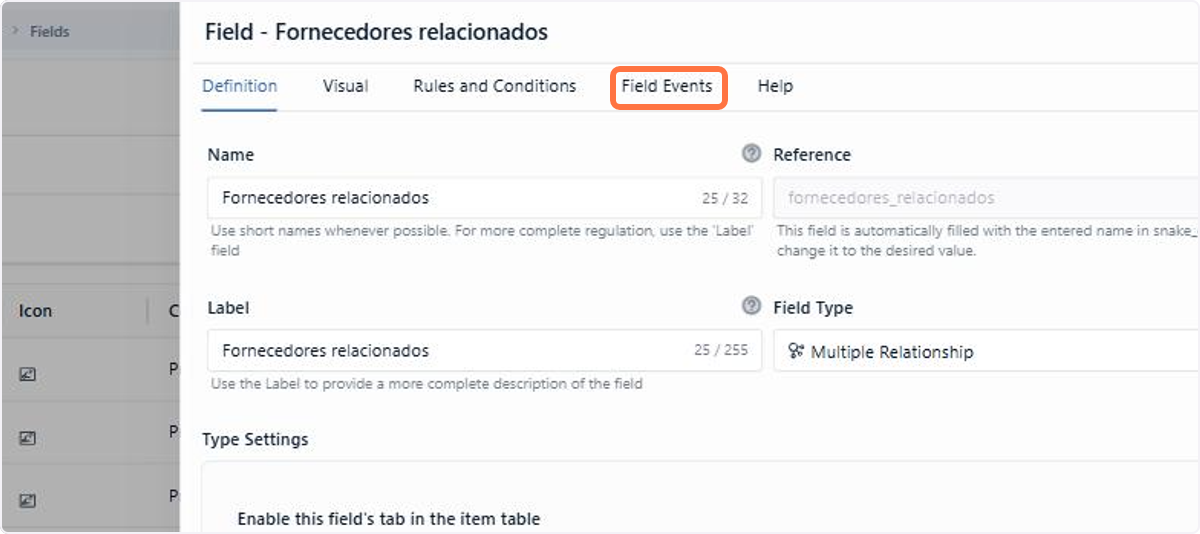
In a field's settings, open the Field Events tab
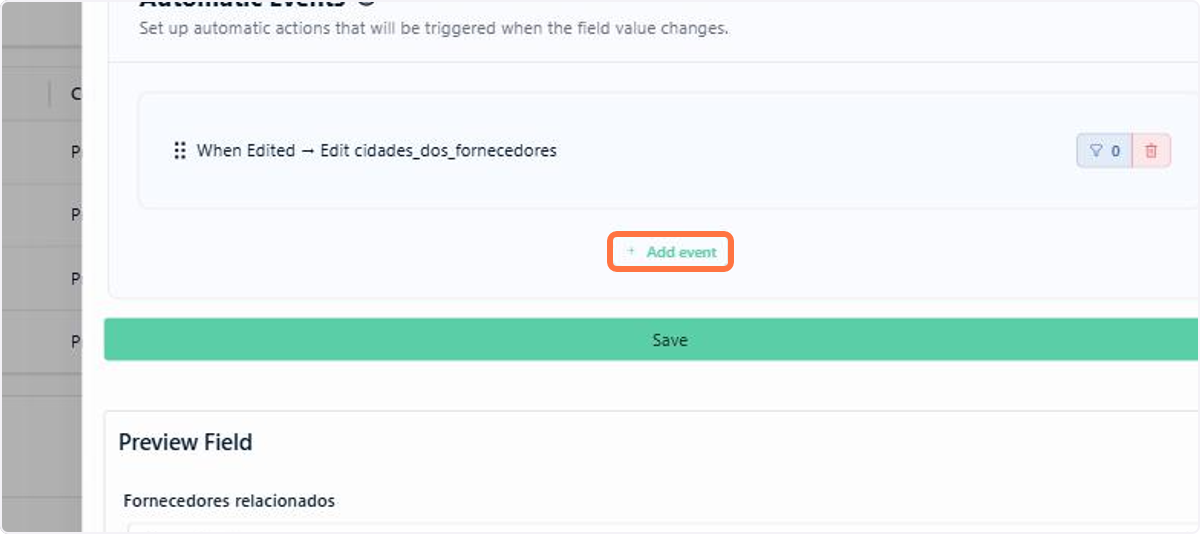
Click Add event
Under Field, enter the technical reference of the field that will receive the values
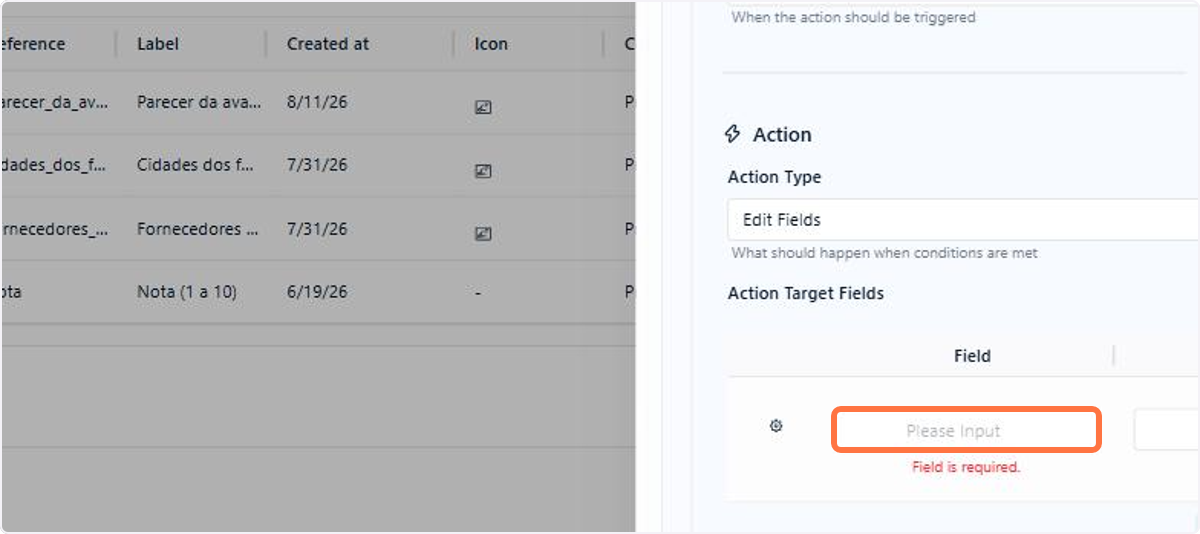
Turn on the switch in the Complex Expression column
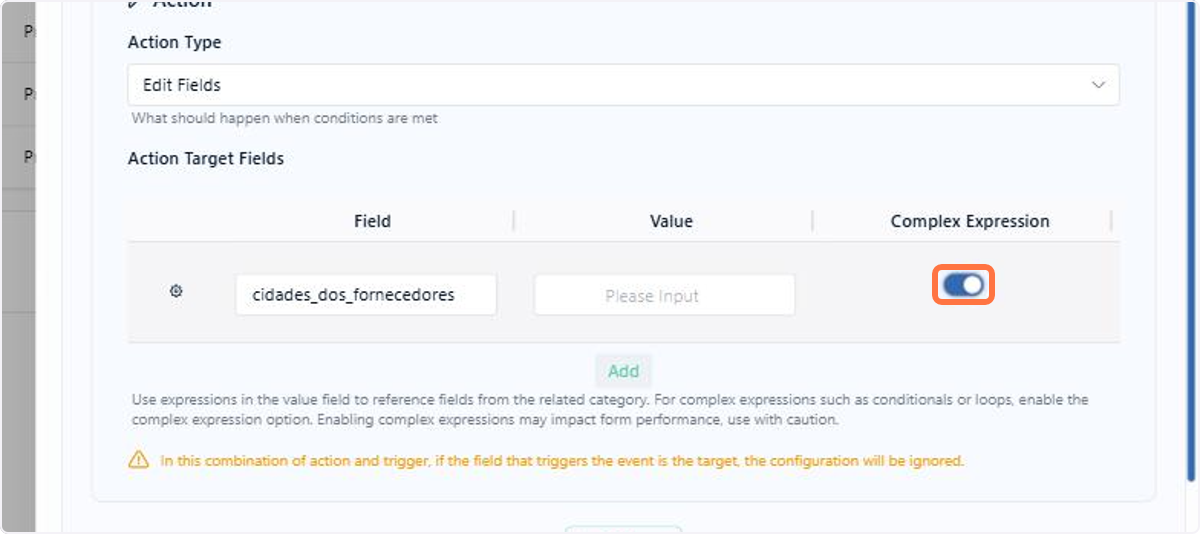
Under Value, always start with the {{~v2}} prefix, which makes the system read the content as an expression, when it is a complex expression
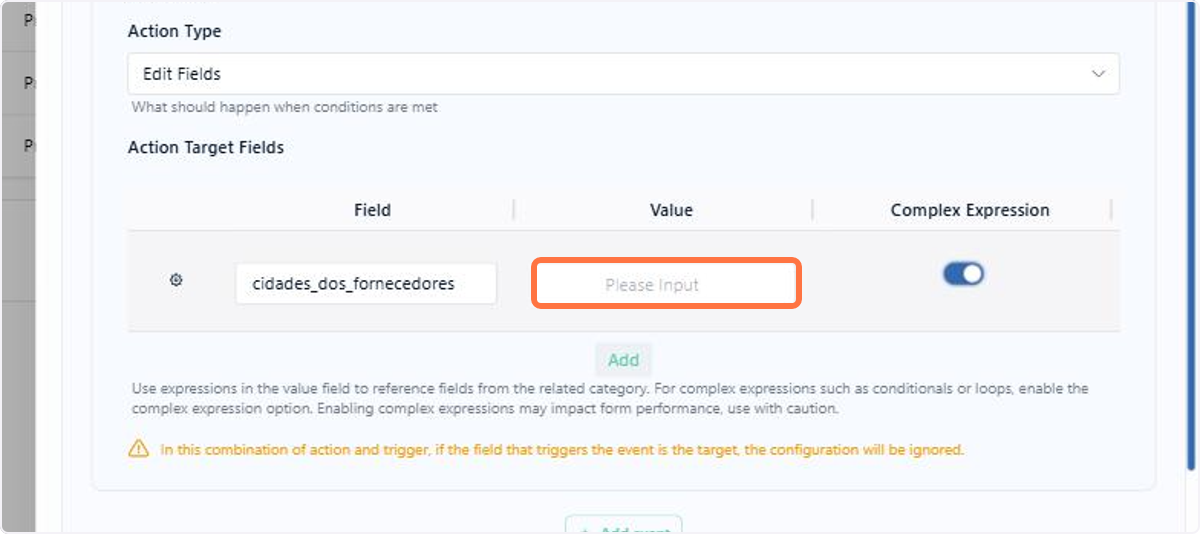
With the expression written — here a {{#each}} walking through the related items — click Save
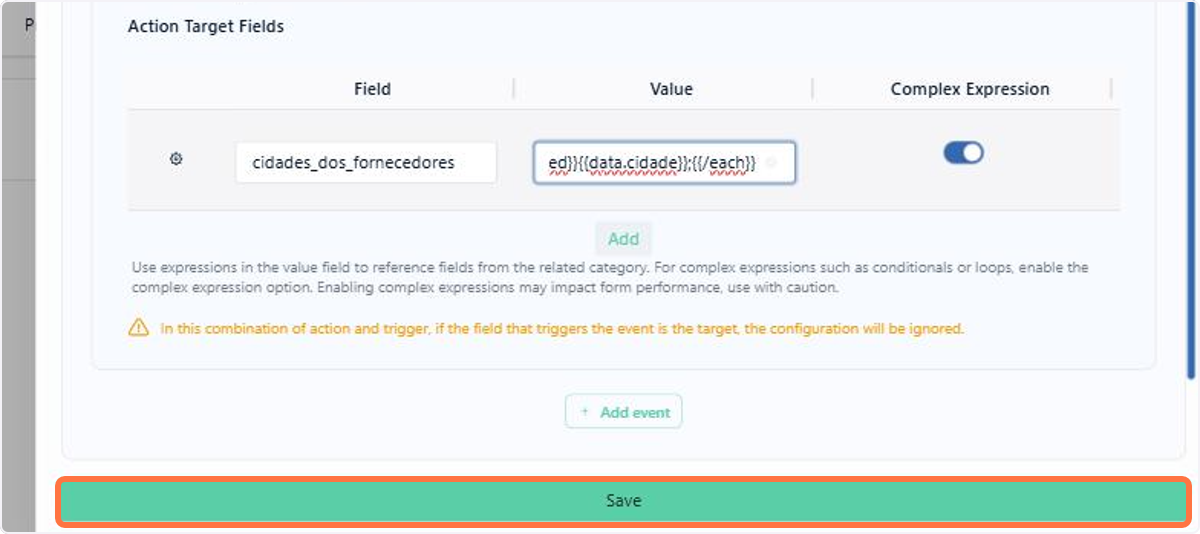
In the item form, select several related items and check the field filled in on its own
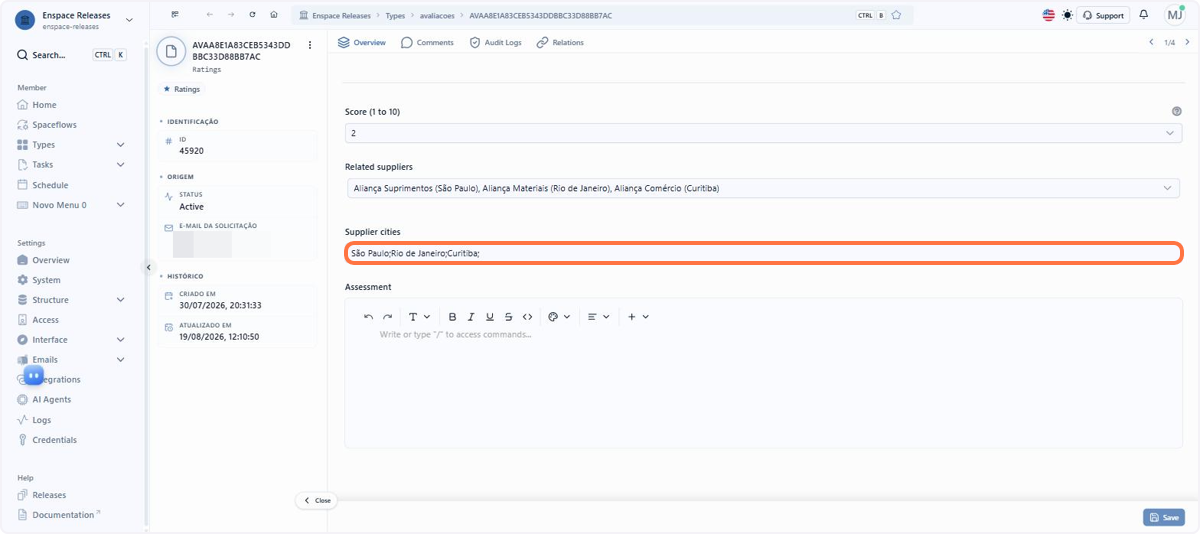
🗺️ Guided navigation: complex expressions in field events
Important:
You can navigate by clicking the areas circled in orange or using the arrows in the bottom right corner of the interactive area.
Want to learn more about field events? See the documentation.
1.12 Workspace: Notification bell
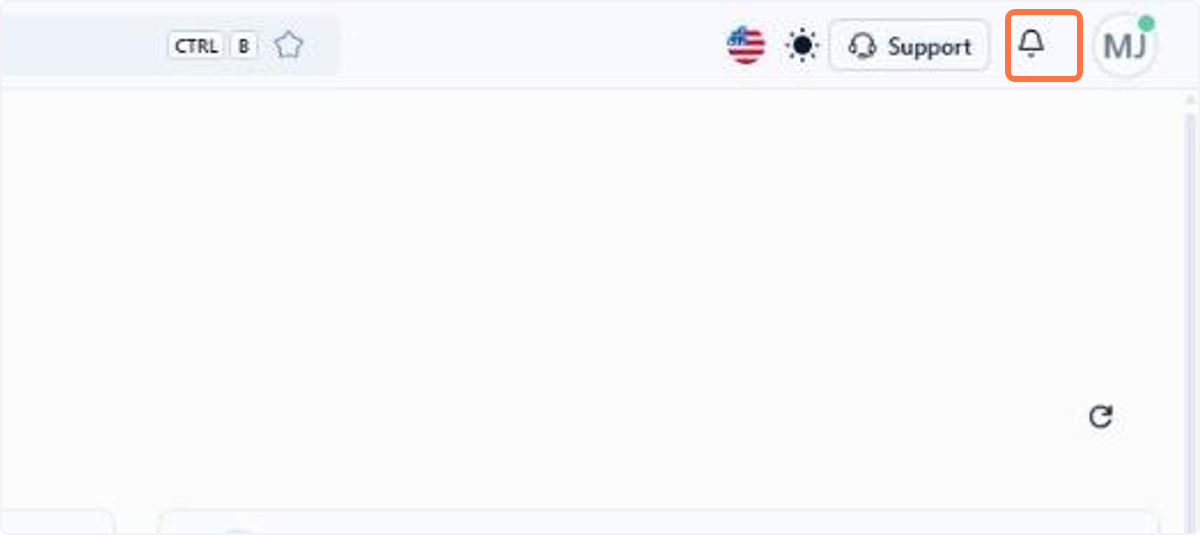
The notification bell, at the top of the screen next to the avatar, gathers the alerts addressed to you. Since they are alerts for your account rather than for the open workspace, they follow you into any workspace: opening an alert that came from somewhere else takes you straight there.
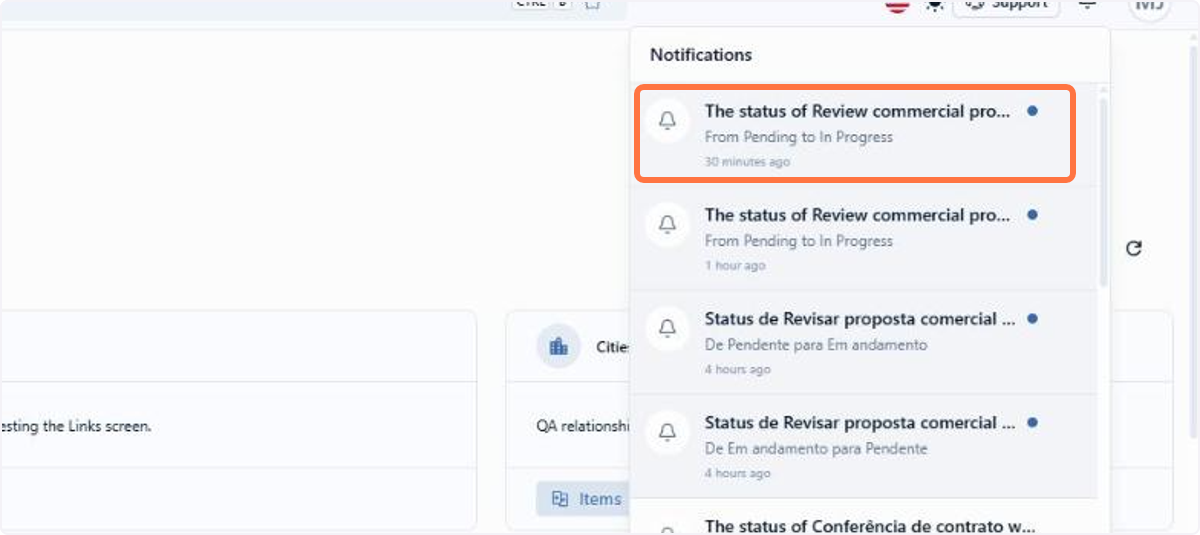
Each alert shows the title, a short description of the change and how long ago it happened, and the blue dot marks what you have not read yet.
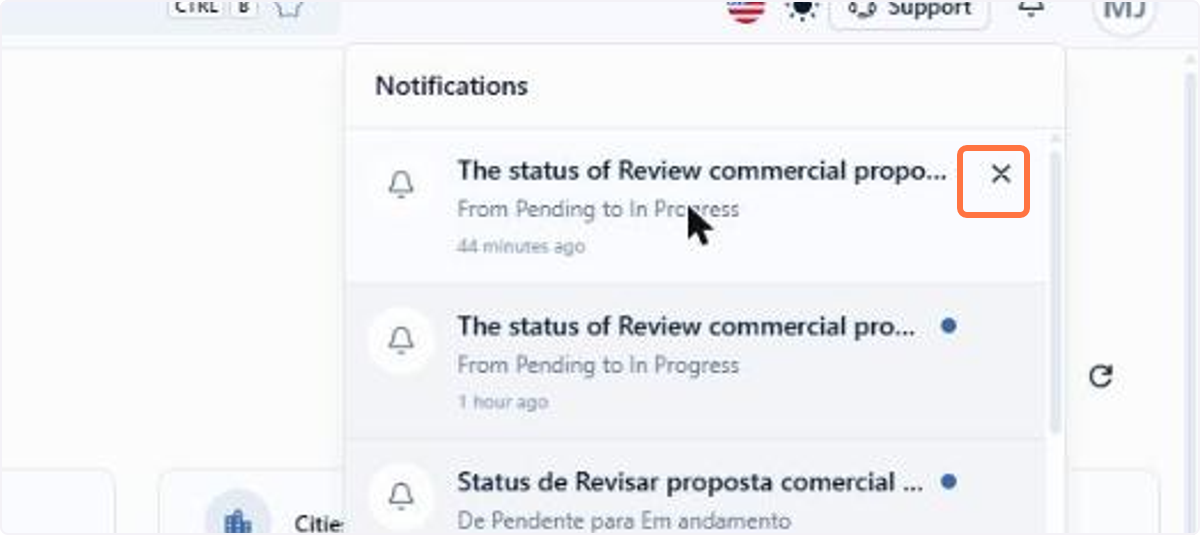
From the list, you open the item or task that triggered the alert, which is then marked as read, or you remove the alert with the X, in a simplified way.
📋 Step by step: tracking and clearing your notifications
Click the bell at the top of the screen to open the notification list
Click a notification to open the task or the item that triggered it
Hover over an alert and click the X to remove it from the list
Want to learn more about notifications? See the documentation.
1.13 Monetary Correction: Manual sync of values
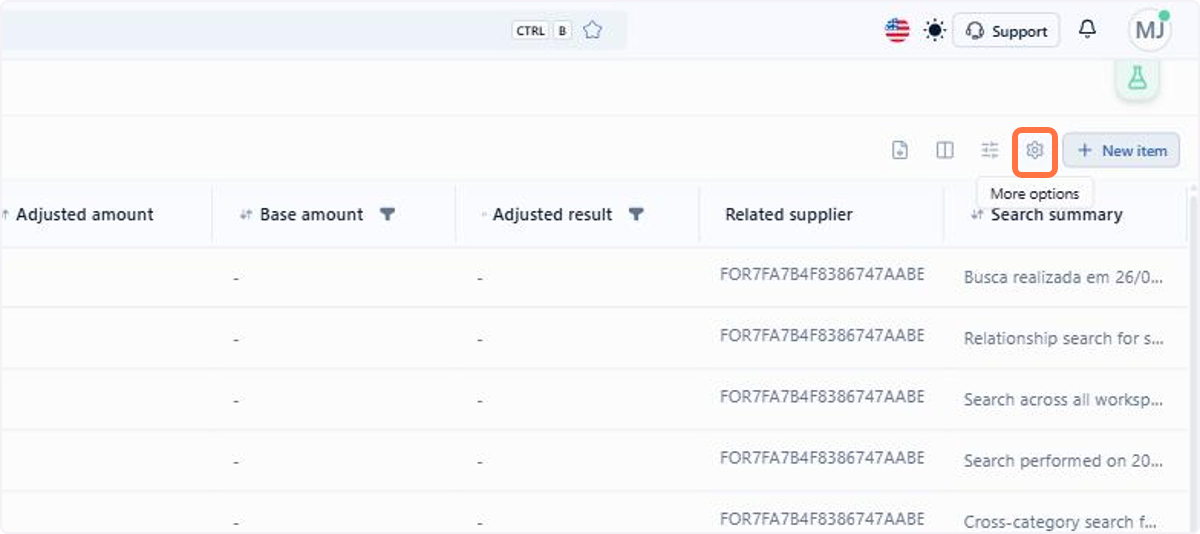
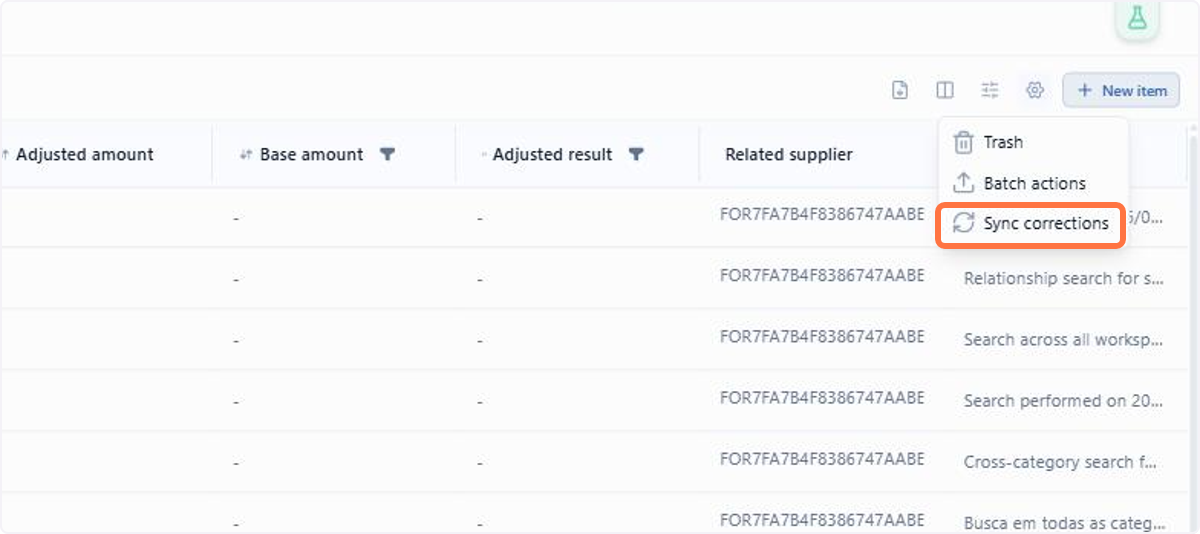
With the Monetary Correction module enabled in the workspace, the native item screen offers, in the gear menu at the top right corner, an option to manually sync the corrected values.
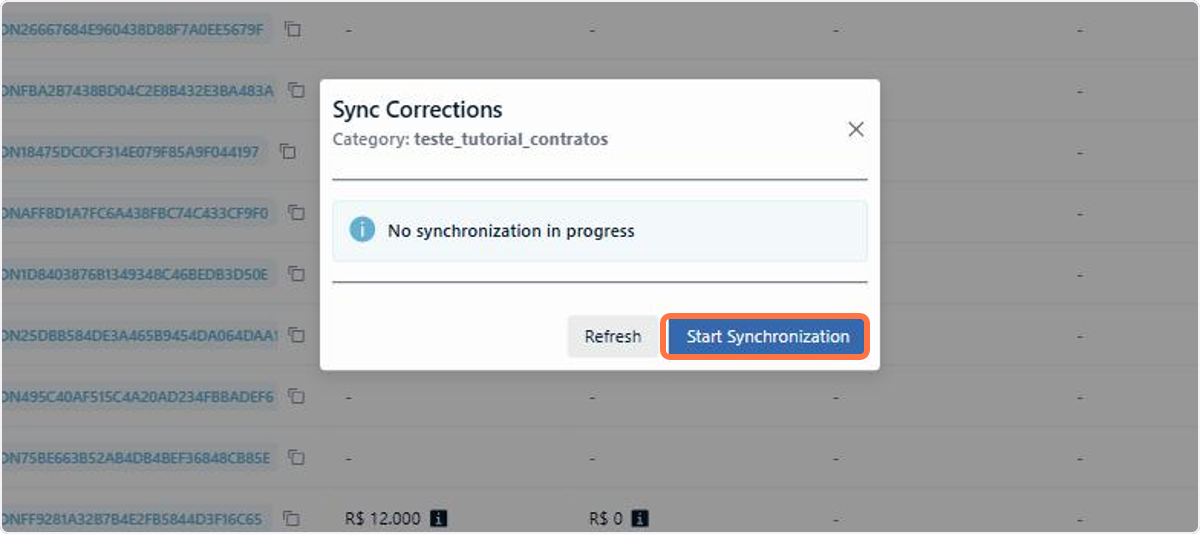
By default, the values are updated automatically whenever an index is updated in the API. The manual sync exists to force that update right away, without waiting for the next automatic cycle, when you need the values to reflect the most recent index immediately.
📋 Step by step: syncing monetary correction values
On the native item screen, click the gear in the top right corner
Select the option to sync the monetary correction values
In the modal that opens, click Start Synchronization
Want to learn more about monetary correction? See the documentation.
2. Improvements
2.1 Beni AI: New chat experience
The Beni chat window was rethought, both in looks and in the control you have over the conversation. Starting with the appearance: the chat gained a refreshed look and now shows Beni's avatar, making it clear that he is the one helping, with more readable text blocks, faster rendering and adaptation to smaller screens.
The biggest gain, though, is in controlling the conversation. A selector at the top lets you switch the agent and the AI model on each message, without losing the history: you can start by asking the standard Beni a question and move to Beni Builder when it is time to change the structure, all in the same thread. The model list is provided by the platform and is the same for every agent.
That control has help behind the scenes: if the chosen model does not read images, ENSPACE routes the analysis to a model that can and returns the result in the same conversation, without you having to switch models by hand.
And, when the request is more delicate, Beni can first present a plan of what he intends to do and only carry it out after your confirmation, with the mode set per message. So, on requests that change several records at once, you review the proposal before any change is applied.
📋 Step by step: getting to know the new Beni chat window
On the home screen, click the Beni icon to open the chat
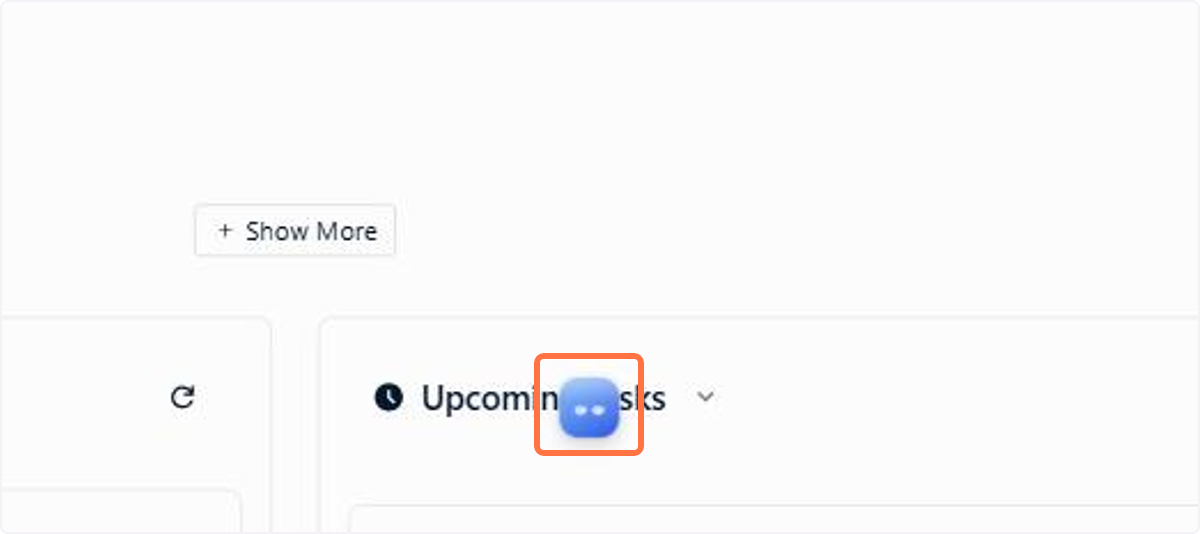
The window opens over the screen you are on, with the agent at the top, the conversation thread in the center and the message box at the bottom
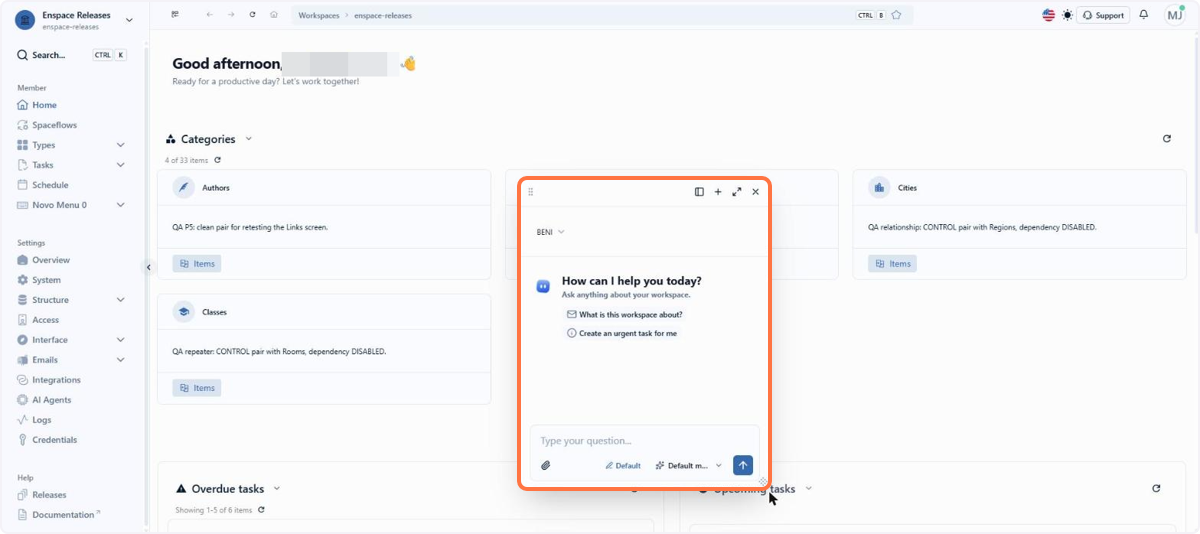
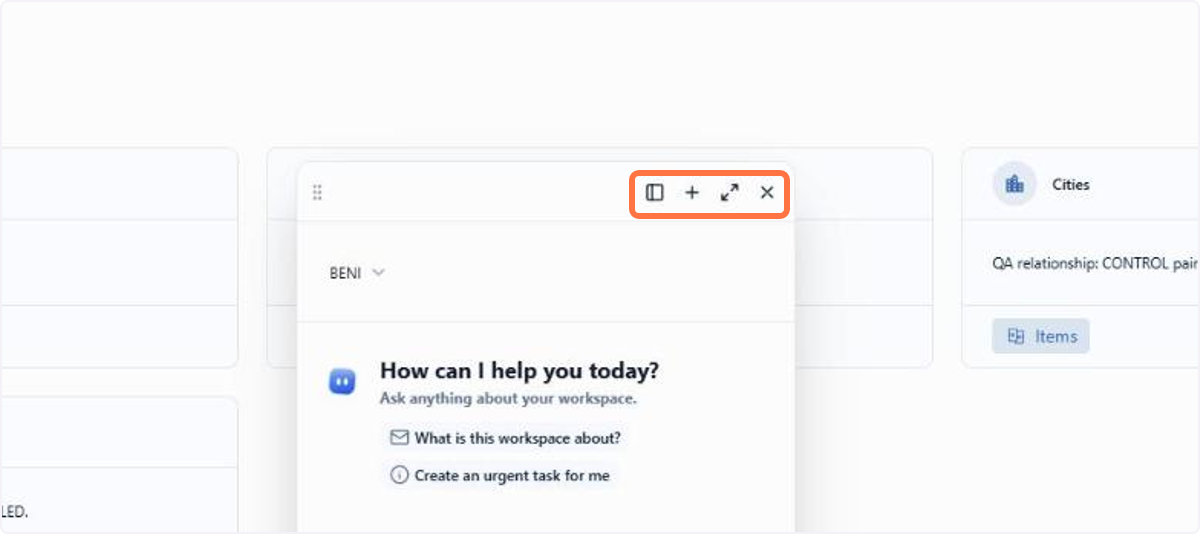
At the top of the window are History, New conversation, Full screen and Close chat
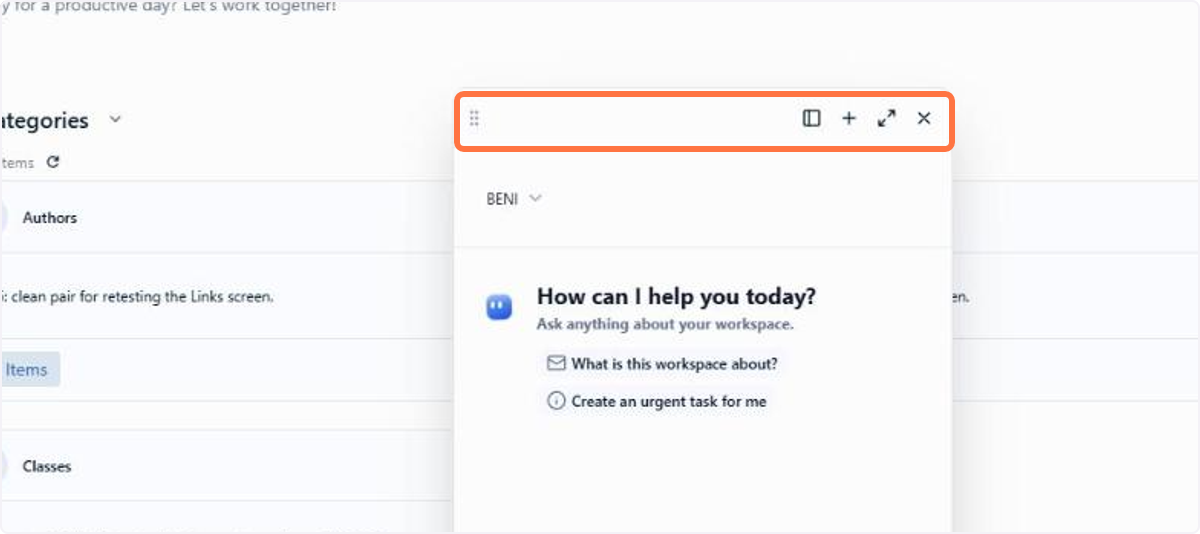
Drag the window by its header to leave it where it does not get in the way of what you are doing
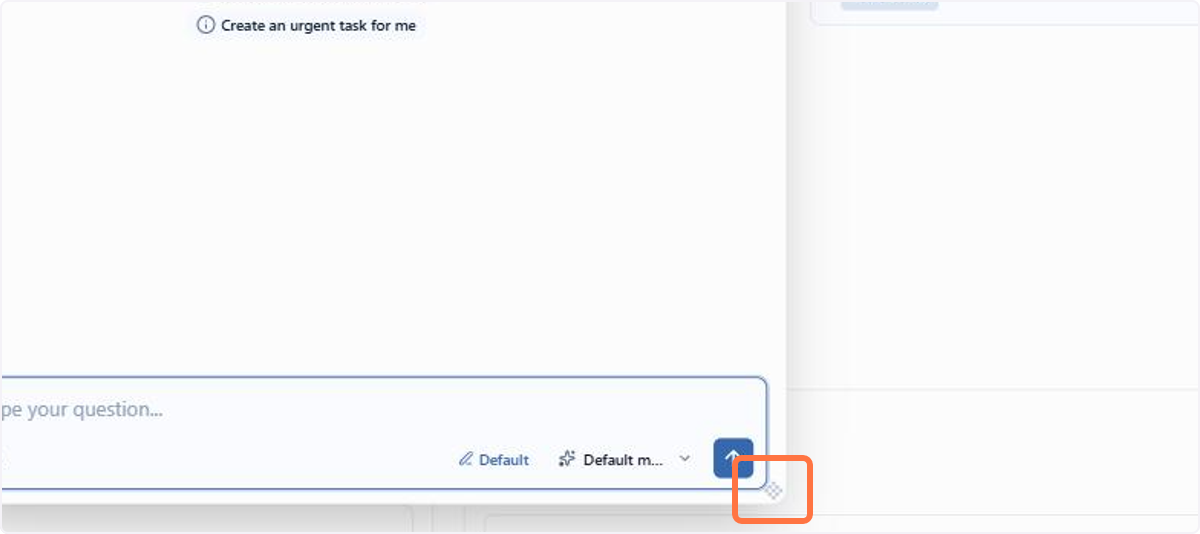
To see more of the conversation at once, drag the bottom right corner and resize the window
Send your question and Beni's answer appears in the conversation thread
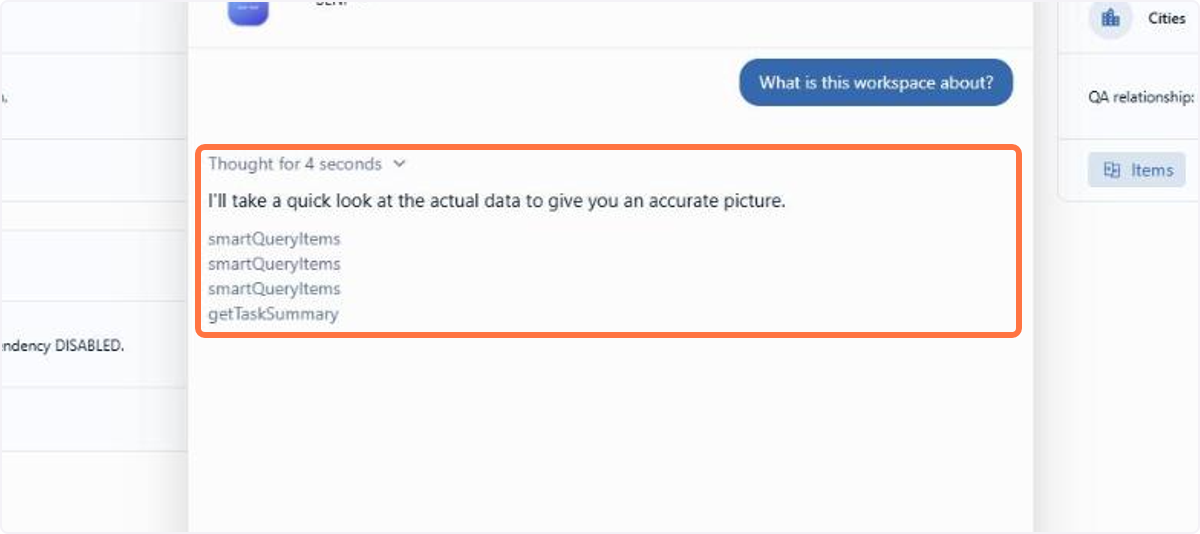
Using the selector at the top, choose who answers: Beni, Beni Builder or the agents you create
The top now shows the chosen agent, and the conversation continues in the same thread, with the history preserved
Using the bottom bar of the message box, choose the default Model or one of the models grouped by provider
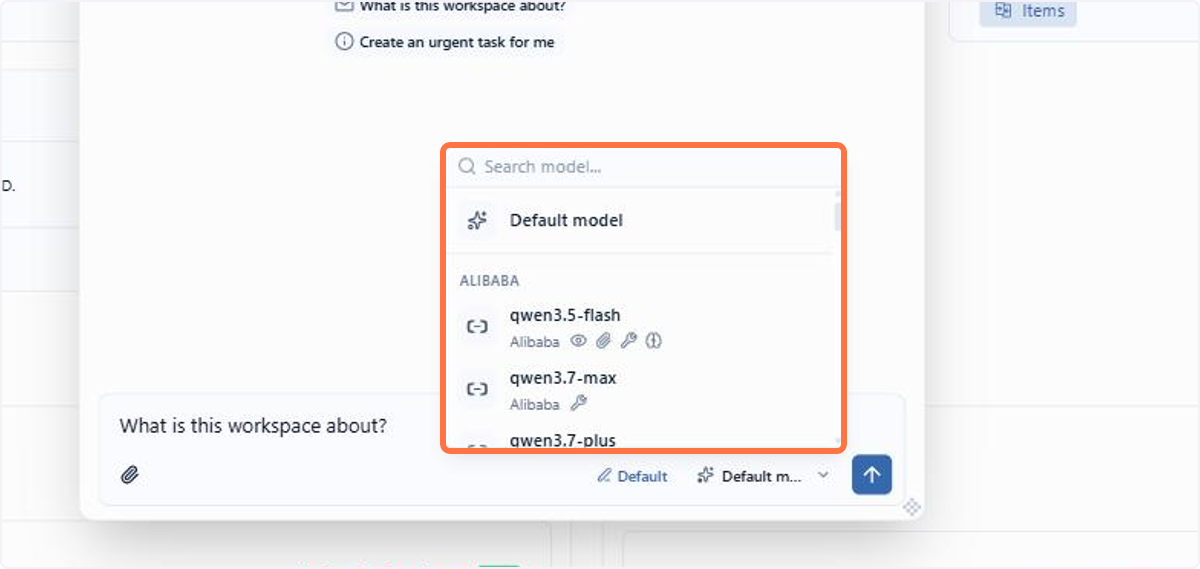
🗺️ Guided navigation: new Beni chat experience
Important:
You can navigate by clicking the areas circled in orange or using the arrows in the bottom right corner of the interactive area.
Want to learn more about Beni? See the documentation.
2.2 Spaceflow: New flow editor screen
The flow editor gained a tidier screen, in a two column layout, with the Executions, Versions, Comments and Logs tabs built into the page itself. That way, you follow everything without leaving the editor.
In addition, to avoid losing information, on the flow building canvas, each node now visually indicates when it has changes since the last save. When you save you stay on the same page, and the system warns you when you try to leave with unsaved changes.
Error validation now works on three fronts: on the flow diagram, highlighting the node with the problem; on the node configuration form; and on the save response, for what can only be checked on the server.
🗺️ Guided navigation: new flow editor screen
Important:
You can navigate by clicking the areas circled in orange or using the arrows in the bottom right corner of the interactive area.
Want to learn more about Spaceflow? See the documentation.
2.3 Spaceflow: Flow trigger restricted to specific fields
The item updated trigger now accepts a choice of which fields start the flow. Instead of reacting to any edit on the record, the flow starts only when one of the selected fields changes.
In practice, an approval flow that should run only when the Approval Status field changes stops being triggered by edits to the description, the assignee or attachments. That removes the queue of conditionals that existed only to block an unwanted run at the very start of the flow.
📋 Step by step: starting the flow only when a field changes
In the flow editor, double click the Start node
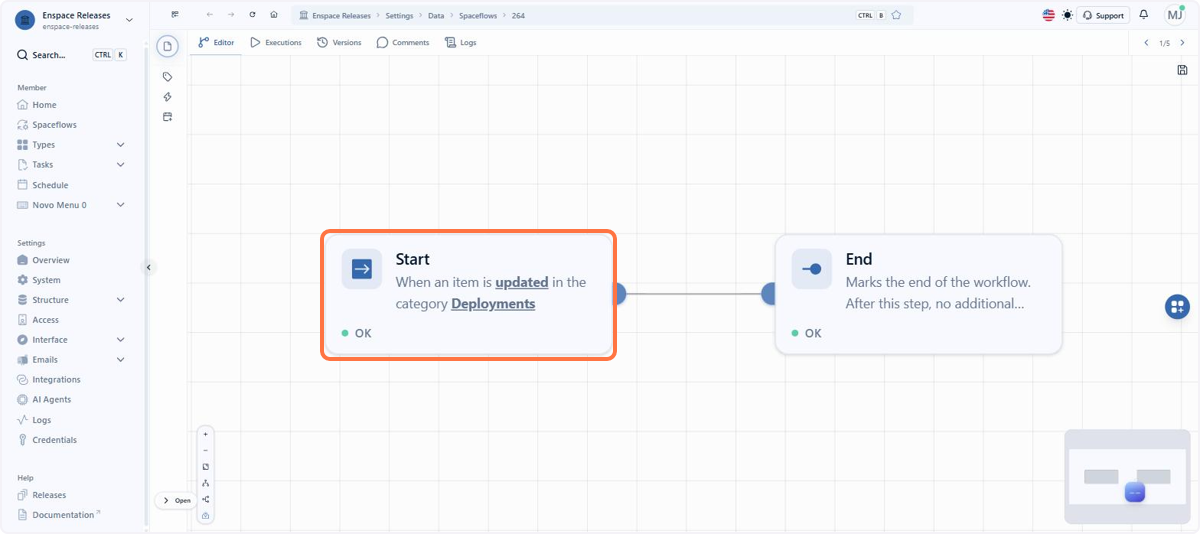
Under Trigger Action, choose Update: only it allows restricting the trigger to specific fields
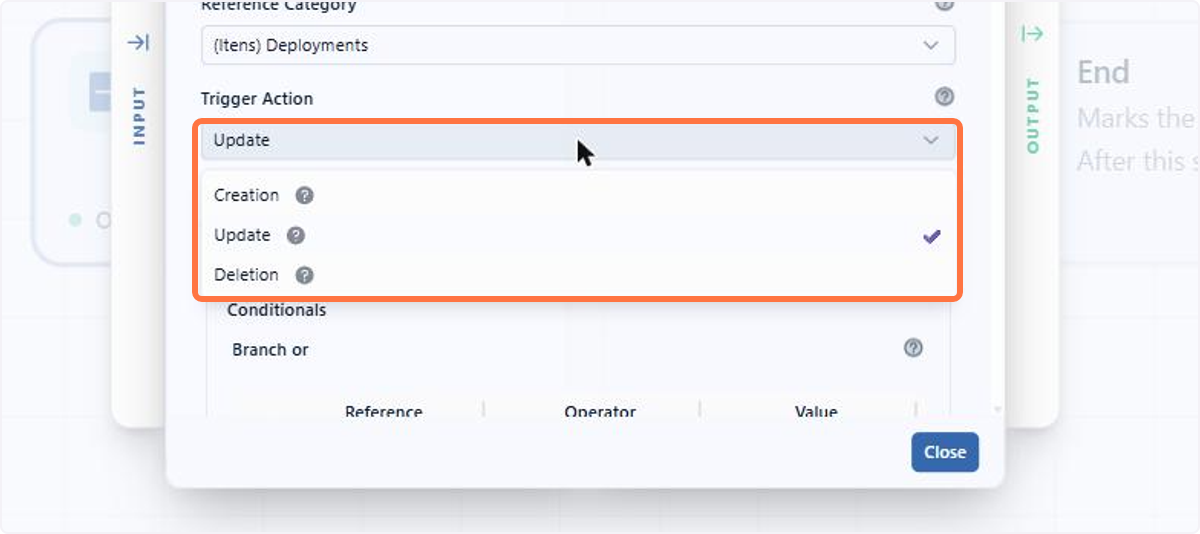
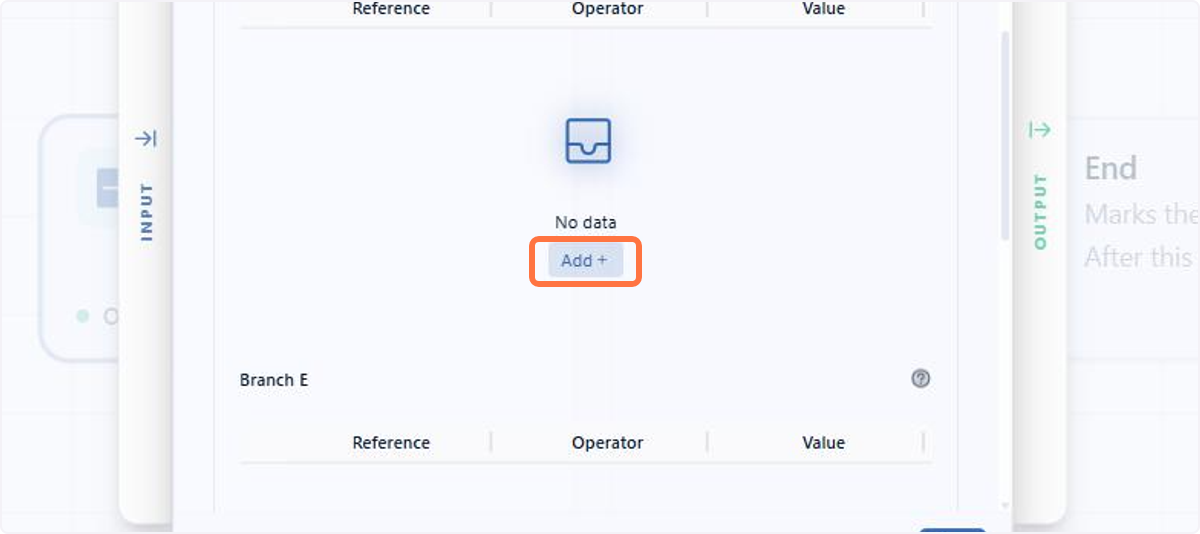
Scroll to Conditionals and click Add, in the Or Branch, to create the condition
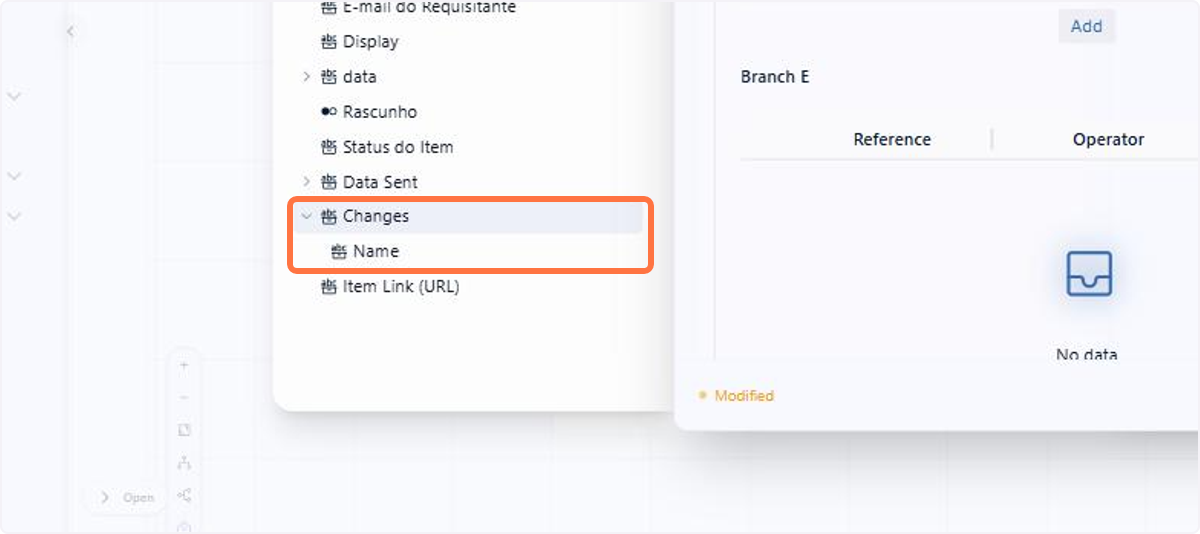
In the Input Variables panel, open the Changes group: it lists the fields that can start the flow. Here we use Note
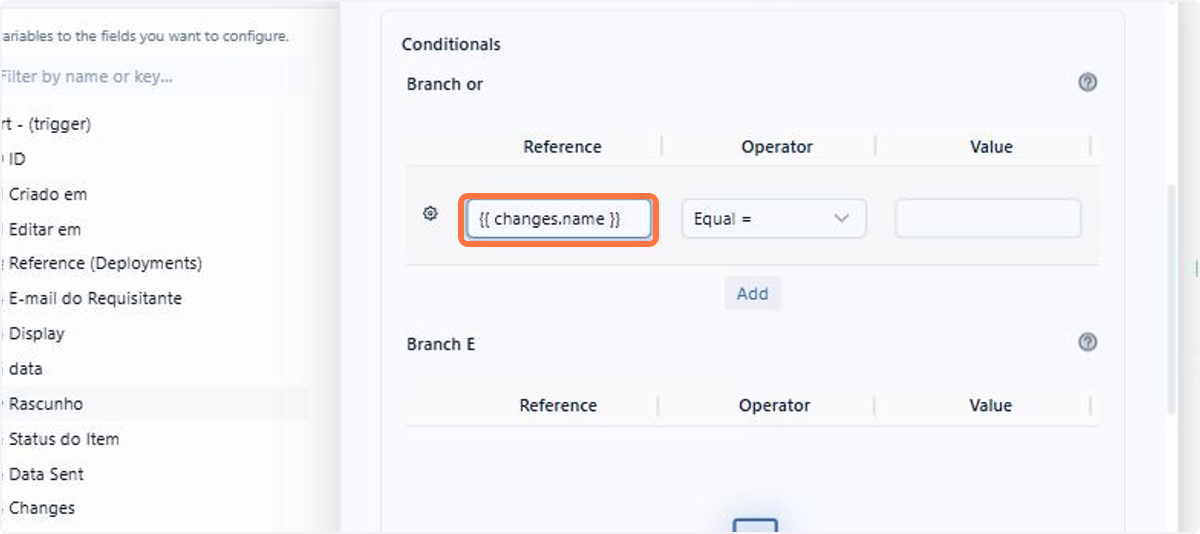
Drag the field to the Reference column: it becomes the expression {{ changes.nota }}
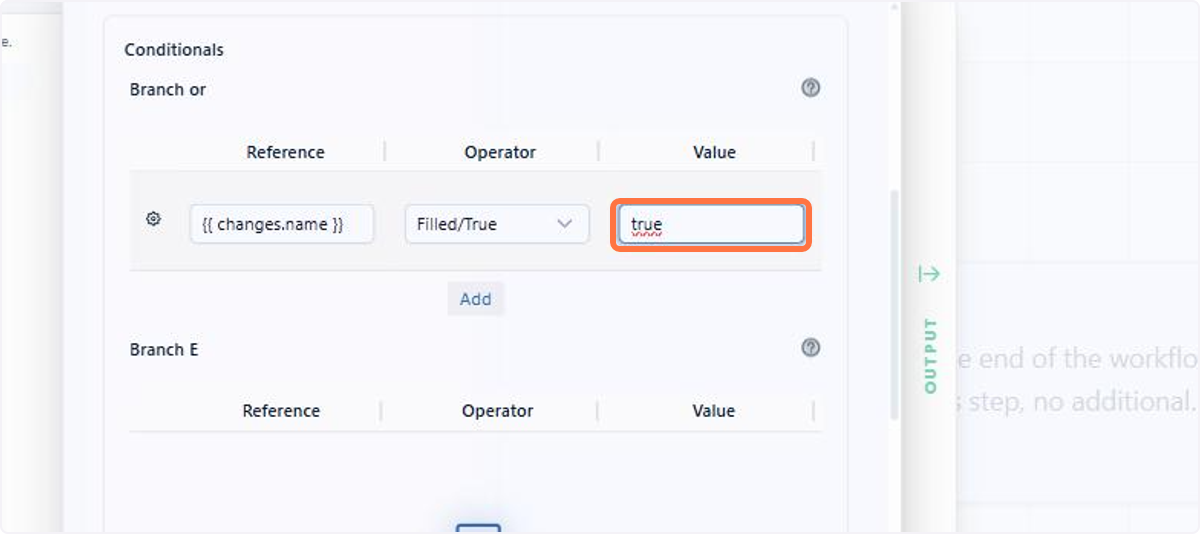
Fill the Value field with true: with the Filled/True operator, the condition still requires a value to save
Click Save and close to apply the condition to the node
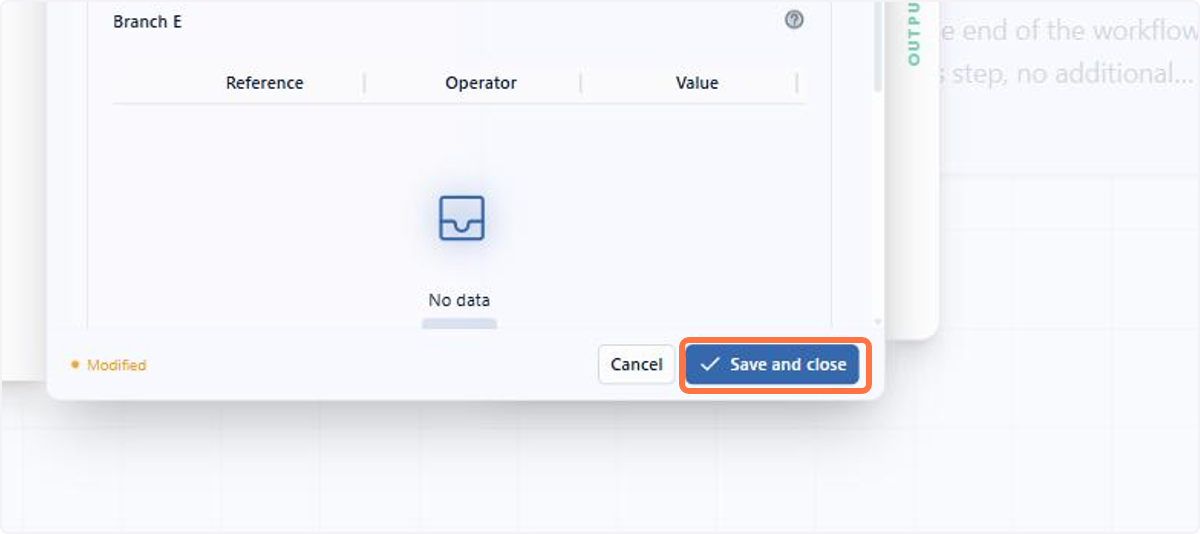
🗺️ Guided navigation: trigger by specific field
Important:
You can navigate by clicking the areas circled in orange or using the arrows in the bottom right corner of the interactive area.
Want to learn more about the Start node? See the documentation.
2.4 Spaceflow: Content generation with references and variables
Spaceflow's HTML and Markdown content generation was reworked to follow the new text editor. HTML fields now accept references to entities, variables, images and the other elements of the editor.
In practice, the change reaches all content generation done by Spaceflow: task descriptions, prompts sent to AI nodes, emails triggered by the flow and the record creation and edit operations. A text written once, with its variables and references, behaves the same way at every one of those points.
Beni also understands those references and can look up the information they point to on its own when it needs to generate or evaluate the content.
📋 Step by step: formatting the task content in the Spaceflow node
On a Task, Approval, Form or CRUD node, double click to open the settings
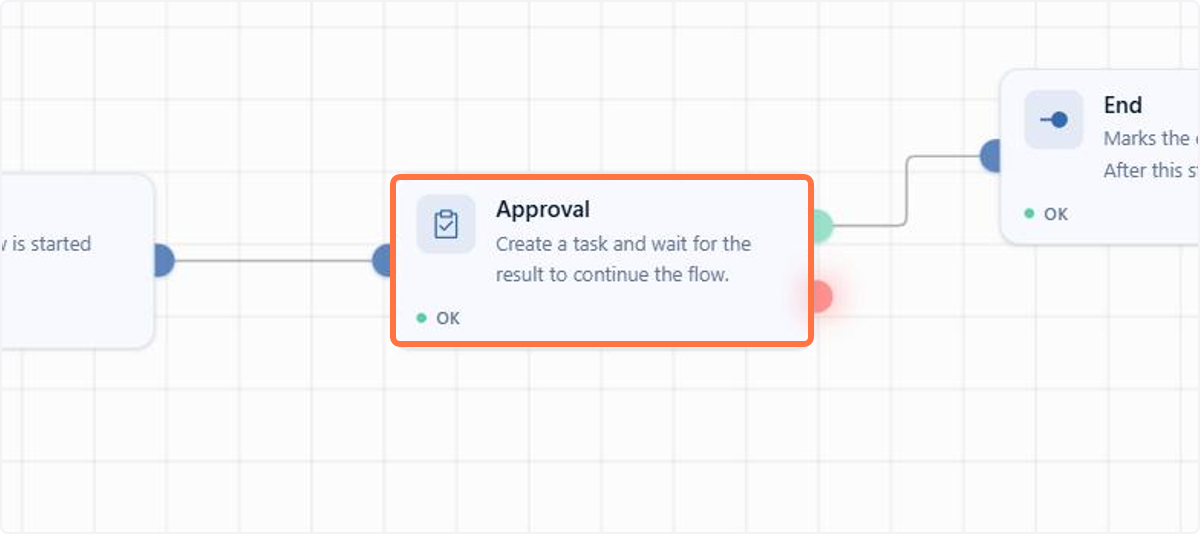
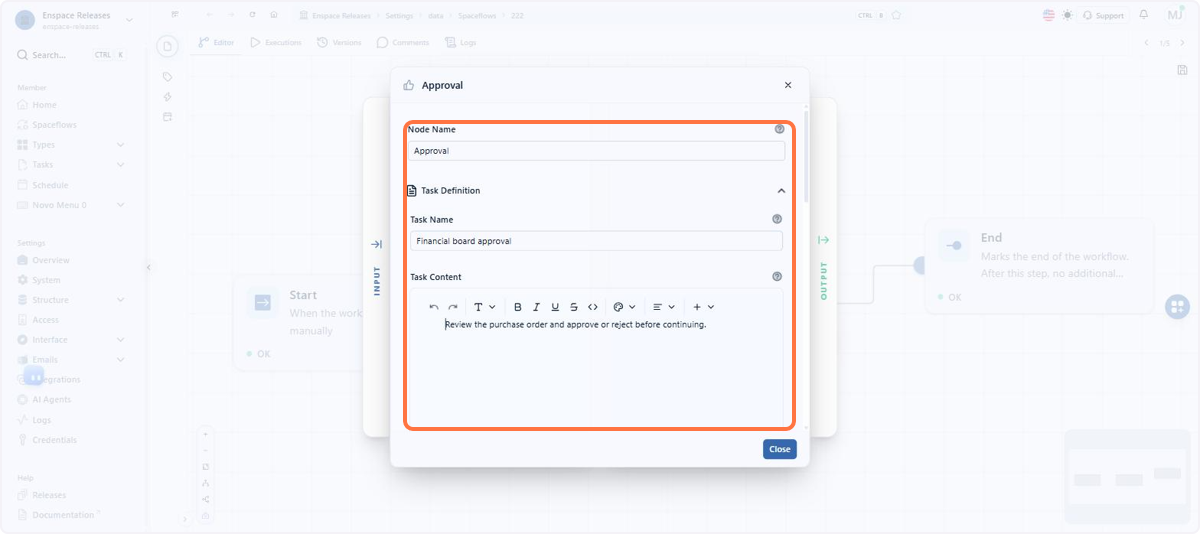
Under Task Definition, the Task Content field brings the editor with the formatting bar
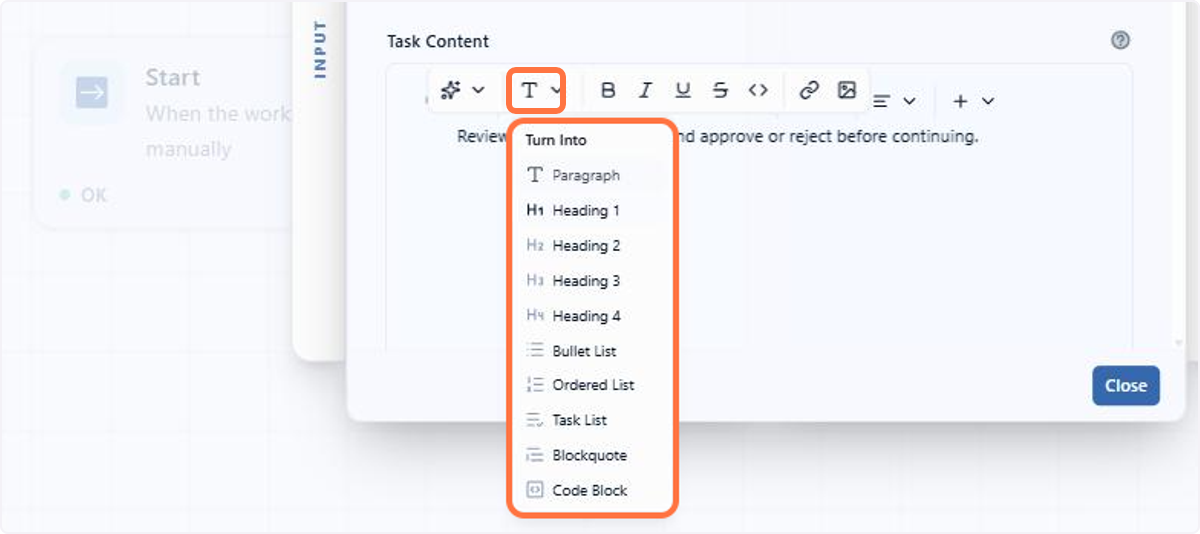
The T button opens Turn into, which changes the block format: paragraph, headings, lists, quote and code block
Select a passage and the bar changes, bringing the AI assistant, Link and Image
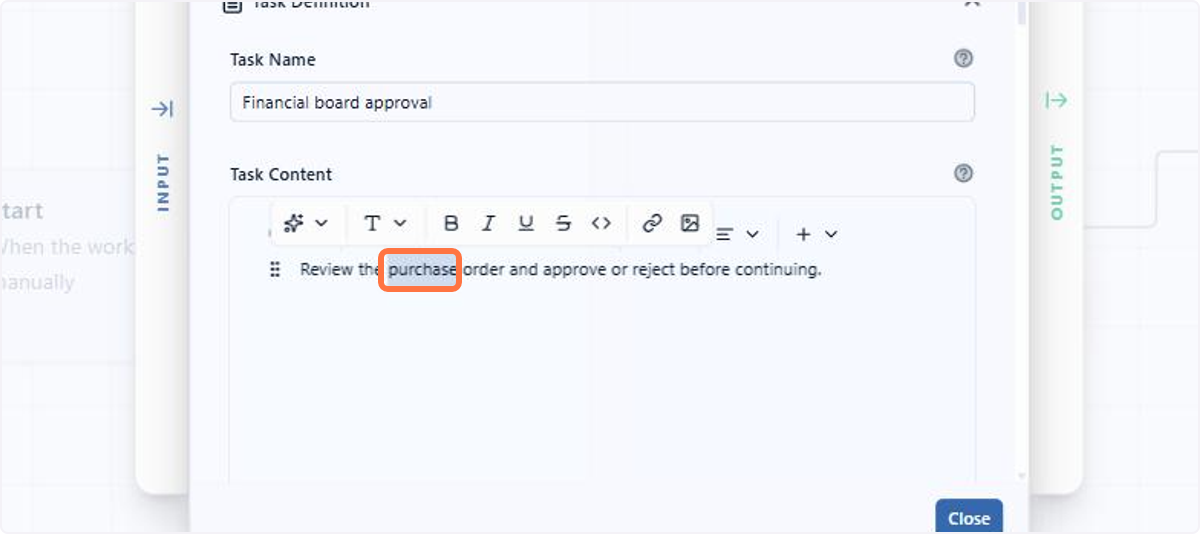
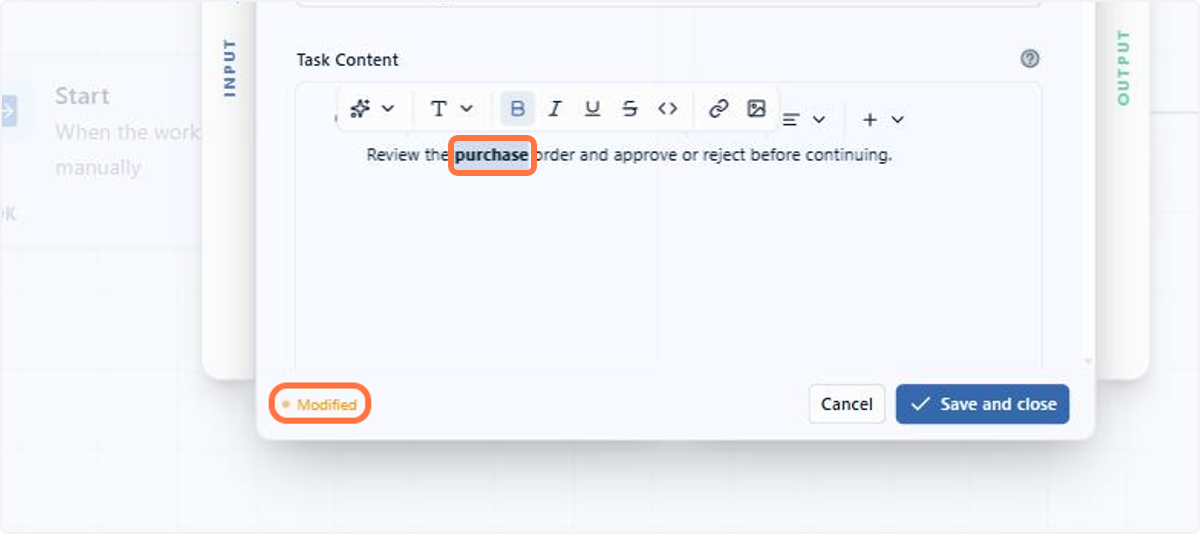
Apply the formatting: the footer now shows Modified, with Cancel and Save and close
Want to learn more about the text editor? See the documentation.
2.5 Reports: Custom fields in the task report
In the task report builder, the custom fields of the item form are available as columns, alongside the task's native fields. When one of those custom fields is of the Relationship type, only the display value of the related item is available as a column, and it is not possible to expand the fields of the related item from there.
This allows building reports that cross task data with information from the item form, such as case number or notes.
📋 Step by step: including custom fields in the task report
Open the task report builder
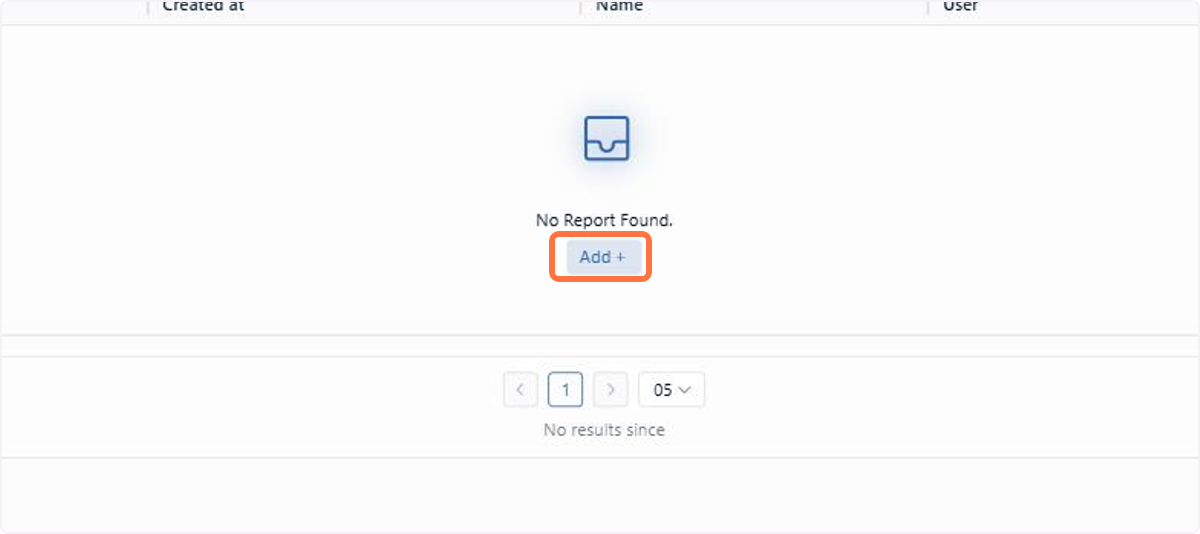
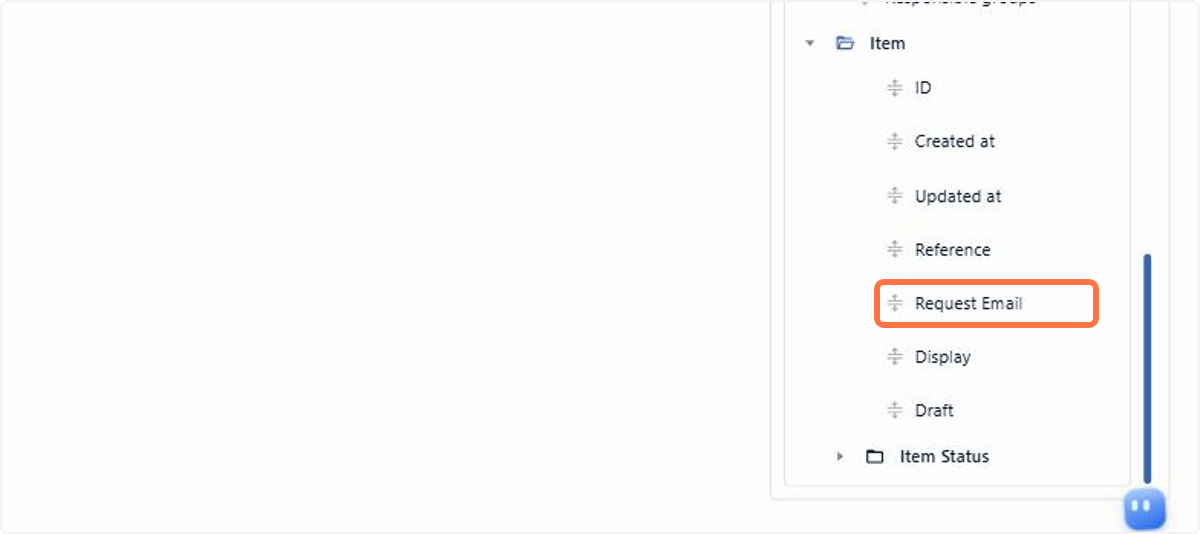
Find the item folder among the available data sources
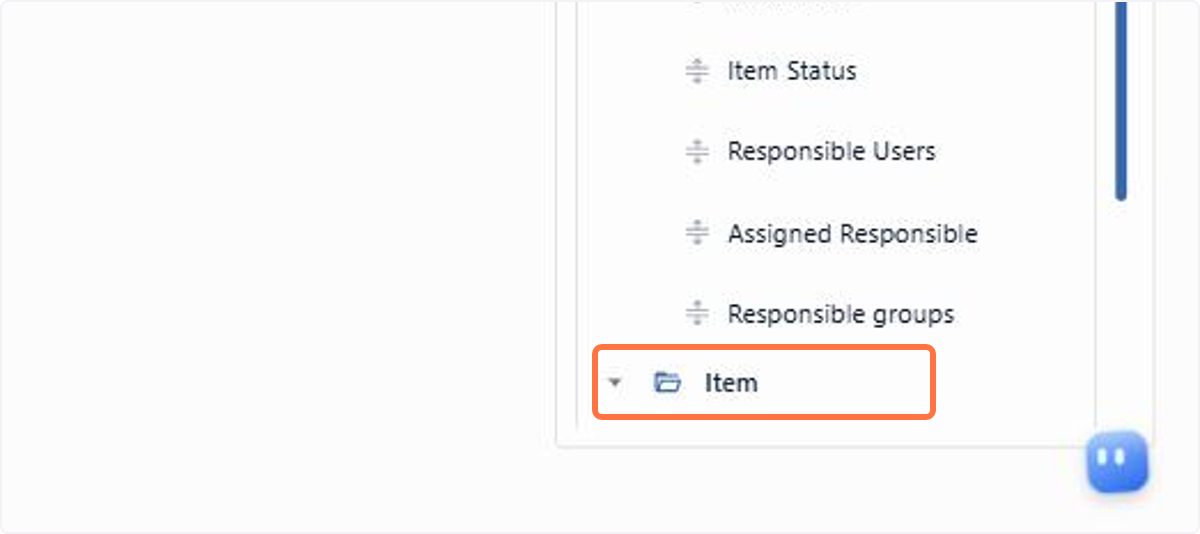
Select the custom fields from the form that should become columns
Want to learn more about reports? See the documentation.
2.6 Migrations: Execution tracking in bulk actions
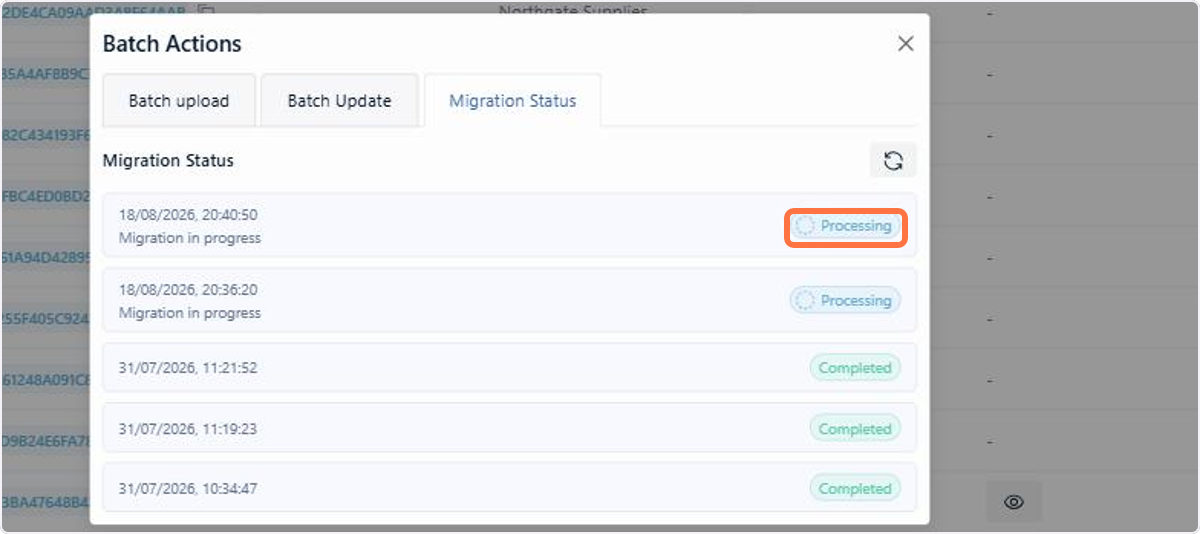
The bulk upload and update modal now has a tab dedicated to tracking the executions, with the progress of each submission in real time.
You can now see in that tab whether the processing is running, has finished or stopped midway, instead of resubmitting the file out of doubt and ending up creating duplicate records.
Want to learn more about migrations? See the documentation.
2.7 Tasks: Scheduled Tasks on the new table
The Scheduled Tasks screen leaves the old table behind and moves to the new one, the same table used by the item listing and the logs screen. It brings the column filter, the width adjustment and the choice of which columns stay visible and in what order.
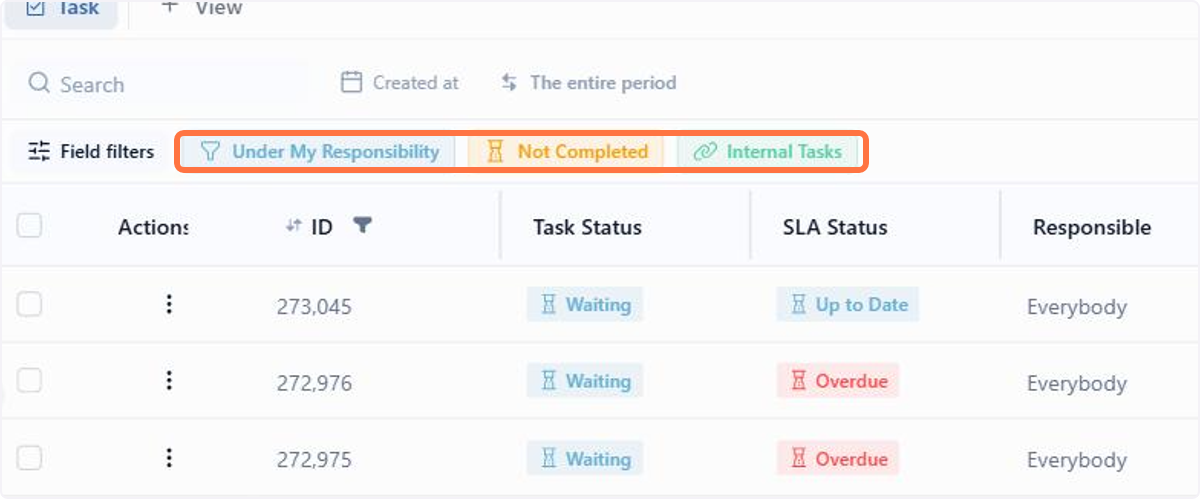
In practice, following the tasks generated by flows no longer depends on the fixed cut of the old screen. You can choose which columns stay in view, reorder them and filter by what is still open, the same way you already do in the item listing.
📋 Step by step: setting up and filtering the Scheduled Tasks table
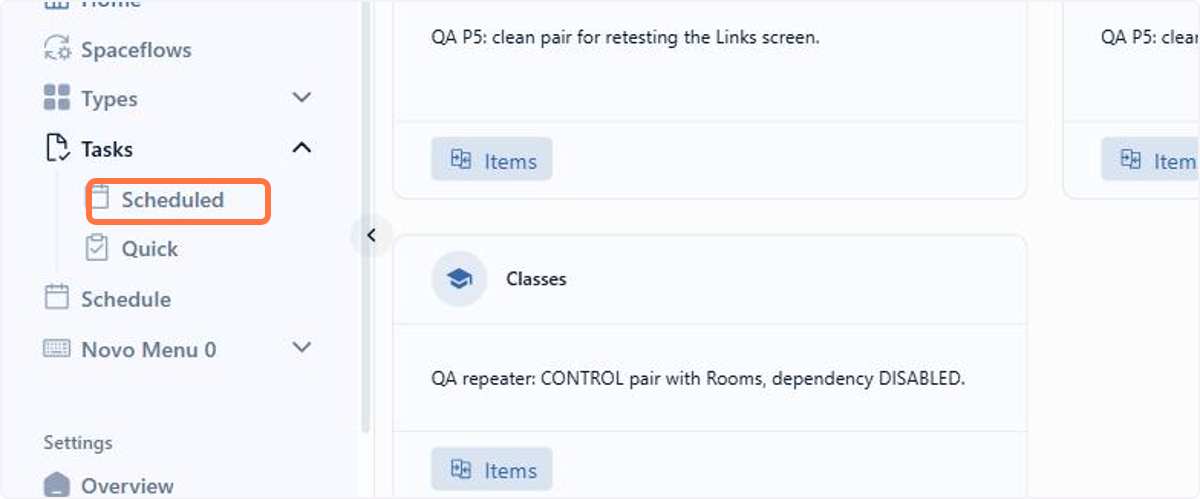
In the left side menu, expand Tasks and click Scheduled
The screen opens with three filters already applied; click one of them to see the full set
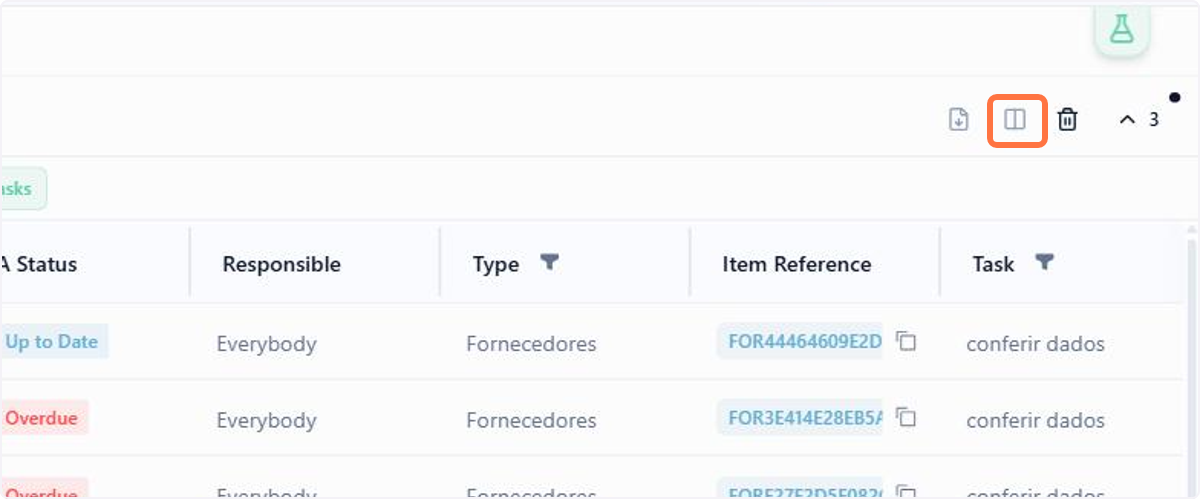
To configure the table columns, click the button in the top right corner
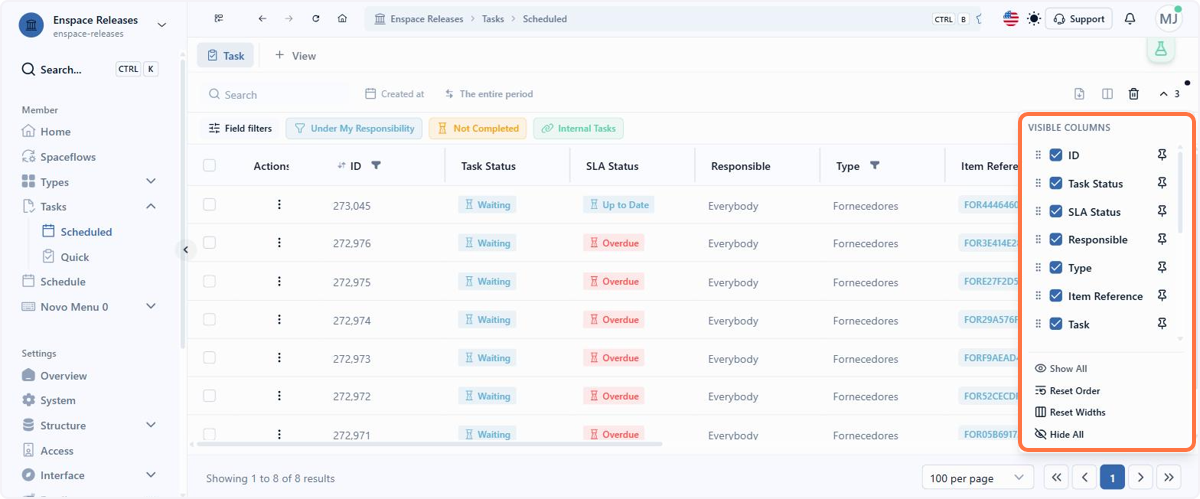
In the Visible Columns panel, hide or show each column and reorder using the handle on the left
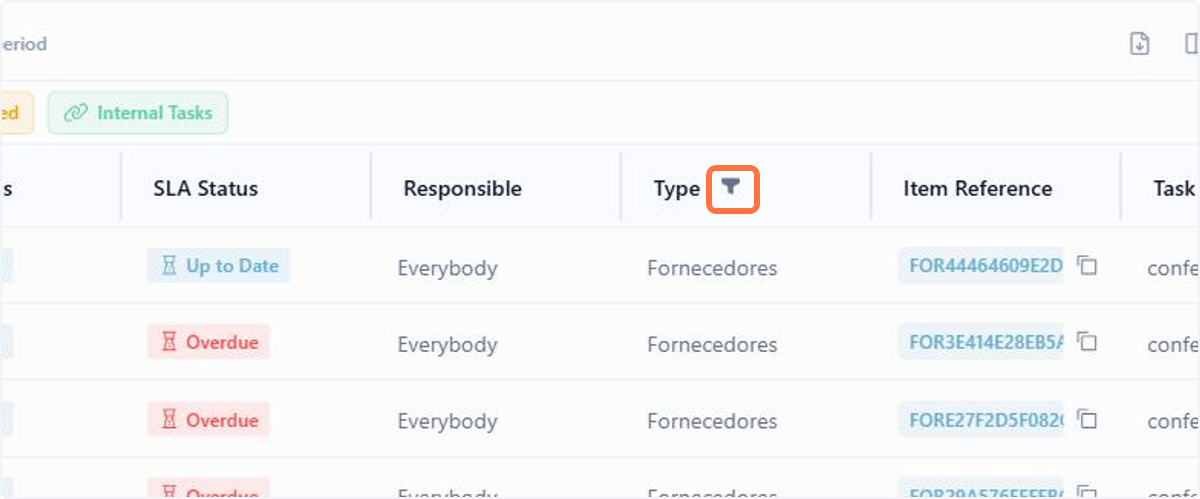
The funnel icon in the header is that column's filter; click it to narrow the list
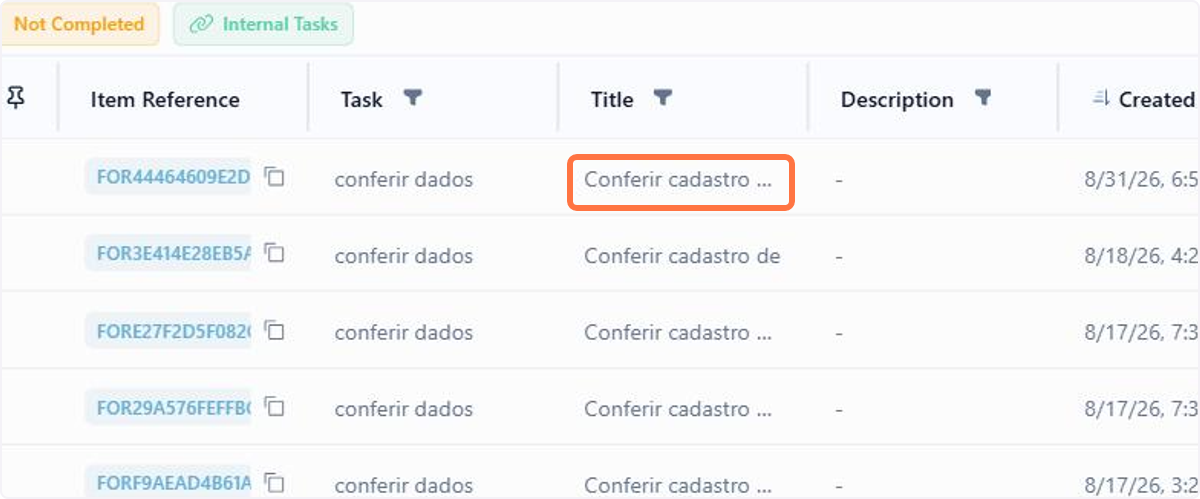
Long content doesn't stretch the column: the table truncates the text and keeps the width
Want to learn more about scheduled tasks? See the documentation.
2.8 Fields: Upload date and time in the attachment view
The view of a File field now shows the date and time each attachment was uploaded, next to the file name.
In practice, on an item that gathers attachments over the course of a process, you can tell which one is the most recent without opening them one by one or going through the item history.
Want to learn more about File fields? See the documentation.
2.9 Workspace: Visual adjustments to the start screen and themes
The workspace start screen is cleaner and more aligned with the ENSPACE visual identity: the welcome card and the productivity tip component were removed, and the task cards and the category listing cards now follow a single visual standard.
The start screen now shows what is operational first, without elements that took up space without delivering work information, and the whole thing sits more cohesively with the rest of the product.
Want to learn more about the workspace interface? See the documentation.
2.10 Monetary Correction: New calculation index available
The list of monetary correction indexes now includes the TJPR, available for calculating the corrected values.
Now workspaces that use monetary correction can apply the TJPR index directly, without a separate calculation.
Want to learn more about monetary correction? See the documentation.
2.11 Integrations: Signer order in the D4Sign integration
The D4Sign integration now allows setting the signing order of a document's signers, in the same standard already available for DocuSign.
In practice, this helps when the process requires a specific sequence, for example when a signer should only receive the document after another one has already signed.
3. Bug Fixes
When minimizing a conversation with a custom AI agent, Beni went back to showing the general assistant's default icon, instead of keeping the configured agent's icon. The selected agent was also lost, requiring it to be chosen again when reopening the conversation.
The fix keeps the icon and the selected AI agent when minimizing and reopening the conversation.
When configuring a task with an integration action, the integration's configuration fields were not always displayed, preventing the configuration from being completed.
The fix ensures the integration configuration fields are always displayed when selecting this action in the task.
When finishing a form in a category with item versioning enabled, the item was created normally, but the associated Spaceflow did not start.
The fix ensures the Spaceflow starts correctly when finishing the form, including in categories with versioning enabled.
When changing a spaceflow's status from inactive to active and saving, the status was not updated and remained inactive.
The fix ensures the status change is saved correctly, reflecting the spaceflow's new state.
When creating fields in Spaceflow, they remained in the options list and were duplicated with each new field created.
The fix eliminates the duplication, keeping only one entry per created field in the list.
In the timer start node, some scheduling patterns, such as a daily or weekly run at a specific time, resulted in an invalid trigger configuration error, while an hourly run worked normally.
The fix adjusts the timer trigger validation to correctly accept daily and weekly scheduling patterns, in addition to the hourly pattern.
On the merge node, the input connector did not change color when it was already fully configured, giving the impression of a pending connection even when there was none.
The fix updates the merge node's input connector color once it is connected, matching the other Spaceflow nodes.
Items created by the manual record creation action inside a flow appeared as created by the system rather than by the person who ran the step. The email address tied to the request was also left blank.
The fix records the item's author correctly and fills in the request email, on both manual record creation and update within the flow, reflecting the person who ran it in the change records as well.
Adding more than one parameter to a record read operation inside a flow froze the screen entirely, and reloading the page did not give control back.
The fix allows adding as many parameters as the read requires without freezing the screen, keeping the flow editor usable.
Renaming a form field already used as a reference in a later node left that node pointing at the old name. Dragging the variable in again brought the previous name, and typing the reference by hand was not recognized either, which could leave the execution stuck in a loop.
The fix carries the new field name over to the references already used in later nodes, keeping the variable valid after the rename.
When creating a flow, the form offered only Name and Description, while the settings form of an existing flow also allowed setting the icon. Choosing an icon meant creating the flow first and opening its settings afterwards.
The fix brings the creation form in line with the settings form, allowing the icon to be set at the moment the flow is created.
The CRUD operations node, in Manual mode with the create action, completed the generated task normally, but the record was not created in the target category, even with the flow set up correctly.
The fix creates the record in the target category when the task is completed, saving the data entered in the step.
In the body of an email configured in an Email node, formatted passages, such as bold, italics, links or highlights, were broken into separate paragraphs in the sent email, splitting the sentence.
The fix preserves the formatting in the email body, keeping the text in the same paragraph.
Across different workspace themes, the gray tones used in text, borders and backgrounds did not follow the same scale, which created contrast differences between screens.
The fix standardizes gray tones across every theme, making contrast consistent throughout the interface.
While a table was loading, the pagination footer appeared on top of the first rows of the list.
The fix keeps the pagination below the list while loading, without covering the table rows.
Clicking New inside a relationship field to create a record directly from there displayed a form that did not follow the configuration defined in the target category, appearing misconfigured.
The fix ensures the form opened from the relationship field's New button follows the same category configuration as the form accessed directly from that category.
In field event expressions, when a value at a payload position did not exist, the result was filled with the text null, even when a fallback value was configured in the expression.
The fix applies the fallback value defined in the expression whenever the original value does not exist, instead of filling it with null.
After registering a custom list in a List field, the Export button did not perform any action when clicked.
The fix restores the Export button's function, generating the file with the registered custom list.
When filling in a List field with nested options, the value shown on the item screen was the hierarchy level number of the selected option, instead of the option's own text.
The fix now displays the text of the selected option, not the number of its level in the hierarchy.
When applying field filters, not all fields configured in the category were returned in the result.
The fix ensures filters return all fields matching the selected category.
The Electronic Signature field is no longer called automatically by the system.
In forms with percentage and quantity numeric fields, the value zero was not accepted on submission. To send the form, users had to enter a minimum value different from the real one.
The fix accepts zero as a valid value in those fields, allowing the information to be recorded as it is.
In a numeric field set to Percentage mode, the Number in words transformer read the decimal comma as a currency separator and wrote the number out as an amount of money rather than the percentage entered.
The fix makes the transformer respect the Percentage mode of the source field, writing out the percentage as entered, decimal place included.
With the field's maximum size set to 100 MB, the File field rejected files well below that limit: only files under 5 MB went through, both in the category form and in the Spaceflow form.
The fix makes the field respect the maximum size defined in its settings, accepting any file within the limit.
When accepting an email invite to a new workspace, accounts authenticated via SSO received an error message instead of joining the workspace.
The fix lets SSO accounts accept the invite normally, without showing the error.
On a certain screen with an animated element shown in a tab, the element appeared layered on top of other interface components, ahead of where it should be.
The fix adjusts the element's stacking order, showing the components in the correct layer.
On the General Settings screen, in the Basic Information tab, the Icon and Image cards of the Logo Type field had the same border color, making it impossible to tell which of the two options was active.
The fix visually distinguishes the selected card, making it clear which logo type is in use.
When accepting a workspace invite from the link received in the email, the system showed an error, even though the invite could be accepted normally from the workspace card.
The fix allows accepting the invite directly from the email link, without showing the error.
In certain scenarios, the due date and creation date terms associated with a task were calculated incorrectly.
The fix adjusts how these terms are calculated to correctly reflect the task's due date and creation date.
On the Schedule screen, the button to integrate with Outlook did not perform the integration when clicked.
The fix restores the function of the Outlook integration button on the Schedule screen.
On the API key generation screen, some fields appeared incorrectly and element alignment was off the platform standard.
The fix adjusts the fields and the alignment of the API key generation screen.
When requesting credit in the wallet, the system confirmed the request was opened successfully, but no request was actually created.
The fix ensures the credit request is actually created upon confirmation, reflecting correctly in the wallet.
When creating a playbook, the Required Item field was required to save, even though it should be optional.
The fix makes the Required Item field truly optional when creating playbooks.
In dashboards, grouping fields without a translation registered in the selected language's dictionary appeared blank, instead of showing some value.
The fix displays the field's configured value even when no translation is registered for the selected language, instead of leaving it blank.
In Quick Tasks, when using a List field with nested options, clicking the arrow to expand an option's child levels selected that option immediately and closed the list, instead of showing the lower levels.
The fix separates the expand action from the select action, letting you navigate the nested list levels through the arrow without accidentally selecting the parent option.
Quick tasks configured with manual CRUD could be completed even when required form fields were left blank.
The fix applies required field validation to this type of quick task as well, blocking completion until they are filled in.
On the new quick tasks screen, opening an attached file with more than one page, the viewer's scrollbar and zoom buttons did not respond.
The fix restores scrolling and zoom in the file viewer on the new quick tasks screen as well.
The previous version of the Quick Tasks screen (V1) is no longer available. The current version (V2) becomes the only one in use.
In custom views, fields positioned side by side could overlap when the text did not fit the column width, with no line wrap. In addition, manually adjusting the column width was not saved when leaving and returning to the screen.
The fix applies line wrapping to field content and now saves manual column width adjustments.
When renaming an existing view, the confirmation message shown after saving said the view was created successfully, even though it was an edit, not a creation.
The fix shows an edit confirmation message when renaming an existing view, instead of the creation message.
When creating a table with only some columns selected, the view was created with all available columns instead of only the selected ones.
The fix ensures the created table displays only the columns selected during creation.
When logging in from a screen set to a specific language, the system did not keep that selection when loading the dashboard, showing the interface in the default language instead. Logging out, the login screen's language also did not preserve the previously configured preference.
The fix keeps the selected language both when loading the dashboard after login and when returning to the login screen after logout.
When changing the language in the user profile, the system saved the preference as Spanish in the backend, regardless of the language selected. This caused quick task report columns to always be extracted in Spanish, even with another language configured on screen.
The fix correctly saves the language chosen in the profile, also reflecting it in the language used when extracting quick task reports.
In the developer tab of the user profile, tokens created by the user were not counted, always showing the count at zero.
The fix now counts created tokens correctly, reflecting the actual number on screen.
In the developer tab of the user profile, elements appeared incorrectly overlapping and configurations made were not saved.
The fix adjusts the elements' overlap and ensures the tab's configurations are saved correctly.
In the Lab tab of the user profile, the content displayed showed up as the text Object Object, instead of the expected information.
The fix adjusts the Lab tab's display to show the correct content.
In the Quick Tasks section on the Home screen, clicking a task card did not open that task's detail panel. Instead, the click led to the general Kanban listing, requiring you to locate the task manually.
The fix makes clicking the card open the selected task's detail panel directly.
On the Roles permissions screen, the save button was displayed without text or icon.
The fix restores the save button's text and icon on this screen.
On the not found page, the button to go back to the home screen did not work and remained in English, even with the system configured in another language.
The fix restores the button's function and translates its text according to the configured language.
On some pages, the refresh button did not perform any action when clicked.
The fix restores the refresh button's function on those pages.
On the logs and credentials screens, some routes returned an error when accessed.
The fix adjusts these routes, allowing the logs and credentials screens to be accessed normally.
Items sent to the trash did not show up properly in the listing and, when they did, the restore action did not bring the record back.
The fix lists deleted items and restores the selected record, returning the item to its original category.
Searching a category listing for a value present in a form link column returned no records, even though items registered with that link existed.
The fix takes link fields into account in the listing search, returning the items that contain the value entered.
In categories whose fields had been changed or deleted, opening the details of an existing item raised an error, and creating a new item in the same category also failed.
The fix restores opening the details and creating items in those categories, even after changes to the field structure.
On a role's permissions screen, the Active Permissions total counted checked fields in the numerator and action rows in the denominator. Being different units, the fraction went past 100% and carried no usable meaning. The Data and Settings tabs on the same screen counted correctly.
The fix counts the same unit on both sides of the fraction, so the Active Permissions total reflects the actions actually granted to the role.
v2.8.9 is live
This release includes 31 items in total: 1 new feature, 15 improvements, and 15 bug fixes. Of these, 11 are deliveries requested by users and 20 are general product evolutions or fixes, conceived or requested by the technical team.
3.1.0 is live
This release includes 42 items: 3 new features, 13 improvements and 26 bug fixes. Highlights include real-time updates in items, tasks and notifications, the new folder builder in the item screen and the new email trigger in the Spaceflow Start node.