HTTP Request Node
What is it
The HTTP Node is a Spaceflow node type that allows you to configure calls to external APIs directly within an automation flow. With it, ENSPACE can send and receive data from any external service that has a REST API, without the need for intermediary tools or platforms.
When to use
- Integrate ENSPACE with external systems (ERP, CRM, payment platforms, messaging services, etc.) within a flow.
- Trigger actions on external services automatically when an event occurs in the workspace.
- Synchronize data between systems during the execution of a process.
- Send webhook notifications to systems that await events from ENSPACE.
- Connect two ENSPACE workspaces to each other via API, creating or updating items in one workspace based on events in another.
Configuring the node
Adding to the flow
1. While editing or creating a Spaceflow, click the Add Node button to open the nodes sidebar.

2. In the sidebar, open the Integrations section and drag the HTTP Request node onto the canvas.
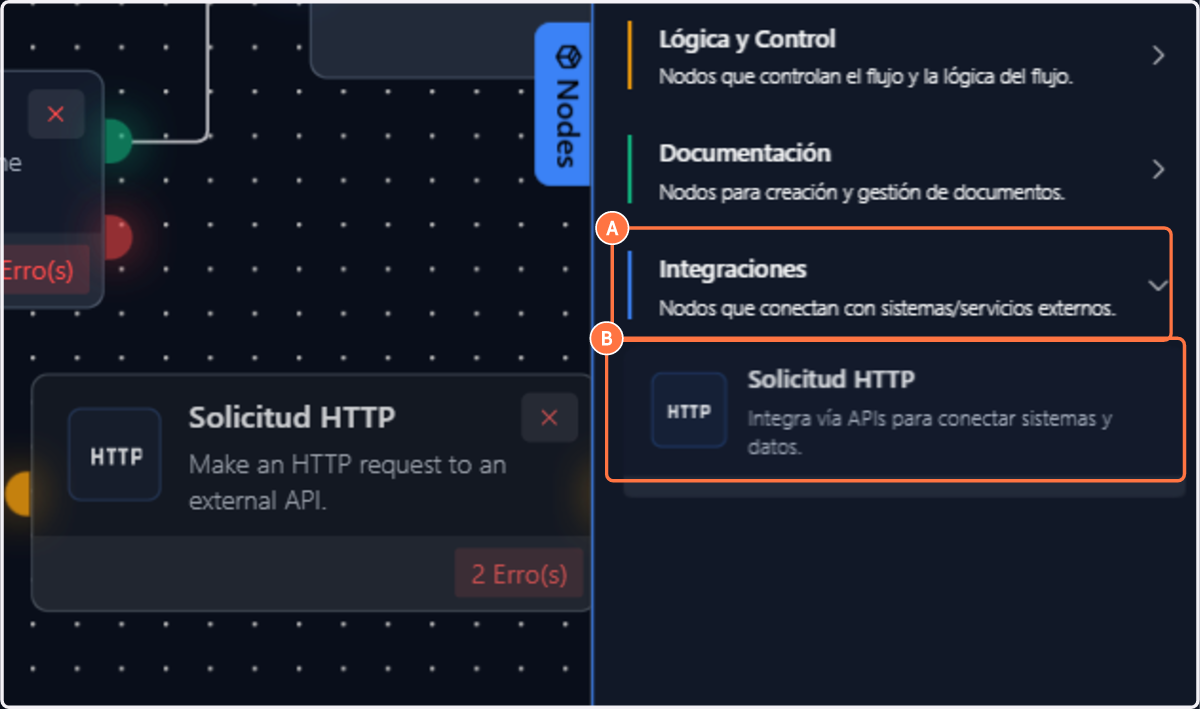
3. With the node added, click on its connector (semicircle) and drag the line to another node's connector to create the connection.

4. Click on the node to open its settings. You will find two tabs: Request and Response.

Request tab
The Request tab is where you define how ENSPACE will communicate with the external service.
1. Select the desired Method (GET, POST, PUT, PATCH, or DELETE). The available configuration fields change depending on the selected method.

2. Set the URL of the destination API endpoint. The field supports flow variables (e.g.: {{item.id}}).

3. In the Authentication section, select a Credential registered in the workspace for automatic authentication.

Important: The credential only covers the authentication header configured within it (e.g.,
x-api-key). If the destination API requires additional headers — such asen-workspacefor the ENSPACE API — you must add them manually in the Headers section.
4. In the Additional Configurations section, you can adjust:
- Timeout — maximum wait time for the API response.

- Query parameters — parameters appended to the end of the URL. Click Add to include as many as needed.

- Headers — the node already includes predefined headers that can be edited by clicking on them. To add new ones, click Add.

Request body
For POST, PUT, and PATCH methods, an additional Body section will be available. This is where you send the data that the destination API expects to receive.
The body field accepts JSON and supports flow variables using the {{variable}} syntax.
Rules for building the body
Text variables — must be enclosed in double quotes:
{
  "name": "{{input.data.name}}"
}
Numeric variables — keep them in quotes as well. The ENSPACE API automatically converts them for numeric fields:
{
  "value": "{{input.data.value}}"
}
Fixed values — can be inserted directly:
{
  "status": "backlog",
  "active": true,
  "quantity": 10
}
Combining fixed text with variables — you can concatenate values within the same string:
{
  "description": "Ticket {{input.reference}} - {{input.data.subject}}"
}
Important considerations
- Do not use spaces inside variable braces. Use
{{input.data.name}}not{{ input.data.name }}. - Avoid HTML tags in the body (such as
<br>,<strong>, etc.), as they may cause JSON validation errors. If you need to send HTML content, use plain text separators like---,|, or\n. - Empty or null variables — if a field from the previous node has no value, the variable will be replaced with empty. This may cause issues if the destination field is required. Consider using a conditional node before the HTTP node to validate that the necessary data exists.
- Validate JSON before saving. The node does not display JSON syntax errors during editing. An extra comma, a missing quote, or an unclosed brace can cause the "Invalid HTTP node configuration" error. When in doubt, paste the JSON into an online validator (such as jsonlint.com) before saving.
Response tab
The Response tab allows you to map the data returned by the API for use in subsequent flow steps. Mapping is done through an Output Schema, where each rule defines how a piece of response data will be accessible in the following nodes.
Output Schema fields
Each schema rule has the following fields:
| Field | Required | Description |
|---|---|---|
| Field key | Yes | Unique identifier for the rule (e.g., id, reference). This will be the name used to access this data in subsequent nodes. |
| Field name | Yes | Display name (e.g., "Created item ID"). Appears in the interface when selecting variables. |
| Field type | Yes | Expected data type. Select from the dropdown (Text, Number, etc.). |
| Source path | No | Path in the response JSON from which to extract the value. For root-level fields, use the name directly (e.g., id). For nested fields, use dot notation (e.g., data.name). |
| Validation | No | Tag field for adding custom validation rules. |
Practical example
If the API returns:
{
  "id": 12345,
  "reference": "REF-ABC",
  "status": "backlog",
  "data": {
    "title": "My request",
    "priority": "high"
  }
}
The output schema would be:
| Key | Name | Type | Source path |
|---|---|---|---|
id | Item ID | Number | id |
reference | Reference | Text | reference |
status | Status | Text | status |
title | Title | Text | data.title |
1. In the Response tab, click Add to create the desired mapping rules.

Saving
1. Once all configurations are ready, click Save to apply the changes to the node.

Practical examples
Example 1: Create an item in another workspace via the ENSPACE API
Scenario: An item is edited in the "requests" type of workspace A and should automatically create an item in the "demands" type of workspace B.
Flow: Start (trigger: item edited) → HTTP Request (POST) → End
HTTP node configuration:
| Field | Value |
|---|---|
| Method | POST |
| URL | https://api.leif.enspace.io/ws/types/demands/items |
| Credential | Select the credential with the API token (Api Key type, header x-api-key) |
Additional headers:
| Key | Value |
|---|---|
en-workspace | products (reference of the destination workspace) |
Body:
{
  "form": "default",
  "data": {
    "title": "{{input.data.subject}}",
    "status": "backlog",
    "priority": "{{input.data.priority}}",
    "external_reference": "{{input.reference}}",
    "description": "{{input.data.description}}"
  },
  "options": {
    "keep_as_draft": false
  }
}
Output schema:
| Key | Name | Type | Source path |
|---|---|---|---|
id | Created item ID | Number | id |
reference | Created item reference | Text | reference |
Example 2: Query data from an external API (GET)
Scenario: Look up zip code information from a public API to fill in address fields.
HTTP node configuration:
| Field | Value |
|---|---|
| Method | GET |
| URL | https://viacep.com.br/ws/{{input.data.zip_code}}/json/ |
| Credential | None (public API) |
Output schema:
| Key | Name | Type | Source path |
|---|---|---|---|
logradouro | Street | Text | logradouro |
bairro | Neighborhood | Text | bairro |
localidade | City | Text | localidade |
uf | State | Text | uf |
Example 3: Update an existing item (PUT)
Scenario: After an approval in the flow, update the status of an item in another system.
HTTP node configuration:
| Field | Value |
|---|---|
| Method | PUT |
| URL | https://api.leif.enspace.io/ws/types/demands/items/{{input.reference}} |
| Credential | Select the credential with the API token |
Additional headers:
| Key | Value |
|---|---|
en-workspace | products |
Body:
{
  "data": {
    "status": "completed",
    "delivery_notes": "{{input.data.approval_feedback}}"
  }
}
Example 4: List items with filters and pagination (GET)
Scenario: Fetch the last 50 items created in a type, sorted from newest to oldest.
HTTP node configuration:
| Field | Value |
|---|---|
| Method | GET |
| URL | https://api.leif.enspace.io/ws/types/demands/items |
| Credential | Select the credential with the API token |
Additional headers:
| Key | Value |
|---|---|
en-workspace | products |
Query parameters:
| Key | Value |
|---|---|
_limit | 50 |
_sort | created_at:DESC |
_start | 0 |
Variable reference for the body
| Situation | Syntax | Example |
|---|---|---|
| Simple text value | "{{variable}}" | "name": "{{input.data.name}}" |
| Numeric value | "{{variable}}" | "value": "{{input.data.price}}" |
| Fixed value (text) | "direct_value" | "status": "backlog" |
| Fixed value (boolean) | true or false | "active": true |
| Fixed value (number) | 123 | "quantity": 10 |
| Concatenation | "text {{var1}} text {{var2}}" | "ref": "TICKET-{{input.reference}}" |
| Variable in URL | directly in the URL string | https://api.example.com/items/{{input.id}} |
Error handling
When the HTTP request fails, the node returns an error object in the output with the following fields:
| Field | Description |
|---|---|
url | URL that was called |
method | HTTP method used |
message | Descriptive error message |
error_type | Error type (e.g., ValidationError, TimeoutError) |
To handle errors in the flow, connect a Conditional or Routes node after the HTTP node and configure rules based on the error_type field or the response status. This allows the flow to follow different paths in case of success or failure — for example, sending an alert email if the request fails.
Troubleshooting
"Invalid HTTP node configuration" (ValidationError)
This error indicates that Spaceflow could not validate the node configuration before executing the request. Possible causes:
- Malformed JSON in the body — check that all quotes, braces, and brackets are correct. Paste the body into jsonlint.com to validate.
- HTML tags in the body — characters like
<,>inside the body may interfere with JSON validation. Replace with plain text or use\nfor line breaks. - Spaces inside variables — use
{{input.data.name}}not{{ input.data.name }}. - Empty required field — check that the method and URL are filled in.
"Missing required header: en-workspace"
The ENSPACE API requires the en-workspace header on all requests that operate within the context of a workspace. Add it in the Headers section with the reference value of the destination workspace.
"Invalid or missing API key" (401 Unauthorized)
The API token is missing, expired, or incorrect. Check that the selected credential contains a valid token and that the token has the necessary scopes (Read for GET, Write for POST/PUT/PATCH, Delete for DELETE).
"Token not authorized for this workspace" (403 Forbidden)
The token exists and is valid, but does not have permission to access the workspace specified in the en-workspace header. Generate a new token including the desired workspace in the list of authorized workspaces.
Timeout
The destination API took longer than the configured time to respond. Increase the Timeout value in the node's additional configurations, or check if the destination API is operational.
Known limitations
- No visual JSON validation — the body field does not indicate syntax errors during editing. Errors only appear when the flow is executed.
- No test button — it is not possible to test the request directly in the node. The entire flow must be executed to verify the result.
- Variables cannot be dragged into the body — unlike other Spaceflow fields, the body requires manual typing of variables using the
{{variable}}syntax. - Manual pagination — if the destination API returns paginated data, each page requires a separate call. Without the Loop node (coming soon), it is not possible to automatically iterate between pages.
Best practices
- Always use registered credentials instead of inserting tokens directly in the URL or body.
- Map the response correctly so that subsequent nodes can use it.
- Add condition nodes after the HTTP Node to handle error responses (status 4xx/5xx).
- Test the node with real data before activating the flow in production.
- Use flow variables in the URL and body to make the node reusable across different contexts.
- Validate the body JSON in an external validator before saving the configuration.
- Avoid special characters and HTML tags in the request body.
- Document what the node does in its name (e.g., "POST - Create demand in Products workspace") to make the flow easier to read.